You can solve most Horizon Web Client problems by restarting or resetting remote desktops or published applications.
How Do I Restart a Remote Desktop in the Horizon Client?
If the remote desktop operating system stops responding, you might need to restart a remote desktop. Restarting a remote desktop is similar to using the Windows operating system restart command. The remote desktop operating system usually prompts you to save any unsaved data before it restarts.
You can restart a remote desktop only if an administrator has activated the restart feature for the remote desktop and the remote desktop is powered on. You can restart only one remote desktop at a time.
For information about activating the desktop restart feature, see the Desktops and Applications in Omnissa Horizon 8 document.
Procedure
Use the Restart command
| Option | Description |
|---|---|
| From the sidebar |
|
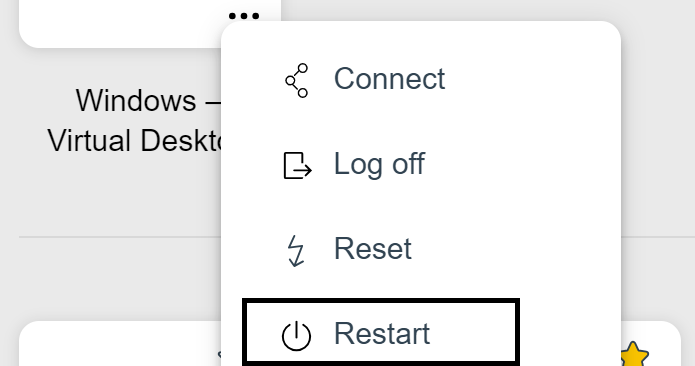
| From the desktop and application selection window | Right-click the desktop icon or click the […] button next to the desktop icon, and select Restart.
 |
| Using a URI | To restart a desktop, use the URI https://ConnectionServerFQDN?desktopId=desktop_name&action=restart. |
Results
The operating system in the remote desktop restarts and the client disconnects and logs out from the remote desktop.
What to do next
Wait an appropriate amount of time for the system to restart before you attempt to reconnect to the remote desktop.
If restarting the remote desktop does not solve the problem, you might need to reset the remote desktop. See Reset Remote Desktops or Published Applications section.
Reset Remote Desktops or Published Applications
You might need to reset a remote desktop if the desktop operating system stops responding and restarting the remote desktop does not solve the problem.
Resetting a remote desktop is the same as pressing the Reset button on a physical PC to force the PC to restart. Any files that are open on the remote desktop are closed and are not saved.
Resetting published applications quits all open applications.
Resetting published applications quits the applications without saving any unsaved data. All open published applications are closed, even applications that come from different RDS server farms.
You can reset a remote desktop only if an administrator has enabled the reset feature for the remote desktop and the remote desktop is powered on. You can reset only one remote desktop at a time.
Procedure
Use the Reset command.
| Option | Description |
|---|---|
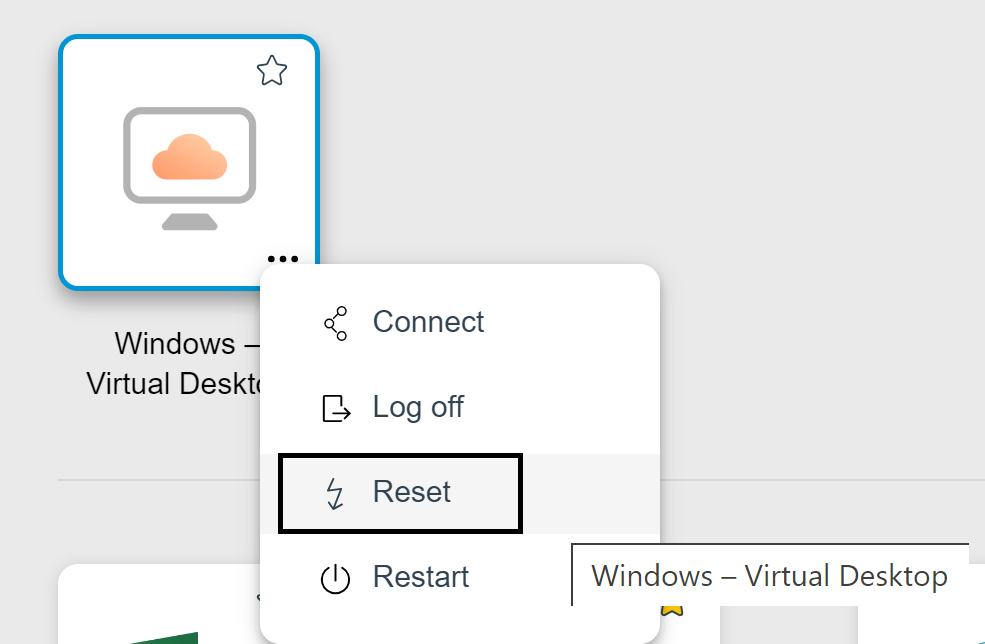
| Reset a remote desktop from the desktop selector window | From the desktop and application selector window, click the […] button next to the desktop icon and select Reset.
 |
| Reset a remote desktop from the sidebar |
|
| Reset a remote desktop using an URI | To reset a remote desktop, use the URI https://ConnectionServerFQDN?desktopId=desktop_name&action=reset. |
| Reset published applications from the application selector window | From the desktop and application selector window, before connecting to a remote desktop or published application, to reset all running published applications, click the Settings toolbar button in the upper-right corner of the screen, and click Reset. |
| Reset published applications from the sidebar | To reset all running applications, click the Open Settings Window toolbar button at the top of the sidebar, and click Reset. |
Results
When you reset a remote desktop, the operating system in the remote desktop restarts and the client disconnects and logs out from the remote desktop. When you reset published applications, the published applications quit
What to do next
Wait an appropriate amount of time for system to restart before attempting to reconnect to the remote desktop or published application.
Was this page helpful?