Using Workspace ONE UEM, you can edit a device profile that has already been installed to devices in your fleet.
Edit Device Profile Settings
Profile settings include changes that manage its distribution only. This distribution includes how the profile is assigned, by which organization group (OG) it is managed, and to/from which assignment group it is assigned/excluded.
-
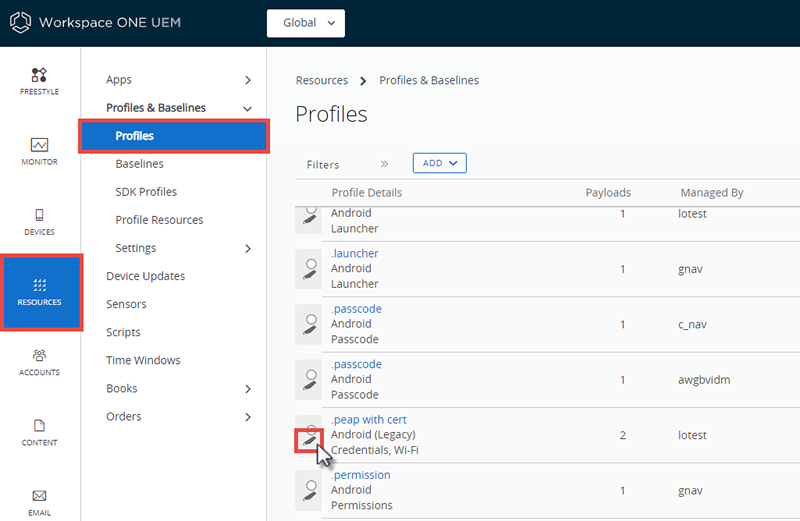
Navigate to Resouces > Profiles & Baselines > Profiles.
-
Locate the profile you want to edit and select its Edit icon (
 ).
).The only profiles that are editable are those profiles that an organization group (or a child organization group underneath) manages.
-
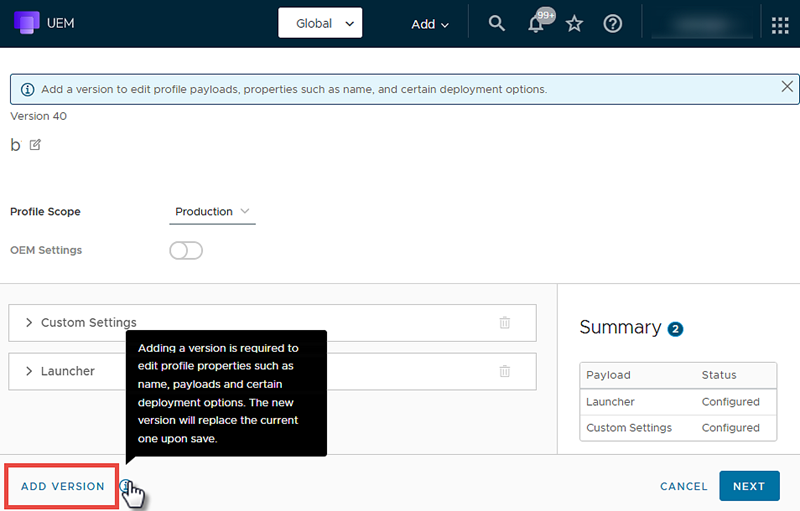
Enable editing that impacts the operation of the device by selecting the Add Version button. Selecting the Add Version button and saving your changes means republishing the device profile to all devices to which it is assigned. This republishing includes devices that already have the profile.
-
Select the Next button to proceed to the Assignment / Deployment screen.
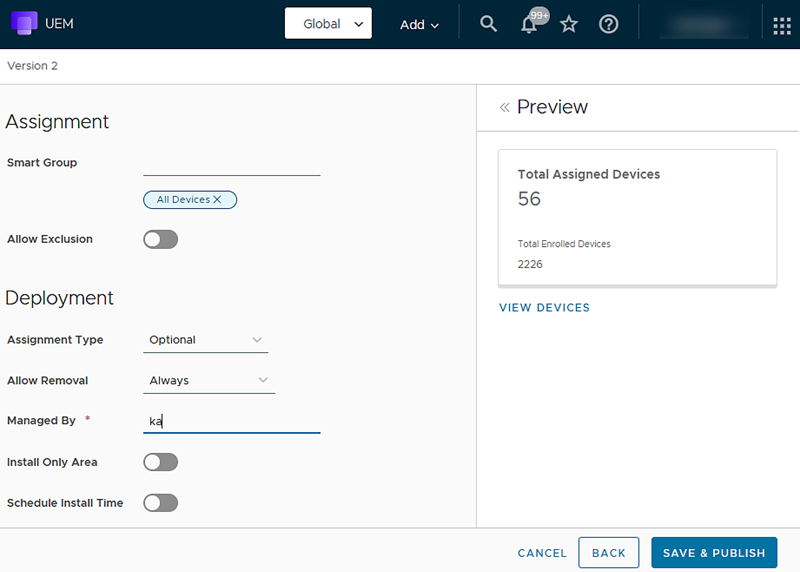
If the Assignment Type for the device profile is Optional instead of Auto, then the entire profile must be reinstalled in order for payload updates to be included on the targeted devices.
-
After completing changes, select Save and Publish to apply the profile to all assigned devices.
Results: The View Device Assignment screen appears, enabling you to confirm the list of currently assigned devices.
For step-by-step instructions on configuring a specific Payload, refer to the applicable Platform Guide, available on docs.omnissa.com:
How to Ensure That Devices Get Updates to Optional Profiles
If the Assignment Type for the device profile you want to update is Optional instead of Auto, then the profile with the updated payload must be delivered in another way. There are two alternate ways to ensure that updates to these optional profiles find their way onto devices.
- Change the Assignment Type for the profile from Optional to Auto.
- Manually install the updated optional profile.
.
Change Assignment Type from Optional to Auto
You can change the profile's Assignment Type from Optional to Auto, which requires the device to receive the device profile including any and all payload updates.
- Navigate to Resources > Profiles & Baselines > Profiles.
- Sort or filter the listing, or execute a keyword search to help you locate the profile with the updated payload that you want to change its Assignment Type.
- Select the Edit icon (
 ) next to the profile listing. The Edit Profile screen displays.
 - Select the Add Version button in the lower-left corner.
- Select the Next button.
- For Assignment Type, change this setting from Optional to Auto.
- Select the Save & Publish button. Since this profile is no longer Optional, it is now treated as an Auto profile which installs itself upon the next device check-in.
.
Manually Install Optional Profiles
If changing the Assignment Type for your device profile from optional to auto is not an option for your environment, the only other option is to manually install the optional profile with the updated payload on each device.
-
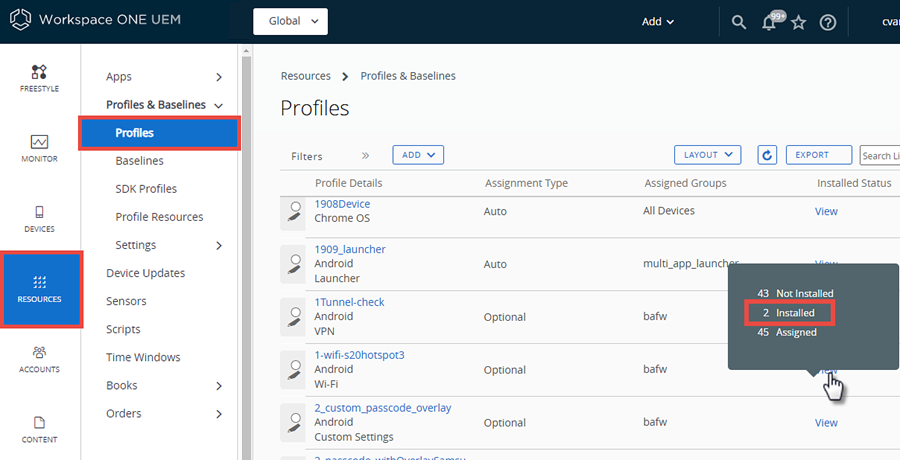
Navigate to Resources > Profiles & Baselines > Profiles.
-
Sort or filter the listing, or execute a keyword search to help you locate the profile with the updated payload that you want to install manually.
-
Locate the Installed Status column in the listing and select the View link that corresponds to your optional profile. A popup displays with device counts for Not Installed, Installed, and Assigned.
-
Select the Installed count. The View Devices screen for the selected profile displays.
On this screen you can find all the devices, listed by friendly name, that have the optional profile in question installed.
-
Right-click the friendly name of the next device in the list and open in a new tab or new window. Switch to the new tab or new window, which shows the Details View for the device you right-clicked.
-
From the Details View for the device, select the Profiles tab.
-
Locate the name of the profile. Refer to the previous tab or window to refresh your memory.
-
Select the radio button to the left of the profile name. You can now see new buttons at the top of the listing.
-
Select the Install button and confirm the selection.
-
Close the tab or window containing the Details View, since you are now done with this device.
-
Repeat steps 5-10 until all the devices in the installed list have the new updated profile installed.
-
Once the last device in the listing has seen a manual installation of the profile, close the View Devices screen.
If you have other optional profiles you must reinstall to capture updated payloads, repeat this task as many times as is required.
Was this page helpful?