Work with your Microsoft service provider to make sure that your managed Microsoft 365 environment is correctly set up before you configure the Microsoft 365 application in the Omnissa Access service for single sign-on.
Note: Microsoft has retired the MSOnline (Connect-MsolService / Set-MsolDomainAuthentication) and AzureAD PowerShell modules. All domain federation management now goes through the Microsoft Graph API using the Microsoft.Graph.Identity.DirectoryManagement module. This guide reflects the current supported workflow.
Prerequisites
- Microsoft 365 subscription: Business Premium or above.
- Entra ID tenant admin access: Global Administrator or Domain Administrator role.
- PowerShell version 5.1 or later. Version 7.0 or later is recommended (
pwsh). - Microsoft Graph PowerShell module:
Microsoft.Graph.Identity.DirectoryManagement. - Entra API permissions:
Domain-InternalFederation.ReadWrite.AllandDomain.ReadWrite.All(delegated or application). - Omnissa Access tenant: an active tenant with a configured WS-Fed / SAML application for Microsoft 365.
- Target domain: the domain registered in the Entra tenant that you want to federate (for example,
corp.example.com). - Attributes:
userPrincipalNameandobjectGUIDorsourceAnchorenabled.
Note: To confirm the installed PowerShell version, run $PSVersionTable.PSVersion and verify that the major version is 7 or higher. PowerShell 7 is available from the official GitHub releases page.
Get the Omnissa Access IdP Metadata and Signing Certificate
Single sign-on configuration for Microsoft 365 applications requires the Omnissa Access signing certificate and endpoint URIs. The IdP metadata URL provides all of these values in one place.
-
Sign in to the Omnissa Access admin console.
-
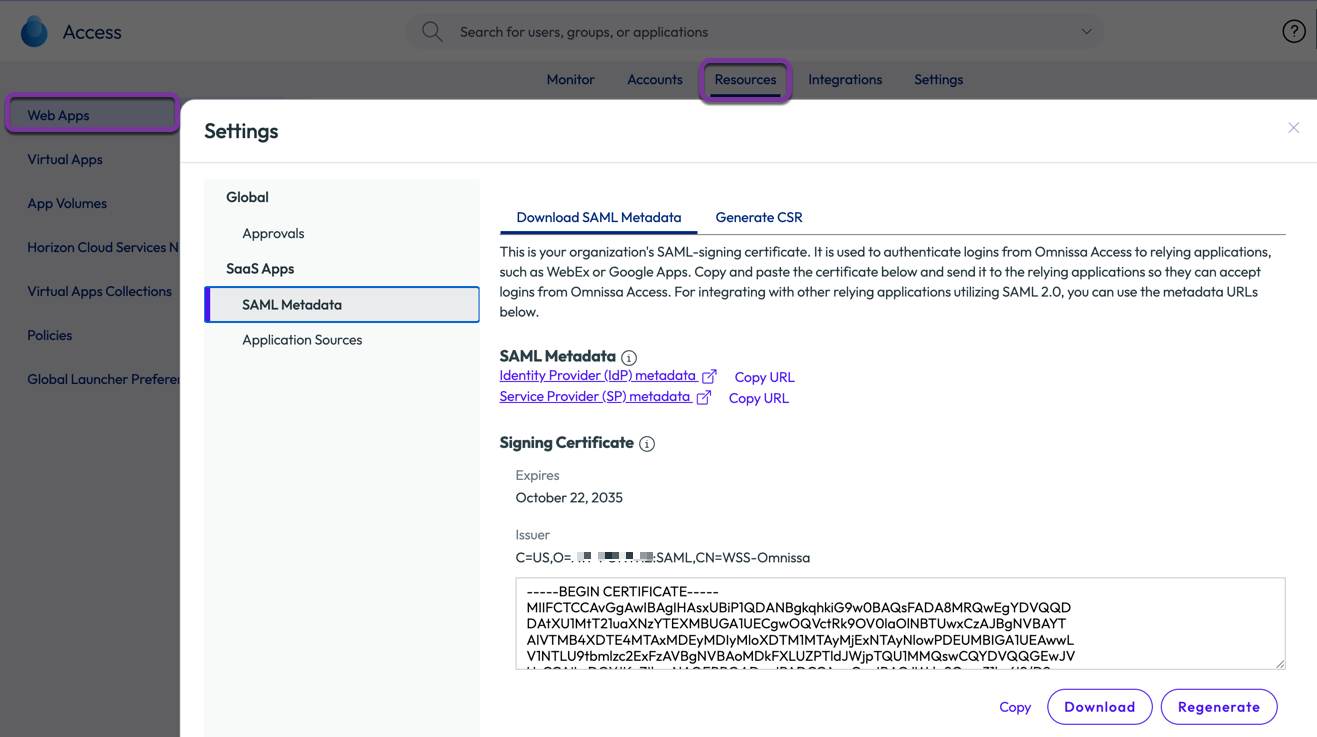
Navigate to Resources > Web Apps > Settings.
-
Click SAML Metadata.
-
Copy the Identity Provider (IdP) Metadata URL. It follows this pattern:
https://<your-access-tenant>/SAAS/API/1.0/GET/metadata/idp.xmlFor example:
https://mycompany.workspaceoneaccess.com/SAAS/API/1.0/GET/metadata/idp.xml -
Open the URL in a browser to confirm it returns an XML document. The document should show a
<EntityDescriptor>root element containing<KeyDescriptor>nodes with the signing certificate. -
From the XML, copy the signing certificate — the Base64 content inside the first
<ds:X509Certificate>element.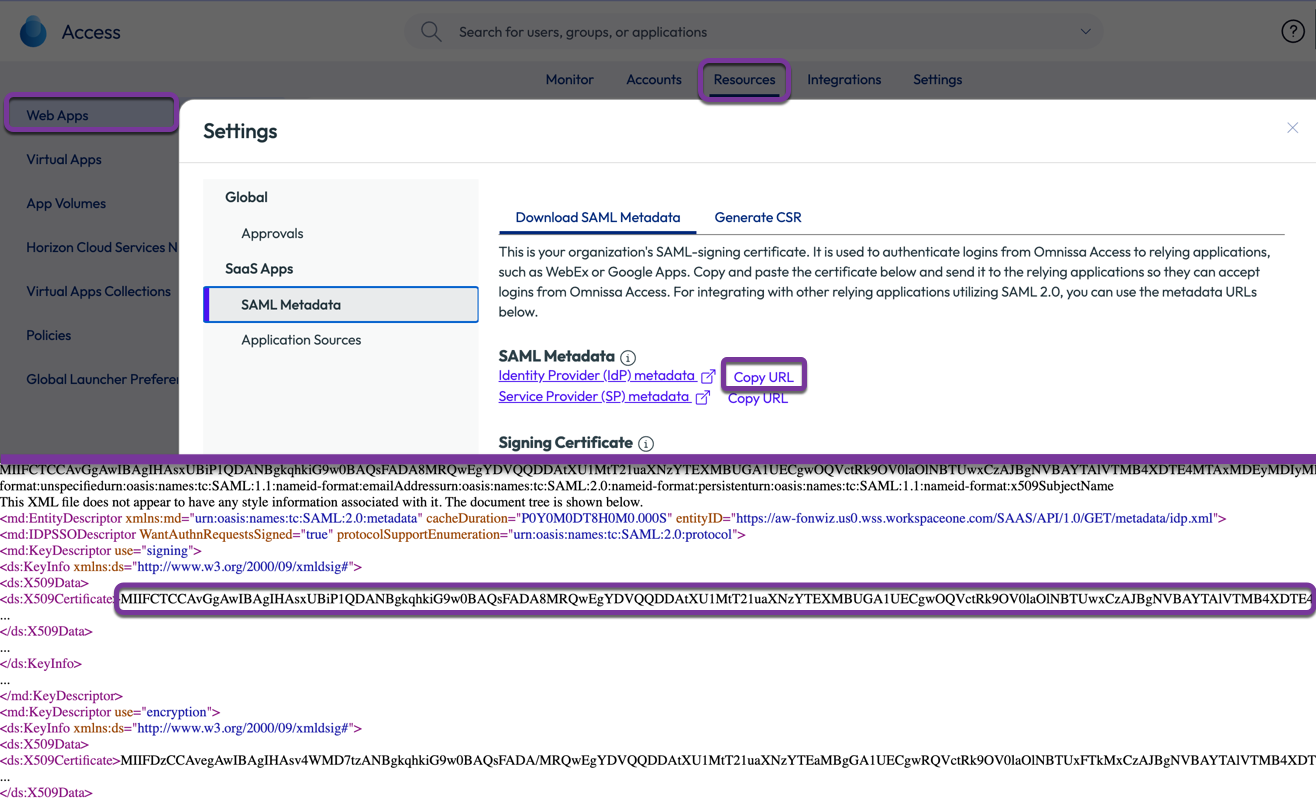
Important: Copy the certificate value exactly as-is — no whitespace, no
-----BEGIN CERTIFICATE-----/-----END CERTIFICATE-----headers, and no line breaks. The entire value must be a single unbroken Base64 string.Use this signing certificate value in the next step, when you build the federation configuration payload.
Install and Import the Microsoft Graph Module
# Install if not already present
Install-Module Microsoft.Graph.Identity.DirectoryManagement -Scope CurrentUser -Force

# Import
Import-Module Microsoft.Graph.Identity.DirectoryManagement
Configure the Federated Domain in Microsoft Entra ID
Convert the Microsoft 365 managed domain to a federated domain to enable single sign-on. Two configuration paths are available: a manual Graph PowerShell procedure (Option A) that completes each step directly, and an open-source automation script (Option B) provided for reference.
If you are configuring multiple tenants, convert each managed domain to a federated domain and update the settings for each domain separately.
Option A — Manual Graph PowerShell (Recommended)
Connect to Microsoft Graph
Connect-MgGraph `
  -TenantId "12345678-1234-1234-1234-123456789012" `
  -Scopes "Domain-InternalFederation.ReadWrite.All", "Domain.ReadWrite.All"
This opens a browser sign-in prompt. Use a Global Administrator or Domain Administrator account.
List the verified domains
Get-MgDomain | Select-Object Id, AuthenticationType, IsVerified
Confirm the target domain appears in the output with IsVerified = True before proceeding.
Collect the endpoint values from the Omnissa Access IdP metadata
All endpoint URLs are derived from the Omnissa Access base hostname (<access-host>):
| BodyParameter field | Value |
ActiveSignInUri | https://<access-host>/SAAS/auth/wsfed/active/logon |
PassiveSignInUri | https://<access-host>/SAAS/API/1.0/POST/sso |
SignOutUri | https://<access-host>/SAAS/auth/wsfed/active/logon |
MetadataExchangeUri | https://<access-host>/SAAS/auth/wsfed/services/mex |
IssuerUri | https://<your-domain>.<access-host> (for example, https://corp.example.com.mycompany.workspaceoneaccess.com) |
PreferredAuthenticationProtocol | wsFed |
Note: When federating several domains against the same Omnissa Access tenant, each domain needs its own domainid query parameter on the passive and MEX endpoints. For example: https://<access-host>/SAAS/API/1.0/POST/sso?domainid=corp.example.com. Update PassiveSignInUri and MetadataExchangeUri accordingly for each domain.
Note: PreferredAuthenticationProtocol is a required parameter. Entra ID accepts a payload without it, but SP/RP-initiated authentication flows fail even though the object shows wsFed.
Build the BodyParameter payload
$bodyParameter = @{
    DisplayName                     = "Example Corp"
    ActiveSignInUri                 = "https://mycompany.workspaceoneaccess.com/SAAS/auth/wsfed/active/logon"
    PassiveSignInUri                = "https://mycompany.workspaceoneaccess.com/SAAS/API/1.0/POST/sso"
    SignOutUri                      = "https://mycompany.workspaceoneaccess.com/SAAS/auth/wsfed/active/logon"
    IssuerUri                       = "https://corp.example.com.mycompany.workspaceoneaccess.com"
    MetadataExchangeUri             = "https://mycompany.workspaceoneaccess.com/SAAS/auth/wsfed/services/mex"
    SigningCertificate              = "<base64-cert-from-idp-metadata>"
    PreferredAuthenticationProtocol = "wsFed"
    FederatedIdpMfaBehavior         = "acceptIfMfaDoneByFederatedIdp"
}
FederatedIdpMfaBehavior options
| Value | Behavior |
acceptIfMfaDoneByFederatedIdp | (Default) Entra accepts MFA performed by Omnissa Access. |
enforceMfaByFederatedIdp | Entra requires that MFA is always performed by Omnissa Access. |
rejectMfaByFederatedIdp | Entra ignores MFA claims from Omnissa Access and performs its own MFA. |
Create the federation configuration
New-MgDomainFederationConfiguration `
  -DomainId "corp.example.com" `
  -BodyParameter $bodyParameter
This creates the WS-Fed federation configuration in Entra ID for the target domain.
Option B — Community Automation Script
For reference, a PowerShell script (New-MgDomainFederation.ps1) is available that automates the metadata fetch, payload construction, and Graph API call in a single run.
Note: This script is provided as an open-source sample and is not an officially supported Omnissa product feature. Review it carefully before use in a production environment.
The script, its documentation, and usage examples are available here:
https://github.com/euc-oss/euc-samples/tree/main/Access-Samples/Entra-Domain-Federation-Management
Verify the Federation Configuration
After running either option, verify the federation configuration.
Get-MgDomainFederationConfiguration -DomainId "corp.example.com" |
  Select-Object DisplayName, IssuerUri, ActiveSignInUri, PassiveSignInUri, MetadataExchangeUri, SigningCertificate
Check that:
IssuerUrimatches the value set during creation.ActiveSignInUriandPassiveSignInUripoint to the Omnissa Access tenant.SigningCertificateis populated (non-empty).- The domain's
AuthenticationTypehas changed toFederated:
Get-MgDomain -DomainId "corp.example.com" | Select-Object Id, AuthenticationType
Expected output:
Id                  AuthenticationType
--                  ------------------
corp.example.com    Federated
Troubleshooting
| Symptom | Likely cause | Resolution |
Connect-MgGraph fails with insufficient permissions | Account lacks Domain Administrator or Global Administrator role | Sign in with the correct admin account |
New-MgDomainFederationConfiguration returns a 400 error | Domain is not yet verified in Entra, or a federation config already exists | Run Get-MgDomain to confirm domain status; use Update-MgDomainFederationConfiguration to update an existing config |
| Signing certificate value rejected | Certificate includes whitespace or header/footer lines | Ensure the value is a single unbroken Base64 string with no -----BEGIN CERTIFICATE----- wrappers |
| Users see an error after federation | Clock skew between Omnissa Access and Entra | Confirm NTP sync on the Omnissa Access server; Entra tolerates a maximum of 5 minutes of clock skew |
AuthenticationType stays Managed | Federation config was created but domain auth type was not updated | Verify that New-MgDomainFederationConfiguration completed without errors |
Legacy Reference — Mapping Old MSOnline Parameters to New Graph Parameters
For an existing configuration built with the retired Set-MsolDomainAuthentication cmdlet, the following table maps the legacy parameters to the new Graph approach.
| Legacy Set-MsolDomainAuthentication | New New-MgDomainFederationConfiguration BodyParameter field |
-DomainName | -DomainId (cmdlet parameter, not in BodyParameter) |
-Authentication Federated | Implied by calling New-MgDomainFederationConfiguration |
-IssuerUri | IssuerUri |
-FederationBrandName | DisplayName |
-PassiveLogOnUri | PassiveSignInUri |
-ActiveLogOnUri | ActiveSignInUri |
-LogOffUri | SignOutUri |
-MetadataExchangeUri | MetadataExchangeUri |
-SigningCertificate | SigningCertificate |
| (not available) | PreferredAuthenticationProtocol — set to wsFed |
| (not available) | FederatedIdpMfaBehavior — controls MFA claim handling |
Additional Resources
- New-MgDomainFederationConfiguration cmdlet reference
- Microsoft Graph PowerShell SDK installation guide
- Omnissa Access admin console: Resources > Web Apps > Settings > SAML Metadata
Was this page helpful?