Workspace ONE UEM lets you manually stage your devices to connect to Wi-Fi, download the Omnissa Workspace ONE Intelligent Hub, and enroll automatically with a Staging Package. This method does not use the Rugged Enrollment wizard.
Creating a staging package manually means only specifying the user account, Organization Group, and Hub version for enrollment.
PROCEDURE
-
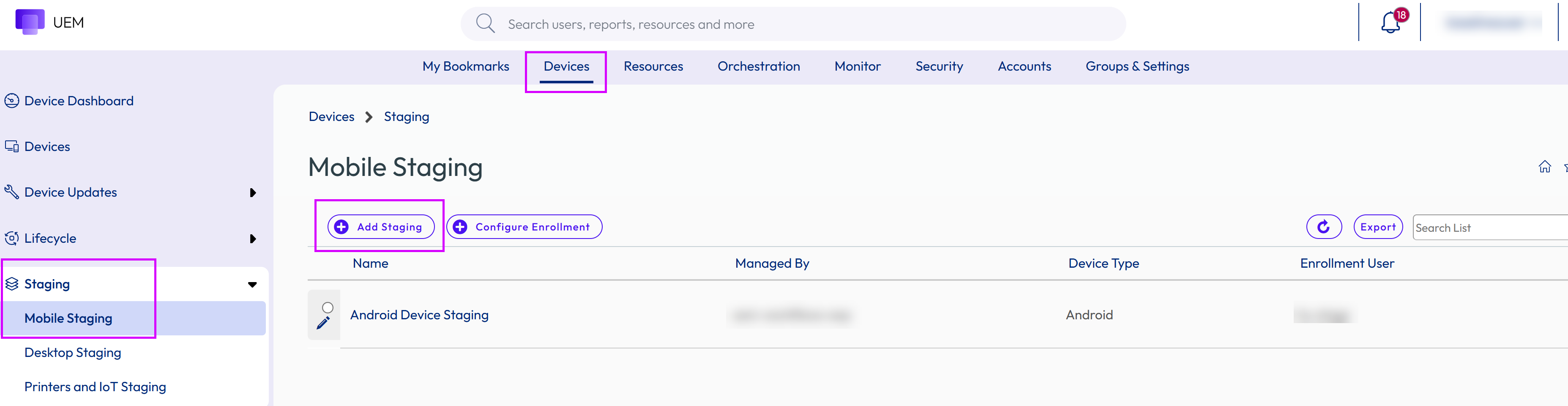
Navigate to Devices > Staging > Mobile Staging and select the Add Staging button.
-
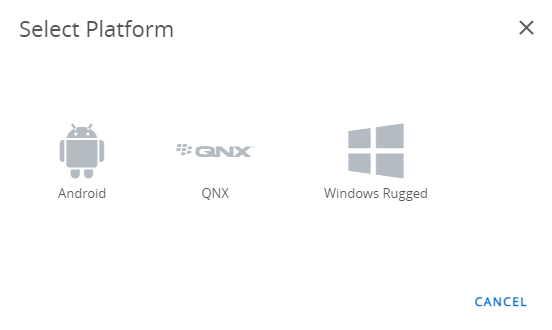
Select the Platform for which you want to create a staging configuration.
The Staging Add screen displays.
-
Complete the required text boxes on the General tab.
Settings Description Name Enter the name of the staging configuration. Description Enter the description of the staging configuration. Owned By Select the organization group under which the staging package applies. Enrollment User Enter the user name of the enrollment user.
You can search for and select an existing user by clicking the magnifying glass icon. You can also add a user by selecting Add User at the bottom of the drop-down menu.Password Enter the password for the enrollment user.
You have the option of keeping the password redacted or displaying it as written.Hub Select an existing Workspace ONE Intelligent Hub package from the drop-down listing which is downloaded during staging.
You can also add the Workspace ONE Intelligent Hub package by selecting Add Workspace ONE Intelligent Hub at the bottom of the drop-down menu.
These agents are uploaded as the Workspace ONE Intelligent Hub Package. See Upload a Workspace ONE Intelligent Hub APF File, Upgrade File-Action for more information.Passkey If you are enrolling a Zebra device with a Stage Now barcode and you are using a version of Intelligent Hub older than 24.7, then you must define a passkey. This passkey must be entered by the device end user when they enroll with the Stage Now barcode. Therefore, you must communicate this passkey to the end user. -
Select Save.
What to do next
You can configure additional settings by adding them to the Staging Package Manifest. Wi-Fi profiles can also be added to the manifest for staging barcodes. Proceed to the Add a Manifest to Your Staging Package task.
此頁面對您有幫助嗎?