Simplify rugged device enrollment in Workspace ONE UEM through the Enrollment Configuration wizard. This wizard helps you complete each step in creating a staging package for your Android and Windows Rugged devices.
PROCEDURE
-
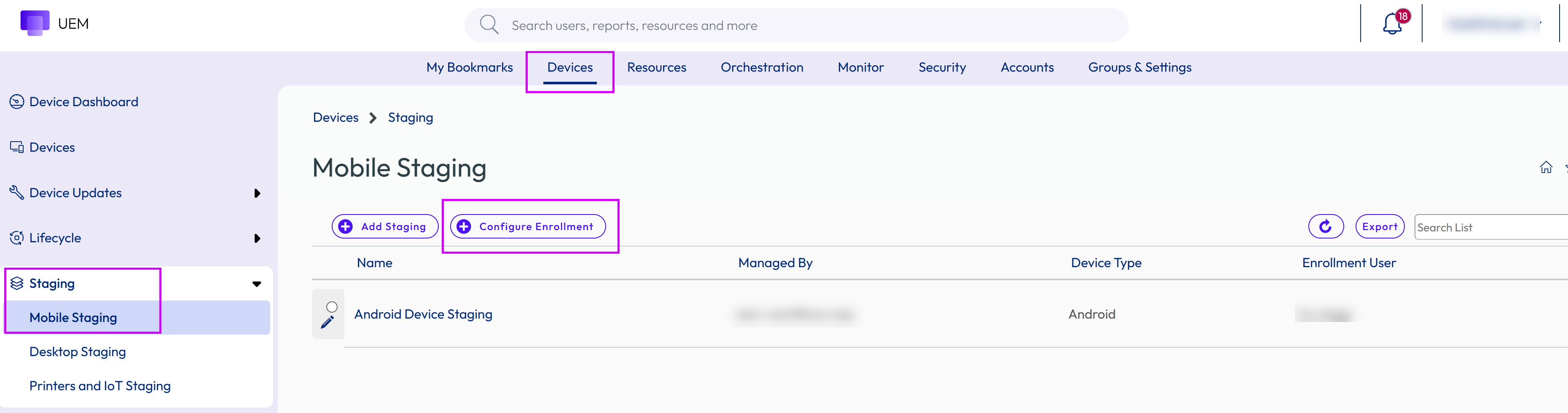
Navigate to Devices > Lifecycle > Staging > List View and select the Configure Enrollment button.
-
Select the device platform you want.
-
Select the staging enrollment type.
The settings you must configure change based on the enrollment type selected.
- QR Code (Android 7.0 and later only) – Create a QR Code to scan with your Android Work Managed devices to quickly stage the device. The wizard simplifies the configuration process.
- Barcode (Android 6.x and earlier only) – Create a barcode to scan with your Zebra rugged devices to quickly stage the device. The wizard simplifies the barcode configuration process.
- Zebra devices running Android 7.0 and later must follow Attach a Barcode to a Staging Package.
- Web (Windows Rugged only) – Configure a Web URL that users can browse to from a device to download a Staging Package that automatically configures and enrolls the rugged device. In this method, users are guided through an enrollment wizard.
-
Select Configure.
此頁面對您有幫助嗎?