Workspace ONE UEM is flexible with PKI integration by being able to request certificates from either internal or external certificate authorities (CA). This article explains how to integrate with Enterprise Java Beans Certificate Authority (EJBCA) services to issue certificates for your Workspace ONE UEM MDM solution.
Important: If you select Key Recoverable as part of an EJBCA backed certificate configuration, then this defaults to the certificate private key generation taking place in the CA instead of within Workspace ONE UEM. In this scenario, it is important to understand your certificate renewal frequency to ensure the amount of certificates that are renewed daily can be supported by the CA infrastructure. Properly scaling the CA infrastructure and the certificate renewal period will keep daily certificate requests from exceeding your CA’s capacity.
Integrating with EJBCA
To have Workspace ONE UEM communicate with EJBCA for certificate distribution, you must have an EJBCA instance configured and ready to issue certificates. Then, configure Workspace ONE UEM to communicate with EJBCA using certificate based authentication. Once communication is successfully established, define how to deploy certificates to devices. Below are some of the examples of how EJBCA and Workspace ONE UEM can be configured.
- Scenario 1: Workspace ONE UEM SaaS with EJBCA installed on-premises.
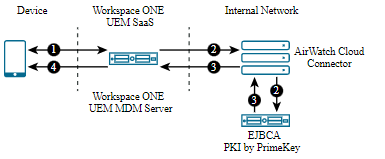
- Device enrolls with Workspace ONE UEM.
- Workspace ONE UEM requests certificate from EJBCA endpoint (optionally through the AirWatch Cloud Connector).
- The EJBCA endpoint delivers the certificate to Workspace ONE UEM (optionally through the AirWatch Cloud Connector).
- Workspace ONE UEM delivers the certificate to the device as part of an EAS, VPN, or WiFi profile.
If your EJBCA endpoint is public-facing, then it must be protected by a public SSL certificate. If you are using AirWatch Cloud Connector, then it needs to be configured to trust the root certificate installed on your EJBCA appliance.
- Scenario 2: Workspace ONE UEM and EJBCA both installed on-premises.
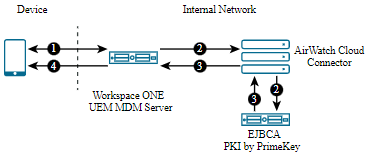
- Device enrolls with Workspace ONE UEM.
- Workspace ONE UEM requests certificate from EJBCA endpoint (optionally through the AirWatch Cloud Connector).
- The EJBCA endpoint delivers the certificate to Workspace ONE UEM (optionally through the AirWatch Cloud Connector).
- Workspace ONE UEM delivers the certificate to the device as part of an EAS, VPN, or WiFi profile.
If your EJBCA endpoint is public-facing, then it must be protected by a public SSL certificate. If you are using AirWatch Cloud Connector, then it needs to be configured to trust the root certificate installed on your EJBCA appliance. See Configuring AirWatch Cloud Connector to trust EJBCA for more information.
Prerequisites
- An EJBCA instance that is configured for certificate deployment.
- Workspace ONE UEM console version 2310 or later.
- If your EJBCA appliance is public-facing, it must be protected with a Public SSL Certificate. If you are using AirWatch Cloud Connector for enterprise integration, then it needs to be configured to trust the root certificate installed on your EJBCA appliance.
Procedure
-
Generate an EJBCA certificate.
-
Configure the CA and the request template in the Workspace ONE UEM console.
- Configure the CA.
- Navigate to Devices > Certificates > Certificate Authorities.
- Click Add and complete the following menu options.
Option Description Authority Type EJBCA Server URL Enter the URL of your EJBCA instance. This is the web endpoint that Workspace ONE UEM uses to submit requests and issue certificates.
Certificate Select to Upload the certificate from the location on your PC to which it has been saved. SAN Include one or more Subject Alternate Names (SANs) with the template. This is used for additional unique certificate identification. In most cases, this needs to match the certificate template on the server. Use the drop-down menu to select the SAN Type and enter the subject alternate name in the corresponding data entry field. Each field supports lookup values. - Click Save.
- Configure the CA.
-
Configure Workspace ONE UEM profiles (payloads). Once either of these profiles is created, you can create additional payloads that the EJBCA certificate can use, such as Exchange ActiveSync (EAS), VPN, or Wi-Fi services.
- Navigate to Devices > Profiles > List View.
- Click Add.
- Select the applicable platform for the device type.
- Specify all General profile parameters.
- Select Credentials from the payload options and select Configure.
- Select Defined Certificate Authority from the Credential Source drop-down menu.
- Select the external EJBCA certificate you created previously.
- Select the request template for EJBCA you created previously. Saving and publishing the profile would deploy a certificate to the device. If you plan on using the certificate on the device for Wi-Fi, VPN, or email purposes, you should also configure the respective payload in the same profile to leverage the certificate being deployed.
-
Optional: If you are using AirWatch Cloud Connector and the EJBCA appliance is not public-facing, then you need to ensure the AirWatch Cloud Connector configuration trusts the appliance.
- Open the EJBCA console certificate and view the Certificate Path tab.
- If multiple certificates are listed, they will need to be separated and added to the appropriate stores.
- The remaining steps address adding the root certificate to the Trust Root Store.
- Open MMC by searching for it using Windows search and launching the mmc.exe file.
- Navigate to File > Add/Remove Snap-in. The Add or Remove Snap-ins screen displays.
- In the left pane, select the Certificates snap-in. Select Add.
- Select Computer account as Snap-in source. Select Next.
- Select Local computer and then select Finish.
- Select OK.
- Expand the newly added Certificates tree.
- Expand the Trusted Root Certification Authorities folder.
- Right-click the Certificates folder here. Select All Tasks > Import.
- Proceed through the Certificate Import Wizard. You will be prompted to Browse. 12. Select the file of the root certificate used to generate the EJBCA Console certificate. Select Next.
- Select Place all certs in the following store and then select Next.
- Click Finish.
- Select all other intermediate and child certificates to add them to their associated stores within the Certificates tree.
- Open the EJBCA console certificate and view the Certificate Path tab.
Integration Tips and Troubleshooting
-
Verify ability to perform certificate authentication without Workspace ONE UEM.
Remove Workspace ONE UEM from the configuration and manually configure a device to connect to your network server using certificate authentication. This should work outside of Workspace ONE UEM and until this works properly, Workspace ONE UEM will not be able to configure a device to connect with a certificate. -
Verify ability to perform certificate authentication with Workspace ONE UEM.
You can confirm that the certificate is usable by pushing a profile to the device and testing whether or not the device is able to connect and sync to the configured EAS, VPN, or Wi-Fi access-point. If the device is not connecting and shows a message that the certificate cannot be authenticated or the account cannot connect then there is a problem in the configuration. Below are some helpful troubleshooting checks. -
If SSL TLS errors are received while creating a template.
- This error can occur when you attempt two tasks.
- Create a Workspace ONE UEM certificate template byselecting the Retrieve Profiles button.
- Retrieve a certificate from the Workspace ONE UEM console from the SecureAuth certificate authority.
- The troubleshooting technique that usually resolves this problem is adding the required server certificate chain in the console servers trusted root key store.
- This error can occur when you attempt two tasks.
-
If the Workspace ONE UEM certificate profile fails to install on the device.
- Inform Workspace ONE UEM Professional Services of the error and request they:
- Turn on Verbose Mode to capture additional data.
- Retrieve the web console log.
- Workspace ONE UEM analyzes the log and works with customer to resolve the problem.
- Inform Workspace ONE UEM Professional Services of the error and request they:
-
If the certificate is not populated in the View XML option of the profile.
- Confirm that lookup values configured on the EJBCA certificate profile match the look up values in the Workspace ONE UEM console request template.
- Confirm that lookup values in Workspace ONE UEM request template are actually populated in the user information being pulled from AD.
- Confirm you are pointing to the right profile in EJBCA.
Was this page helpful?