Client desired configurations determine the Connection Server enforcement state and client certificate checking mode. Horizon Clients 2306 and higher support this setting.
-
In Horizon Console, click Settings > Global Settings.
-
Click Client Desired Configuration.
-
Click Edit.
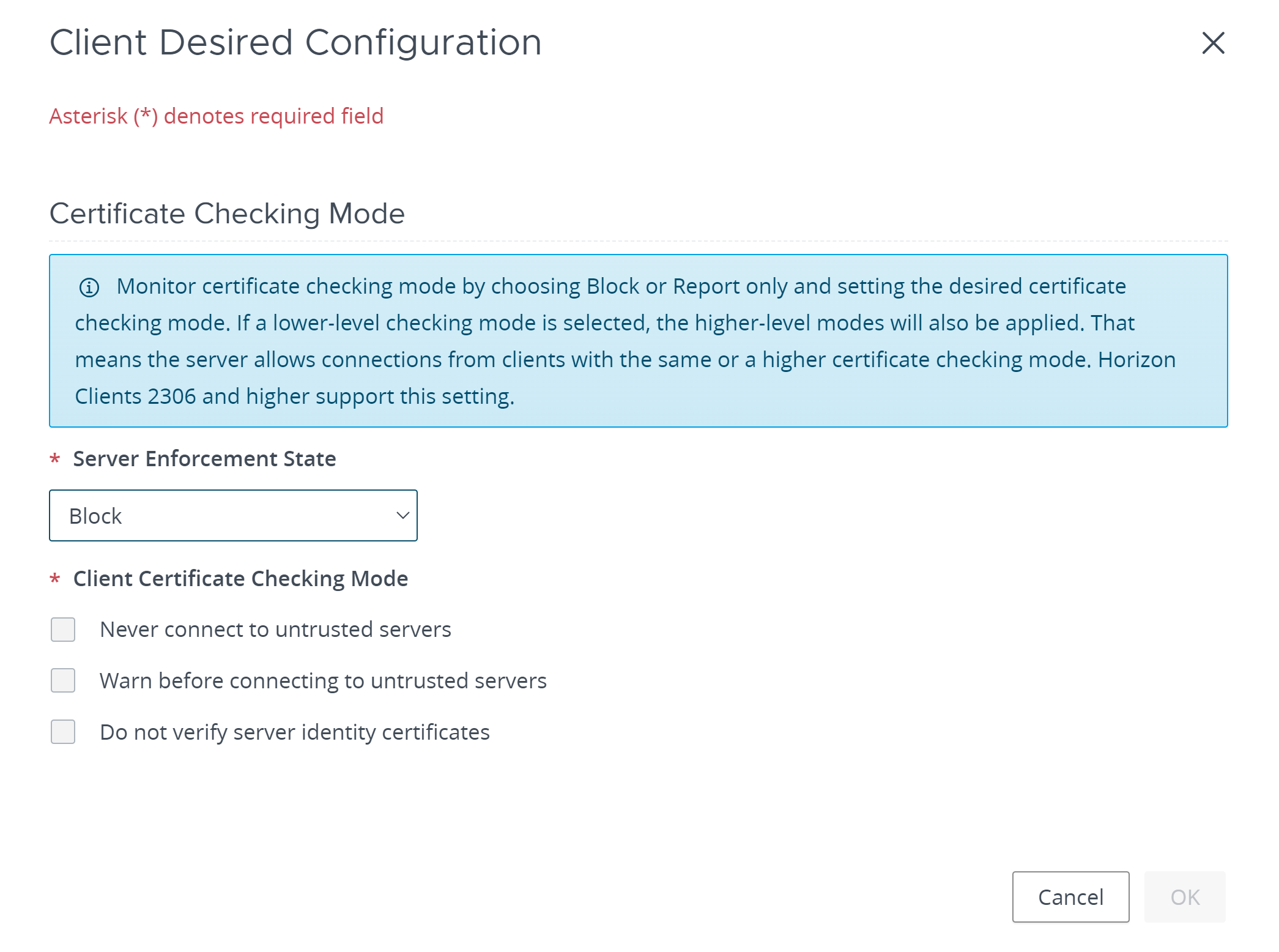
Only clients that report this feature are allowed to connect to the server.
4. Select the desired Server Enforcement State: - Block indicates that Connection Server will drop connection requests from Horizon Client if certificate check is not enforced. This state is supported only for Horizon Windows client 2306 and later. - Report only indicates that Connection Server will note the Horizon Client certificate setting but will not block any connections. This state is supported for all clients. - Do not monitor indicates that Connection Server will not check the Horizon Client certificate setting. This state is supported for all clients. 5. For the Block or Report only server enforcement state, select one or more Client Certificate Checking Mode options. Horizon Client sessions with the specified security setting (or higher) will be allowed to connect. Sessions that are less secure than the selected option will be blocked. - Never connect to untrusted servers is the highest security setting. If the Horizon Client session certificate check fails, the connection will be dropped. - Warn before connecting to untrusted servers will display a warning when an untrusted session attempts to join a Connection Server. You can specify whether to proceed. - Do not verify server identity certificates indicates that client session certificates will not be checked. 6. Click OK.
The settings take effect immediately. You do not need to restart Connection Server or Horizon Client.
Was this page helpful?