Before you start the migration process in Omnissa Identity Service, you must complete certain directory prerequisites.
Migration is supported for the following directory configurations:
- A Workspace ONE UEM directory (with no directories configured in the associated Omnissa Access tenant)
- A Workspace ONE UEM directory and a single Omnissa Access directory (both using the same Active Directory as the source and containing the same users and groups)
- A Workspace ONE UEM directory and a single Omnissa Access directory of type Other with the AirWatch Provisioning app configured to sync users and groups from Omnissa Access to Workspace ONE UEM
The prerequisites and configuration tasks that you perform in Step 1: Complete Directory Service Prerequisites and Configuration depend on your current Workspace ONE UEM and Omnissa Access directory configuration.
Prerequisites
You have followed the Getting Started procedure and can access the migration wizard.
Procedure
-
In the Omnissa Connect console, select Identity Management > End User Management from the left pane.
-
Click Launch End User Management.
Omnissa Identity Service opens in a new tab in the browser.
-
In the Omnissa Identity Service tab, click Get Started, then click Next in the System Requirements popup window.
-
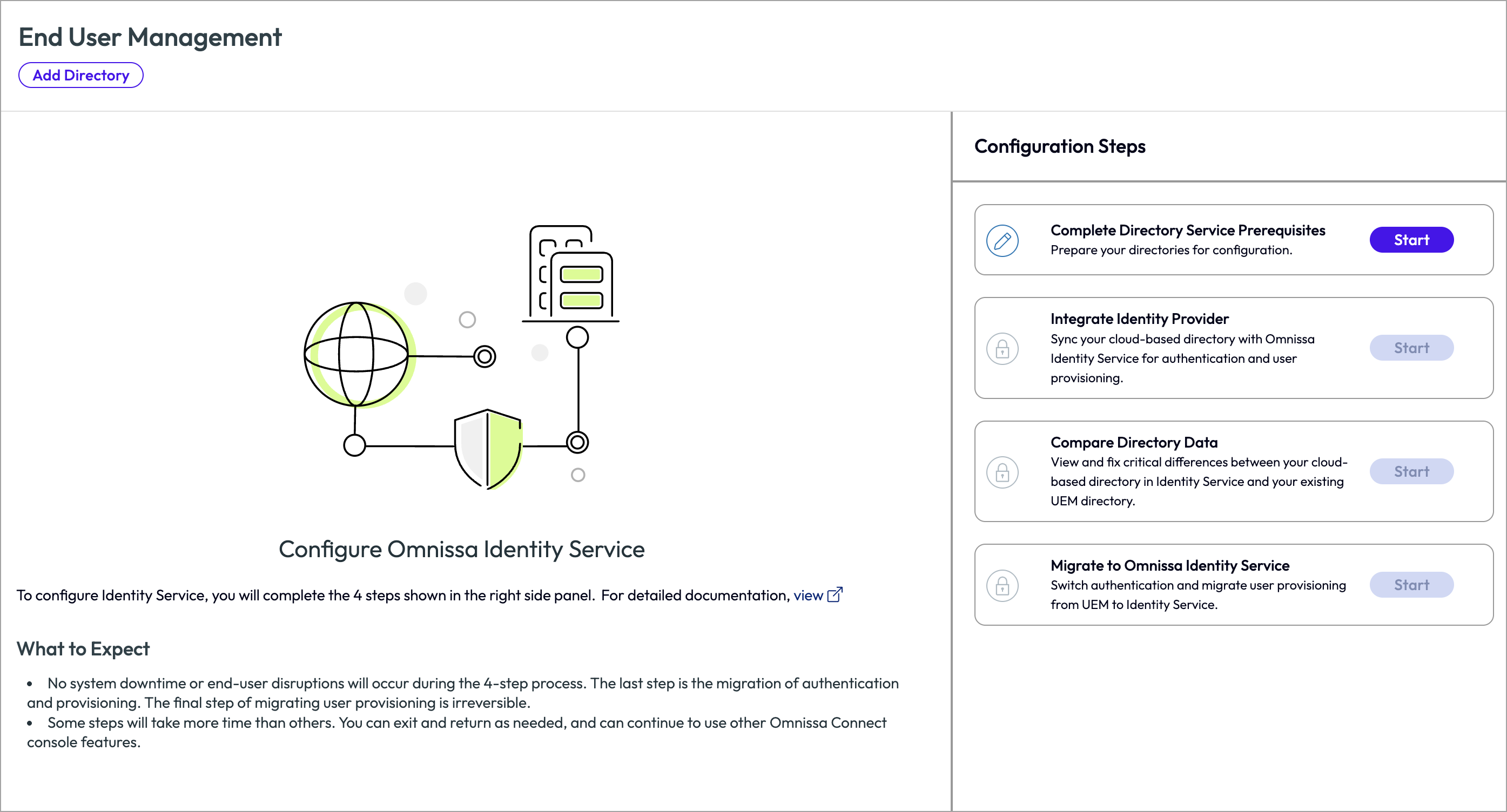
In the Configure Omnissa Identity Service page, under Configuration Steps on the right, click Start in the Complete Directory Service Prerequisites box.
-
(Applicable when migrating both Workspace ONE UEM and Omnissa Access directories) If any errors are detected in your Omnissa Access directory configuration related to SAML IDP settings such as Name ID Format, they appear as banner messages at the top of the page. Review the error messages and use the Troubleshooting information to resolve the errors before proceeding.
-
In step 1, Complete Directory Service Prerequisites, review and complete the prerequisites.
- Prerequisite: All synchronized end users and groups are in one identity provider
- Prerequisite: Prepare Active Directory nested groups for migration
- Prerequisite: All Workspace ONE UEM and Omnissa Access directory admins have administrator accounts in Omnissa Connect
- Prerequisite: Remove UEM Basic user accounts from custom user groups synced from Omnissa Access (AirWatch Provisioning app use case)
-
Verify that you have completed all the prerequisites by checking the boxes next to each prerequisite.

-
Click Next to proceed to the configuration steps.
-
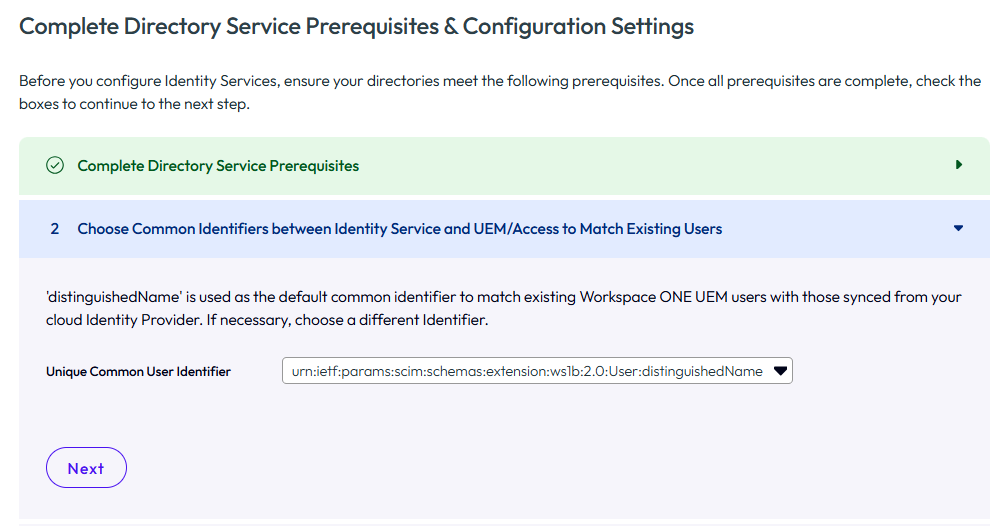
In step 2, select the unique, common identifier to match existing Workspace ONE UEM and Omnissa Access users with those synced from your identity provider to Omnissa Identity Service.
By default, distinguishedName is used as the common identifier for users. See "Critical Considerations" in Getting Started with Migration for more information.
Caution: Make the decision about which attribute to use as the common identifier carefully. To change the common identifier later in the migration process, you will have to delete the Identity Service directory and restart migration.
-
In step 3, select the unique, common identifier to match existing Workspace ONE UEM and Omnissa Access groups with those synced from your identity provider to Omnissa Identity Service.
The default common identifier for groups is distinguishedName for all identity providers except Okta. For Okta groups, displayName is used as the default. If you are migrating an Omnissa Access directory with the AirWatch Provisioning app configured, displayName is recommended as the common identifier for groups.
See "Critical Considerations" in Getting Started with Migration for more information about the common identifier.
Caution: Make the decision about which attribute to use as the common identifier carefully. To change the common identifier later in the migration process, you will have to delete the Identity Service directory and restart migration.

-
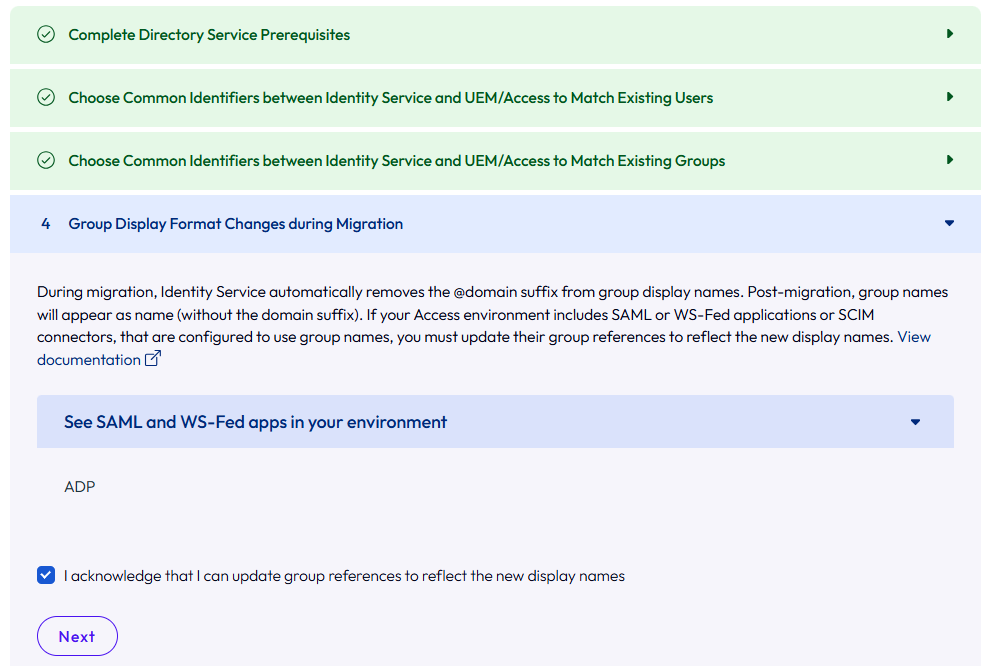
(Applicable when migrating both Workspace ONE UEM and Omnissa Access directories) In step 4, review the information about how the Omnissa Access group display name format will change after migration and acknowledge that you will update any affected configurations manually.
In Omnissa Access, groups synced from Active Directory use the display name groupname@domain. Omnissa Access adds the @domain suffix to the Active Directory group name. When these groups are migrated to Omnissa Identity Service, the @domain suffix will be removed. After migration, groups in Omnissa Identity Service, Omnissa Access, and Workspace ONE UEM will all use the display name groupname.
This change affects SAML applications, WS-Fed applications, and SCIM connectors in Omnissa Access that are configured to use group names. You must update those configurations manually to use groupname instead of groupname@domain.
A list of SAML and WS-Fed applications that are affected by this change is displayed. Save the information so that you can update the configurations after migration. Look for any SCIM connectors that are affected as well.
For example:
-
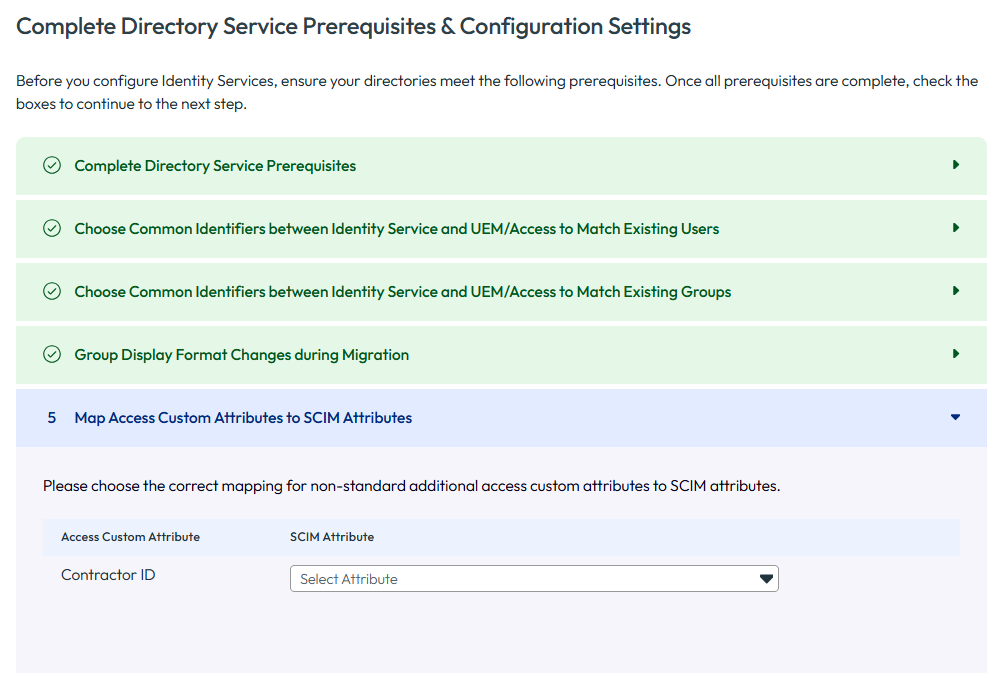
(Applicable when migrating both Workspace ONE UEM and Omnissa Access directories) In step 5, map Omnissa Access custom attributes, if any, to SCIM attributes.
If you sync any custom attributes to your Omnissa Access directory, map those custom attributes to SCIM attributes (Omnissa Identity Service attributes).
The Access Custom Attributes list is populated with the custom attributes that were added in the Omnissa Access console Settings > User Attributes page.
For example:
-
Carefully review and verify all your selections on this page before proceeding to the next step in the migration process, as you cannot change these selections later.
Prerequisite: All synchronized end users and groups are in one identity provider
Before you migrate to Omnissa Identity Service, you must:
-
Ensure that all users and groups that synchronize from Active Directory to Workspace ONE UEM have also been synchronized from Active Directory to your cloud identity provider.
See your identity provider documentation for information. For Entra ID, you can use applications such as Microsoft Entra Connect. Refer to the Microsoft documentation, for example: Microsoft Entra Connect Reference. For Okta, you can use the Okta Active Directory Agent.
-
Synchronize required attributes
When you synchronize users and groups from Active Directory to your cloud identity provider, only a limited set of attributes are synchronized by default. You must also synchronize the attributes that are required for the migration to Omnissa Identity Service. See Attributes Required for Migration to Omnissa Identity Service.
Important: Try to map user and group attributes in your identity provider as closely as possible to the mappings you currently have in your Workspace ONE UEM environment.
Prerequisite: Prepare Active Directory nested groups for migration
-
If Microsoft Entra ID is the identity provider
Microsoft Entra ID does not support provisioning of nested groups. See Microsoft Entra service limits and restrictions.
If you currently sync Active Directory nested groups to Workspace ONE UEM, you must either flatten them in Active Directory or follow the process Omnissa Identity Service provides for syncing nested groups. See Migrating Nested Groups for more information.
Regardless of which option you choose, you must prepare the nested groups for migration before starting the migration process.
-
If Okta is the identity provider
This prerequisite does not apply to Okta. No action is required.
-
If you are using a generic SCIM 2.0 identity provider
Refer to the identity provider documentation to learn how nested groups are handled.
Prerequisite: All Workspace ONE UEM and Omnissa Access directory admins have administrator accounts in Omnissa Connect
All Workspace ONE UEM and Omnissa Access directory administrators must be migrated to Omnissa Connect. See the Omnissa Connect documentation for information.
Omnissa Identity Service will not migrate any Workspace ONE UEM or Omnissa Access directory administrators.
For additional role requirements, see Getting Started.
Prerequisite: Remove UEM Basic user accounts from custom user groups synced from Omnissa Access (AirWatch Provisioning app use case)
This prerequisite applies only to the following scenario:
- You are migrating both a Workspace ONE UEM directory and an Omnissa Access directory.
- You are using the AirWatch Provisioning app to provision users and groups from Omnissa Access to Workspace ONE UEM.
- You intend to continue supporting Workspace ONE UEM Basic user accounts after migration to Omnissa Identity Service.
When you use the AirWatch Provisioning app, groups provisioned from Omnissa Access are created as Custom user groups in Workspace ONE UEM. If you subsequently added any Basic users to these groups in Workspace ONE UEM, we recommend that you remove them from the groups before starting the migration process. Otherwise, these Basic users will be automatically removed from the groups during migration.
You should also be aware that after migration, the group type will be different. Custom user groups provisioned from Omnissa Access using the AirWatch Provisioning app will be converted to Directory user groups. This conversion reflects the correct group type, as these groups are managed by your identity provider rather than being custom groups created in Workspace ONE UEM.
Additionally, make sure that all the required groups have been added to the AirWatch Provisioning app before starting migration. You cannot add groups to the app during migration. If you want to do so, you will have to delete the Identity Service directory, deactivate Omnissa Identity Service, and restart migration.
You can deprovision groups and provision or deprovision users during migration.
Was this page helpful?