The Security Events Service can transmit security events to multiple subscribers, such as Okta and Apple. You configure the subscribers in the Security Events Service console and select the types of events to transmit to them.
The service can transmit the following events, which are generated by Omnissa Access or Workspace ONE UEM:
- Session Revoked: Signals that a user has been disabled in Omnissa Access. This event corresponds to the CAEP Session Revoked event in the SSF standard.
- Credential Change: Signals that a user's credentials changed in Omnissa Access. This event corresponds to the CAEP Credential Change event in the SSF standard.
- Device Compliance: Signals that a device’s compliance status in Workspace ONE UEM has changed. This event corresponds to the CAEP Device Compliance Change event in the SSF standard.
Prerequisites
-
You must have the following privileges:
- An administrator role in Omnissa Connect
- Super Admin role in Workspace ONE UEM (to transmit Device Compliance Change events)
- Super Admin role in Omnissa Access (to transmit Session Revoked and Credential Change events)
-
If you are configuring Okta as a subscriber, you need the Okta audience URL, which is your Okta tenant URL.
-
If you are configuring Apple as a subscriber, you must create the ABM SCIM app in the Omnissa Access console before configuring the Security Events Service. See Configuring Omnissa Access as an Identity Provider for Apple Business Manager or Apple School Manager.
Add a Subscriber in the Security Events Service
-
Log in to Omnissa Connect.
-
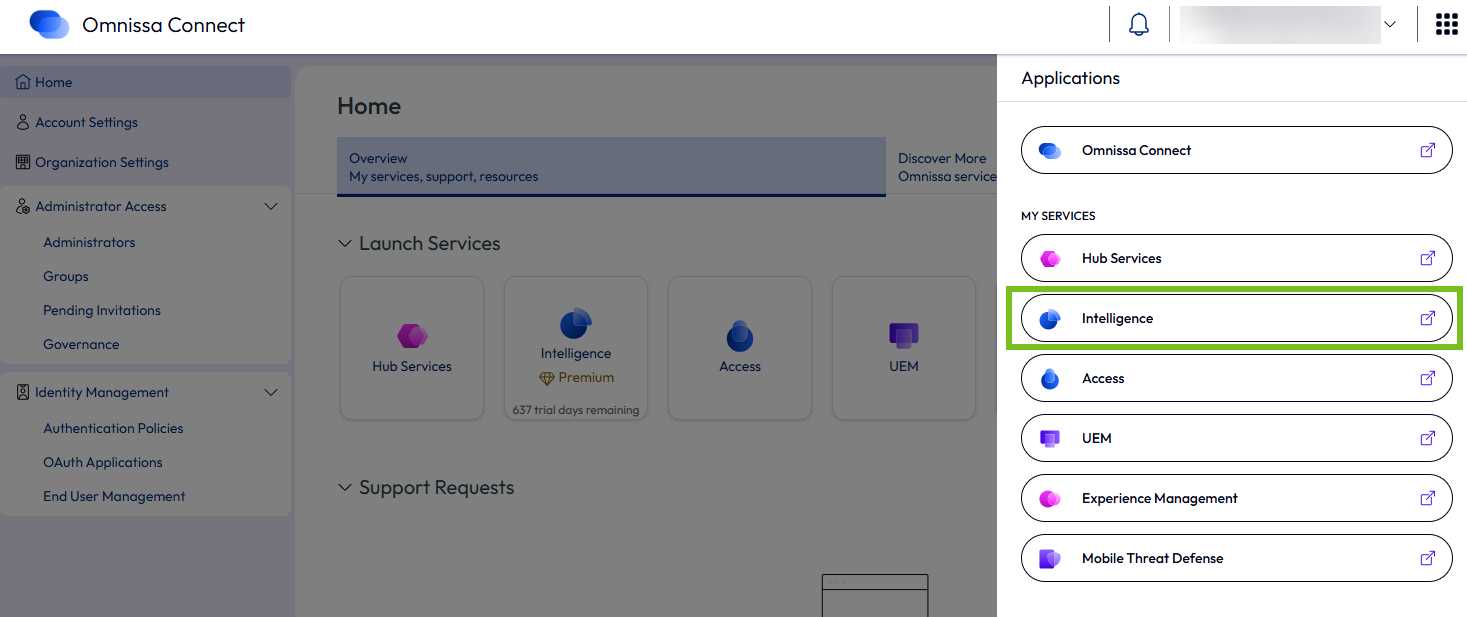
From the menu at the top-right corner, select Intelligence to go to the Intelligence console.
-
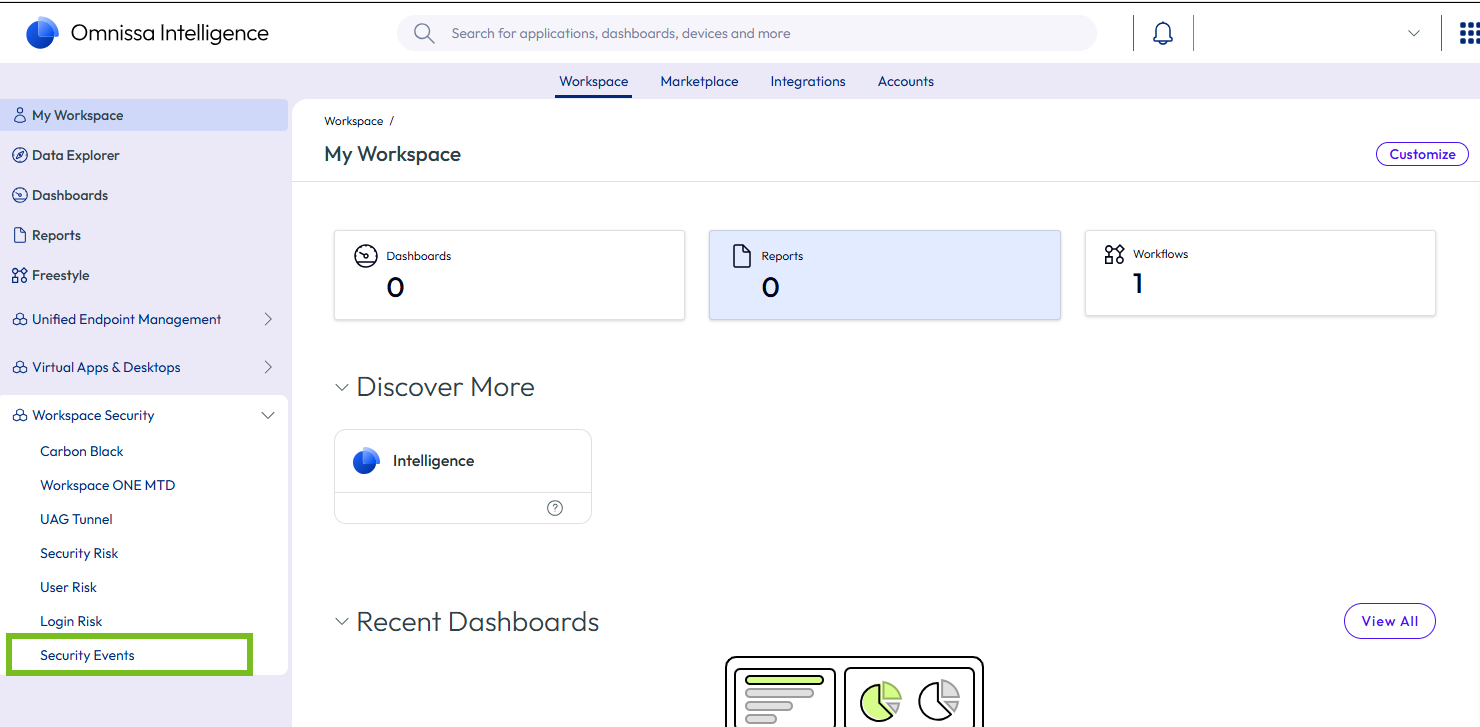
In the Intelligence console, select Workspace Security > Security Events from the left pane.
-
Click Launch Security Events.

The Security Events Service console appears in a new tab.
-
Do one of the following, based on your scenario.
If no sources or subscribers are configured yet in the Security Events Service, an overview page appears.
-
Review the information and click Get Started.
-
Select Subscriber and click Next to follow the Getting Started wizard that guides you in creating your first subscriber.

If you have already configured a source or subscriber, the overview page and wizard do not appear.
- Select the Subscribers tab.
- Click Add.
Note: The next steps describe the Getting Started wizard flow. If you are adding a subscriber from the Subscribers tab, the user interface is slightly different.
Getting Started wizard:

-
-
In the Getting Started wizard, in Step 1: Source, click View.
Workspace ONE UEM and Omnissa Access are supported as internal sources. The source is automatically selected based upon the subscriber you select later in the configuration. You do not need to explicitly select a source.

-
In Step 2: Configure Subscriber, click Start and enter the required information.
The information required varies based upon the third-party solution with which you are integrating.
Apple
- Subscriber Name: Enter a descriptive name by which you can easily identify the subscriber in the Security Events Service console. For example, Apple Business Manager.
- Partner: Select Apple.
- Client ID: Copy and paste the Client ID from the ABM SCIM app that you created in Omnissa Access. See Configuring Omnissa Access as an Identity Provider for Apple Business Manager or Apple School Manager - Step 2: Create an ABM SCIM Provisioning app in Omnissa Access.
Okta
- Subscriber Name: Enter a descriptive name by which you can easily identify the subscriber in the Security Events Service console.
- Partner: Select Okta.
- Audience: Enter the Okta audience URL. The audience URL usually has the format https://mytenant.okta.com, where mytenant is your tenant name.
Other integrations
- Subscriber Name: Enter a descriptive name by which you can easily identify the subscriber in the Security Events Service console.
- Partner: Select a partner from the list or, if your third-party solution does not appear in the list, select Generic.
For example, if you select Apple as the subscriber, configure the following:

Or, if you select Okta as the subscriber, configure the following:

-
Click Done.
-
In Step 3: Configure Event Routing, click Start.
Specify the events to transmit to the subscriber.
-
Select the Source events.
Apple
If you are integrating with Apple Business Manager or Apple School Manager, select the WS1 Access - Session Revoked and WS1 Access - Credential Change events.
For example:

Other integrations
For all other integrations, you can select the WS1 UEM – Device Compliance, WS1 Access - Session Revoked, and WS1 Access - Credential Change events.
For example:

-
Carefully review the text about the permissions you are granting, then click Authorize to allow the events to be transmitted.
-
Copy and save the Client ID, Client Secret, SSF Well-known URL, and Token URL values in a text file.
You will need these values to complete the integration in the third-party product console.
Depending on the subscriber, you might only need some of these values. For example, only the SSF Well-known URL is required for Okta.
Important: Make sure that you copy the Client Secret before exiting the page, or you will have to regenerate the secret. If you exit the page without copying the secret, select the Subscribers tab, click View on the subscriber tile, and click Regenerate. When you regenerate a secret, the previous secret is immediately invalidated, and existing integrations stop working.
For example:

-
-
Click Done, then click Go to Security Events in the Getting Started wizard.
The subscriber is created and appears in the Subscribers tab.
If the subscriber is Okta, an events stream is created and appears in the right pane. For example:

For all other subscribers, event streams are created when you complete the integration in the third-party product by configuring it as a receiver. Until then, the "No active streams in place" message" appears. For example:

Configure the Third-Party Product as a Receiver
Apple
If you are configuring the Security Events Service as part of the Omnissa Access integration with Apple Business Manager or Apple School Manager, you do not need to take any additional steps to configure Apple as a receiver of the shared signals. When you configure the integration as described in Configuring Omnissa Access as an Identity Provider for Apple Business Manager or Apple School Manager, Apple is automatically configured as the receiver and an event stream appears in the Security Events Service. You can monitor the stream by selecting the subscriber in the Subscribers tab and scrolling to the Events section in the right pane.
Other Receivers
After you configure the Security Events Service, log into the third-party product console and configure it as the receiver of the signals shared by the Security Events Service.
Follow the instructions in the third-party product documentation. For example, for Okta, see Configure a shared signal receiver.
At a high level, the process typically involves integrating the third-party product with the Omnissa Security Events Service using the OAuth 2.0 client credentials, configuring the third-party product as the receiver using the SSF Well-known URL, creating event streams to receive security events, and specifying the type of events to receive. Not all of these tasks might be required for each subscriber. See the third-party product documentation for specifics.
After you configure the third-party product and configure an event stream, the stream appears in the Security Events Service. To view the stream, select the subscriber in the Subscribers tab and, in the right pane, scroll to the Events section.
Was this page helpful?