You can configure any identity or security provider that implements the SSF CAEP standard as an external source in the Security Events Service. To do so, you create an integration application in the third-party product and configure the product as an external source in the Security Events Service console.
Note: To integrate Okta, see Configuring Okta as an External Source in the Security Events Service.
Prerequisites
- Omnissa Risk Analytics add-on license
- An administrator role in the third-party product
- An administrator role in Omnissa Connect
Step 1: Create an application in the third-party product
Before you can add the third-party product as an external source in the Security Events Service, you must create an integration application in that product's console and configure it for the Security Events Service connection.
When you create the application, copy and save the following values:
- Client ID: The client ID of the application
- Client Secret or Private Key, depending on what the third-party product provides
- SSF Well-Known URL: The SSF discovery endpoint of the third-party product (typically
/.well-known/ssf-configurationappended to the base URL) - Token URL or OpenID Well-Known URL, depending on what the third-party product provides
Refer to the third-party product documentation for instructions on how to register an application and obtain these values.
Step 2: Add an external source in the Security Events Service
After you create the integration application in the third-party product console, add the product as an external source in the Security Events Service console.
-
Log in to Omnissa Connect.
-
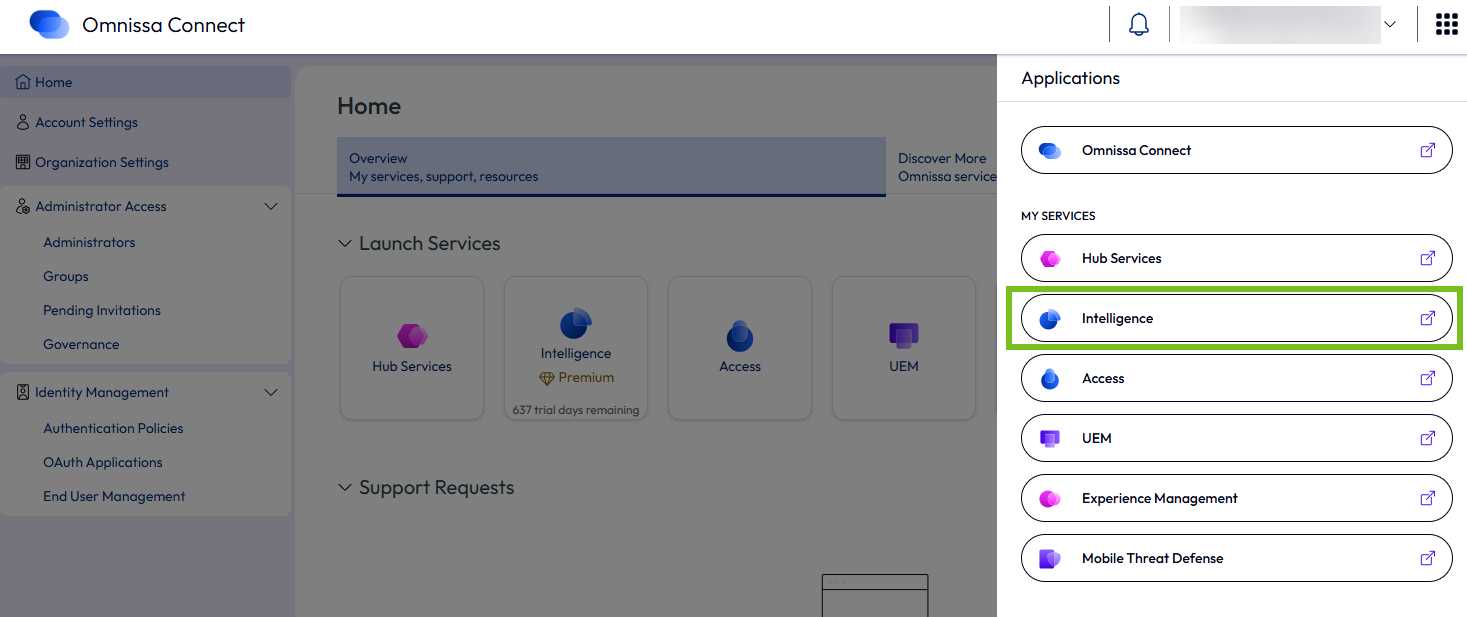
From the menu at the top-right corner, select Intelligence to go to the Intelligence console.
-
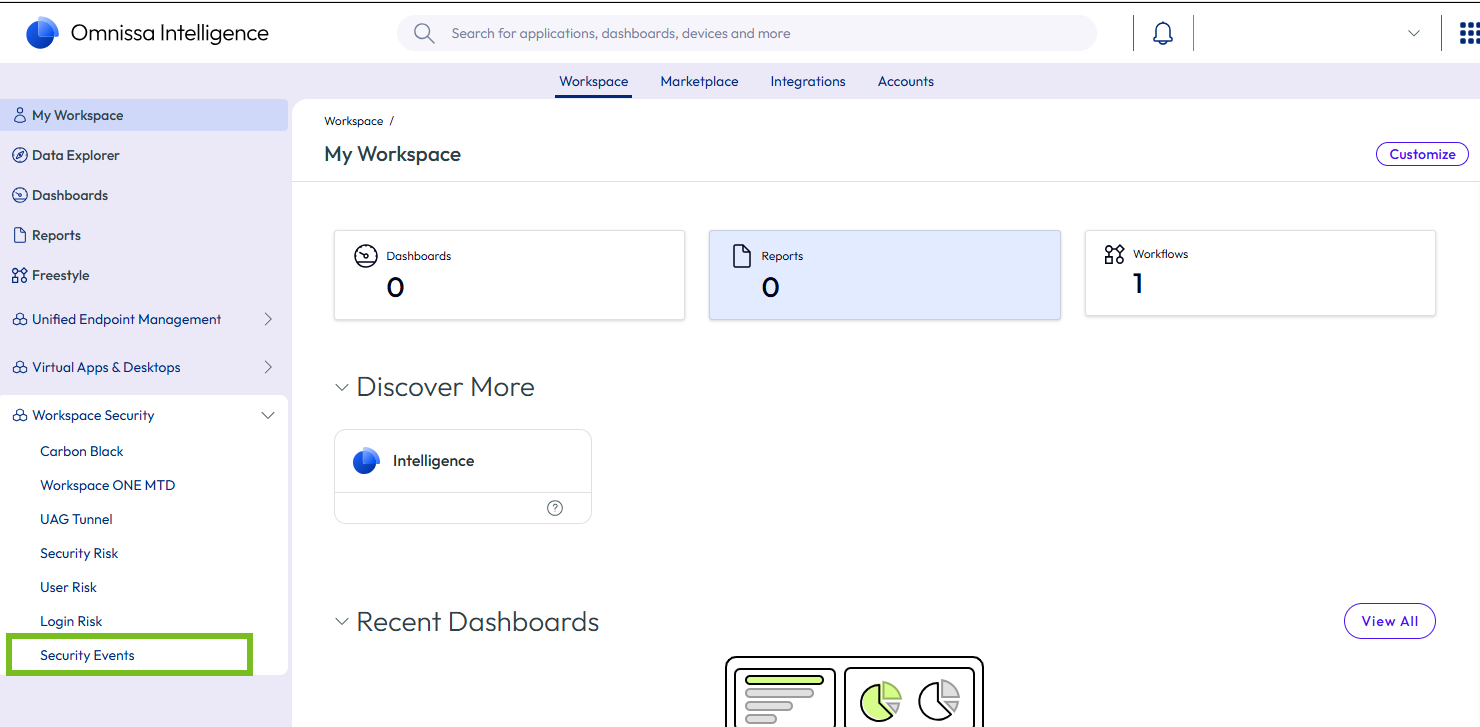
In the Intelligence console, select Workspace Security > Security Events from the left pane.
-
Click Launch Security Events.

The Security Events Service console appears in a new tab.
-
Do one of the following, based on your scenario.
If no sources or subscribers are configured yet in the Security Events Service, an overview page appears.
-
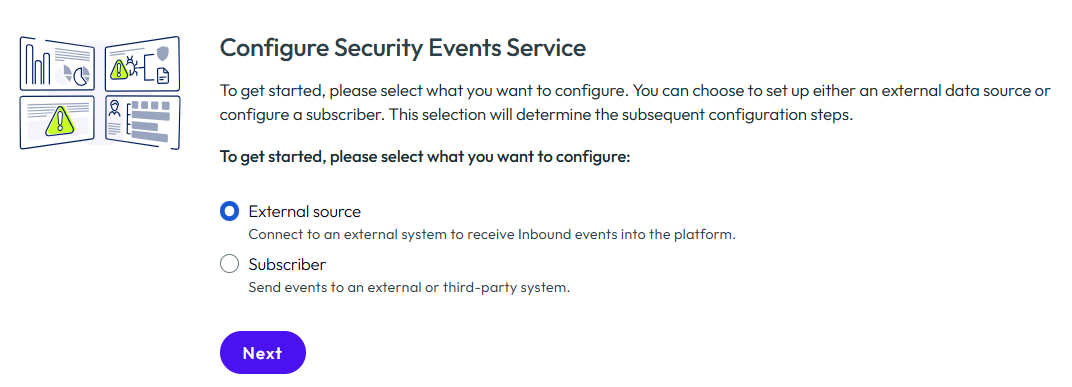
Review the information and click Get Started.
-
Select External Source and click Next.
If you have already configured a source or subscriber, the overview page and wizard do not appear.
- Select the Sources tab.
- Click Add External Source.
-
-
Configure the third-party product as an external source.
-
Enter the following information:
Name: Enter a name for the external source.
External source type: Select Generic.
SSF Well-Known URL: Enter the product's SSF Well-Known URL, which is in the following format:https://<yourTenant>/.well-known/ssf-configuration -
Select the authentication method you configured in the third-party product and enter the values: Client ID & Secret or Client ID & Private Key.
-
For Token Endpoint Configuration, select either Token URL or OpenID Well-Known URL, based on what the product provides, and enter the value.
-
Click Save.
For example:

-
-
Click Save.
The external source is created and appears in the Sources tab. The Security Events Service registers the subscription with the third-party product and sends an initial verification request.
Step 3: Verify the integration
-
Verify the integration in the Security Events Service console:
- In the Sources tab, select the source.
- Click Refresh at the top of the page to refresh the view.
- In the right pane, scroll to the Events section and verify that the initial verification request sent by the Security Events Service was successful. For example:

-
Verify the integration in the third-party product console. Refer to the product documentation for information.
Was this page helpful?