To enable Horizon Delegate for Horizon Cloud on Azure, Administrators must first confirm the system requirements are met, before using the Horizon Cloud Universal Console to enable this Limited Availability (LA) feature. Afterward, this feature is enabled in three parts of the Universal console: Settings, Images, and Pool groups.
What is Horizon Delegate?
Horizon Delegate is an AI agent that runs multi-step tasks for your end users inside their Windows Desktop device. Users give Horizon Delegate tasks through a chat panel in the Horizon Web Client. The agent runs in the end user's own desktop session, with that user's identity and entitlements.
It can be configured with both Horizon 8 and Horizon Cloud platforms as both share the same Horizon Web Client and Horizon Agent. For more details about this feature and agent side information see the Horizon 8, Remote Desktop Features and GPOs guide and topic: Limited Availability: Configuring Horizon Delegate.
Steps to Enable
-
Your Omnissa Customer Account: To gain access to this LA feature, your organization must contact Omnissa Support.
-
System Requirements: These tasks, including some third-party requirements, must be completed before your organization's Horizon Cloud Universal console can be enabled.
-
Your Organization Access: To make Horizon Delegate available across your organization's account, this is configured inside the Horizon Cloud Universal Console, under Settings.
-
Golden Image Enablement: An image must be created with the Horizon Agent feature, Horizon Delegate, enabled when published. This is configured inside the Horizon Cloud Universal Console, under Images and on an unpublished image.
-
Pools: Your Pools must be built using the Horizon Delegate enabled image. This is configured inside the Horizon Cloud Universal Console, under Pools.
-
Pool Groups: A pool group must be created using only Microsoft Azure pool types that are also enabled with the Horizon Delegate enabled image. This is configured inside the Horizon Cloud Universal Console, under Pool groups.
System Requirements
Before Horizon Cloud console configuration, verify that your environment meets these system requirements.
| Item | Requirement |
|---|---|
| Horizon Platform | Horizon Cloud 2610 or later |
| Licensing | All Horizon licenses support Horizon Delegate. Third-party licensing (e.g., GitHub Copilot) is also required and must be paid for separately. |
| Horizon Client | Horizon Web Client 2609 or later. Other Horizon Clients are not supported. |
| Horizon Agent | Horizon Agent 2609 or later on the desktop, delivered by the Horizon Agents Installer. You must install Horizon Agent with the Horizon Delegate setup option enabled on the virtual desktop or RDS host. The Horizon Delegate setup option is not selected by default. See Update Horizon Agent Software on Dedicated Desktops VMs. |
| Horizon Agents Installer (HAI) | Version 26.3.0-40775428445 or later. Horizon Agents Installer versions are released independently of Horizon Cloud service updates. For the versions that apply to your environment or for the latest HAI version available, see the Horizon Cloud Release notes. |
| Session Ownership | Horizon Delegate is available only to the user who owns the desktop session. Session Collaboration is not supported. |
| Desktops | Windows single-session and multi-session desktops. App mode is not supported. |
| Session Type | Desktop sessions only. Horizon Delegate is not available for published applications, in any pool group. |
| Pool Group Types | Desktop and desktop-application pool groups. In a desktop-application pool group, Horizon Delegate applies to the desktop only. |
| Pool Providers | Every pool in the pool group must use the Microsoft Azure provider. |
| Network | The desktop must have outbound network access to the GitHub Copilot cloud service. |
| AI Service | Horizon Delegate uses GitHub Copilot as its AI harness, and supports other LLM providers e.g. Claude, ChatGPT etc. For the current list of models, see Supported AI models in GitHub Copilot. |
| GPU | Not required on the desktop. AI processing runs in the GitHub Copilot cloud service. |
| Additional Features | Horizon Delegate does not install language runtimes. Additional features are supported for local MCP servers and ADMX GPO Policies. See Horizon 8: Add the Horizon Delegate ADMX Template in Active Directory for more information. |
Enable Horizon Delegate for Your Organization
You must enable Horizon Delegate for your organization first before you enable it for any images, pools, or pool group. You will keep full control over which pool groups have access.
Procedure
- Log in to the Horizon Universal Console.
- Select Settings in the left menu, and then under General settings click Manage.
- Scroll to Horizon Delegate.
- Turn on the Enable Horizon Delegate toggle.
- Click Save.
With this setting on, you can now move to creating your feature enabled image and creating pools and pool groups following the steps below to enable each.
Create an Image with Horizon Delegate Enabled for the Desktop
After your organization has enabled the feature, Horizon Delegate needs the image it uses to be installed with the Horizon Agent Delegate Feature enabled when you publish the image.
Note: Every pool in a pool group that uses Horizon Delegate must be built from an enabled image.
Create an Unpublished image following your normal processes. Once the image status says Ready to Publish, follow the procedure below to publish your image with the enabled Horizon Agent Feature, Horizon Delegate.
Procedure
-
In the Horizon Universal Console, select Images in the left menu.
-
A new unpublished image will take some time to process, once done the status will say Ready to Publish. Select the image name listed in the table to open it.
-
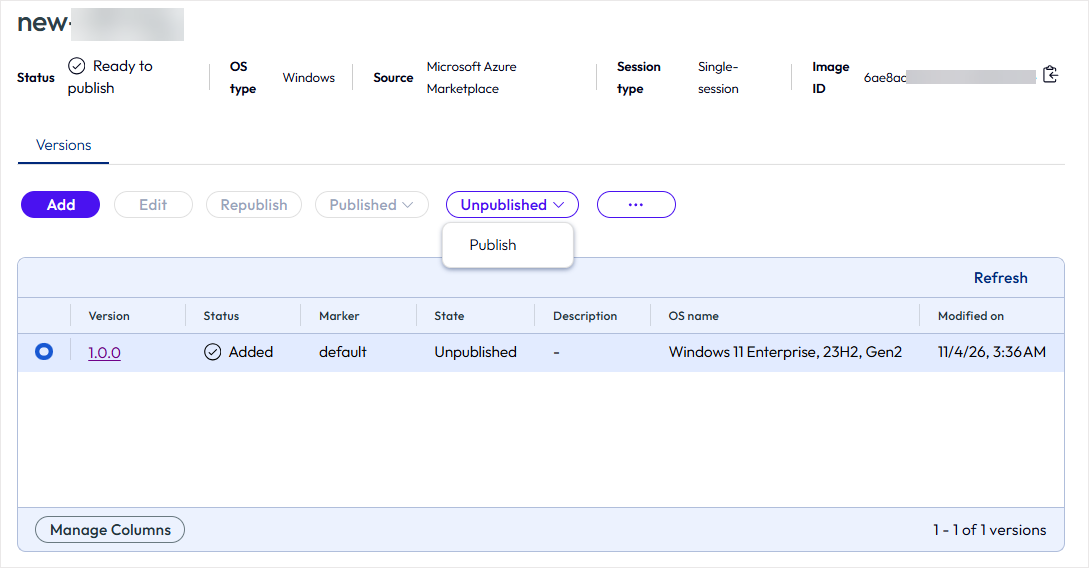
The table will show this image as version 1.0.0, with the State column listed as Unpublished, select the circle by the version, and the Unpublished button will appear. Choose the drop-down option to Publish.
-
Complete the publish steps through Destination and Properties as normal.
-
In the Horizon Agent step, make sure Install Horizon Agent is Enabled (turned on).
-
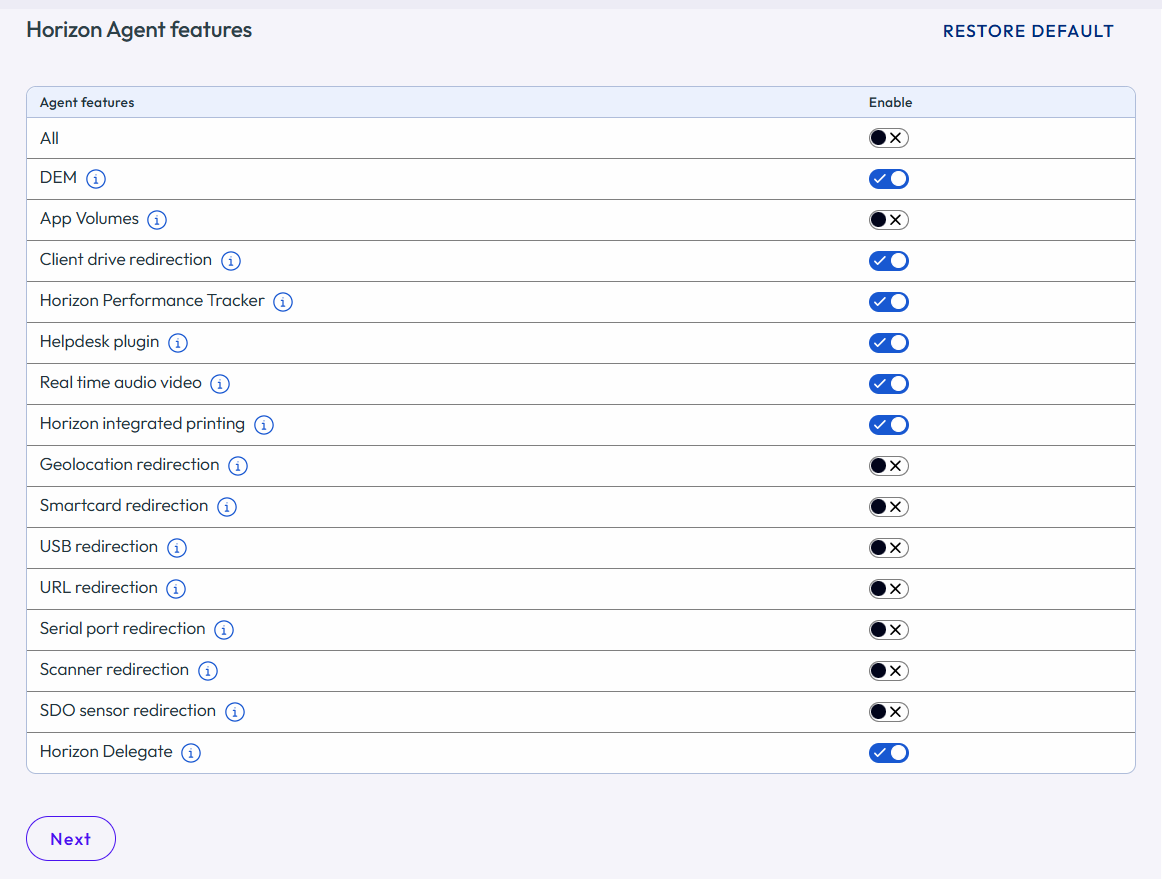
Under Horizon Agent features, Enable (turn on) Horizon Delegate.
-
Click Next, and then to finish click Publish.
Next Steps
The image will take some time to process, once done the status will say Available. You can now proceed to create pools for your pool group making sure to select this image for each of your pools. After the pools are created, follow the steps below to Enable Horizon Delegate for an Azure only Pool Group.
Enable Horizon Delegate for an Azure only Pool Groups
This procedure applies to both Single-session and Multi-session pool groups. All pools in the pool group must use the Microsoft Azure provider, and each pool must be built from an image that includes Horizon Delegate.
Procedure
-
In the Horizon Universal Console, select Pool groups in the left menu.
-
Create an Azure only pool group, or select the existing pool group you want edit, and click Edit.
-
Set your pool group up as you normally would and then in the Policies step, there is a new section for Horizon Delegate.
-
Turn on Enable Horizon Delegate toggle. A note reminds you that Horizon Delegate must be opted in during image publish and then installed during Horizon Agent installation, on every VM in the pool group.
Note: If the setting is unavailable, the pool group contains one or more pools that use an unsupported provider. Do not remove pools from an existing pool group to make the setting available, because that changes the desktops the pool group provides to its entitled users. Instead, we recommend creating a separate pool group that contains only Microsoft Azure pools built from an image that includes Horizon Delegate, and then entitle the users who need Horizon Delegate to that pool group.
-
Click Next, and then click Save & Close.
The console confirms that the pool group was edited.
What to Do Next
- Entitle users to the pool group so they can use Horizon Delegate. You can view entitlements by user or user group, assign desktops and applications, or remove existing user permissions. For more information refer to Understanding How Sessions are Distributed within a Pool Group.
End User Information
In the Horizon Web Client, users entitled to the pool group will see a Horizon Delegate icon on the desktop tile. After they launch the desktop, they use the Horizon Delegate icon in the sidebar to open or close their Horizon Delegate panel.
- For more End User information in regard to Delegate on Windows desktop sessions, see the Horizon 8 documentation on Limited Availability: User Operation of Horizon Delegate.
Limitations
- Horizon Delegate applies to desktop sessions only. It is not available for published applications, in any pool group. Windows multi-session desktops are supported; applications published from a Multi-session pool group are not.
- Horizon Delegate is unavailable for a pool group that contains pools using the Horizon 8, Manual, or Windows 365 provider.
- If a non-persistent desktop is refreshed unexpectedly, or its pool is reset, any running tasks stop immediately. For long-running tasks, use persistent desktops and do not apply a log-off-after-disconnect policy.
For other limitations, such as what Horizon Delegate cannot do during sign-in, see Horizon Delegate Security and Data Protection in the Horizon 8 documentation.
Related Documentation
-
For current Horizon Agents Installer version information see our current release notes: Horizon Cloud Release notes.
-
For User information, see the Horizon 8 documentation on Limited Availability: User Operation of Horizon Delegate as it explains the chat panel and how to sign in to GitHub Copilot.
-
For GitHub documentation: Granting access to GitHub Copilot for members of your organization.
-
For more Horizon Delegate shared feature information and configurations see the Horizon 8, Omnissa Horizon Remote Desktop Features and GPOs guide topic: Limited Availability: Configuring Horizon Delegate.
Was this page helpful?