Configure access control to provide secure access to your email infrastructure.
Email Compliance Policies
Once email has been deployed, you can further protect your mobile email by adding access control. The access control feature allows only secure and compliant devices to access your mail infrastructure. The access control is enforced with the help of email compliance policies.
Email compliance policies enhance security by restricting email access to non-compliant, unencrypted, inactive, or unmanaged devices. These policies allow you to provide email access to only the required and approved devices. Email policies also restrict email access based on the device model and the operating systems.
These policies are categorized as General Email Policies, Managed Device Policies, and Email Security Policies. The different policies that fall under each category and the deployments to which they are applicable are listed in the table.
The following table lists the supported email compliance policies.
| SEG(Exchange, HCL Traveler, G Suite) | PowerShell (Exchange) | Password Management (Gmail) | Direct Integration (Gmail) | |
|---|---|---|---|---|
| General Email Policies | ||||
| Sync Settings | Y | N | ||
| Managed Device | Y | Y | ||
| Mail Client | Y | Y | ||
| User | Y | Y | ||
| EAS Device Type | Y | Y | ||
| Managed Device Policies | ||||
| Inactivity | Y | Y | ||
| Device Compromised | Y | Y | ||
| Encryption | Y | Y | ||
| Model | Y | Y | ||
| Operating System | Y | Y | ||
| Require ActiveSync Profile | Y | Y | ||
| Email Security Policies | ||||
| Email Security Classification | Y | N | ||
| Attachments (managed devices) | Y | N | ||
| Attachments (unmanaged devices) | Y | N | ||
| Hyperlink | Y | N |
Activate an Email Compliance Policy
The email compliance policies available on the Omnissa Workspace ONE UEM console are General Email Policies, Managed Device Policies, and Email Security Policies. You can activate any of these email compliance policies or edit the rules for these email policies to allow or block the devices.
-
Navigate to Security > Email Security > Control Policies.
-
Use the edit policy icon under the Actions column to edit any of the rules for a policy.
Note: General Email Policies enforce policies on all devices accessing email. When you choose a user group, the policy applies to all the users of that group.
Email Policy Description Sync Settings Prevent the device from syncing with specific EAS folders. - Workspace ONE UEM prevents devices from syncing with the selected folders irrespective of other compliance policies.
- For the policy to take effect, it is necessary to republish the EAS profile to the devices (this forces devices to resync with the email server)
Managed Device Restrict email access only to managed devices. Mail Client Restrict email access to a set of mail clients. - You can allow or block mail clients based on the client type such as Custom and Discovered
- You can also set default actions for the mail client and newly discovered mail clients that do not display in the Mail Client drop-down menu. For the custom client type, wildcard (*) characters and auto-complete are supported.
User Restrict email access to a set of users. You can allow or block user type that includes Custom, Discovered, Workspace ONE UEM User Account, and user group. You can also set default actions for email usernames that do not display in the Username or Group drop-down menu. For the custom user type, wildcard (*) characters and auto-complete are supported. EAS Device Type Allowlist or denylist devices based on the EAS Device Type attribute reported by the end-user device. You can allow or block devices based on the client type that includes Custom and Discovered mail client. You can also set default actions for the EAS device types that do not display in the Device Type drop-down field. For the custom client type, wildcard (*) characters and auto-complete are supported. Managed Device Policies enforce policies on managed devices accessing email.
Email Policy Description Inactivity Prevent inactive, managed devices from accessing email. You can specify the number of days a device shows up as inactive (that is, does not check in to Omnissa Workspace ONE, before Workspace ONE UEM prevents email access. The minimum accepted value is 1 and maximum is 32767. Device Compromised Prevent compromised devices from accessing email. This policy does not block email access for devices that have not reported compromised status to Workspace ONE. Encryption Prevent email access for unencrypted devices. This policy is applicable only to devices that have reported data protection status to Workspace ONE. Model Restrict email access based on the platform and model of the device. Operating System Restrict email access to a set of operating systems for specific platforms. Require ActiveSync Profile Restricts email access to devices which are not managed with an Exchange ActiveSync profile. For email clients configured through an application configuration rather than an ActiveSync profile, sending an application configuration to a managed email client ensures that the email client is compliant with the compliance policy. Email Security Policies enforce policies on attachments and hyperlinks. This policy is applicable for SEG deployments only. For more information, see the Email Access Control Enforcement section.
Email Policy Description Email Security Classification Define the policy for the SEG to take on emails with tags and without tags. You can use the predefined tags or create tags using the Custom option. Based on the classification, you can either choose to allow or block the email in email clients. Attachments (managed devices) Encrypt email attachments of the selected file types. These attachments are secured on the device and are only available for viewing on the Omnissa Workspace ONE Content. Currently, this feature is only available in managed iOS and Android devices with the Omnissa Workspace ONE® Content application. For other managed devices, you can choose to either allow encrypted attachments, block attachments, or allow unencrypted attachments. Attachments (unmanaged devices) Encrypt and block attachments or allow unencrypted attachments for unmanaged devices. Encrypted email attachments are not viewable on unmanaged devices. This feature is intended to maintain email integrity. If an email with an encrypted attachment is forwarded from an unmanaged device, the recipient can still view the attachment on a PC or another mobile device. Hyperlink Allow device users to open hyperlinks contained within an email directly with Omnissa Workspace ONE Web present on the device. The Secure Email Gateway dynamically modifies the hyperlink to open in Omnissa Workspace ONE Web. You may choose one of the following Modification Type: - All - Choose to open all the hyperlinks with Omnissa Workspace ONE Web.
- Exclude - Choose if you do not want the device users to open the mentioned domains through the Omnissa Workspace ONE Web. Mention the excluded domains in the Modify all hyperlinks except for these domains field. You can bulk-upload the domain names from a
.csvfile as well. - Include - Choose if you want the device users to open the hyperlinks from specified domains through the Omnissa Workspace ONE Web. Mention the included domains in the Only modify hyperlinks for these domains field. You can bulk upload the domain names from a
.csvfile also.
-
Create your compliance rule and Save.
-
Select the gray circle under the Active column to activate the compliance policy. A page appears with a key code.
-
Enter the key code in the corresponding field and select Continue.
Results: The policy is activated and shows a green colored circle under the Active column.
Email Content, Attachments & Hyperlinks Protection
Secure email using Workspace ONE Web, and Workspace ONE Content.
Workspace ONE UEM helps you protect and control mobile email attachments that are vulnerable to data loss for both managed and unmanaged devices. Workspace ONE UEM allows device users to open hyperlinks in an email directly with Workspace ONE Web present on the device. The Secure Email Gateway dynamically modifies the hyperlink to open in Workspace ONE Web.
You must have installed the following applications before you can begin to proceed with protecting your email attachments:
- Secure Email Gateway (SEG)
- Content Locker (iOS and Android)
- Support for Microsoft Exchange 2010/2013/2016/2019, HCL Notes, Novell GroupWise, and Gmail
Enable Email Security Classification
Select the security classifications on the Workspace ONE UEM console for which you want Secure Email Gateway to take action.
There is a list of pre-defined security classifications to choose from as well as the option to create your own custom classification.
-
Navigate to Security > Compliance > Compliance Policies.
-
Select the gray colored circle under the Active column for the Email Security Classifications compliance policy. A page appears with a key code.
-
Enter the key code in the corresponding field and select Continue. The policy gets activated and is indicated by a green colored circle under the Active column.
-
Select the Edit option under the Actions column.
-
Select Add and then select the type of tag from the Type drop-down menu.
Options available are Pre-defined and Custom. Choose from:
- Select the tag type as Pre-defined to get a list of available tags from the Security Classification drop-down menu.
- Select the tag type as Custom to enter your own custom tag in the Security Classification field.
-
Enter a Description for the tag and select Next.
-
Configure the actions that SEG should take against emails marked or not marked with a tag. Select Next.
You may choose to allow or block emails on email clients.
-
View the Summary and click Save.
Enable Email Attachment Protection
Protect email attachments using Workspace ONE UEM.
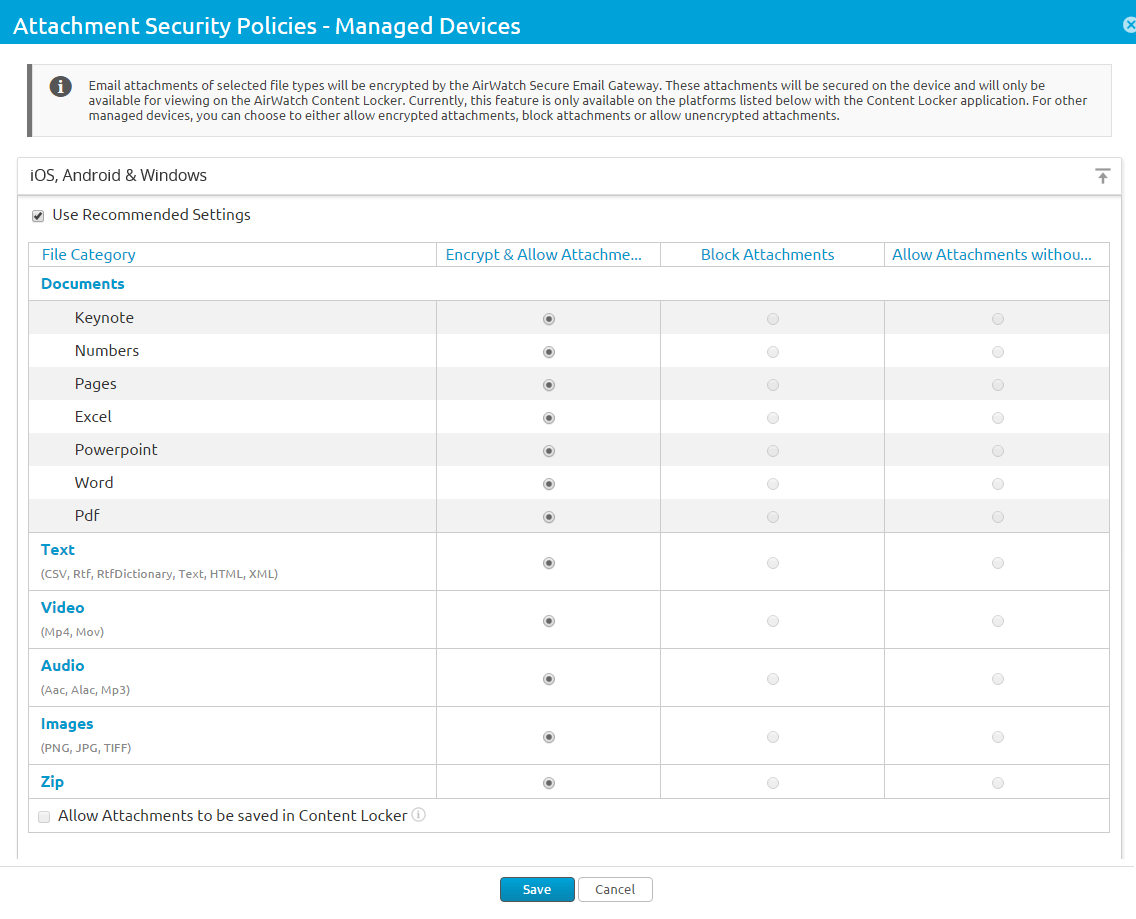
Email attachments are of various file types. On the UEM console, you can select the files types for which the email attachments must be encrypted by the Secure Email Gateway. These encrypted attachments are secured on the mobile devices and can be viewed using the Omnissa Workspace ONE Content application.
Granular settings are available for managed iOS and Android devices. For other managed devices and all unmanaged devices, attachments can be prevented (in-bulk) from being opened in third-party apps.
-
Navigate to Security > Compliance > Compliance Policies.
-
Select the grey colored circle under the Active column for the Attachments (Managed devices) or **Attachments (Unmanaged devices)**compliance policy.
Results: A page appears with a key code.
-
Enter the key code in the corresponding field and select Continue.
Results: The policy is activated and is denoted by a green colored circle under the Active column.
-
Select the Edit option under the Actions column.
-
Select whether to encrypt & allow or block or allow without encryption attachment for each file category (for managed iOS and Android devices only).
-
Select the check box Allow Attachments to be saved in Content Locker to save the attachments in Content Locker.
Results: The attachments remain encrypted and Content Locker policies applies.
-
Choose the policy for any Other Files not mentioned here.
-
Enter file extensions that are to be excluded from the actions configured in Other Files into the Exclusion List.
-
Enter a Custom Message for Blocked Attachments to inform the recipient that an attachment is blocked.
-
Save the settings.
Enable Hyperlink Protection
Using the hyperlink email security policy, you can control the hyperlinks in the emails to be modified so that these can be opened directly with Workspace ONE Web.
-
Navigate to Security > Compliance > Compliance Policies.
-
Select the gray colored circle under the Active column for the Hyperlink compliance policy.
Results: A page appears with a key code.
-
Enter the key code in the corresponding field and select Continue.
Results: The policy is activated and is denoted by the green colored circle under the Active column.
-
Select the Edit option under the Action column.
-
Select the platform for which you want to ignore the hyperlink transformations.
-
Select one of the Modification Type
Choose from:
- All - Choose to open all the hyperlinks with Workspace ONE Web.
- Include - Choose if you want the device users to open the hyperlinks from specified domains through the Workspace ONE Web. Mention the included domains in the Only modify hyperlinks for these domains field. You can bulk upload the domain names from a CSV file as well.
- Exclude - Choose if you do not want the device users to open the mentioned domains through the Workspace ONE Web. Mention the excluded domains in the Modify all hyperlinks except for these domains text box. You can bulk upload the domain names from a CSV file as well.
-
Save the settings.
Was this page helpful?