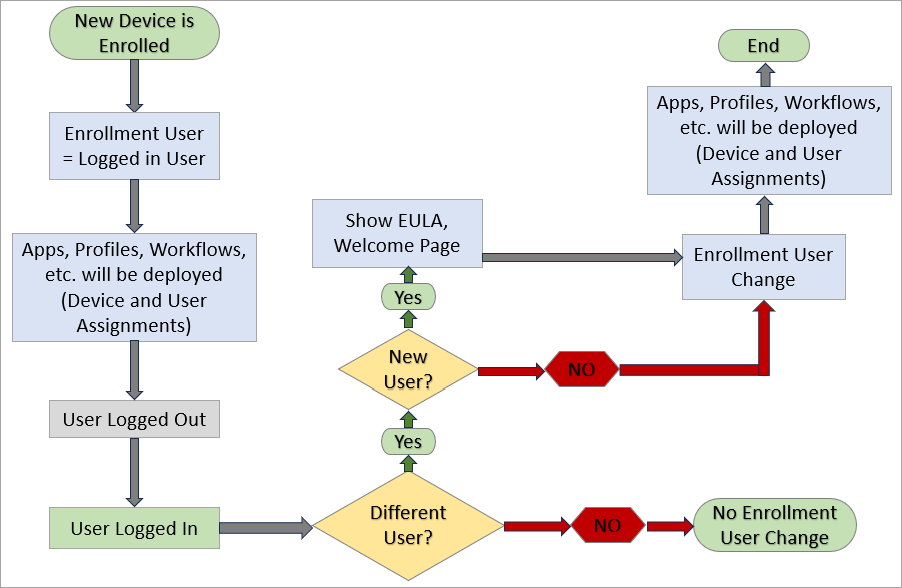
The Multi User support feature has made large changes in how you, as an admin, will manage your devices going forward. By using the new Modern Stack architecture, Workspace ONE will be able to manage devices with multiple users. Whoever is logged into Windows will become the device's enrolled user. We will then track the enrolled user for everyone who signs in. It is very important that the device resources are assigned to the device.
All new enrolled devices will have Multi User enabled by default to all users. Existing enrolled devices will stay as a single user device until the admin chooses to migrate them. Both examples will not show any user experience changes. Note: Make sure that the current logged in user is the enrollment user and all required applications and configurations are assigned to the device. If the current logged in user is not the enrollment user, user resources might getting changed/removed.
Anything that will get reinstalled is called the user context. Apps and configurations assigned to the user will be installed once the specific user logs in to the device. However, anything that is assigned to the device instead of a user, can be shared. The change of action will happen during the user's login. Anything that is assigned to the user will be passed down when the user logs in. The user will still maintain the ability to sign in and out as often as needed.
The change that will occurs happens when an additional (new) user logs in to use the same resource. At that time, the assignment of the device will switch in the UEM console to show the addition of the current user on that server. The same resources that are assigned to the device (or user) will not need to be reinstalled. Workflows will then be re-evaluated for every user switch.
From the server side, the history of all logged in users will be tracked on sign in, in the Shared Device tab. It is important to make sure that the device resources are assigned correctly so the device related resources will be assigned correctly.
The device will still need to use Active Directory (AD) or AAD joined. For environments that don’t have a single Active Directory or no AD connected to UEM, a new functionality will help to map user attributes from the device to the attributes from the server.
This will help customers with OKTA, Ping and other SCIM and LDAP environments to silently check out the device. This means that the user doesn’t need to login to Intelligent Hub anymore if the attributes from the device are matching to the ones in UEM.
Existing Enrolled Device Migration
For existing devices, it is up to you, the admin, to oversee when or if to migrate those to this Multi User feature. This is not a re-enrollment. There is a Migrate Button in the UEM console to assist you when you choose to migrate your existing devices to this feature or, you can also migrate by using API. However before migrating your devices, it is important to make sure your assignments are correct.
Validate that your resources are assigned correctly to ensure a profile will be setup correctly. How a profile is assigned is different than how it is installed. When you assign a resource make sure to validate if it is assigned to the user profile or to the device. This matters because it will change what is loaded per user at their individual sign in.
We have also added an enrollment restrictions page in the console that will allow for specific people not to check out the device. In the UEM console, Under System > Devices & Users > General > Enrollment > Restrictions there is a field for User Checkout Restriction. You can use this to make sure your helpdesk is not the one checking out the device, or set this field up as you desire You can change your restrictions based on the organization groups.
Requirements for the Beta
- Modern Stack must be enabled for the environment.
- Intelligent Hub version 2401 or later is needed.
- Customers are responsible for Azure AD Premium Licenses for their users if they want to user AAD OOBE enrollment.
- Knowing who is logged in to the device is important. A sensor can be used to discover this if needed.
This will encompass everything including on-prem AD, Azure AD, and hybrid joined devices. It will also make reassigning a device easier and eliminate the need to do staging.
Was this page helpful?