Windows Desktop devices contain multiple attributes such as hardware, OS, certificates, patches, apps, and more. With Sensors, you can collect data for these attributes using the Workspace ONE UEM console. Display the data in Workspace ONE Intelligence and in Workspace ONE UEM.
Freestyle Feature
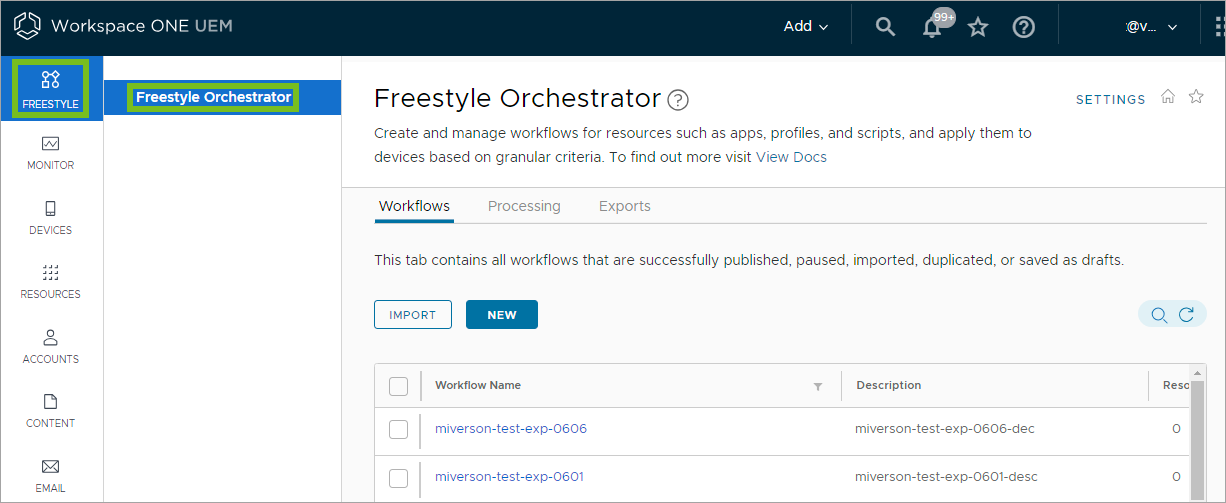
Sensors is a Freestyle feature that is available for SaaS environments.
Sensors Description
Devices have a huge number of attributes associated with them. This number increases when you track the different apps, OS versions, patches, and other continually changing variables. It can be difficult to track all these attributes.
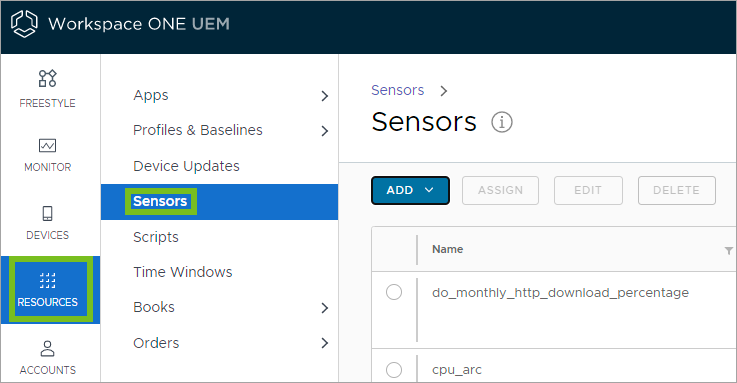
Workspace ONE UEM tracks a limited number of device attributes by default. However with Sensors, you can track the specific device attributes you want. For example, you can create a sensor that tracks the driver details for a mouse driver, the warranty information for the OS, and the registry value for your internal apps. Sensors allow you to track various attributes across your devices. Find Sensors in the main Workspace ONE UEM console navigation under Resources.
To work with Sensors data from Workspace ONE UEM, you can use Workspace ONE Intelligence. Workspace ONE Intelligence has dashboards and reports where you can view and analyze your Sensors data. Data transfer between the two system occurs over secure HTTP using SSL on port 443.
Important: Sensors are not permitted to be assigned to Employee-Owned devices for privacy reasons.
Workspace ONE UEM Options
Sensors Triggers
When configuring Sensors, you can control when the device reports the sensor data back to the Workspace ONE UEM console with triggers. You can schedule these triggers based on the Windows Sample Schedule or specific device events such as login and logout.
Added PowerShell Scripts
The PowerShell script you create determines the value of each sensor.
Device Details > Sensors
You can see data for single devices on the Sensors tab in a device's Device Details page.
The configuration Device State must be enabled in your data center so that Workspace ONE UEM can display Sensors data for devices on the Sensors tab. Workspace ONE UEM enables this configuration for SaaS customers.
Note: Workspace ONE UEM is working on a solution for on-premises environments, but until this solution is created, the Sensors tab is not available in Device Details for on-premises deployments.
Workspace ONE Intelligence Options
Reports and Dashboards To Analyze Data
If you use the Workspace ONE Intelligence service, you can run a report or create a dashboard to view and interact with the data from your Sensors. When you run reports, use the Workspace ONE UEM category, Device Sensors. You can find your sensors and select them for queries in reports and dashboards.
RBAC to Control Access To Data
To control who has access to Sensors, use the Roles Based Access Control (RBAC) feature in Workspace ONE Intelligence. RBAC assigns permissions to admins, so use them to prevent or allow specific Workspace ONE Intelligence users from accessing Sensors data.
Encryption
All data at rest is encrypted in Workspace ONE Intelligence.
Use Write-Ouput and Not Write-Host in Scripts
The Write-Host string in a script directly writes to the screen, and it does not report the sensor output to Workspace ONE Intelligence. However, the string Write-Output does write to the pipeline, so use it instead of Write-Host. Update applicable scripts to Write-Output or echo (echo is an alias for Write-Output.)
For details, access topics in Microsoft | Docs for Write-Host and for Write-Output.
Example of a Non-Working Script
- Returns Time Zone
- Return Type: String
$os=Get-TimeZone
write-host $os
- Write-Host is not the output of the script, so there is no output from the script.
- Write-Host directly writes to the 'screen' and not to the pipeline.
Example of a Working Script
- Returns Time Zone
- Return Type: String
$os=Get-TimeZone
write-output $os
Workspace ONE Intelligence Documentation
For details on how to work in Workspace ONE Intelligence, access Workspace ONE Intelligence Products.
Windows Desktop Devices and Sensors Data
Sensors data is not stored locally on Windows devices. A sensor runs PowerShell code that evaluates an attribute on a system and reports that data to Workspace ONE Intelligence. After it evaluates and reports, the PowerShell process terminates.
PowerShell Script Examples for Sensors
When you create Sensors for Windows devices, you must upload a PowerShell script or enter the PowerShell commands in the text box provided during configuration in the Workspace ONE UEM console. These commands return the values for the sensor attributes.
The following examples contain the settings and code needed.
Note: Any sensor that returns a date-time data type value uses the ISO format.
Check Remaining Battery
-
Value Type: integer
-
Execution Context: User
$battery_remain=(Get-WmiObject win32_battery).estimatedChargeRemaining |
Measure-Object -Average | Select-Object -ExpandProperty Averageecho $battery_remain
Get Serial Number
-
Value Type: String
-
Execution Context: User
$os=Get-WmiObject Win32_bios -ComputerName $env:computername -ea silentlycontinue
echo $os.SerialNumber
Get System Date
-
Value Type: DateTime
-
Execution Context: User
$date_current = get-Date -format s -DisplayHint Date
echo $date_current
Check If TPM Is Enabled
-
Value Type: Boolean
-
Execution Context: Administrator
$obj = get-tpm
echo $obj.TpmReady
Check If TPM Is Locked
-
Value Type: Boolean
-
Execution Context: Administrator
$obj = get-tpm
echo $obj.LockedOut
Get TPM Locked Out Heal Time
-
Value Type: String
-
Execution Context: Administrator
$tpm=get-tpm
echo $tpm.LockoutHealTime
Check If SMBIOS Is Present
-
Value Type: Boolean
-
Execution Context: User
$os = Get-WmiObject Win32_bios -ComputerName $env:computername -ea silentlycontinue
echo $os.SMBIOSPresent
Check SMBIOS BIOSVersion
-
Value Type: Boolean
-
Execution Context: User
$os = Get-WmiObject Win32_bios -ComputerName $env:computername -ea silentlycontinue
echo $os.SMBIOSBIOSVersion
Get BIOS Version
-
Value Type: String
-
Execution Context: User
$os = Get-WmiObject Win32_bios -ComputerName $env:computername -ea silentlycontinue
echo $os.Version
Get BIOS Status
-
Value Type: String
-
Execution Context: User
$os = Get-WmiObject Win32_bios -ComputerName $env:computername -ea silentlycontinue
echo $os.Status
Get Average CPU Usage (%)
-
Value Type: Integer
-
Execution Context: User
$cpu_usage= Get-WmiObject win32_processor | Select-Object -ExpandProperty LoadPercentage
echo $cpu_usage
Get Average Memory Usage
-
Value Type: Integer
-
Execution Context: User
$os = Get-WmiObject win32_OperatingSystem
$used_memory = $os.totalvisiblememorysize - $os.freephysicalmemory
echo $used_memory
Get Average Virtual Memory Usage
-
Value Type: Integer
-
Execution Context: User
$os = Get-WmiObject win32_OperatingSystem
$used_memory = $os.totalvirtualmemorysize - $os.freevirtualmemory
echo $used_memory
Get Average Network Usage
-
Value Type: Integer
-
Execution Context: User
$Total_bytes=Get-WmiObject -class Win32_PerfFormattedData_Tcpip_NetworkInterface
|Measure-Object -property BytesTotalPersec -Average |Select-Object -ExpandProperty Average
echo ([System.Math]::Round($Total_bytes))
Get Average Memory Usage For A Process
-
Value Type: String
-
Execution Context: User
$PM = get-process chrome |Measure-object -property PM -Average|Select-Object -ExpandProperty Average
$NPM = get-process chrome |Measure-object -property NPM -Average|Select-Object -ExpandProperty Average
echo [System.Math]::Round(($PM+$NPM)/1KB)
Check If A Process Is Running Or Not
-
Value Type: Boolean
-
Execution Context: User
 $chrome = Get-Process chrome -ea SilentlyContinue
			if($chrome){
				echo $true
				}
			else{
				echo $false
				}
Check If Secure Boot Is Enabled
-
Value Type: Boolean
-
Execution Context: Administrator
try { $bios=Confirm-SecureBootUEFI }
catch { $false }
echo $bios
Active Network Interface
-
Value Type: String
-
Execution Context: User
$properties = @(‘Name’,’InterfaceDescription’)
$physical_adapter = get-netadapter -physical | where status -eq "up"
|select-object -Property $properties
echo $physical_adapter
Check The PowerShell Version
-
Value Type: String
-
Execution Context: User
$x = $PSVersionTable.PSVersion
echo "$($x.Major).$($x.Minor).$($x.Build).$($x.Revision)"
Check Battery Max Capacity
-
Value Type: Integer
-
Execution Context: User
$max_capacity = (Get-WmiObject -Class "BatteryFullChargedCapacity" -Namespace "ROOT\WMI").FullChargedCapacity | Measure-Object -Sum |
Select-Object -ExpandProperty Sum
echo $max_capacity
Check Battery Charging Status
-
Value Type: String
-
Execution Context: User
$charge_status = (Get-CimInstance win32_battery).batterystatus
$charging = @(2,6,7,8,9)
if($charging -contains $charge_status[0] -or $charging -contains $charge_status[1] )
{
                echo "Charging"
                }else{
                echo "Not Charging"
}
Active Power Management Profile
-
Value Type: String
-
Execution Context: Administrator
$plan = Get-WmiObject -Class win32_powerplan -Namespace root\cimv2\power
-Filter "isActive='true'"
echo $plan
Check If Wireless Is Present
-
Value Type: Boolean
-
Execution Context: User
$wireless = Get-WmiObject -class Win32_NetworkAdapter -filter "netconnectionid like 'Wi-Fi%'"
	if($wireless){echo $true}
	else {echo $false}
Get Java Version
-
Value Type: String
-
Execution Context: User
$java_ver = cmd.exe /c "java -version" '2>&1'
echo $java_ver
Create a Sensor for Windows Desktop Devices
Create Sensors in the Workspace ONE UEM console to track specific device attributes such as remaining battery, OS version, or average CPU usage. Each sensor includes a script of code to collect the desired data. You can upload these scripts or enter them directly into the console.
Sensors use PowerShell scripts to gather attribute values. You must create these scripts yourself either before creating a sensor or during configuration in the scripting window.
Each script contains only one sensor. If a script returns multiple values, Workspace ONE Intelligence and Workspace ONE UEM read only the first value as the response from the script. If a script returns a null value, Workspace ONE Intelligence and Workspace ONE UEM do not report the sensor.
Prerequisites
If you want to view Sensors for multiple devices and interact with the data in reports and dashboards, you must opt into Workspace ONE Intelligence. If you want to view Sensors data for a single device, you do not need Workspace ONE Intelligence. Go to the device's Device Details page and select the Sensors tab to view the data.
Procedure
- Navigate to Resources > Sensors > Add.
- Select Windows.
- Configure the sensor settings for the General tab.
- Name - Enter a name for the sensor. The name must start with a lowercase letter followed by alpha-numeric characters and underscores. The name must be between 2-64 characters. Do not use spaces in this menu item.
- Description - Enter a description for the sensor.
- Select Next.
- Configure the sensor settings for the Details tab.
- Language - Workspace ONE UEM supports PowerShell.
- Execution Context - This setting controls whether the script for the sensor runs on a user or system context.
- Execution Architecture - This setting controls whether the script for the sensor runs on a device based on the architecture. You can limit the script to run on 32-bit devices or 64-bit devices only or to run the script based on the device architecture. You can also force the script to run as 32-bit regardless of the device.
- Response Data Type - Select the type of response to the script for the sensor. You can choose between:
- String
- Integer
- Boolean
- Date Time
- Script Command - Upload a script for the sensor or write your own in the text box provided.
- Select Save to assign your Sensors later or select Save & Assign to assign Sensors to devices with groups.
- To continue with assignment, select Add Assignment.
- On the Definition tab, enter the Assignment Name and use the Select Smart Group menu item to select the group of devices you want to collect Sensors data from.
- On the Deployment tab, select the trigger for the sensor to report the device attribute. You can select multiple values.
What to do next
After creating a sensor, use the Device Details page in Workspace ONE UEM to see data for single devices or go to Workspace ONE Intelligence to use reports and dashboards to interact with data for multiple devices.
Was this page helpful?