Part of your installation prep is creating the Workspace ONE UEM database. Learn more about using an administrator account with the correct read/write permissions to successfully create the Workspace ONE UEM Database.
To create the database, you must perform the following steps with an administrator account that has the correct read/write permissions.
- On the SQL Server, open SQL Server Management Studio.
- Log in using your user name and password.
- Click Connect.
- Right-click Databases and select New Database.
- Enter
WorkspaceONEUEMas the Database name. - Scroll to the right side of Database files, select the … next to Autogrowth for Workspace ONE UEM, and change File Growth to “In Megabytes” and the size to 128, then select OK.
- Select Options, and set the Collation to SQL_Latin1_General_CP1_Cl_AS.
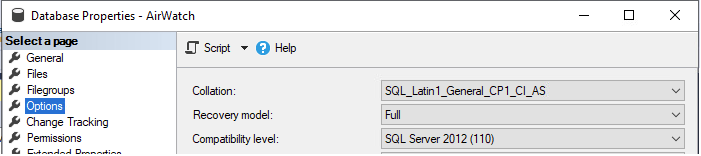
- Select OK to create the Workspace ONE UEM database.
- Expand Databases and verify the Workspace ONE UEM database is created.
Was this page helpful?