This documentation page and its contents are applicable to you only when you have an approved exception as described in KB 92424.
Important: As described in KB 92424, access to the first-gen control plane has reached end of availability (EOA).
You use this documentation page here and the Deployments and Onboarding Pods collection of pages only in the situation where you have received an approved exception to onboard to the first-gen control plane, as described in KB 92424.
All others should onboard to the Horizon Cloud service.
Horizon Plus subscribers
Don't use this page nor the Deployments and Onboarding Pods set of pages. When you are a Horizon Plus subscriber, to obtain use of those features that are licensed under the Horizon Plus subscriptions, you must onboard those Horizon deployments to the next-generation control plane. See this page about Horizon Plus for the initial steps to onboard to the next-generation control plane and start deploying the Horizon Edge.
Brief Introduction to First-Gen Deployments and Onboarding Pods
The Deployments and Onboarding Pods collection of pages describes the day-0 tasks prior to deploying the first pod to a first-generation tenant, as well as the day-1 tasks of onboarding your first pod to that first-gen tenant. This specific page right here serves as the entry page to this collection.
Tip: If your first-gen tenant already has at least one cloud-connected pod in its pod fleet, instead of this onboarding set of topics, use the companion first-gen administration guide for information about day-2 operations.
Initial Access to the First-Gen Cloud-Plane UI
Important: The following content applies only when you have an approved exception to access the first-gen Horizon Cloud control plane as part of the onboarding workflow.
A brand new first-generation tenant environment provides access to a single Horizon Universal Console screen and a small subset of cloud-hosted workflow actions within that screen. The following screenshot shows the console at the point in time when you access the console as a greenfield environment.
Tip: After logging in, click on the General Setup bar to see the key actions that are listed below.
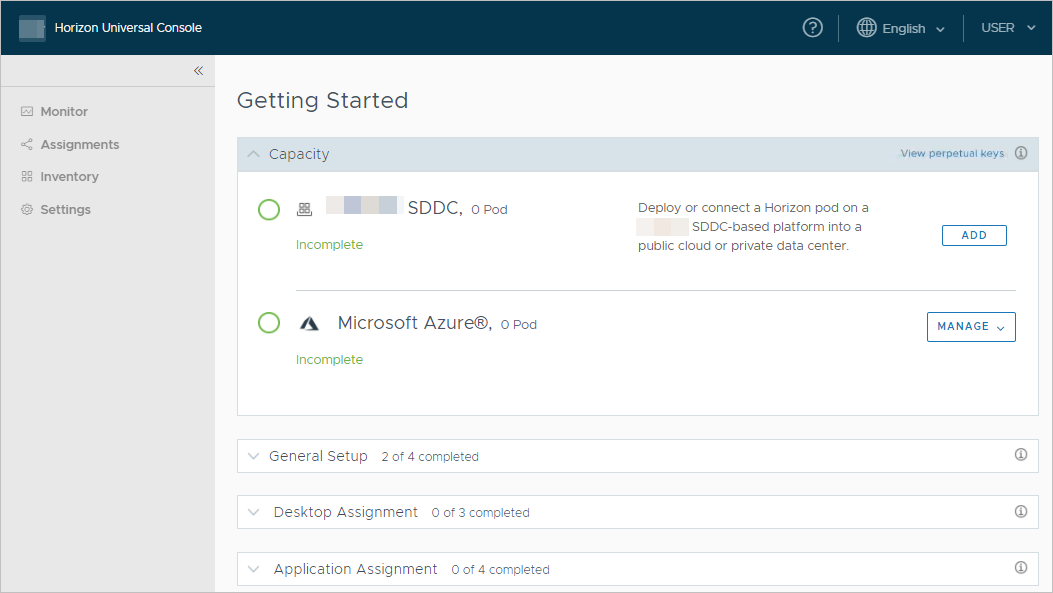
Prior to onboarding a first-generation pod, these key actions are available from the rows in this screen.
Capacity section
If your first-gen tenant and login meets the license and role requirements, the View perpetual keys link is available to you on the console's Getting Started page.
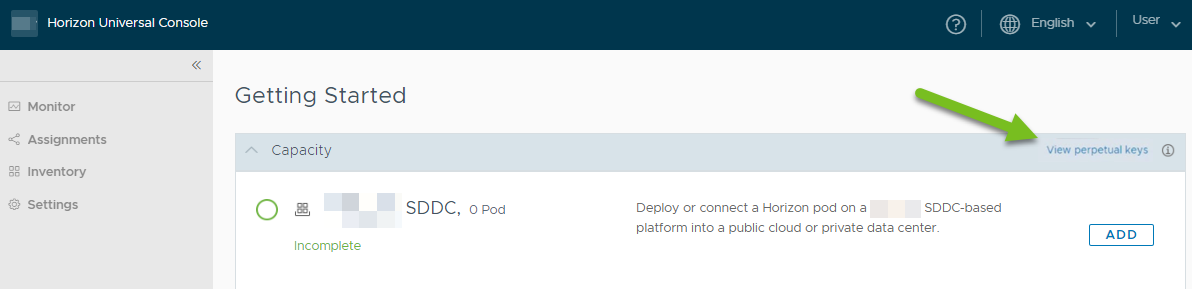
Clicking that link displays a UI screen in which you can view and copy perpetual keys for the perpetual-key-based products that are associated with your tenant.
In the section Obtaining License Information Using the Horizon Universal Console, you can read about the requirements for viewing and copying the keys for such perpetual-key-based products that might be associated with your tenant. If you find that you need assistance beyond what is provided in the UI, please see the guidance in KB article 6000014.
SDDC-related row
Click Add to learn how to download the Horizon Cloud Connector to connect a Horizon pod to your first-gen Horizon Cloud tenant. This type of pod is based on the Connection Server software must already be deployed before you can connect it to your cloud-plane tenant. After clicking Add from this row, please ensure you follow the Download links that are displayed in the screen. Those steps are described in High-Level Workflow When You are Onboarding a Horizon Pod. Those steps will provide the smoothest experience at this time as they have links to information about prerequisites, DNS and ports requirements, and the precise sequence of steps to follow.

Microsoft Azure row
Start the automated wizard that will automate the deployment of a Horizon Cloud pod into your subscription in Microsoft Azure. These pods are based on the Horizon Cloud pod-manager technology.

General Setup section - Administrator Accounts
In the console's accounts-related section, you should add the first set of administrators to whom you want to give the ability to log in to the Horizon Cloud Connector onboarding and configuration portal and the Horizon Universal Console. The initial license purchaser's account is prefilled there by default. As a result, you will see that row marked with a green check mark. However, that is only because there is always the one initial account associated with the tenant account when the tenant environment is created.
Tip: To prevent being locked out of both your first-gen tenant environment and the Horizon Cloud Connector onboarding and configuration portal due to the initial purchaser's account going inactive for some reason — such as that person leaving your company or organization — it is prudent to add the first set of administrators as soon as the Welcome to Horizon Service email is sent to the initial purchaser, even before the first pod is onboarded. If the initial purchaser is not an administrator for your organization's Horizon deployments, then at least one person who will be an administrator must request support to authorize their Customer Connect account to the brand new service tenant account. After that person is authorized, they can log in and add additional administrators using this section of the UI. To make that request, file a non-technical support request using your Customer Connect account in customerconnect.omnissa.com.

General Setup section - Cloud Monitoring Service (CMS)
In the General Setup section, verify the Cloud Monitoring Service (CMS) settings you want. The CMS is enabled by default, so you will see that row marked with a green check mark. At this point, you can choose to deactivate that feature even prior to onboarding any pods.

Tip: Before you can access other actions and workflows in that portal beyond the above four, you must have an onboarded pod, that pod must be up and online and communicating with the cloud management plane, and have an Active Directory domain registered with your tenant environment. The console blocks access to other management actions until the Active Directory domain registration workflow is completed. For information about this workflow, see Performing Your First Active Directory Domain Registration in the Horizon Cloud Environment.
First-Gen Onboarding Requirements Checklists
- When your initial first-gen pod onboarding is a Horizon pod deployment, to use first-gen cloud-based services
Review the items in the First-Gen Horizon 8 Pods - Requirements Checklist. That page describes the various prerequisite elements needed to successfully connect a Horizon 8 pod to the cloud plane using the first-gen Horizon Cloud Connector.
- When your initial first-gen pod onboarding is a first-gen Horizon Cloud on Microsoft Azure deployment
Review the items in the First-Gen Horizon Cloud on Microsoft Azure - Requirements Checklist. That page describes the various prerequisite elements needed before beginning the first-gen Horizon Cloud pod deployment wizard.
Revision History for these Onboarding Topics
This documentation set of topics is updated with each release of the product or when necessary. For the set of significant revisions made to date, see Revision History - Changelog.
Intended Audience
The information in this document is intended for experienced data center administrators with knowledge in the following areas.
- Horizon and Horizon Connection Server
- Horizon Cloud Connector
- Unified Access Gateway™
- Omnissa Access™
- Virtualization technology
- Networking
- VMC on AWS and Amazon Web Services EC2 (AWS EC2)
- Microsoft Azure and its Marketplace
- AVS
- Google Cloud Platform (GCP) and GCVE
Horizon Cloud Community
Use the forums at Omnissa Community to ask questions, explore answers given for questions asked by other users, and access links to useful information.
Contacting Support
Contact Support when you need help with your first-gen Horizon Cloud environment.
-
You can submit a support request to Support online using your Customer Connect account or by phone.
-
KB 2006985 How to file a Support Request in Customer Connect portal provides details for getting support.
Selected Pod-Related Terminology Used in these First-Gen Deployment Guide Pages
Throughout the first-gen Horizon Cloud documentation pages, you will see the following phrases. These phrases have the indicated meanings as follows.
- Horizon pod
A pod that is constructed using the Horizon Connection Server software and related software components. The Horizon Connection Server components are running in an infrastructure that is supported for use with such pods. A Horizon pod typically requires a vSphere-based SDDC (software-defined data center). Some examples of vSphere-based SDDCs are an on-premises vSphere environment, VMC on AWS, GCVE, or AVS, to name a few.
- Horizon Cloud pod, Horizon Cloud pod on Microsoft Azure
A pod that is constructed by running the first-gen Horizon Cloud pod deployment wizard which automates deployment into your Microsoft Azure subscription. This type of pod is based on the first-genHorizon Cloud pod-manager technology, and is supported to run in Microsoft Azure solely.
Note: A Horizon pod on Microsoft Azure is separate and distinct entity from a Horizon pod on AVS. Those two are based on completely different technology — one is based on Horizon Connection Server technology and one is based on the Horizon Cloud pod-manager technology.
- connection broker
A connection broker is responsible for connecting end users' clients with a virtual desktop VM or farm VM for the purpose of setting up a connected session between each end-user client and the agent running in that VM. This noun — broker — is used because one general definition of the noun broker in the English language is one who negotiates a transaction.
In desktop virtualization software's use cases, the connection broker receives the end-user's client request to make a connection with a virtual desktop VM or farm VM. The connection broker then routes the request appropriately and negotiates a connected session between the agent running in one of the VMs and that end-user client. The negotiation considers what types of pod-provisioned resources the end user is entitled to make connections with.
One of the first-generation Horizon Control Plane services is the Universal Broker service. Universal Broker is a multi-tenant, cloud-based service that enables the brokering of resources that span multiple pods and makes brokering decisions based on the geographic sites of users and pods.
A Horizon pod's Connection Server or a Horizon Cloud pod's pod manager VM is the component that facilitates the routing of the end-user client to a resource in the pod that meets the client's connection request.
About the Screenshots
The screenshots typically:
- Show only a portion of the overall user interface screen, and not necessarily the full user interface. The depicted portion typically corresponds to the documentation text that describes that portion.
- Have blurred areas where appropriate to maintain data anonymity.
- In the PDF format, screenshot images that are wider than 6 inches are automatically resized. As a result, such images might appear blurry in the PDF format. In the parallel HTML pages, to see the image at its full-size, try clicking the screenshot.
Note: Some screenshots are taken at a higher resolution than others, and might look grainy when the PDF is viewed at 100%. However, if you zoom to 200%, those images start to look clear and readable.
Was this page helpful?