When you add the Office 365 with Provisioning app to the Omnissa Access Web catalog, you can configure client access policies that control user access to Office 365 services that use legacy authentication flow.
Office 365 clients that collect credentials such as user name and password in their own user interface are using legacy authentication flow for authentication. For example, the 2007 and 2010 versions of Microsoft Office require users to enter credentials directly into the client application user interface.
Note: If the client redirects users in a browser or a web view to an identity provider, you are using modern authentication. You can control access to modern authentication clients using the Omnissa Access conditional access policies.
Configure Client Access Policies
By default, older versions of Microsoft Office and mobile email client applications use the legacy username and password authentication flow to log in to Office 365, where they can access valuable business data such as emails, OneDrive files, and SharePoint documents.
The older client versions only support username and password for authentication. To add an additional level of access control, admins can configure access policies to control access or block access to Office 365 applications from the Catalog.
In the Omnissa Access console, client access policies can be configured to manage access or deny access to Office 365 services based on location, group membership, device type, email protocol, and client type.
Important: Applications that use legacy username/password authentication rely on headers provided by the client app to make access decisions. When you configure access policies for Office 365 services, Omnissa Access reads the HTTP headers such as the x-ms-client-user-agent header to derive information about clients and users. The clients are responsible for the accuracy of the header information. Attackers can spoof headers from username/password clients.
You configure the client access policies in the Office 365 Provisioning app pages in the Omnissa Access console.
Procedure
-
Log in to the Omnissa Access console.
-
In the Catalog page, select the Office 365 with Provisioning app.
-
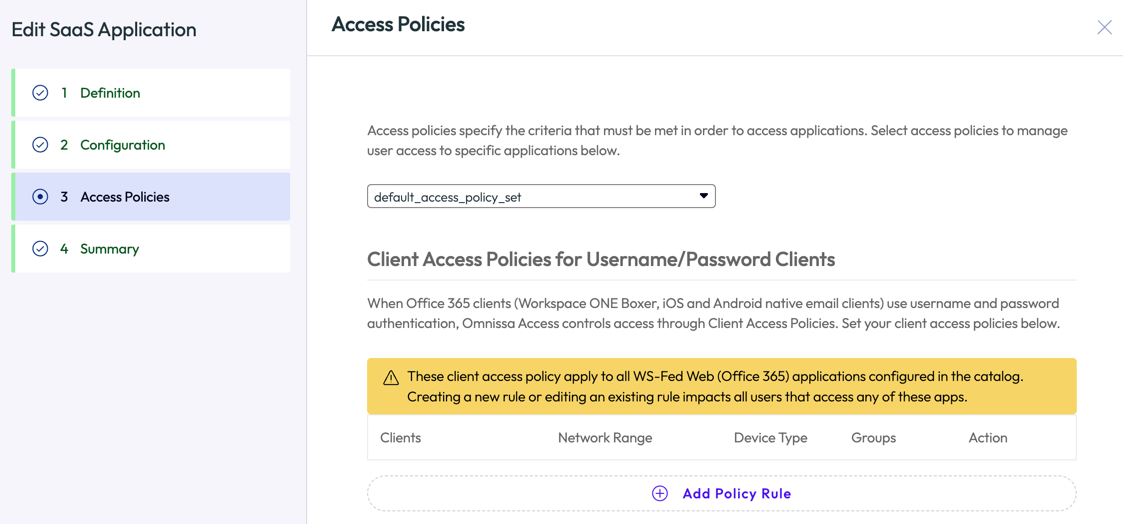
Click Edit > Access Policies
-
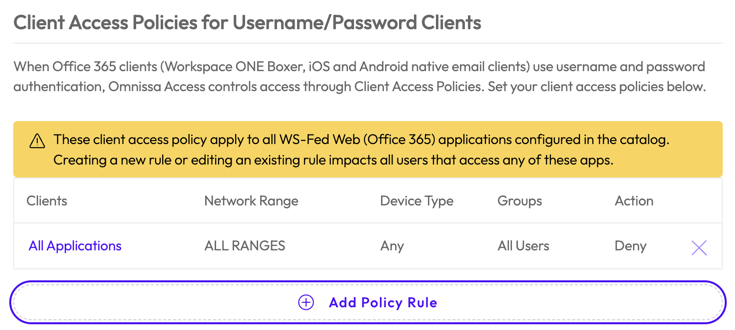
In the Client Access Policies for Username/Password Clients section, click Add Policy Rule to add a new client access policy.
-
Select the condition to apply to the client access policy.
Option Description If the user’s client is Select the user client that this policy is used with. - The user clients that are preconfigured are Omnissa Workspace ONE Boxer and Microsoft Outlook.
- You can select All Application to use this policy for all clients that use username/password to access Office 365.
And a user's network range is Select the network range for this policy. The network range defines the IP addresses for which users can log in. And the user's device type is Select the type of device that the policy manages. The types available are Android, iOS, macOS, or Windows 10. You can select All Device Types to apply this policy to all of these devices. And user belongs to groups Select the groups that this access rule applies to. If you do not select a group, the access policy applies to all users. And the client's email protocol is Select the email protocol. The email protocols are Microsoft Exchange Active Sync, POP, All Protocols. -
In the Then perform this action drop-down menu, select whether to allow access or to deny access based on the conditions you applied
-
Click SAVE to create a client access policy for Office 365.
-
Create additional client access policies as required
-
Drag the policies to arrange the order in which they are applied.
-
Click SAVE.
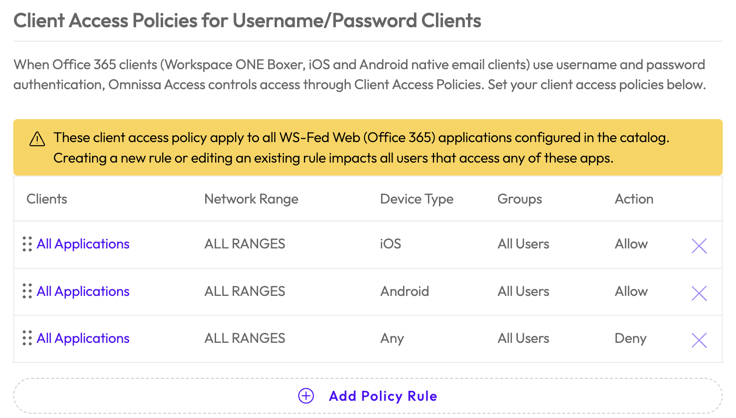
It is important to arrange the Client Access Policies in order, as the policies are enforced from the first policy in the list to the last policy. The first policy that applies to a client is used to either authenticate for access or to deny access. In the example above, the policies allowing iOS and Android devices are listed before the policy that denies access to all other device types, so iOS and Android clients are allowed before the broader deny policy is evaluated.
If you instead drag a policy that denies access to any device type above the policies allowing iOS and Android devices, the deny policy is enforced for all devices, including iOS and Android, before the Allow Access policies can be applied.
Examples of Client Access Policies to Create
The following are examples of common use cases where client access policies can be applied.
You set up the client access policies from the Omnissa Access console, Catalog page.
Allow legacy username/password access to Office 365 for mobile email only
In this approach, an organization can block legacy username/password access to Office 365 apps and data for all apps. Then add an exception for native mobile email clients that use Exchange ActiveSync. This approach works well with the Mobile Email Management features in the Workspace ONE Intelligent Hub app. Many organizations choose this path because Exchange ActiveSync clients do not download the user’s entire mailbox, reducing the risk of data loss. Your organization can also choose to limit mobile email access to the extra-secure Workspace ONE Boxer app.
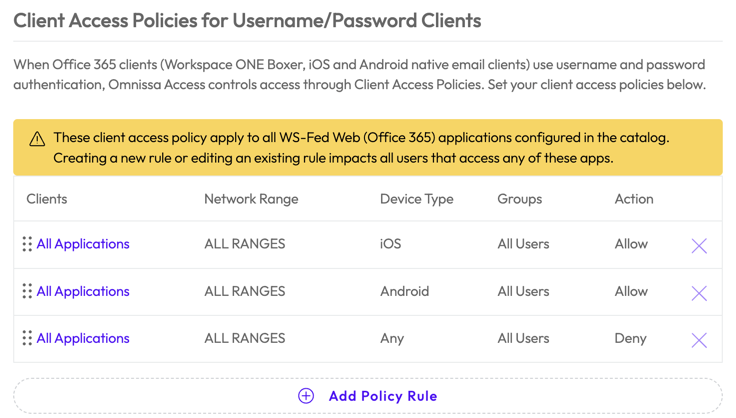
- Create a policy that denies access to all clients.
- Create a policy that allows all clients to access Exchange Active Sync on Android.
- Create a policy that allows all clients to access ExchangeActiveSync on iOS.
- Arrange the policies so that the policy to deny access to all devices is the last policy in the list.
- Save your changes.
Allow legacy username/password access to Office 365 under more secure conditions
Because legacy username/password clients such as older versions of Microsoft Office do not support multi-factor authentication (MFA), some organizations want to limit these clients to only connect to Office 365 under more secure circumstances. This approach can reduce the risk of data loss.
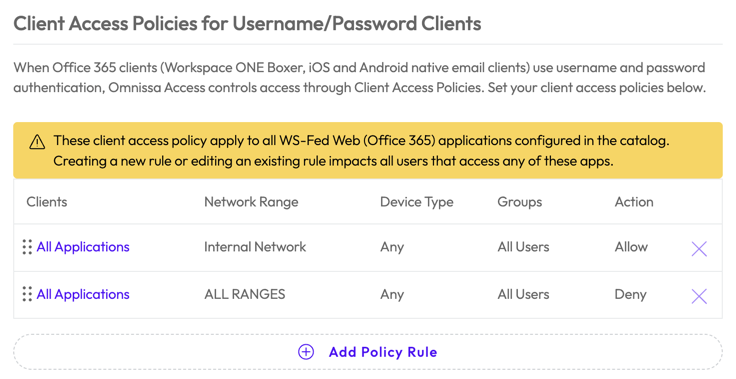
- Create a policy that allows all clients to access only the internal corporate network IP ranges.
- Create a policy that denies access to all clients.
- Arrange the policies so that the policy to access to the internal corporate network is listed first.
- Save your changes.
Allow legacy username/password access only for specific users or groups
Organizations might want to limit which users can connect to Office 365. For example, a policy could be created to block retail employees from accessing mobile email when they are not on site.
- Create a policy that allows retail employees to access only the internal corporate network IP ranges from all device types.
- Create a policy that denies access to all retail employees from all device types.
- Arrange the policies so that the policy to access to the internal corporate network is listed first.
- Save your changes.
Block all access to Office 365 for username/password clients
Some organizations want to ensure all users access Office 365 using multifactor authentication, Mobile SSO, or other secure methods. Because modern authentication supports these methods, but legacy username/password authentication does not, these organizations must block username/password client apps. Users can still access Office 365 through Office 2016 or Office 2019 apps (or Office 2013 apps, if they are configured correctly).
- Create a policy that denies access to all clients.
- Save your change.
Was this page helpful?