You can use Omnissa Workspace ONE UEM to distribute, track, and manage your internal applications for Windows Desktop and Windows Server managed devices. Additionally, use the Workspace ONE Intelligent Hub for Windows to provide an application catalog for Windows Desktop devices.
Workspace ONE Productivity Apps
Use Workspace ONE Content to safeguard corporate content on mobile devices. Deploy the Workspace ONE Web to enable secure Web browsing for your end users. Download the Workspace ONE Intelligent Hub for Windows to monitor your devices on a more granular level.
Deploying Win32 apps to Windows Desktop devices requires the Workspace ONE Intelligent Hub to be present on the device.
Important: All public applications deployed to Windows Desktop devices are unmanaged applications. Unmanaged apps cannot be pushed to devices (end users must download the app themselves) nor can unmanaged apps be removed from devices through Enterprise Wipe.
Workspace ONE Intelligent Hub for Windows
When the Workspace ONE Intelligent Hub is installed on Windows Desktop devices, users can sign in to Workspace ONE to access a catalog of applications that your organization enabled for them. When the application is configured with single sign-on, users do not need to reenter their sign-in credentials when they start the app.
The Workspace ONE Intelligent Hub allows a user to click to Install, Reinstall, or Remove (Uninstall) native applications assigned to that device or user. Native applications as well as websites can be Favorited by clicking the star and categorized to enable easier user browsing of available applications.
Installing Native Apps
Currently apps can only be installed from the catalog, not launched from the hub. For detailed instructions on installing apps, refer to TechZone: Deploying Workspace ONE UEM applications to Windows devices.
A new feature for the 2506 release (feature flag: WindowsNativeAppLaunchFeatureFlag) allows admins to define the launch path for applications and launch native Windows apps directly from Intelligent Hub.
Once the feature flag is enabled, go to the Console and navigate to: Resources > Native Apps > Internal > Add > Application File. In the Details box, select the Deployment Options tab. Under How To Install, you’ll find two new fields: Launch Type and Launch Command.
Launch Type can be set to either LaunchPath or LaunchUri. Launch Command should be the path or URI for the application, for example: C:\Program Files\Adobe\Acrobat\acrobat.exe (when using LaunchPath). This command is executed locally by Intelligent Hub allowing end users to launch native applications from the Intelligent Hub App catalog as well.
For existing applications, once the feature flag is turned on, admins will see an empty Launch Command field and a default value selected for Launch Type.
Troubleshooting:
When the feature flag is ON: Two new fields become visible. For existing applications, once the feature flag is enabled, the admin will see an empty LaunchCommand textbox and the default option selected for LaunchType. To enable the launch option for an existing application, enter the LaunchCommand and republish the application.
When the feature flag is OFF: These two new fields are hidden.
API's can also be uploaded using the following API endpoints
- mam/apps/internal/begininstall
- mam/apps/internal/application
Software Delivery (SFD) Package Deployment
In the current workflow, when devices are enrolled, SFD needs to be downloaded before it can be pushed down to the device and installed. Starting in 2506 and later, SFD will be installed from the local resource instead of a separate download, which will reduce the time needed from enrollment to the first installation.
Configure the Workspace ONE Intelligent Hub for Windows Desktop
You can update the Workspace ONE Intelligent Hub settings to meet certain business needs.
- Navigate to Groups & Settings > All Settings > Devices & Users > Windows > Windows Desktop > Intelligent Hub Settings.
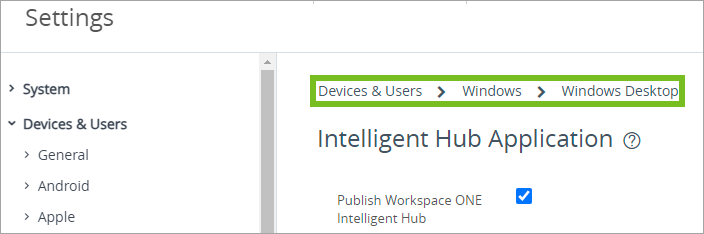
- Configure the Data Sample Interval (min) menu item to define the intervals at which the Workspace ONE Intelligent Hub takes samples of data.
- Configure the MDM Channel Security menu item to set the app-layer security between the device and the Workspace ONE UEM console.
- Configure the Privacy settings if you use analytics tools for data collection.
- Show Privacy Screen - Display a screen to tell your users that you collect data.
- Collect Analytics - Collect various data points, like app crashes and endpoint numbers and send that data to your app analytics vendor.
What to Do Next
You can prevent end users from disabling the Workspace ONE UEM Service on their device using a Custom Settings profile.
Note: UI Lockdown - Enable to lock down completely the UI so end users cannot change settings.
Adding Win32 Applications and Management
When installing any new Win32 application, you will start in the Workspace ONE UEM console, under Resources > Apps > Native > Add > Application File. You can choose the file from either a local file or link and then click Save. Once the app is chosen, you will see an Add Application window open that will allow you to set and customize the settings. After successful installation, the extracted content from the .zip files will be removed.
Note: Beginning with 2410 and later, an optimized SFD Download behavior no longer requires a full application download when the cache is cleared where an application is using scripts for detection or uninstallation. This optimization significantly reduces bandwidth consumption and speeds up application deployment.
Defer the Application Installation in the UEM
As an admin you can enable the option to allow users to manage and defer the app installs. In the Application Assignment menu, under Distribution, toggle on the Allow User Install Deferral option. Then, under Use UEM or Custom Notifications choose UEM. Now you can define how long the end user can defer the app installs. Note: Application Installation Deferral is supported on Windows Desktop devices with an active logged in user and Workspace ONE Intelligent Hub for Windows installed.
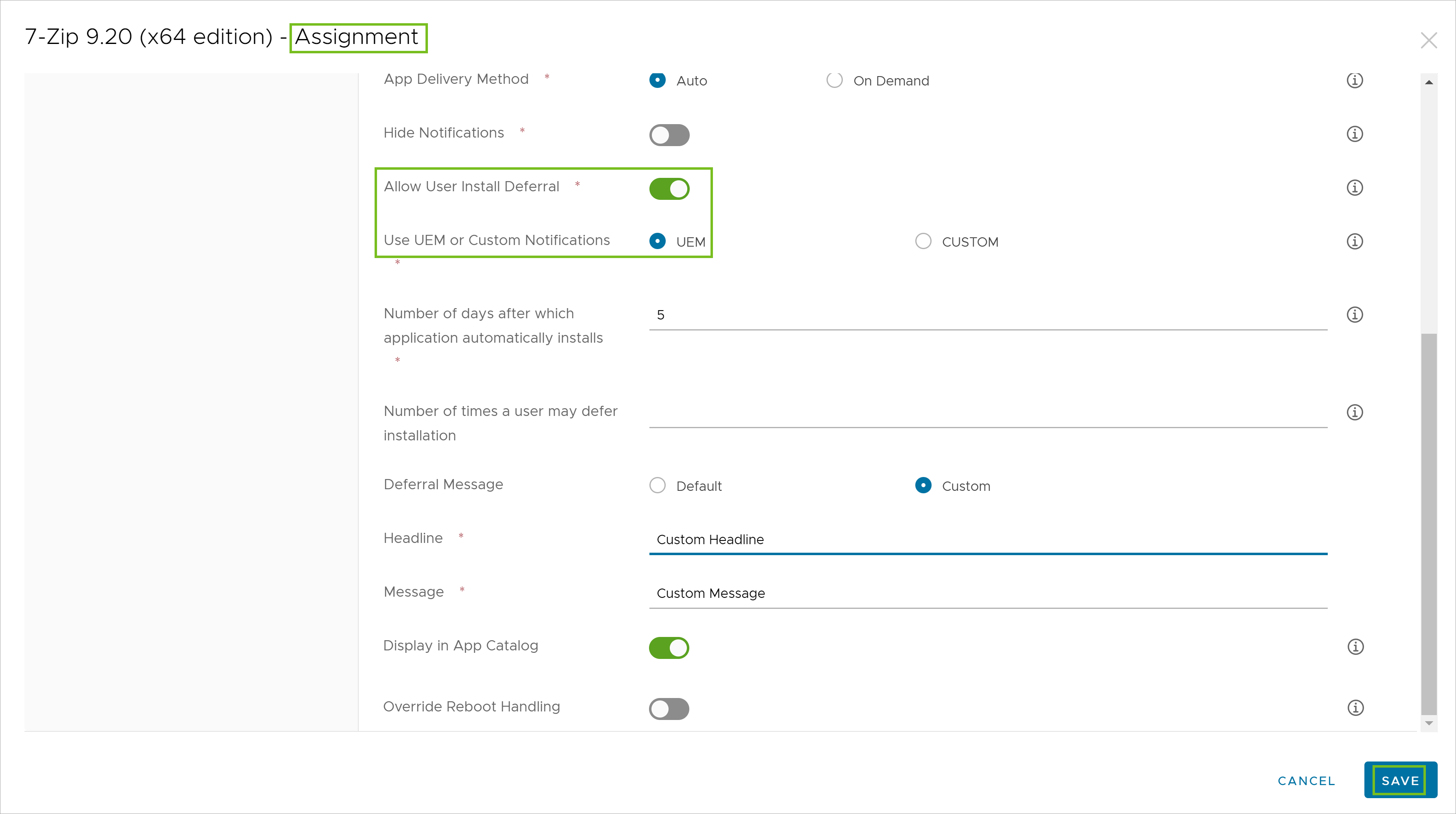
You can choose to set:
-
The Deferral Deadline- The number of days after which the application automatically installs.
-
The Deferral Count- The number of times a user may defer installation.
-
Both the Deferral Deadline and the Deferral Count.
If you choose to set both options, the first deferral option timeline that is reached will be when this would take effect. At that point, the user will be given the ability to defer one last time, but only for 30 minutes. After that the app will start the install process. Example: The admin sets both the Deferral Deadline to 10 Days and sets the Deferral Count to 3. The event that happens first will be the one that applies. So if the user reaches that 3rd deferral count option in 4 days, that is when the user will see the option to defer for only 30 minutes and then the app will start the installation.
The UEM does offer a default deferral toast notification message. However, if you would like to create your own, under Deferral Message choose Custom and provide your own deferral Headline and Message.
Managing Extracted Content Removal
The Extracted Content Removal feature determines whether temporary files generated during application installation are automatically deleted once the process is complete. Although this helps optimize disk space, some applications may need these extracted files to remain available for troubleshooting or future updates.
To avoid problems from deleting these files early, Workspace ONE UEM allows administrators to deactivate the Extracted Content Removal feature, either globally for all applications or individually for specific apps.
Note: The Extracted Content Removal feature requires a minimum SFD version 24.10.7 or later.
Disabling Extracted Content Removal Globally
The Extracted Content Removal feature can be deactivated without any console or UI configuration. Administrators can instead use a Windows registry setting to turn off this feature globally.
The Registry location is: HKLM\SOFTWARE\AirWatchMDM\AppDeploymentAgent\Common\{00000000-0000-0000-0000-000000000000}
Note: By default, if no registry value is configured, the extracted files are automatically removed after the installation completes.
| Flag Name | Type | Value (Data) | Description |
|---|---|---|---|
| Feature.DisableExtractedContentsCleanup | REG_SZ | True | Retains extracted contents after installation (deactivates cleanup). |
| NA | NA | False | Deletes extracted contents after installation (activates cleanup). |
| NA | NA | Empty or any other non-true value | Deletes extracted contents after installation (default behavior). |
The configuration behavior of the Extracted Content Removal feature is as follows:
- When the global registry flag is set to True, cleanup of extracted installation files is deactivated for all applications.
- When the flag is absent or set to False, the cleanup process functions normally.
- The registry settings are read and applied during App Deployment Agent startup or the next relevant initialization phase. These changes take effect automatically, without requiring any console updates.
Schedule Application Assignment with Time Windows
Use Time Windows to control when Workspace ONE UEM downloads and installs an internal application on Windows devices. In the application assignment, you can configure the application download and installation timing separately. Each can be set to run immediately, follow a custom schedule, use an existing Maintenance hour or Business Time Window, or use the Time Window assigned to each device. With Time Windows, you can keep disruptive installs out of business hours and pre-stage large packages ahead of a short maintenance window.
Key benefits of this feature include:
- Minimize business disruption by scheduling installations outside working hours.
- Pre-stage large application downloads before maintenance windows.
- Ensure compliance by enforcing installation deadlines for devices that miss a scheduled window.
- Monitor deployment progress using dedicated scheduling statuses.
- Install applications immediately on newly enrolled devices while maintaining controlled deployment schedules for existing devices.
Note: If you edit an existing Time Window after the assignment has reached the device, the device does not pick up the change. To push it, update or re-save the app assignment.
Requirements
The following table lists the requirements for using Time Windows with application assignments.
| Item | Requirement |
|---|---|
| Application type | Internal applications delivered through a direct assignment (Auto) |
| Agent | Workspace ONE Intelligent Hub for Windows version 2610 |
| Admin role | To select an existing Time Window, your admin role needs the View Time Window permission. Without it, the console shows Permissions Required. |
Understanding Scheduling Options
Each application assignment has a Download Schedule and an Installation Schedule options. You can set each assignment to any one of the option listed in the following table.
| Option | Behavior |
|---|---|
| Download Immediately / Install Immediately | The device downloads or installs the application as soon as it receives the assignment, which is the existing behavior. This option is selected by default. |
| Set download schedule | Create Custom Schedule: You define one or more schedules for this assignment. - Device time / UTC Time: Whether the time range uses the device's local time or UTC. A window can be up to 24 hours long and can cross midnight. - Date range (From / To): The dates when the schedule is active. - Time range: The start and end time of the window on each active day. - Repeat: Never, Daily, or Weekly. With Weekly, choose the days under Repeat on days. - Add schedule: Adds more windows to the same assignment, for example, a weekday window and a weekend window. - Download and Install immediately after: Once the download is set to anything other than immediate, the Download and Install immediately after N Days field becomes available. When N days have passed since the device first received the schedule, the device downloads and installs the application immediately, even if no window is open. This deadline applies to both download and installation. |
| Use device assigned time window | Choose a time window category, Business window or Maintenance window. Each device then follows the Time Window of the category assigned to it, so devices in the same assignment can run in different windows. If a device has no Time Window assigned, the operation runs as soon as the device receives the assignment. |
Download and Installation Window
When the download is set to anything other than immediate, the Download and Install immediately after N Days field becomes available. When N days pass since the device first receives the schedule, the device downloads and installs the application immediately, even if no window is open. This deadline applies to both download and installation.
Configure Time Window for an Application Assignment
-
Navigate to Resources > Apps > Native Apps > Internal and select the Windows application.
-
Select an application and click Assign, then click Add Assignment to add a new assignment or edit an existing one.
-
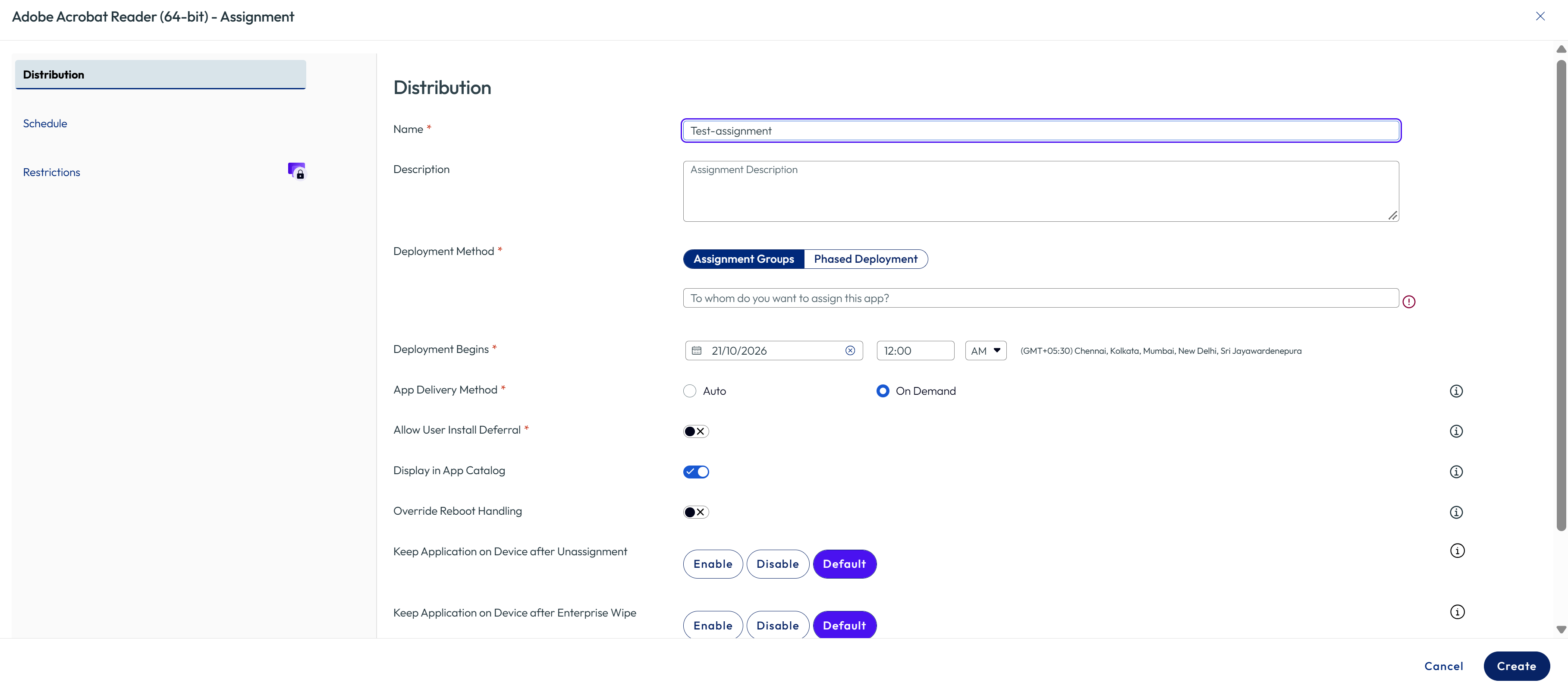
In the Distribution section, enter a name for the distribution.
-
Select the Deployment Method and set the date and time in the Deployment Begins option.
-
Select the App Delivery Method and Allow User Install Deferral fields.
-
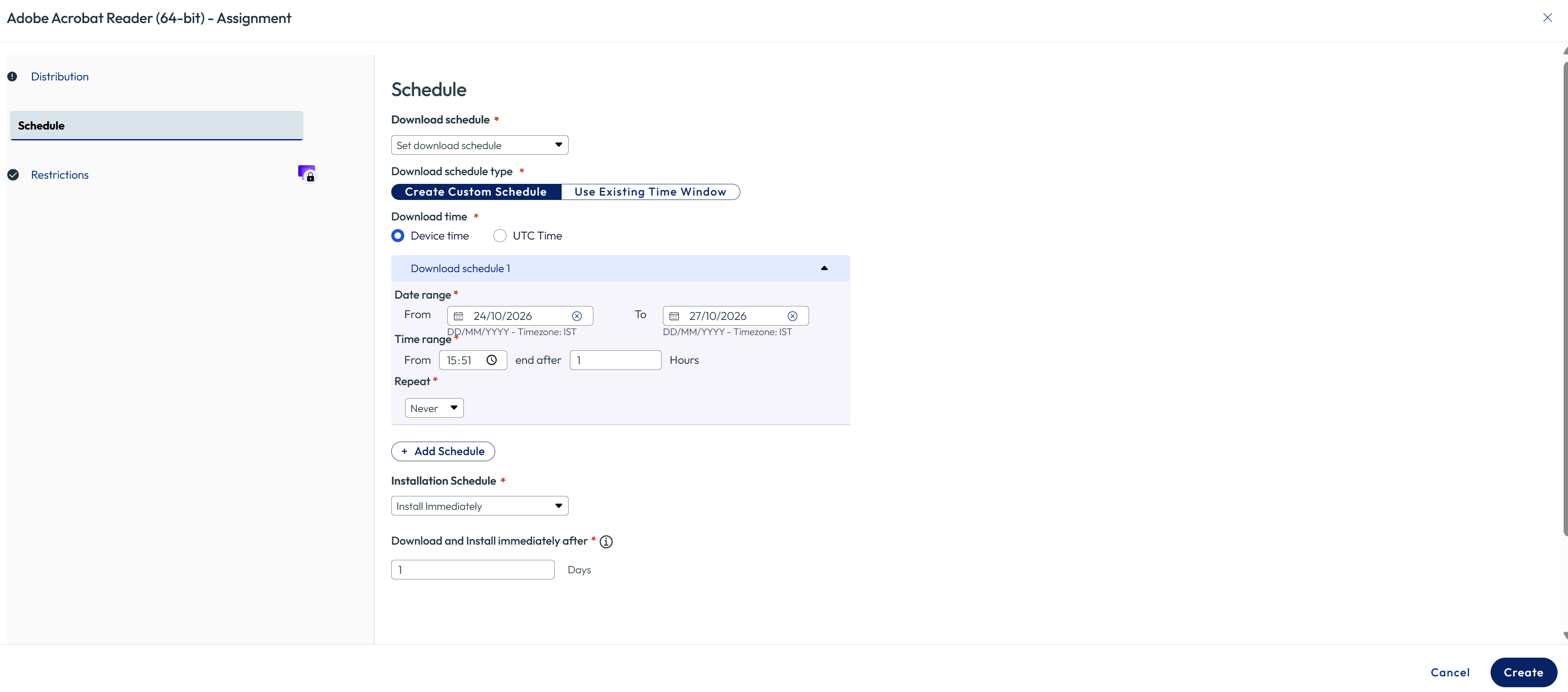
In the Schedule section, under the Download schedule, select a Set download schedule from the drop-down.
-
Enter all the mandatory fields to create a custom schedule. Select Device time or UTC Time and set the Date range, Time range, and Repeat values.
-
Under Installation schedule, select the installation schedule type and enter the mandatory fields as necessary.
-
(Optional) Set Download and Install immediately after N Days.
-
Select Create, then select Publish.
Application Schedule Status
To view the app scheduling status, navigate to Devices > List View, click on the device to view the Device Details and then click Apps. The following table describes each status.
| Installation Type or Status | Meaning |
|---|---|
| Download Scheduled | The app is assigned and waiting for its download window. |
| Install Scheduled | The app is downloaded or waiting and is held until its installation window. |
How Time Windows Affect Device Behavior?
Device scheduling behavior depends on the configuration options described below. After you publish an assignment, Time Windows control how the device behaves as follows.
- Windows control when work starts: A download or installation that begins inside a time window continues to completion even after the time window closes. Ensure the window is long enough to accommodate lengthy installations.
- Offline devices catch up automatically: If a device is offline or asleep during its scheduled time window, the action runs during the next available window after the device comes back online.
- The device enforces the schedule locally: After receiving the schedule, the device waits for the window, no check-in is required when the window opens. Selecting Sync in Intelligent Hub does not override a closed window.
- Downloads and installations are scheduled independently, and download always occurs first:
-
If the download is set to immediate and the installation is scheduled, the app is pre-staged on the device and installs during the next installation window.
-
If the installation window opens before the download window, the app waits for the download window before proceeding.
-
If the installation window has already passed by the time the download completes, the app installs immediately after the download finishes.
Note: As a best practice, schedule the download window to end before the installation window begins — for example, download on Saturday and install on Sunday night. This ensures the app is already on the device when the installation window opens, so the installation does not occur outside your planned window.
-
- Repeat never: Restricts the action to the first window in the date range. If the device misses that window, the schedule expires at the end of the same day.
- Expired schedules: When every schedule on an assignment has expired, the application downloads and installs immediately.
- Schedule edits: When you change the schedule on an assignment, devices pick up the update at their next check-in and it takes effect immediately. Editing the schedule does not restart the Download and Install immediately after N Days countdown.
- Apps with dependencies; The app and each of its dependencies check the installation window before installing. If the window closes mid-installation, the app waits for the next installation window to continue.
- Newly enrolled devices: Enrollment does not bypass an assigned Time Window. With Use device assigned time window selected, the app waits until the device receives its Time Window and then follows it.
- Retries: Retries after a failed download or installation also respect the window. If a retry is due while the window is closed, the app waits for the next window to retry.
- Direct assignment takes precedence over workflows: When an app is assigned both directly with a Time Window schedule and through a workflow, the direct assignment takes precedence. For example, if an app has already been downloaded and is in the Install Scheduled state due to a direct assignment, and an admin subsequently assigns a workflow to install the same app, the workflow skips the Install App step and marks it as complete when it runs. This is because the app is already scheduled for installation through the direct assignment.
- Unassignment: If you remove the assignment while the app is in the Download Scheduled or Install Scheduled state, the pending operation is canceled.
Interaction with other Features
The following table describes how Time Windows interact with other Workspace ONE UEM features.
| Feature | Behavior |
|---|---|
| Manual install (by the user from the Intelligent Hub catalog, or by an admin from Device Details > Apps) | Downloads and installs immediately. Time Windows are bypassed. |
| Installer Deferral (user deferral) | User deferral takes precedence over the installation schedule. When the user installs, or the deferral runs out, the install runs immediately without waiting for a window. The download schedule still applies. |
| Onboarding workflows (Freestyle Orchestrator) | Apps in an onboarding workflow install immediately on newly enrolled devices, even if the same app direct assignment has a download or install schedule. Use this to prepare new devices for use immediately after enrollment, while existing devices continue to receive the app during their scheduled maintenance window. |
| Other Freestyle Orchestrator workflows | If the app is not directly assigned to the device, the workflow installs the app immedaiately and does not use the direct assignment Time Windows. If the app is also directly assigned to the same device with a schedule, the direct assignment schedule applies and the workflow step waits. To restrict a workflow to a window, use the Time Window condition in Freestyle Orchestrator. |
| Enterprise App Repository: inherited assignments | When you add a new version of an app through the Enterprise App Repository with Inherit Application Assignments turned on, the new version also inherits the previous version Time Window and schedule settings, for both download and installation. You do not need to set up the schedule again. |
| Apps with built-in auto-update (Support Applications with Auto Update) | Time Windows do not control the application own updater. |
Configure Schedules with the API
The Apps V4 and V3 assignment APIs support two optional objects in each assignment's distribution: download_schedule and installation_schedule. If you omit either one, that action still runs immediately, so existing integrations continue to work without changes.
Each schedule object takes these fields:
| Field | Description |
|---|---|
source_type | Required. IMMEDIATE, CUSTOM, TIME_WINDOW, or DEVICE_BASED. These match the four console options. |
schedules | Required for CUSTOM. A list of entries, each with start_date, an optional end_date, an optional recurrence (frequency NEVER / DAILY / WEEKLY, interval, and by_day for weekly), and one or more time_slots (start_time in HH:mm and duration_in_minutes from 1 to 1440). If recurrence is omitted, the entry runs once on start_date. |
time_window_uuid | Required for TIME_WINDOW. The existing Time Window to use. time_window_version is read-only and is set by Workspace ONE UEM when you save. |
device_time_window_type | Required for DEVICE_BASED. BUSINESS_HOURS or MAINTENANCE_HOURS. |
time_zone | DEVICE_TIME (default) or UTC_TIME. |
force_after_attempts | Optional. The Download and Install immediately after N Days value. Must be greater than zero. One deadline applies to both download and installation, so set the same value in both objects. |
이 페이지가 도움이 되었나요?