You should test your single sign-on configuration between Office 365 and Omnissa Access with a small number of users before deploying the application across your organization.
Set up User in Omnissa Access for Test
Configure the user ID and email address for testing.
Entitle the test user to an Office 365 application.
-
Log in to the Omnissa Access console.
-
In the Users & Groups page, click Users and ensure that the user you are testing is in the list of users.
-
In the Catalog Web Apps page, click on the Office 365 application to be tested.
-
Click Assign.
-
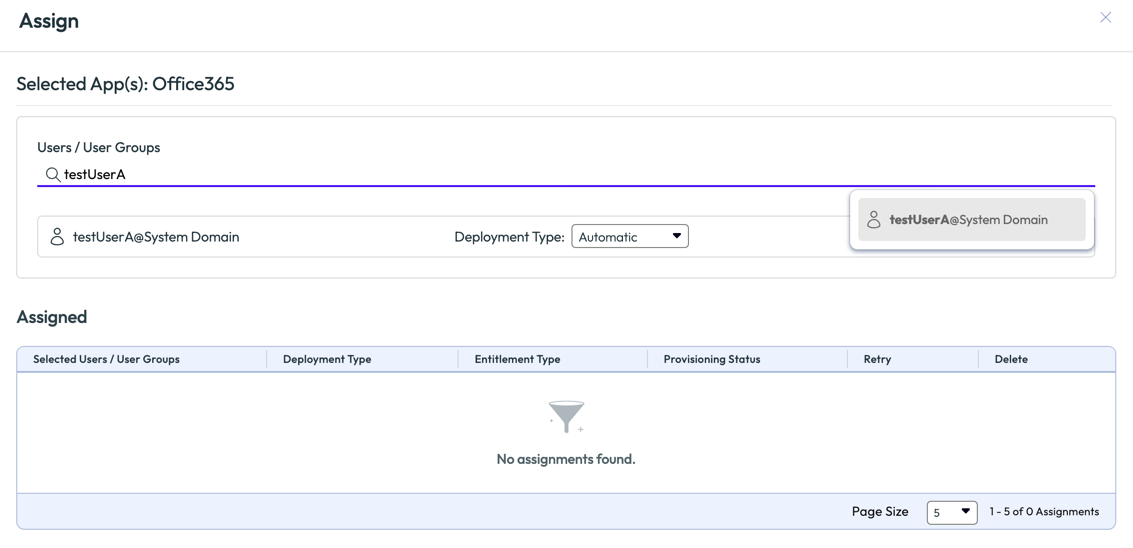
In the Users/Users Groups search box, search for the user to add.
-
Select the test user and in the Deployment Type column drop-down menu, select Automatic.
-
Click Save.
-
Log out of the administration console. In the header by your name, click the arrow and select Logout.
Set Up User in Office 365 for the Test
You provision a user in Office 365 application to test single sign-on through the Omnissa Access service.
- Log in to the Office 365 portal as the administrator.
- Navigate to the users and groups Add new users page.
- In the Display name and User Name text box, enter the test user name. The user name is the name used to sign in to Office 365.
- If you have more than one domain, select the correct domain for this user from the drop-down menu.
- Click Create to create the test account.
Verify That Test-User Can Sign into an Office 365 App
Now that a user is entitled in the service and set up in Office 365, test that the user can sign in to the Office 365 Web application from the Workspace ONE Intelligent Hub portal.
- In the browser, enter the URL to the user’s apps portal sign-in page and sign in with the test user name and password.
- Select the Office 365 application.
You should successfully sign in to Office 365.
Verify Test-User Can Sign into an Office 365 Native App
- Launch the Office 365 native application installed on the test user’s computer.
- Click the login link for the application and enter the email address and password.
- If the Per App Password is configured, enter the password that was set through the apps portal page.
- If Active Directory password is configured, enter the test user’s Active Directory password.
You should successfully sign in to Office 365.
Was this page helpful?