Device Dashboard
As devices are enrolled, you can manage them from the Device Dashboard in Omnissa Workspace ONE UEM.
The Device Dashboard provides a high-level view of your entire fleet and allows you to act on individual devices quickly.
You can view graphical representations of relevant device information for your fleet, such as device ownership type, compliance statistics, and platform and OS breakdowns. You can access each set of devices in the presented categories by selecting any of the available data views from the Device Dashboard.
From the List View, you can take administrative action: send messages, lock devices, delete devices, and change groups associated with the device.
-
Security - View the top causes of security issues in your device fleet. Selecting any of the doughnut charts displays a filtered Device List view comprised of devices affected by the selected security issue. If supported by the platform, you can configure a compliance policy to act on these devices.
-
Compromised - The number and percentage of compromised devices (jailbroken or rooted) in your deployment.
-
No Passcode - The number and percentage of devices without a passcode configured for security.
-
Not Encrypted - The number and percentage of devices that are not encrypted for security.
-
Ownership - View the total number of devices in each ownership category. Selecting any of the bar graph segments displays a filtered Device List view comprised of devices affected by the selected ownership type.
-
-
Last Seen Overview/Breakdown - View the number and percentage of devices that have recently communicated with the Workspace ONE UEM MDM server. For example, if several devices have not been seen in over 30 days, select the corresponding bar graph to display only those devices. You can then select all these filtered devices and send out a query command so that the devices can check in.
-
Platforms - View the total number of devices in each device platform category. Selecting any of the graphs displays a filtered Device List view comprised of devices under the selected platform.
-
Enrollment - View the total number of devices in each enrollment category. Selecting any of the graphs displays a filtered Device List view comprised of devices with the selected enrollment status.
-
Operating System Breakdown - View devices in your fleet based on operating system. There are separate charts for each supported OS. Selecting any of the graphs displays a filtered Device List view comprised of devices running the selected OS version.
Device List View
Use the Device List View in Omnissa Workspace ONE UEM to see a full listing of devices in the currently selected organization group.
Device List View,UEM,Workspace ONE,device list,friendly name,device status
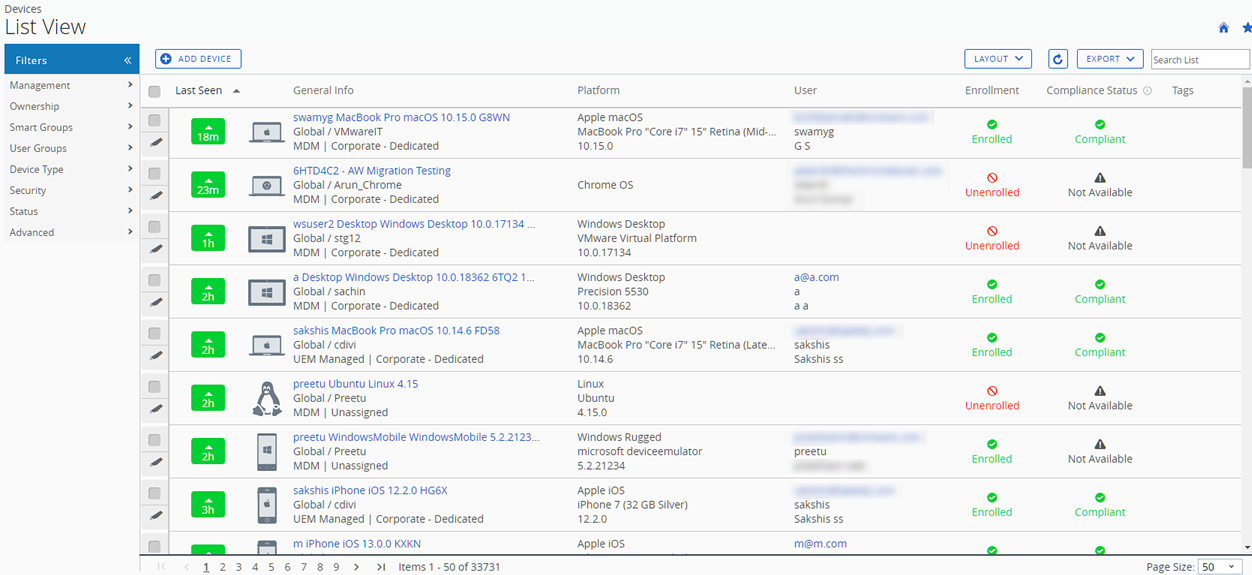
The Last Seen column displays an indicator showing the number of minutes elapsed since the device has checked-in. The indicator is red or green, depending on how long the device is inactive. The default value is 480 minutes (8 hours) but you can customize this by navigating to Groups & Settings > All Settings > Devices & Users > General > Advanced and change the Device Inactivity Timeout (min) value.
Select a device-friendly name in the General Info column at any time to open the details page for that device. A Friendly Name is the label you assign to a device to help you differentiate devices of the same make and model.
Sort by columns and configure information filters to review activity based on specific information. For example, sort by the Compliance Status column to view only devices that are currently out-of-compliance and target only those devices. Search all devices for a friendly name or user name to isolate one device or user.
Customize Device List View Layout
Display the full listing of visible columns in the Device List view by selecting the Layout button and select the Custom option. This view enables you to display or hide Device List columns per your preferences.
There is also an option to apply your customized column view to all administrators at or below the current organization group (OG). For instance, you can hide ‘Asset Number’ from the Device List views of the current OG and of all the OGs underneath.
Once all your customizations are complete, select the Accept button to save your column preferences and apply this new column view. You can return to the Layout button settings at any time to tweak your column display preferences.
Some notable device list view custom layout columns include the following.
- Platform (Apple visionOS)
- Model (Vision Pro)
- OS
- Serial Number
Exporting List View
Select the Export button to save an XLSX or CSV(comma-separated values) file of the entire Device List View that can be viewed and analyzed with MS Excel. If you have a filter applied to the Device List View, the exported listing reflects the filtered results.
Search in Device List View
You can search for a single device for quick access to its information and take remote action on the device.
To run a search, navigate to Devices > List View, select the Search List bar and enter a user name, device-friendly name, or other device-identifying element. This action initiates a search across all devices, using your search parameter, within the current organization group and all child groups.
Device List View Action Button Cluster
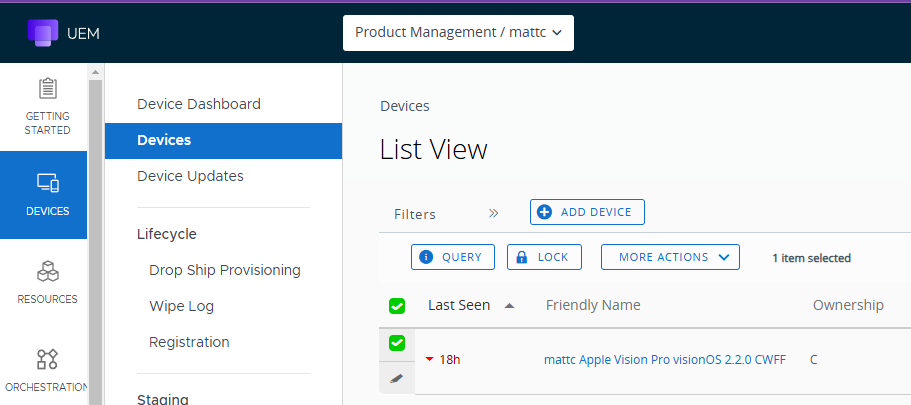
With one or more devices selected in the Device List View, you can perform common actions with the action button cluster including Query, Lock, and other actions accessed through the More Actions button.
Available Device Actions vary by platform, device manufacturer, model, enrollment status, and the specific configuration of your Omnissa Workspace ONE UEM console.
Using the Device Details Page for visionOS Devices
Use the Device Details page to track detailed device information and quickly access user and device management actions.
You can access the Device Details page by either selecting a device’s Friendly Name from the List View page, from one of the available Dashboards or by using any of the available search tools within the UEM console.
View Device Information Use the Device Details menu tabs to access specific device information, including:
-
Summary - View general statistics such as:
-
Compliance
-
Enrollment status
-
Last seen
-
Platform/model/OS
-
Management
-
Supervision
-
Find My iPhone
-
Data protection
-
Encryption
-
Contact information
-
Organization group and smart group
-
Serial number, UDID, and asset number
-
Power status
-
-
Compliance - Display the status, policy name, date of the previous and forthcoming compliance check and the actions already taken on the device.
-
Profiles - View all MDM profiles currently installed on a device.
-
Apps - View the app status, app name, type of the app (whether public or internal), app version and identifier, and the size of the app.
Note: Due to the way application status is reported on visionOS devices, an application achieves Installed status only after the installation process is fully completed. Which means when the Omnissa Workspace ONE UEM console queries the device for its application list sample, and if the application is still downloading, then the application returns a status of Installing. On a successful application installation, the device returns the application status as Installed which is marked the same in the Workspace ONE UEM console.
-
User - Access details about the user of a device as well as the status of the other devices enrolled to this user.
The menu tabs below are accessed by selecting More from the main Device Details page:
-
Network - View the current network (Wi-Fi, Bluetooth) status of a device.
-
Security - View the current security status of a device based on security settings.
-
Certificates - Identify device certificates by name and issuant. This tab also provides information about certificate expiration.
-
Status History - View history of device in relation to enrollment status.
-
Targeted Logging - View the logs for the Console, Catalog, Device Services, Device Management, and Self Service Portal. You must enable Targeted Logging in settings and a link is provided for this purpose. You must then select the Create New Log button and select a length of time the log is collected.
-
Troubleshooting - View Event Log and Commands logging information. This page features export and search functions, enabling you to perform targets searches and analysis
-
Event Log - View detailed debug information and server check-ins, including a Filter by Event Group Type, Date Range, Severity, Module, and Category.
In the Event Log listing, the Event Data column may display hypertext links that open a separate screen with even more detail surrounding the specific event. This information enables you to perform advanced troubleshooting such as determining why a profile fails to install.
-
Commands - View detailed listing of pending, queued, and completed commands sent to the device. Includes a Filter enabling you to filter commands by Category, Status, and specific Command.
-
Attachments - Use this storage space on the server for screenshots, documents, display Hub logs sent from the Intelligent Hub, and links for troubleshooting and other purposes without taking up space on the device its
-
Perform Remote Actions - The More Actions drop-down on the Device Details page enables you to perform remote actions over-the-air to the selected device. See below for detailed information about each remote action. The actions listed below will vary depending on factors such as device platform, UEM console settings, and enrollment status.
-
Query All - Send a query command to the device to return a list of installed applications (including Omnissa Workspace ONE Intelligent Hub, where applicable), books, certificates, device information, profiles, and security measures.
-
Device Information (Query) - Send an MDM query command to the device to return information on the device such as friendly name, platform, model, organization group, operating system version, and ownership status.
-
Security (Query) - Send an MDM query command to the device to return the list of active security measures (device manager, encryption, passcode, certificates, and so on).
-
Profiles (Query) - Send an MDM query command to the device to return a list of installed device profiles.
-
Apps (Query) - Send an MDM query command to the device to return a list of installed applications.
-
Certificates (Query) - Send an MDM query command to the device to return a list of installed certificates.
-
Clear Passcode (Restrictions Setting) - Clear the passcode command clears the login passcode on the device. The device needs to be supervised.
-
User Lists (Query) - Send a query command to the device to return a list of users who have logged into the device (for shared devices only).
-
Lock Device - Send an MDM command to lock a selected device, rendering it unusable until it is unlocked.
-
Enterprise Wipe - Enterprise Wipe a device to unenroll and remove all managed enterprise resources including applications and profiles. This action cannot be undone and re-enrollment is required before Workspace ONE UEM can manage this device again. This device action includes options to prevent future re-enrollment and a Note Description text box for you to add information about the action.
- Enterprise Wipe is not supported for cloud domain-joined devices.
-
Device Wipe - Send an MDM command to wipe a device clear of all data and operating system. This puts the device in a state where recovery partition will be needed to reinstall the OS. This action cannot be undone.
For more information about troubleshooting device wipes, related permissions, and when device wipe actions appear in the UEM console, refer to the following Workspace ONE UEM Knowledge Base article.
-
Request Device Check-In - Request the selected device to check-in itself in to the UEM console and updates the Last column status. This action also resets the device enrollment to the staging user.
-
Sync Device - Synchronize the selected device with the UEM console, aligning its Last Seen status.
-
Change Organization Group - Change the device’s home organization group to another existing OG. Includes an option to select a static or dynamic OG.
If you want to change the organization group for multiple devices at a time, you must select devices for the bulk action using the Block selection method (using the shift-key) instead of the Global check box (next to the Last Seen column heading in the device list view).
-
Add Tag - Assign a customizable tag to a device, which can be used to identify a special device in your fleet.
-
Edit Device - Edit device information such as Friendly Name, Asset Number, Device Ownership, Device Group Device Category.
-
Delete Device - Delete and unenroll a device from the console. Sends the enterprise wipe command to the device that gets wiped on the next check-in and marks the device as Delete In Progress on the console. If the wipe protection is turned off on the device, the issued command immediately performs an enterprise wipe and removes the device representation in the console.
Configure and Deploy a Custom Command to a Managed Device
Omnissa Workspace ONE UEM enables administrators to deploy a custom XML command to managed Apple devices. Custom commands allow more granular control over your devices.
Use custom commands to support device actions that the UEM console does not currently support. Do not use custom commands to send commands that exist in the UEM console as Device Actions. Samples of XML code you can deploy as custom commands at euc-samples/UEM-Samples at main euc-oss/euc-samples.
Important: Improperly formed or unsupported commands can impact the usability and performance of managed devices. Test the command on a single device before issuing custom commands in bulk
Procedure
-
In the UEM console, navigate to Devices > List View.
-
Select one or more visionOS devices using the check boxes in the left column.
-
Select the More Actions drop-down and select Custom Commands. The Custom Commands dialogue box opens.
-
Enter the XML code for the action you want to deploy and select Send to deploy the command to devices.
-
Browse XML code for Custom Commands on the Omnissa Workspace ONE UEM Knowledge Base at euc-samples/UEM-Samples at main euc-oss/euc-samples.
If the Custom Command does not run successfully, delete the command by navigating to Devices > List View. Select the device to which you assigned the custom command. In the Device Details View, select More > Troubleshooting > Commands. Select the Command you want to remove, and then select Delete. The Delete option is only available for Custom Commands with a Pending status.
Was this page helpful?