For the Cert Proxy service to direct requests correctly, the load balancer should be configured as follows.
Omnissa Access 26.07 or Later
-
Port 443:
- Valid certificate installed
- SSL re-encryption enabled
- X-Forwarded-For header enabled
- RemotePort header enabled
-
Layer 4 SSL passthrough configured for port 15262 (TCP)
-
Proxy Protocol enabled for Layer 4 TCP
Note: The load balancer and the Cert Proxy service must be configured to use the same Proxy Protocol version, either v1 or v2.Important: The Proxy Protocol configuration varies depending on your load balancer. Refer to your vendor's documentation for instructions. For F5 BIG-IP, see the section below.
Example: Enabling Proxy Protocol in F5 BIG-IP
Omnissa Access 26.07 and later require Proxy Protocol to be enabled for Layer 4 TCP on the load balancer. The F5 BIG-IP load balancer does not have a native Proxy Protocol profile, therefore Proxy Protocol support must be implemented with a custom iRule, not a built-in profile.
Note: The following example provides guidelines on configuring the F5 BIG-IP load balancer for your convenience. For accurate, up-to-date information, refer to the F5 documentation. For example, see K40512493: Proxy protocol for the BIG-IP.
-
Log in to the F5 BIG-IP Configuration Utility.
-
Go to Local Traffic > Virtual Servers and open the virtual server used for the cert-proxy service (port 15262).
-
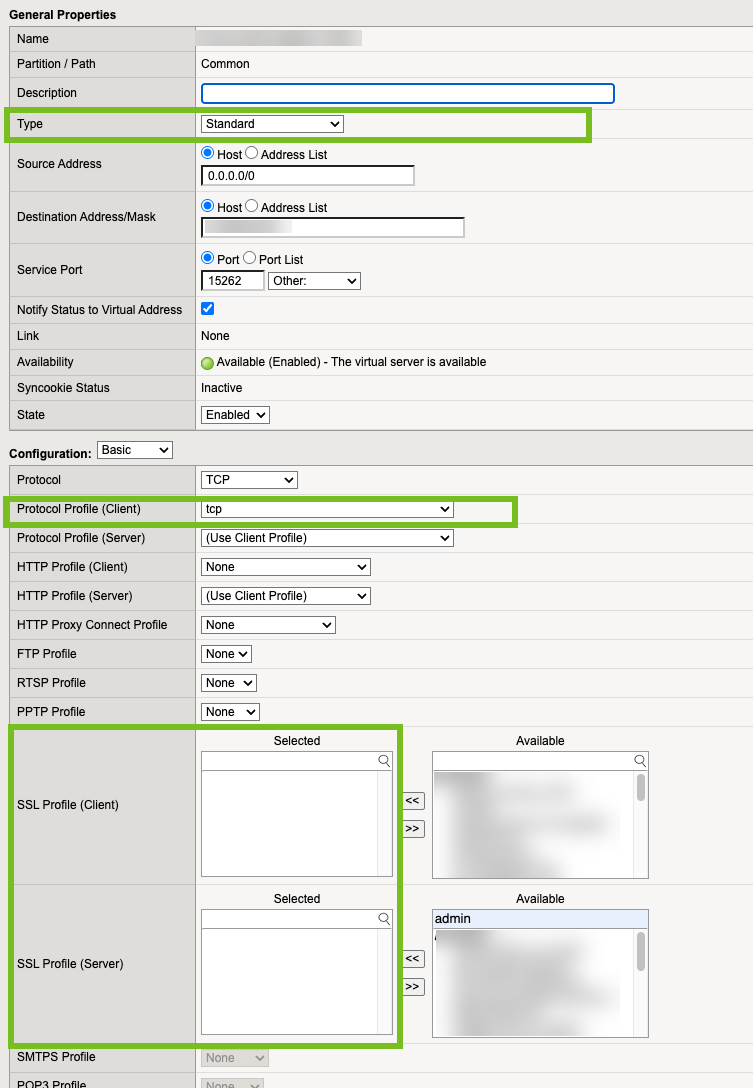
Change Type from Performance (Layer 4) to Standard.
-
Set Protocol Profile (Client) to a tcp profile (the default tcp profile or a custom one derived from it).
-
Do not attach an SSL Profile (Client) or SSL Profile (Server) profile, so TLS pass-through behavior is preserved.
For example:
-
Go to Local Traffic > iRules and create a new iRule to insert the PROXY header on the server-side connection. For example:
when CLIENT_ACCEPTED { TCP::collect } when CLIENT_DATA { set proxy_line "PROXY TCP[IP::version] [IP::client_addr] [IP::local_addr] [TCP::client_port] [TCP::local_port]\r\n" TCP::payload replace 0 0 $proxy_line TCP::release } -
Attach the iRule to the cert-proxy virtual server (port 15262), under Resources > iRules.
-
Update the backend cert-proxy service/host configuration to expect and parse a Proxy Protocol header on incoming connections at port 15262, so it does not try to parse the header as part of the TLS handshake.
-
Save the changes and, if using a device group, sync the configuration to the other F5 devices.
-
Test end-to-end from a client device.
Confirm the TCP handshake succeeds, cert-proxy logs show the real client IP (not the F5 self IP), and mobile SSO login flows for Android work.
Omnissa Access 24.12 or Earlier
When the Omnissa Access nodes are configured in the DMZ behind a load balancer, all nodes must be configured to communicate with each other. Configure the firewall rules to allow the nodes to talk to each other on port 5262.
For the Cert Proxy service to direct requests correctly, the load balancer should be configured as follows.
- SSL re-encryption enabled
- Publicly trusted certificate installed on the load balancer
- X-Forwarded-For header enabled
- RemotePort header enabled
- Port 443 configured with a self-signed certificate on each node
- Port 5262 configured for the Cert Proxy service, with SSL pass-through configured for certificate authentication. The SSL handshake is between the device and the service.
- Port 5263 configured as another instance of the Cert Proxy service to receive internal admin requests from the service
For more information about Layer 4 and Layer 7 requirements, see SSL Passthrough or Reencryption in the Cert Proxy Service.
Was this page helpful?