When you integrate your Active Directory or your LDAP directory with Omnissa Access, you specify the user DNs to sync. You can apply filters to the user DNs to include or exclude specific users.
If a DN contains extraneous user objects that do not need to be synced to Omnissa Access, you can specify LDAP filters to narrow the query or you can filter out objects after the query is done. The option you use depends on your specific scenario. If a large number of objects in the DN need to be excluded, using an inclusion filter with the DN makes the query and sync process more efficient because Omnissa Access does not have to retrieve the extra objects from your Active Directory or LDAP directory. On the other hand, if you need to exclude only a small number of objects, you can use exclusion filters. Exclusion filters are applied after all the user objects are retrieved from your Active Directory or LDAP directory.
Note: Inclusion filters are available with Omnissa Access Connector 20.10 and later.
Using Inclusion Filters
To specify an inclusion filter, append a semicolon to the user DN that you want to filter, then enter the filter. Use the standard LDAP search filter syntax. For example, if your DN is CN=Users,DC=sales,DC=example,DC=com and you want to sync only the users that are enabled, you can use the following query:
CN=Users,DC=sales,DC=example,DC=com;(&(objectClass=User)(objectCategory=Person)(UserAccountControl=512))

To check if the query is valid and to see the number of users that will be synced, click the Test button.
If you do not specify a filter, Omnissa Access applies the following filter by default.
- For Active Directory:
(&(objectClass=User)(objectCategory=Person)) - For LDAP directory: The filter that you specified in the LDAP Configuration section while creating the LDAP directory in Omnissa Access.
Using Exclusion Filters
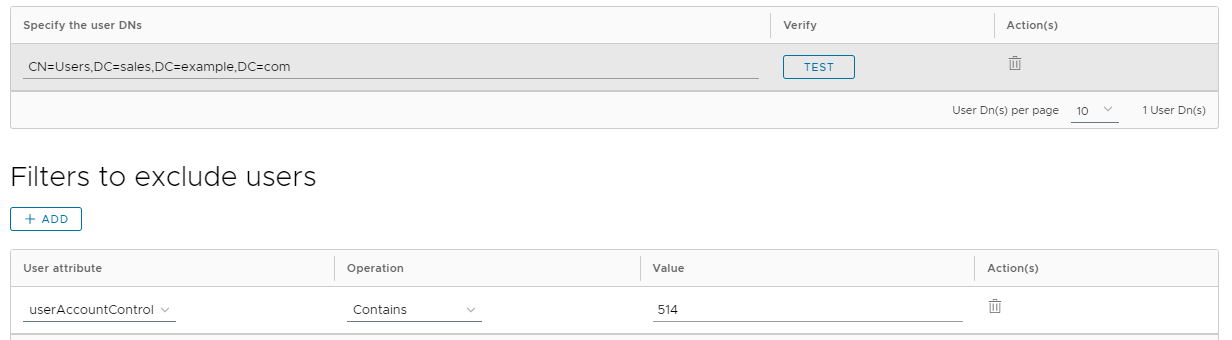
You can create exclusion filters in the Filters to exclude users section to exclude users based on the attribute chosen. You can create multiple exclusion filters.
You select the user attribute to filter by and the query filter to apply to the value you define.
| Option | Description |
|---|---|
| Contains | Excludes all users who match the attribute and value set. For example, name contains Jane excludes users named "Jane". |
| Does not contain | Excludes all users except for those who match the attribute and value set. For example, telephoneNumber does not contain 800 includes only users with a telephone number that includes "800". |
| Begins with | Exclude all users where the attribute value begins with the specified characters. For example, employeeID begins with ACME0 excludes all users that have an employee ID that includes "ACME0" at the beginning of their ID number. |
| Ends with | Exclude all users where the attribute value ends with the specified characters. For example, mail ends with example1.com excludes all users that have an email address that ends in "example1.com". |
The value is case-insensitive. Do not use the following symbols in the value string.
- Asterisk
* - Caret
^ - Parentheses
() - Question mark
? - Exclamation point
! - Dollar sign
$
For example, if your DN is CN=Users,DC=sales,DC=example,DC=com, and you want to exclude users that are deactivated, you can use the following filter:
Was this page helpful?