A package stores one or more programs required for the application to run. You can create a package for an application either immediately after creating the application or at a later point in time.
When you create a package, you provide the metadata such as name, storage, path, template, and description of the package. You can select a package stage that indicates the state of delivery of a package. For information about the package stages, see Lifecycle of an App Volumes Package.
You can configure the delivery modes, Classic and On-demand, for the package. For more information about the package delivery modes, see Understanding Package Delivery Modes in App Volumes.
You can gather application usage feedback from your end users and use this data to effectively manage applications. This functionality can be enabled using the Prompt for Feedback toggle. For more information about this toggle, see Seek App Volumes Application Usage Feedback from Users.
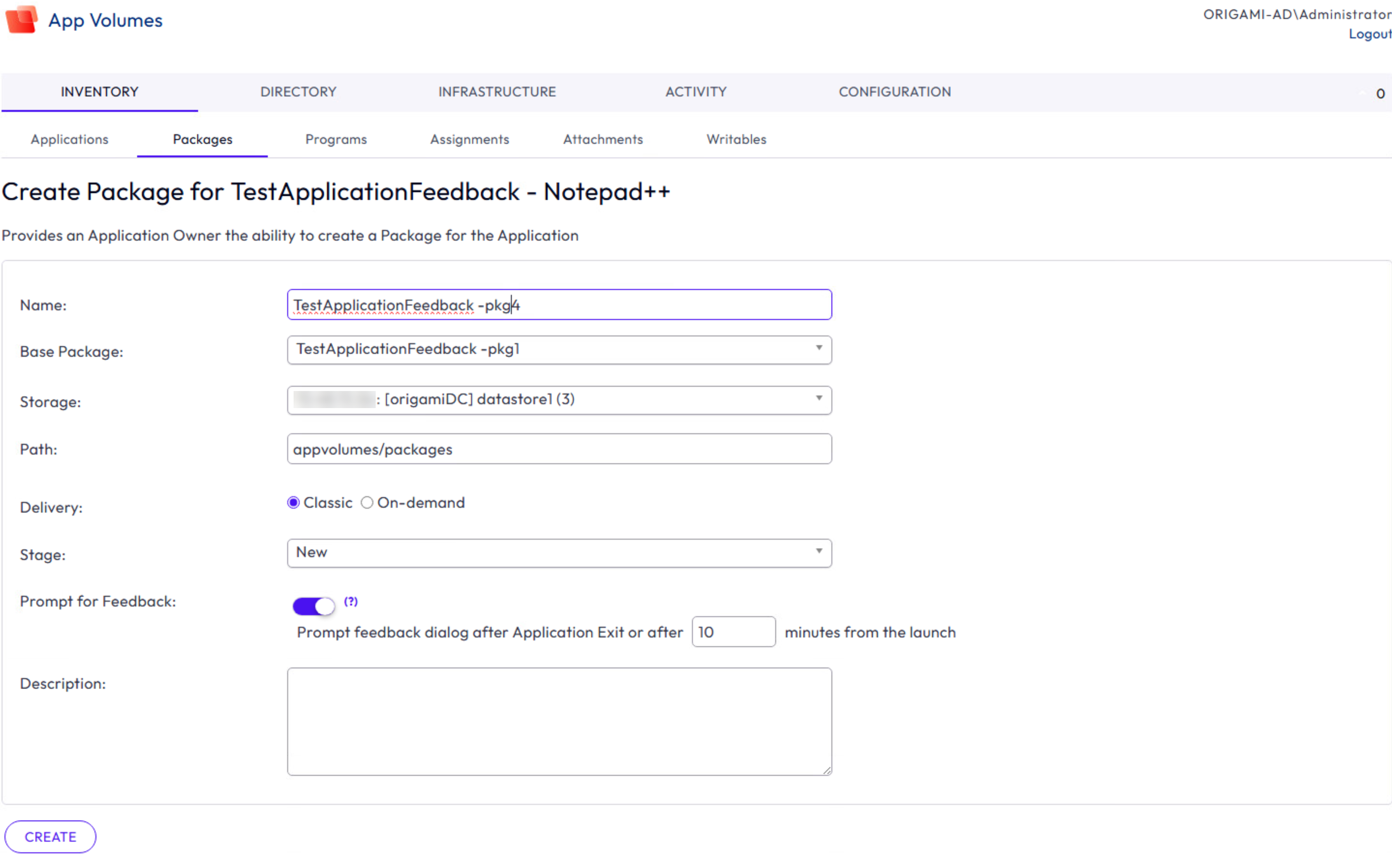
In the following screenshot, TestApplicationFeedback -pkg4 is created for the TestApplicationFeedback-Notepad++ application. Other package details such as path, template, delivery mode, stage, and description are displayed. Feedback collection for this package is activated by turning on the Prompt for Feedback toggle.
Prerequisites
-
You must have already created an application.
To create an application, see Create an App Volumes Application.
-
You must have uploaded the template for packages to the datastore.
To upload a template, see Upload Templates.
-
If you want to configure the package delivery mode as
On-demand, ensure that you are aware of the required criteria and the behavior of the application package when delivered to the end user.For information about the criteria and characteristics, see Understanding Package Delivery Modes in App Volumes.
Procedure
-
From App Volumes Manager, go to INVENTORY > Applications.
-
Select an application and click Create Package.
-
On the Create Package page, provide package details such as
Name,Base Package,Storage,Path,Template,Stage, andDescription.- When a package is created, the filename of the volume created on the datastore is the same as the package name. Ensure that the volume filename is unique in the datastore directory.
- Base package acts as reference when you opt to create a version of a package by using an existing version as base.
Note: You cannot use the Create functionality to create an MSIX app attach format in Omnissa App Volumes. As a result, this format is not listed in the
Base Packagedropdown box.
-
Select the package Delivery mode.
-
By default, the package delivery mode is
Classic.If you select the default value, you cannot change the delivery mode to
On-demanduntil you complete package capture. -
If you configure the package delivery mode to
On-demand, you can edit the delivery mode toClassicregardless of the package status.When a package is delivered as on-demand, the attachment occurs only when the end user launches the application.
-
If you have selected the Do not deliver for these assignments at startup or login option on the Assign Application page, then the assignment option overrides the package delivery option selected in this task.
For more information about the command-line delivery behavior, see Command-line Delivery of Applications in App Volumes.
-
-
If you want a feedback dialog box prompted for an end user, turn on the Prompt for Feedback toggle.
Turning on the toggle activates the functionality and, by default, the feedback dialog box is prompted for the user either when the user closes the application or at the configured time after application launch.
- In the text box, enter the time interval (in minutes).
-
Click Create.
-
On the Confirm Create Package window, select one of the options and click Create.
Option Action Perform in the background The package gets created for the application in the background and you can perform other tasks. Note: Status of the package is Creating.Wait for completion You must wait until the package is created for the application. You cannot perform any other tasks until the package gets created.
Results
The newly created package details are displayed in the Packages tab.
As soon as a package is created, a Launch Links table is displayed in the application details page. This table is empty until the application is packaged successfully. For more information about this table, see Launch an App Volumes Application with an App Link.
What to do next
Was this page helpful?