After adding a package to an application, you must select a packaging machine and build the package to finish the packaging process.
To understand some of the best practices that can be followed while packaging an application, see Best Practices for Packaging App Volumes Applications.
When App Volumes and Omnissa Dynamic Environment Manager are used together and a Dynamic Environment Manager condition references file or registry data on an App Volumes volume, the App Volumes logon-time apps delivered trigger must be selected. This ensures that the Dynamic Environment Manager evaluates the condition after all volumes are attached.
For information about the App Volumes logon-time apps delivered trigger, see Configure Triggered Tasks in the Omnissa Dynamic Environment Manager Administration Guide.
Prerequisites
-
Ensure that the status of the package you want to build is
Unpackaged. -
Ensure that the packaging machine meets the criteria as mentioned in Preparing a Packaging Virtual Machine.
-
Ensure that you have created a clean snapshot of this virtual machine as part of the App Volumes agent installation.
-
When packaging an MSIX application, ensure that all prerequisites of the applications are completed.
For example: Prior to packaging a Microsoft Teams application, ensure that you follow the prerequisites mentioned for Microsoft Teams in this Microsoft documentation.
-
At the time of packaging, ensure that you turn off the auto updates for the application which is getting captured.
Procedure
-
From the App Volumes Manager, click INVENTORY > Packages.
-
Click the Package with an
Unpackagedstatus. -
Click Package.
-
On the Packages page, search for the computer on which you want to perform the packaging process.
A list of computers is displayed.
-
Select the computer you want to use as the packaging machine and click Package.
-
Build the package on the packaging machine.
-
Log in to the packaging or capture machine.
-
Locate the installer for the program you want to capture in the Package.
-
Install and configure the program.
- If necessary, reboot the machine.
- Any customization for the application must be done before finalizing the capture session.
For example: When installing Zoom, the application might need customization such as room details, booking parameters, and so on. This customization must be done before finalizing the capture.
-
Click Finalize.
The agent machine reboots.
-
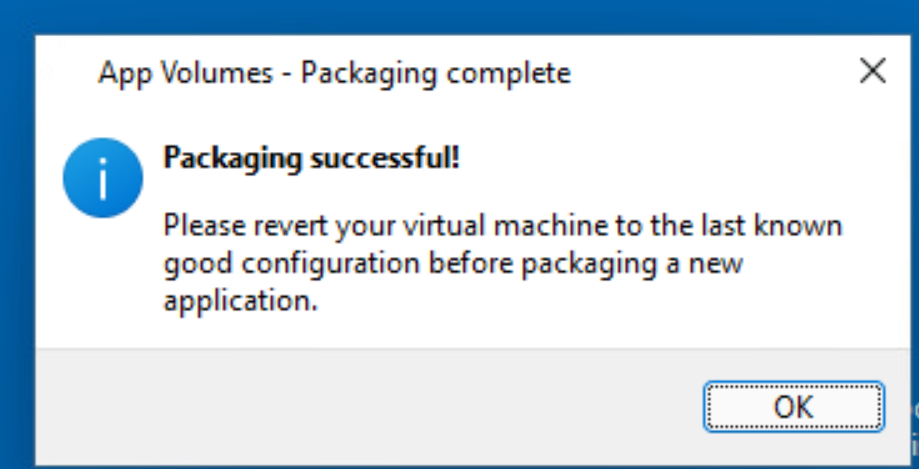
After the packaging machine restarts, click OK on the Packaging is Succesful dialog box.
The capture process is now complete.
-
Revert to the virtual machine's clean snapshot.
-
-
In App Volumes Manager, click INVENTORY > Packages and review the package information to ensure that the packaging is successful.
Package status must be
Enabled. -
(Optional) Navigate to the package details page and review the Launch Links information.
Results
If packaging is successful, App Volumes generates URI, launch path, and other related information for this package. End users can use this generated URI and launch the application associated with this package. For more information about URI launch, see Launch an App Volumes Application with an App Link.
What to do next
These are some actions that you can perform:
- It is recommended that you test and validate the application package on a clean virtual machine different from the machine used for packaging the application.
- Assign an App Volumes Application to an Entity
- Set the CURRENT Marker on an App Volumes Package
Was this page helpful?