After adding a package to an application, you must select a packaging machine and build the package to finish the packaging process.
When App Volumes and Omnissa Dynamic Environment Manager are used together and a Dynamic Environment Manager condition references file or registry data on an App Volumes volume, the App Volumes logon-time apps delivered trigger must be selected. This ensures that the Dynamic Environment Manager evaluates the condition after all volumes are attached.
For information about the App Volumes logon-time apps delivered trigger, see Configure Triggered Tasks in the Omnissa Dynamic Environment Manager Administration Guide.
About the App Volumes Application Package Report
Before finalizing the packaging, App Volumes generates a .json file from which a read-only, HTML report is generated. The view-friendly, HTML report lists package content such as registry entries and files and folders detected during packaging. This information helps in maintaining, updating, and troubleshooting packages.
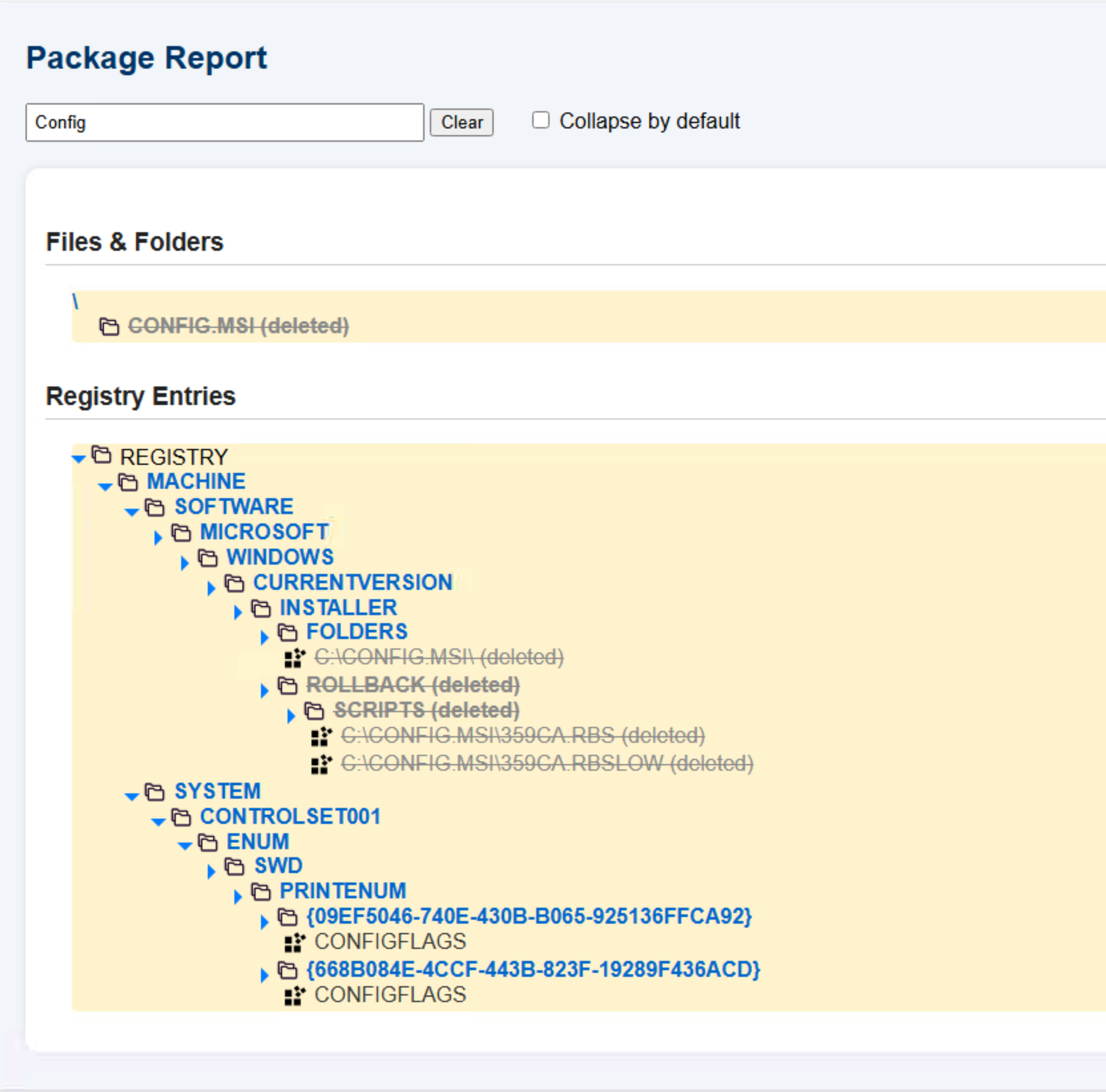
The .json file that contains the same information as the HTML report can be used to generate reports in formats other than HTML. As the package report is read-only, neither registry entries nor files and folders can be edited. This report displays content which is part of the package, but excluded and not accessible when the package is virtualized at the endpoint. In the report, such content is struck out followed by a (deleted) tag. The report includes search capability, allowing you to search for specific registry entries, files, and folders.
Note: The package report capability is also available when App Volumes Application Capture Command-Line Program is used for capturing and updating applications. To generate the package report for an existing package whether when using App Volumes Manager or the capture command-line program, the appcapture.exe packagereport command must be used. For more information about this command, see Windows Command-Line Arguments for the App Volumes Application Capture Command-Line Program.
The following screenshot shows a sample HTML report. The search keyword Config is used. The search results show only registry entries, files, and folders that contain Config. The content which is not shown to the administrator is struck out and is tagged as (deleted).
Prerequisites
-
To understand some of the best practices that can be followed while packaging an application, see Best Practices for Packaging App Volumes Applications.
-
Ensure that the packaging machine meets the criteria as mentioned in Preparing a Packaging Virtual Machine.
-
Ensure that the package status is
Unpackaged.To create a package, see Create a Package for an App Volumes Application.
-
Ensure that you have created a clean snapshot of this virtual machine as part of the App Volumes agent installation.
-
When generating a package in the
VHD + MSIformat, ensure that the packaging machine must be installed with App Volumes agent 2509 or later versions. -
The packaging machine must be configured in the Shared Storage package access mode. For information about the package access modes, see the Application Delivery Modes with App Volumes Manager section in the App Volumes Installation Guide at Omnissa Product Documentation.
-
When packaging an MSIX application, ensure that all prerequisites of the applications are completed.
For example: Prior to packaging a Microsoft Teams application, ensure that you follow the prerequisites mentioned for Microsoft Teams in this Microsoft documentation. -
At the time of packaging, ensure that you turn off the auto updates for the application which is getting captured.
-
To prevent the agent machine from rebooting when finalizing the packaging of an application, the
NoRebootAfterCaptureparameter must be added to the packaging machine and the value configured to1.Agent machine reboot can be prevented only when packaging applications in the VHD format.
For more information about this parameter, see Configuration of svservice.
Procedure
-
From the App Volumes Manager, click INVENTORY > Packages.
-
Click the Package with an
Unpackagedstatus. -
Click Package.
-
On the Packages page, search for the computer on which you want to perform the packaging process.
A list of computers is displayed.
-
Select the computer you want to use as the packaging machine and click Package.
-
Build the package on the packaging machine.
-
Log in to the packaging or capture machine.
-
Locate the installer for the program you want to capture in the package.
-
Install and configure the program.
- If necessary, reboot the machine.
- Any customization for the application must be done before finalizing the capture session.
For example: When installing Zoom, the application might need customization such as room details, booking parameters, and so on. This customization must be done before finalizing the capture.
-
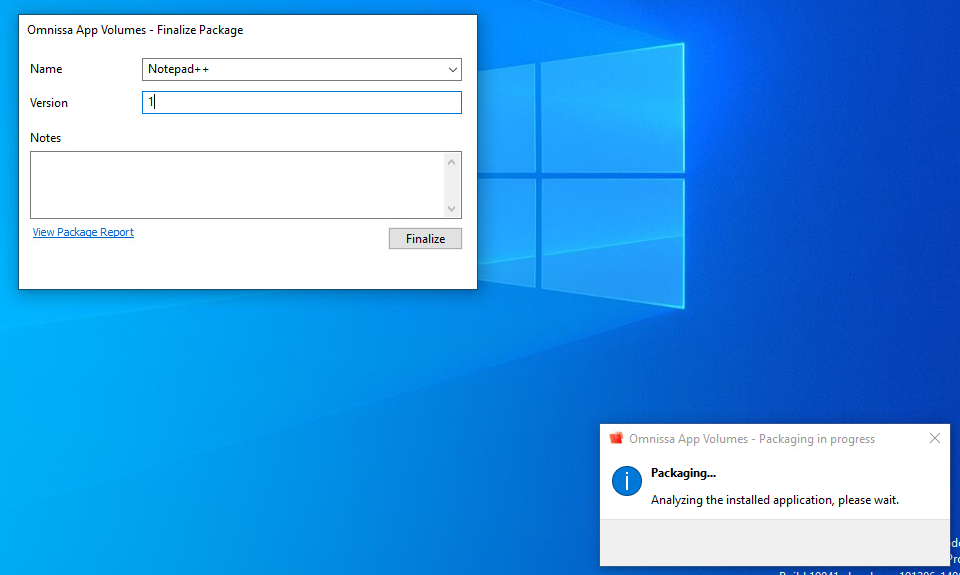
Optional: In the Omnissa App Volumes - Finalize Package window, to view package content, click the View Package Report link.
Result: An HTML report opens in the browser.
Alternately, you can view this report (PackageReport.report.HTML) in the temporary location(%temp% or %tmp%)of the capture machine. The.json(PackageReport.report.json) file is also present at this location.The following screenshot shows the Omnissa App Volumes - Finalize Package window with the View Package Report link for Notepad++. When this link is clicked, the package report for Notepad++ opens in a browser.
-
Click Finalize.
The agent machine reboots.
Note: If the packaged application is in the VHD format and the
NoRebootAfterCaptureparameter is configured to1, then the agent machine does not reboot. -
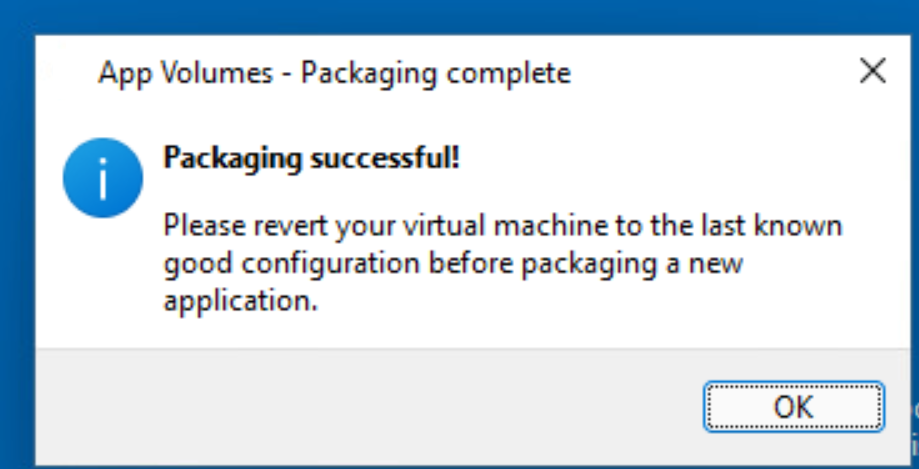
After the packaging machine restarts, click OK on the Packaging is Succesful dialog box.
The capture process is now complete.
Note: If the packaged application is in the VHD format and the
NoRebootAfterCaptureparameter is configured to1, then the capture process completes without the agent machine reboot. -
Revert to the virtual machine's clean snapshot.
-
-
In App Volumes Manager, click INVENTORY > Packages and review the package information to ensure that the packaging is successful.
Package status must be
Enabled. -
(Optional) Navigate to the package details page and review the Launch Links information.
Results
-
After successful packaging, App Volumes generates URI, launch path, and other related information for this package. End users can use the generated URI and launch the application associated with this package. For more information about URI launch, see Launch an App Volumes Application with an App Link.
-
App Links can be selectively deactivated so that only the required App Links are used by third-party systems to publish App Volumes applications when integrated with App Volumes. Additionally, each App Link is associated with a package shortcut. Such an association helps in managing package shortcuts effectively. For more information about activating and deactivating App Links, see Selectively Activate App Links for an App Volumes Application.
-
If any file (
.vhd,.msi,.cab, or.vmdk) goes missing after the package is enabled, then a Missing <name_of_fileformat> status is displayed at the storage location for the corresponding file when a rescan is triggered. For example: Missing VMDK, Missing VHD, Missing MSI, Missing VHD + MSI, and Missing VHD (MSIX).
What to do next
These are some actions that you can perform:
-
It is recommended that you test and validate the application package on a clean virtual machine different from the machine used for packaging the application.
Was this page helpful?