Storage groups can be used to automatically replicate application volumes and distribute Writable Volumes across multiple datastores.
You can specify a group of datastores that contain the same application packages and by using the vCenter, Omnissa App Volumes replicates the .vhd and .vmdk files across the datastores for redundancy and scalability.
Some of the attributes for the group, such as template location and distribution strategy, only apply when using the group for distributing Writable Volumes. The distribution strategy setting controls how Writable Volumes are distributed across the group.
Procedure
-
Click INFRASTRUCTURE > Storage Groups > Create Storage Group
You can directly select the storage to add or specify a name prefix to automatically add new matching storage.
-
Provide the following information:
Option Description Group Name Name for the storage group. Automation - Select Automatically Import Application Packages
- Select Automatically Replicate Application Packages
Note: If the datastore is shared by another App Volumes instance which is registered as a target to this instance, then the application packages are only replicated to the target instance and not automatically imported. The import behavior depends on a control setting, Application Package Import, configured on the target instance.
For more information about the role of an App Volumes instance in application synchronization, see Configure Multiple App Volumes Instances for Application Synchronization. For more information about Application Package Import control setting on the target instance, see Register an App Volumes Instance as a Target.Stages to Replicate When creating a storage group, the check boxes allow you to select specific stages of packages for replication. Using these check boxes, you can control the replication of packages based on stages instead of replicating all packages.
For example: in your production environment, you might want to use packages that are already tested and published. You can use these check boxes to select only the **Tested** and **Published** stages. As a result, packages only in these two stages are replicated to the destination datastore. However, this selection does not affect other package stages which are already replicated.
By default, the value of this check box is **All**. This value indicates that App Volumes replicates packages from all stages. If you want specific stages, you must clear **All** and select any of the other check boxes: **New, Tested, Published, and Retired.**
Selecting specific package stages for replication in an existing storage group does not remove the packages which are already replicated to the destination datastore.
NOTE: If Package Symmetry Assurance is enabled and only specific package stages are selected for replication, you might see warnings. To avoid these warnings, turn off the Package Symmetry Assurance check box. For more information about this check box, see Register an App Volumes Instance as a Target.Distribution Strategy Select how you want the files to be distributed: - Spread - Distribute files evenly across all the storage locations. When a file is created, the storage with the most available space is selected.
- Round-robin - Distribute files by sequentially using the storage locations. When a file is created, the storage with the oldest used time is selected.
Template Storage Select a storage location from the drop-down menu. Storage Selection Direct- select from the list of storage settings that are displayed.Automatic- You can specify a storage name prefix to filter the options. Leave the Storage Name Prefix box blank to see all storage options.
-
Select a prefix for the storage name.
To view all possible storage locations, the Storage Name Prefix field must be left blank. This field is visible only for
Automaticstorage selection.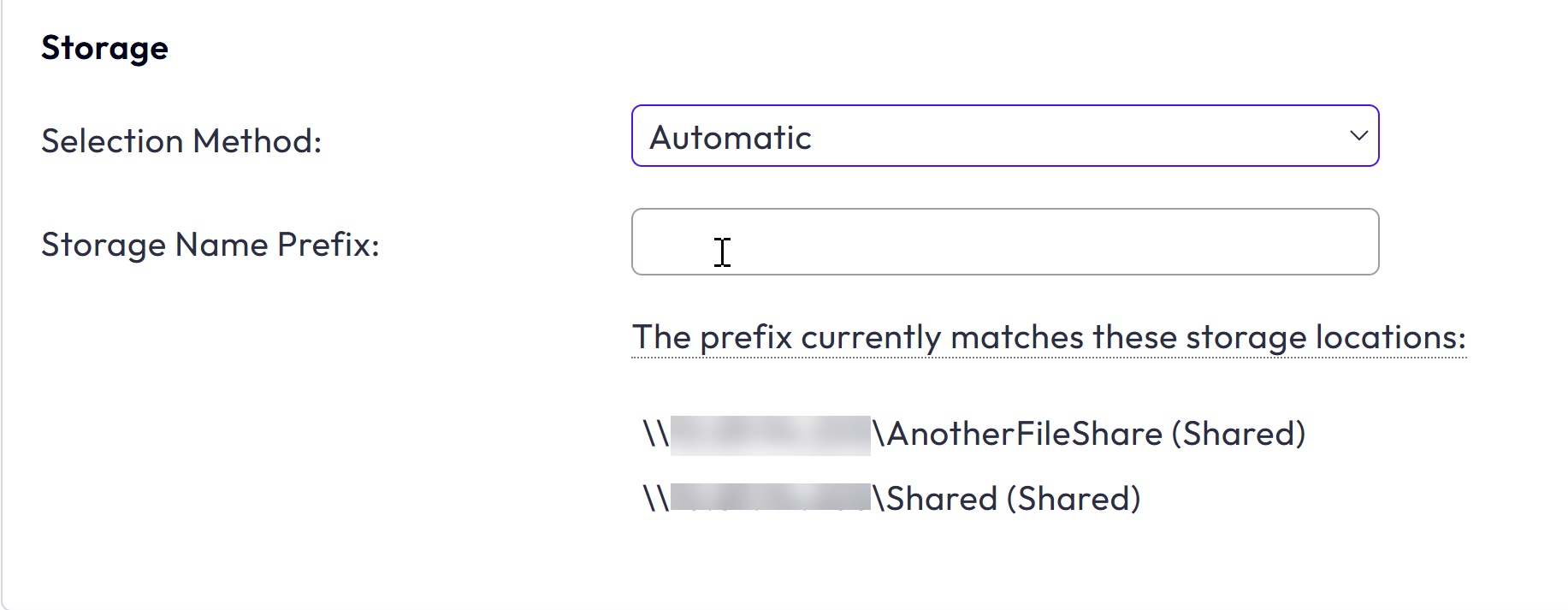
-
To create a group for a specific location, select a storage location.
-
Click Create.
-
A list of locations that was selected is displayed. Confirm the operation and click Create..
Was this page helpful?