Each Omnissa App Volumes package stores one or more programs required for the application to run. A single package can be delivered to multiple computers and users.
For the packaging process, you must select a computer as the packaging machine and then build the package on the packaging machine where the programs you want to include in the package are installed. You can provide additional package metadata on the packaging machine such as name of the packager and any additional notes about the package.
About the Packages tab
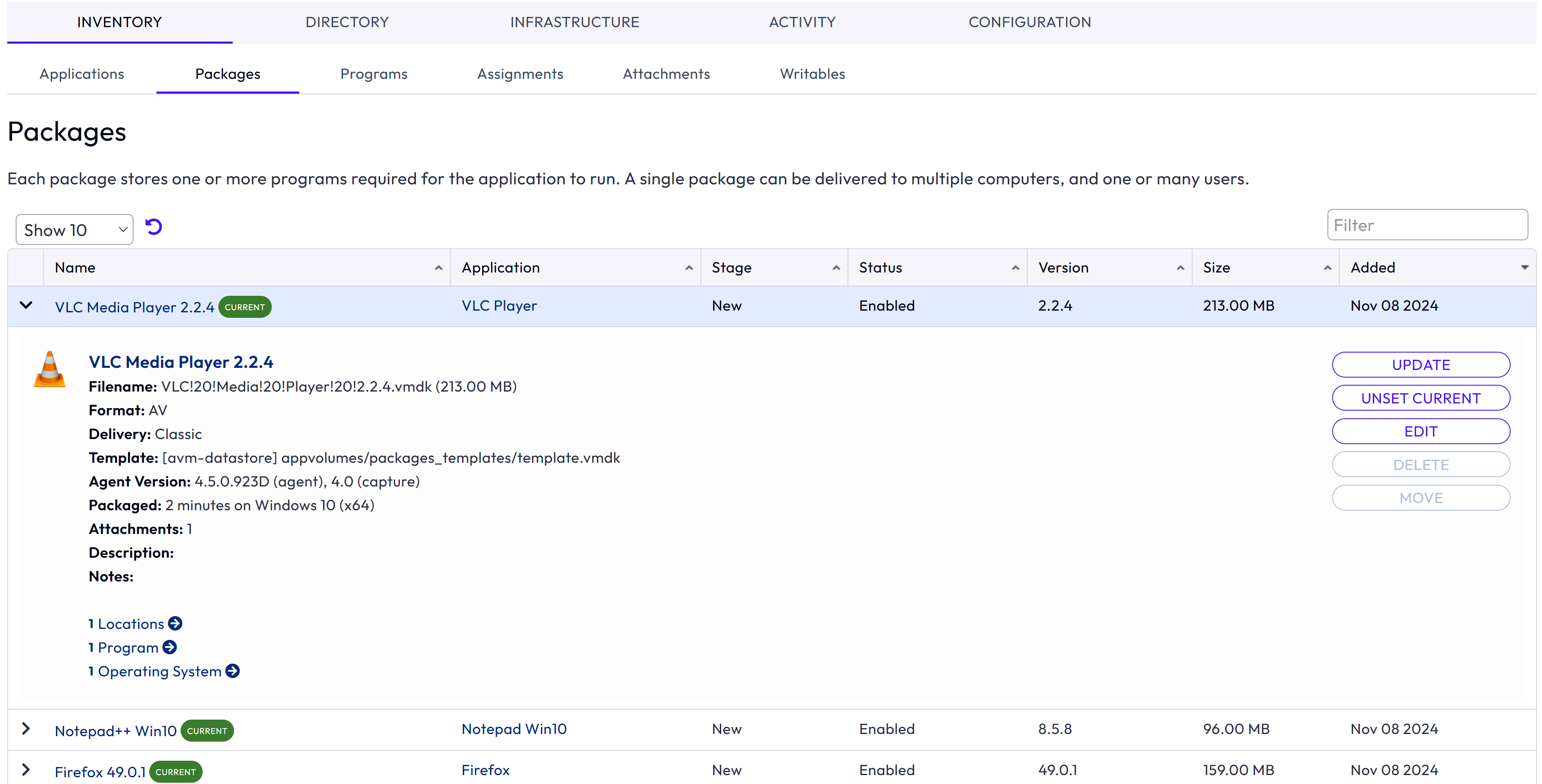
You can use this tab to view the list of packages, package an application, set the CURRENT marker on the package, and manage the package. The Package Details page and the Package Summary window displays information such as package name, package format (VMDK, VHD, VHD + MSI, VHD(MSIX)), agent version used to package the application, package delivery mode - Classic, On-demand, and so on.
About the Packages summary page
In this page, you can perform package-related operations such as set the CURRENT marker on the package and manage the package (update, edit, delete, and move). If your package is on an App Volumes instance which is registered as a target instance, then you can perform the manage operations only at the source. In such a case, the manage source capability is also available on the summary page. These operations are also available in the package details page. For an understanding about application synchronization, see Configure Multiple App Volumes Instances for Application Synchronization. For specific information about managing synchronized applications and packages at the source instance, see Manage a Synchronized App Volumes Application at the Source.
When the format is VHD + MSI, note the following considerations for the package represented by this format:
-
If the generated MSI-wrapped VHD package is more than
2 GB, then a CAB file is also generated. In such scenarios, the Size column in the Packages page displays the combined (.msiand.cab) file size. For information about how this package is generated and other details, see Using MSI-Wrapped VHD Package for App Volumes Delivery. -
In the package details page, the Filename lists all the files (
.vhd,.msi, and.cab) present in the package. To view all the files, use the MORE link next to the file name.
Was this page helpful?