AWS WorkSpaces Core custom image import enables administrators to bring Windows images prepared in Amazon WorkSpaces into Omnissa Horizon 8 environments. This method allows organizations to use existing WorkSpaces images (ISO) by converting them to compatible AWS images (AMI) for Horizon 8 integration.
Import Image (ISO) to Amazon Machine Image (AMI) and convert AMI to WorkSpace Image
Amazon WorkSpaces now provides an improved Bring Your Own License (BYOL) image import process that simplifies the onboarding of custom Windows images. This enhanced workflow streamlines image preparation and validation, reduces manual steps, and improves compatibility and reliability when importing images into WorkSpaces. As a result, administrators can more efficiently create, manage, and scale BYOL-based virtual desktop environments on AWS.
For detailed steps, see the Amazon documentation, Introducing an Improved BYOL Image Import Process for Amazon WorkSpaces.
Create a Bundle from the Image
A WorkSpace bundle is a combination of an operating system, storage, compute, and software resources. When you launch a WorkSpace, you select the bundle that meets your needs. The default bundles available for WorkSpaces are called public bundles. For more information about the various public bundles available for WorkSpaces, see Amazon WorkSpaces Bundles.
Follow these steps to create a bundle. You can also refer to the Amazon documentation – Create Custom Bundle to complete the steps.
-
From the AWS WorkSpaces Console:
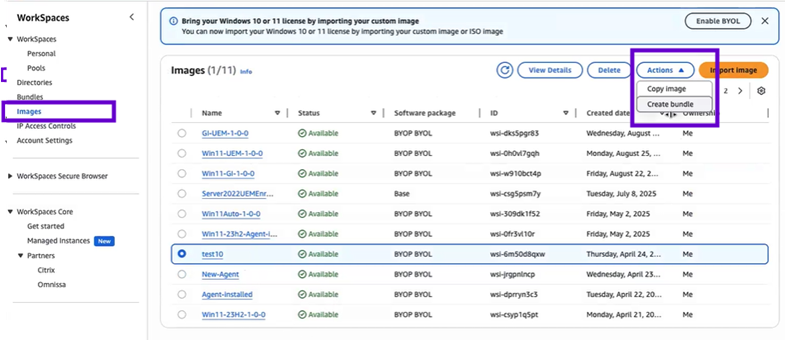
- Navigate to WorkSpaces > Images.
- Select the Image you created in the previous step.
- Go to Actions > Create bundle.
- Give the bundle a Name and Description.
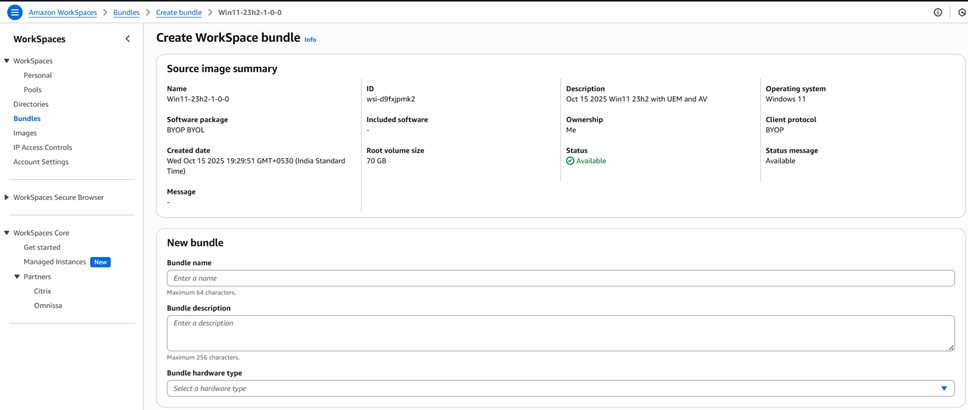
- Choose the appropriate Bundle Hardware Type and Storage.

- Select Create Bundle.
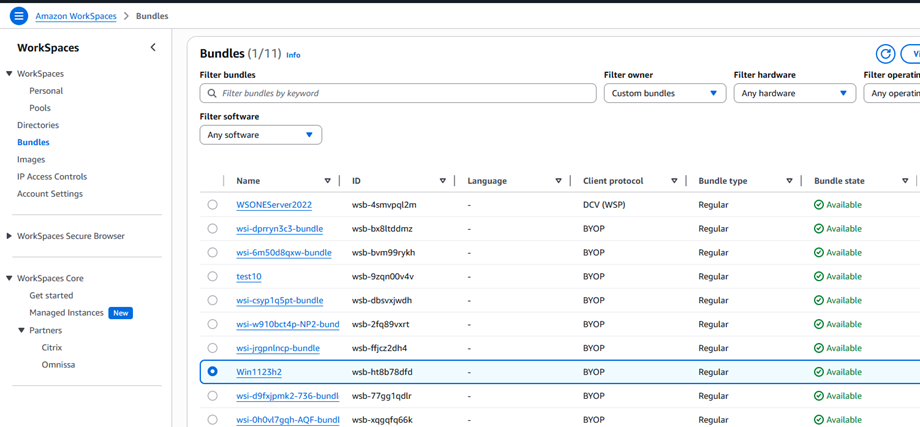
- Confirm that a bundle has been created successfully and the status is Available.
Create WorkSpace from Bundle
AWS WorkSpaces is a managed cloud-based service that provides secure virtual desktops for users to access their applications and data from anywhere, on any supported device.
Follow these for creating WorkSpaces. You can also refer to the Amazon documentation, Create a Workspace in WorkSpaces Personal to complete the steps.
-
Open the AWS WorkSpaces Console:
- Navigate to WorkSpaces > Personal.
- Choose Create WorkSpaces.
-
Under Onboarding (optional), choose Recommend options to me based on my use case, or skip this step if you know that you want to use personal WorkSpaces.
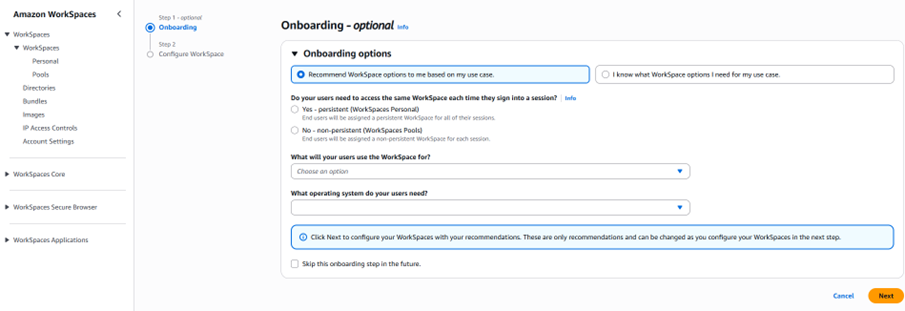
- Choose Next. WorkSpaces registers your AD Connector.
- Under Configure WorkSpaces, enter the required details.
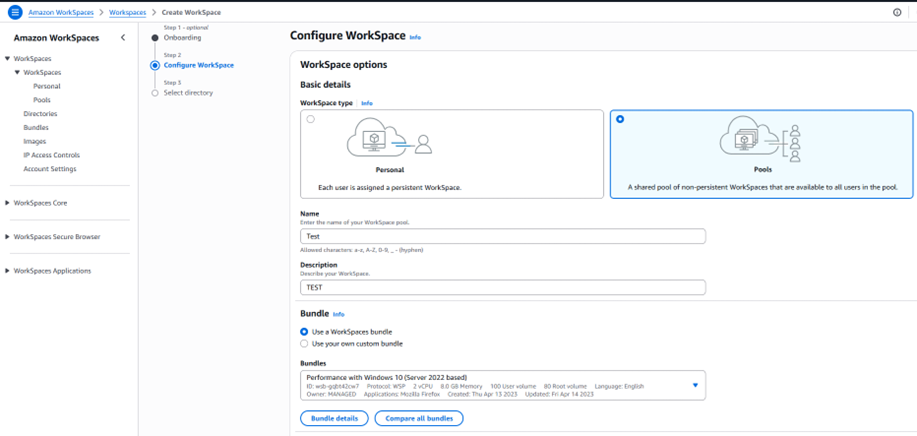
-
Under Select directory:
- Choose the directory that you created. To create a directory, choose Create directory. For more information about creating personal directories, see Register an existing AWS Directory Service directory with WorkSpaces Personal.
- Choose the users from that directory you want to provision personal WorkSpaces for by doing the following:
a. Choose Create users.
b. Enter Username, First name, Last name, and Email.
c. To add additional users, choose Create additional user to add more users.
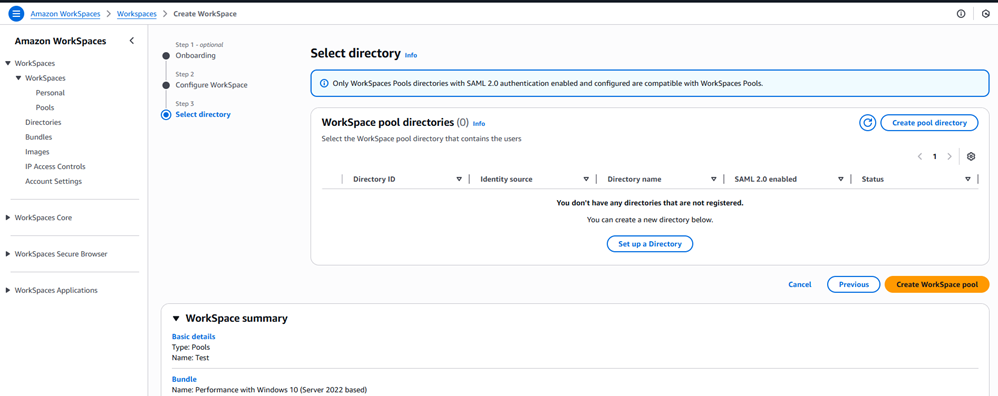
- Under Customization (optional), you can customize bundles, root and user volume encryption, and user volume for all users or specific users.
- Choose Create Workspaces. When the creation is complete, the status is Available. Then, navigate to Bundles, and verify the bundle is created and the status is Available.
RDP into WorkSpace and Install Horizon Agent
For details, see Install Horizon Agent on a Windows Virtual Machine.
Important: Do not reboot when prompted during the Horizon Agent installation. Complete the installation and perform a separate reboot after the agent is fully installed. Rebooting when prompted may cause installation failures or an infinite loop of errors due to pending operations. See KB 1029288 for more information.
While downloading Horizon Agent, select Omnissa Horizon for Horizon 8.
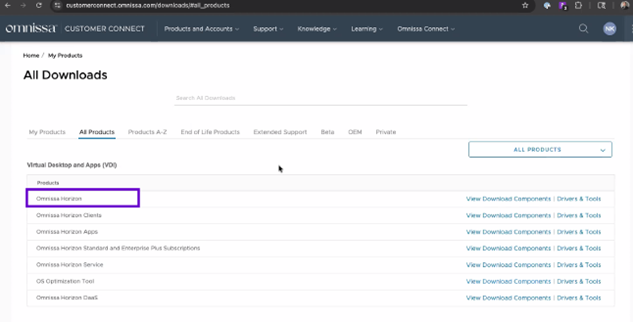
Use the WorkSpaces console's Image Checker tool to fix any issues, especially removing unwanted Microsoft Appx packages.
Pair WorkSpaces Image to Horizon Connection Server
Pairing an image from WorkSpaces with the Horizon Connection Server is necessary to link a customized desktop image in AWS with the Horizon 8 environment, enabling it to be used for provisioning virtual desktops for end-users.
Complete these steps to pair Workspaces to Horizon Connection Server.
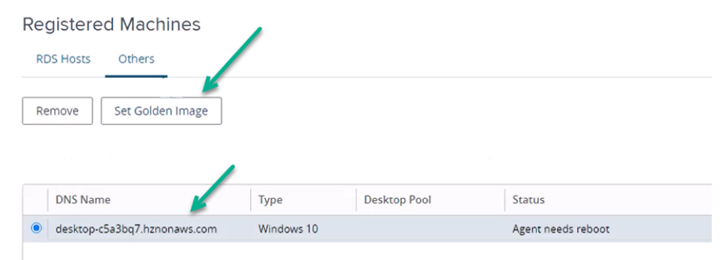
- Open the Horizon 8 Admin Console.
- Go to Settings > Registered Machines.
- Choose the Others tab. The WorkSpaces Core instance appears automatically.
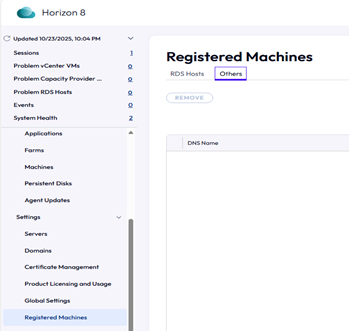
Set Golden Image to Connection Server
You must set a golden image in Horizon to establish it as the template for creating new virtual desktops.
- Sign in to the WorkSpaces image using RDP.
- Verify Horizon Agent components are running (e.g., Horizon Blast, Broker Agent, etc.).
- Confirm the WorkSpace is registered in the Connection Server.
Note: Before selecting Set Golden Image, verify the displayed DNS name matches the DNS name of the machine in the AWS console.
Create Image from WorkSpaces
This process uses the custom bundle to ensure the launched WorkSpace has the OS, software, and configurations defined in your custom image, enabling standardized desktop environments for users.
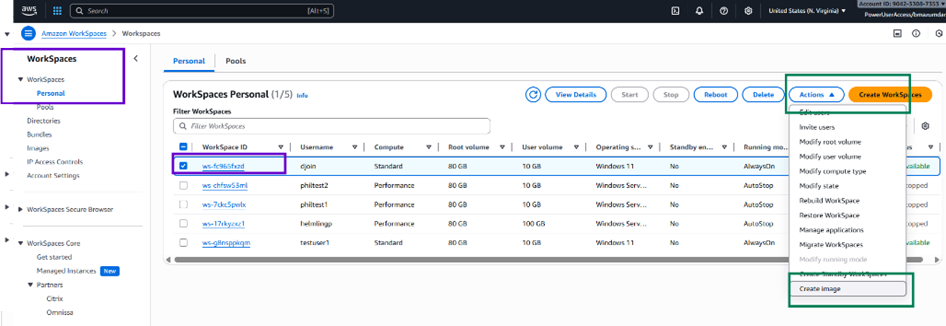
- Navigate to WorkSpaces > Personal.
- Select the WorkSpace created in the previous step.
- Go to Actions > Create Image.
-
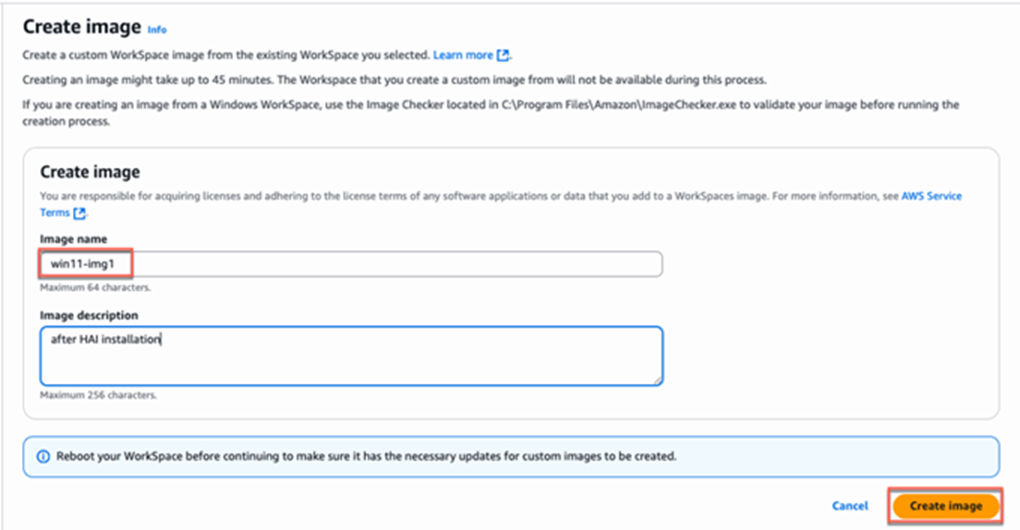
Provide required details:
- Image Name: Enter a unique name.
- Image Description: Add a description indicating this is a gold image.
- Click Create Image.
Create Bundle from Gold Image
Note: Two bundles are created during this process:
- Gold Pattern bundle: contains the Horizon Agent and installed software.
- Provisioning bundle: created from the Gold Pattern bundle and used for automated pool creation.
For more information, see the Amazon documentation, Create Custom Bundle.
- In the AWS WorkSpaces console, navigate to WorkSpaces.
- Select Images.
- Choose Actions > Create bundle.
- Give the bundle a Name and Description.
- Choose the appropriate Bundle Hardware Type and Storage.
- Select Create Bundle.
- Confirm the bundle status is Available.
Create Automated Pool
Create an automated desktop pool in Horizon 8 using the registered golden image. This provisions virtual desktops for users based on the imported and prepared image.
For additional details, see Amazon WorkSpaces Core – Create an Automated Full-Clone Desktop Pool.
Was this page helpful?