Let your AI agents work with the Omnissa platform through a single, standardized interface by using the Omnissa Model Context Protocol (MCP) Server. The Omnissa MCP Server gives AI agents a set of goal-oriented tools for working with the Omnissa platform. Connect any MCP-compatible client and you can diagnose device posture, automate compliance workflows, and query analytics, all without leaving your AI environment.
What you can do?
With MCP Server, your AI agents can perform the listed tasks in these Omnissa products.
- Omnissa Workspace ONE UEM: Investigate device posture, look up policies and provisioning, check deployment status, send MDM commands, and query system settings.
- Omnissa Horizon: Diagnose VM connection and provisioning errors and look into user access issues.
- Omnissa Intelligence: Search and preview reports, dashboards, and playbooks, ask questions about your data in natural language, and run automations and investigations.
- Omnissa Access and Identity Access Management: Look up login failures, resolve user details, investigate authentication anomalies, and check app launch access.
- Omnissa Workspace ONE Hub Services: Send and track notifications with a detailed breakdown of who received them.
Prerequisites
To use MCP Server, ensure to meet the listed prerequisites.
- Have your Omnissa environment onboarded to Omnissa Connect.
- If you use Omnissa Workspace ONE UEM, use the minimum supported version of 2607 or later.
- MCP Server for Workspace ONE UEM is rolling out in phases and will continue to reach more customers over the coming weeks.
Find out if you are eligible
To see if you are eligible to use Omnissa MCP Server, reach out to your Omnissa Global Customer Support (GCS) representative.
Rate limits
The MCP Server enforces a rate limit of 1,000 requests per minute per tenant, or 100 requests per minute per user. Requests that exceed this limit are rejected and return an error response.
Best practices
Follow these best practices when using Omnissa MCP Server.
- An MCP server token inherits the permissions of the scope you grant it, and those permissions flow to any AI client that holds the token.
- Consider applying the least privilege by default.
- You could issue Read scope for general use and reserve Full scope for agents you operate directly.
- Before activating any write-capable tool, follow your organization's security review and approval process.
- Use short Time To Live (TTL) settings.
- Revoke tokens you can no longer account for.
Step 1: Assigning authentication and access control permissions
Authentication and role-based access control (RBAC) for MCP Server are managed in Omnissa Connect, so you need to assign the correct RBAC permissions in Omnissa Connect.
Also, an Administrator's MCP scope can't exceed their product-level permissions. For example, a Horizon Cloud administrator with Read-only MCP access can only call Horizon read tools. UEM or Access tools won't be available to them even if the organization has those services.
After you set authentication and access control, you can grant access by generating a scoped MCP token and handing it off to your AI agent.
- Work in Omnissa Connect to assign roles and permissions. Have an Omnissa Connect Owner or Administrator activate the MCP access for the organization.
- In Omnissa Connect, select the organization where you want to use your AI agents.
- Go to Administrator Access > Administrators and select and edit the user who works with your AI agents.
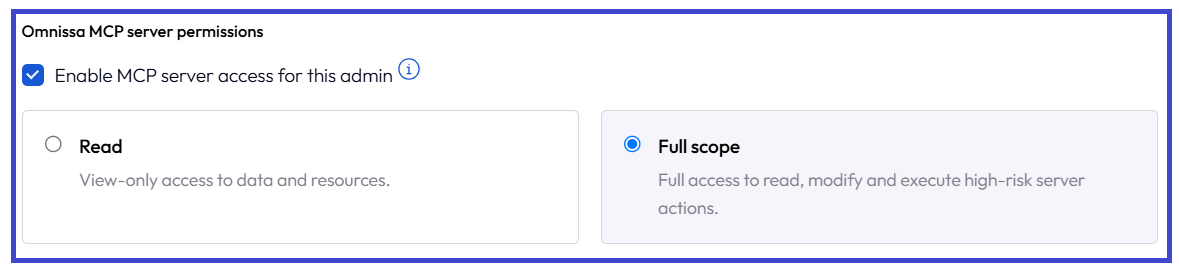
- In this admin's record, scroll down to the Set Omnissa AI Preferences (Optional) area and find the Omnissa MCP server permissions section.
- Activate the Enable MCP server access for this admin menu option.
- Select the access scope for each administrator.
- Read – Permits view-only access to data and resources.
- Full scope – Permits full access to read, modify, and execute actions.
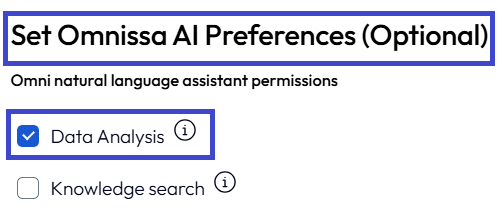
- Activate the Data Analysis permission for the admin, which is also in the Set Omnissa AI Preferences (Optional) area.
- This permission lets the user query the Omnissa Intelligence data lake through the Data Analysis tool.
- Most Intelligence MCP tools that rely on natural-language-to-query translation need this role to work.
Step 2: Generating an MCP token for user-based authorization
When admins want to connect an AI agent to MCP server, they generate a scoped token in Omnissa Connect and pass it to the agent.
Note: This method is the only supported authentication mechanism in the current implementation. OAuth 2.0 isn't available yet.
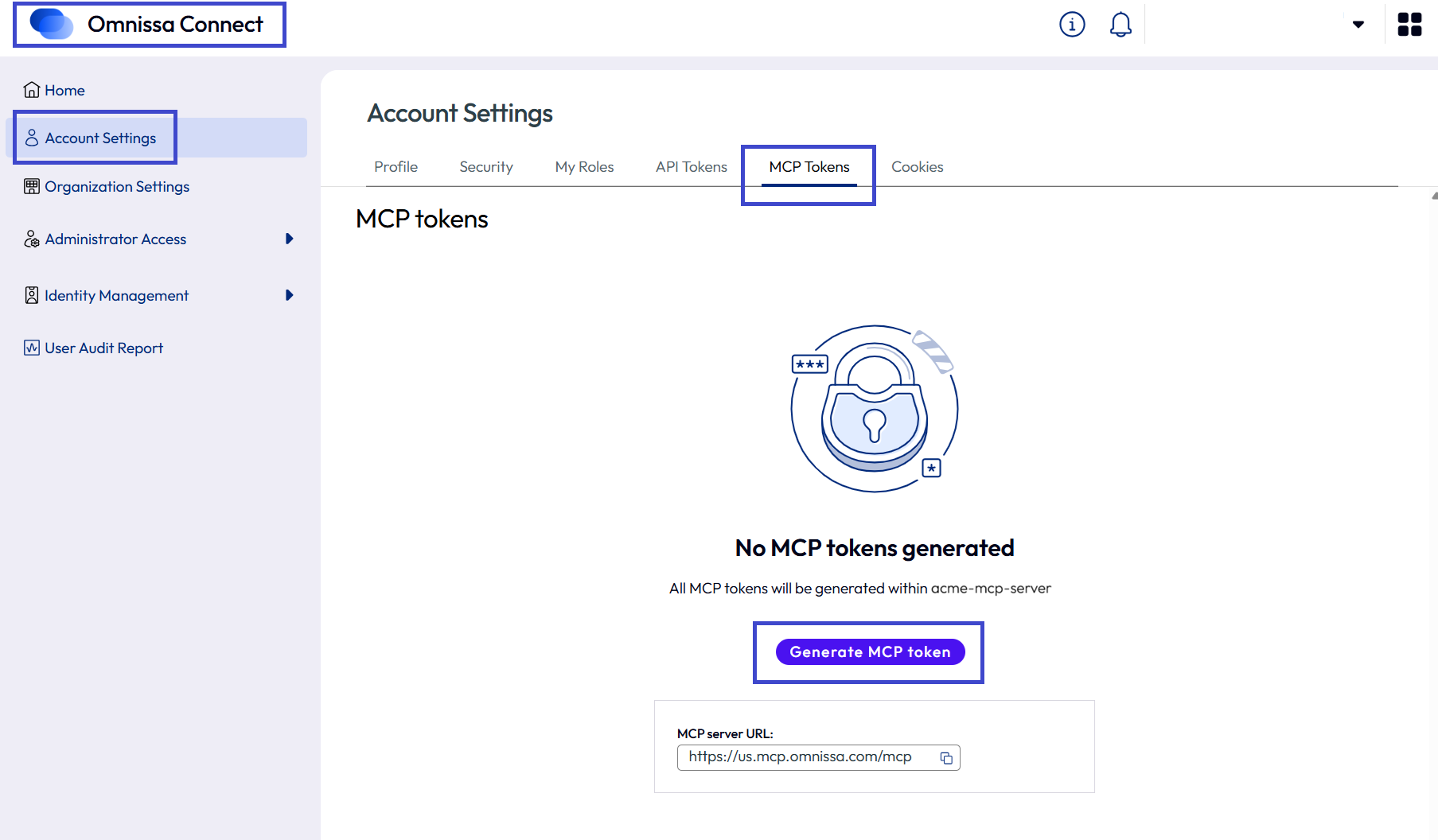
- In Omnissa Connect, go to Account Settings and select the MCP Tokens tab.
- This tab only appears if an Omnissa Connect Administrator or Owner granted you the correct RBAC permissions.
- Copy the url in the MCP server URL text box because you must pass it to your AI agent.
- Select Generate MCP token.
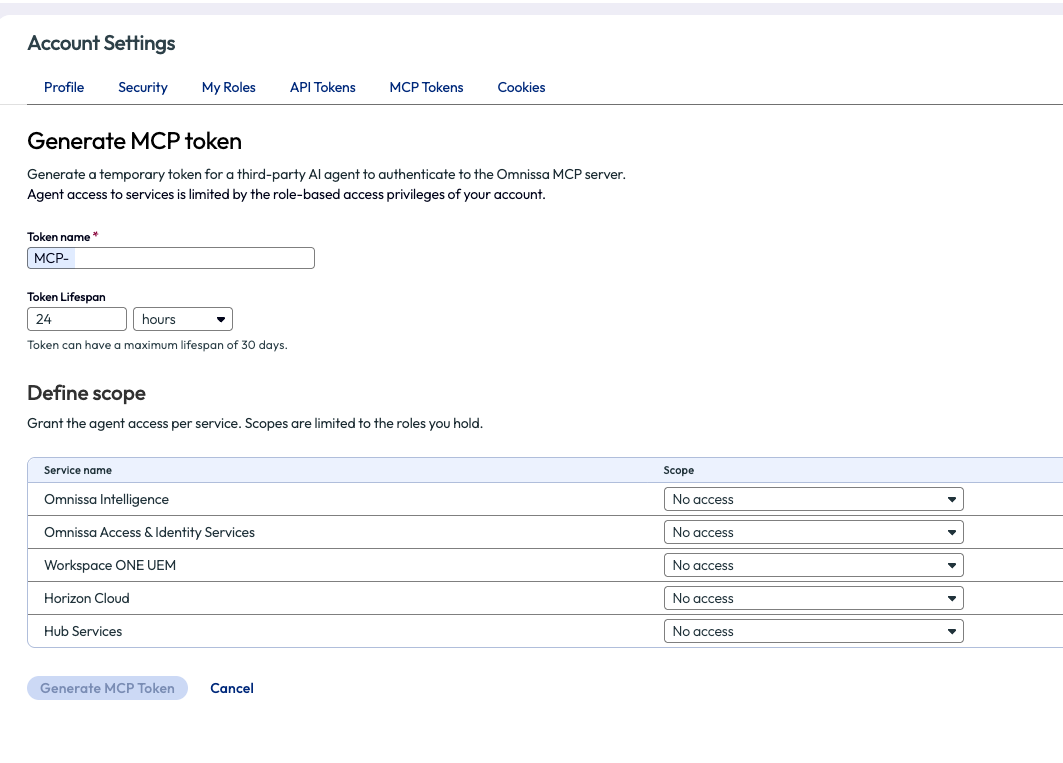
- Complete the Generate MCP token widget.
- Token name: Enter a descriptive name, for example
MCP_claude_prod_uem. - Token Lifespan: Use short-lived tokens (hours to days). Set expiry to match your agent's lifecycle.
- Define scope: Filter the dropdown menu options to the admin's own RBAC scope. Choose Read or Full scope per Omnissa service.
- Select Generate MCP Token and save the token so you can pass it along with your MCP server URL to your AI agent.
- Token name: Enter a descriptive name, for example
Step 3: Connecting to Omnissa MCP Server
The MCP server authenticates using a scoped MCP token that you generated in Omnissa Connect. In your client, you pass along your MCP server URL you copied from the MCP Tokens tab in Omnissa Connect along with the token you generated for authentication and authorization.
An example for Claude Code would be to run the example command using your MCP server URL and the token you generated in Omnissa Connect.
claude mcp add --transport http <name> <url> --header "Authorization: Bearer <token>"
See the documentation for your AI tools (Cursor Agent, Amazon Bedrock AgentCore, or your customized AI tools) for details.
Step 4: Building with AI
After you're connected, your MCP client discovers all available tools automatically. Tools are named for user goals, not API endpoints. The catalog below reflects the tools currently available.
Horizon
| Intent | Tool (MCP) | Scope | Description | Example |
|---|---|---|---|---|
| Diagnose Desktop Connection Errors | horizon-diagnoseDesktopConnectionErrors | Read | Breaks down why desktops are failing to connect. Includes an error breakdown with VM, broker, UAG, and pool-group IDs, root cause, and next steps. | Why are users failing to connect? Blast connection failing. Users can't reach their desktops. |
| Investigate User Desktop Access | horizon-investigateUserDesktopAccess | Read | Find out why a specific user can't get to their desktop. Finds their entitlement, assigned pool, any connection error, and a remediation path. | Why can't user A connect? User X has no desktop. Help user X get access. |
| Diagnose Provisioning Errors | horizon-diagnoseProvisioningErrors | Read | Find out why desktops aren't provisioning. Looks for an error breakdown with root-cause signals. | Why are desktops not provisioning? Instant clones stuck customizing. AD computer account conflict. |
Omnissa Access
| Intent | Tool (MCP) | Scope | Description | Example |
|---|---|---|---|---|
| Get Login & Launch Failures | access-getAuditEvents | Read | Retrieves failed authentication and app launch events, filterable by event type, time range, user, application, and failure type. Each entry returns the timestamp, error code, source IP, and user agent. | Show me login failures for the last 24 hours. Show me failed sign-ins for user email. |
| Lookup User Details | access-searchEntitiesaccess-getEntity | Read | Resolves a partial user identifier, group, or domain to a specific user, then returns that user's profile. Supported data includes name, email, and group membership. Prompts for narrowing when a query matches multiple users. | Who is this user? Show me the profile and group membership for email. |
| Investigate Auth Configurations | access-getTenantConfig | Read | Returns the tenant's identity and authentication configuration. Supported data includes identity providers, authentication methods, org networks, and access policies. Used alongside the other Access tools to root-cause login and launch failures. | Why is auth failing? Investigate authentication issue for user anomaly RCA |
| Investigate App Launch Issues | access-searchEntitiesaccess-getEntityaccess-checkUserAppAccess | Read | Determines why a user cannot launch a given application. Resolves the user and the app, returns the app's policy ID and entitlement definition, and checks the user's entitlement to that app. | Why is user X not able to access app Y? |
Omnissa Intelligence
| Intent | Tool (MCP) | Scope | Description | Example |
|---|---|---|---|---|
| Search Resources | intel-searchResources | Read | Searches Intelligence resources by type. Types include dashboard, insight, playbook, report, automation, quickflow, investigation, and workflow action. Primarily used to resolve names to IDs before calling other tools (e.g., finding a playbook_id or dashboard_id). | Find the report called Sales Summary. List archived playbooks. Give me a list of quickflows. |
| Query AI | intel-queryAI | Read | Answers ad-hoc natural-language questions against the analytics/reporting data lake. Supported data includes counts, distributions, trends, and device-experience (DEX) telemetry. Works for both fleet-wide and single-device historical,aggregated queries. | DEX score for device ABC. Windows devices with storage below 20 GB. |
| Manage Widgets | intel-manageWidgets | Full Scope | Adds, updates, or deletes widgets on an Intelligence dashboard. ADD builds a chart/table from a natural-language prompt (dashboard_id, name, user_prompt). UPDATE edits an existing widget's config. DELETE removes one or more widgets (dry-run by default, needs confirmation to execute). | Create, update, or delete widget with name A. Create a widget for device crashes in my org over the last 7 days grouped by platform on dashboard named A. |
| Manage Reports | intel-manageReport | Full Scope | Creates and manages saved reports. Reports include defined sets of records with specific fields, source, filters, and time range for later viewing or re-running. Supports create, update, delete, duplicate. | Create, update, or delete duplicate report X. Create a report listing all enrolled devices with their platform and OS version. |
| Execute Reports | intel-executeReport | Full Scope | Run a saved report now and download completed output. Does not change report definitions. | Run the patch compliance report now. Download report X as CSV. |
| Manage Schedules | intel-manageSchedule | Full Scope | Creates, updates, and deletes recurring schedules that run a saved report on a cadence, handling frequency, start and end times, and time zone conversion. Supports only Report Schedules currently. | Create, update, or delete Schedules. |
| Manage Dashboards | intel-manageDashboard | Full Scope | Create, update, or delete Intelligence dashboards. A dashboard stores a reusable aggregation filter plus presentation metadata. Supported actions include create, update, and delete (requires two-step dry-run preview). | Create, update, or delete dashboard. Create a new dashboard called Crash Overview for tracking app and device crashes. |
| Manage Workflows | intel-manageWorkflow | Full Scope | Create, update, delete, or duplicate automation workflow definitions. The resulting workflow_id can be passed to executeWorkflow to run it. | Create, update, or delete Freestyle automation. |
| Execute Workflows | intel-executeWorkflow | Full Scope | Execute an existing Intelligence automation/workflow (rule or quickflow), optionally against a list of target UUIDs. Requires two-step dry-run preview. Targets are required for quickflow-style automations and must be omitted for automations that resolve their own targets. | Execute workflow X. |
| Execute Investigation | intel-executeInvestigation | Full Scope | Executes one or more steps of an existing investigation (incident). Runs the attached playbook's steps against the investigation's scoped records. | Execute this investigation. Run this investigation. |
| Manage Investigations | intel-manageInvestigation | Full Scope | Creates and manages Intelligence investigations. Focused on workspaces for digging into a specific issue over a time window. CREATE attaches a playbook and scopes filters, date range, or target entity from a prompt. UPDATE STATUS opens/closes existing investigations. | Implement the App Crashes playbook for Mozilla Firefox over the last 7 days. Close investigation X. |
| External Lookup | intel-externalLookup | Read | Resolves a human-readable name to the ID value an external system's API expects, via a specified operation_id. | Find the identifier for a UEM tag with name X. |
Workspace ONE Hub Services
| Intent | Tool (MCP) | Scope | Description | Example |
|---|---|---|---|---|
| Send Hub Notification | hub-sendNotification | Full Scope | Sends an informational notification to a target audience (platform, group, or org group). Requires a preview and explicit confirmation before delivery. Medium risk (High for large audiences like ALL_USERS). Resolves user,smart, and org group names to IDs automatically via searchResources when targeting a group. | Send an urgent notification to the Engineering Access group about the VPN maintenance window tonight. |
| Check Hub Notification Status | hub-findDistributedNotifications | Read | Retrieves delivery status for a previously sent notification, broken down by group, platform, or device. | Did the password policy change notification reach all Android devices? |
Workspace ONE UEM
| Intent | Tool (MCP) | Scope | Description | Example |
|---|---|---|---|---|
| Investigate Device | uem-investigateDevice | Read | Retrieves a consolidated view of a single enrolled device. Data includes compliance status, installed applications, assigned profiles, network and security posture, certificates, smart group membership, tags, admin notes, event log, GPS location history, workflow assignments, Organization Group placement, and product provisioning status. | Is device ABC compliant right now? List every policy it's failing. |
| Lookup Policies & Provisioning | uem-lookupPoliciesAndProvisioning | Read | Searches and inspects resources configured in the UEM environment. Data includes internal, public, and VPP/purchased applications, application groups, device profiles, scripts, sensors, product provisioning, compliance baselines, smart groups, compliance policies, and Freestyle Workflows. DDM profiles are not supported yet with MCP. | List every smart group the Wifi-Corporate Profile is assigned to. |
| Lookup System Settings | uem-lookupSystemSettings | Read | Reads current tenant-level and Organization Group-level configuration, including security settings, integration status, enrollment rules, and console settings. | Is our Active Directory sync connected and healthy? |
| Lookup Deployment Status | uem-lookupDeploymentStatus | Read | Tracks rollout progress of applications, profiles, workflows, and products across enrolled devices. | Show me all devices assigned to the 'Boxer' app and their installation status. |
| Execute Device Command | uem-executeDeviceCommand | Full Scope | Executes a command on a specific enrolled device. Supported commands include Query Device, Sync Device, Lock Device, Clear Passcode, Sync Sensors, and Log Out User (iOS only). | Send a lock device command to XYZ's iPhone. |
Managing your MCP tokens
To manage your MCP Server tokens, work in Omnissa Connect. You can use the User Audit Report page for logs and use the MCP Tokens tab to see a summary of tokens and to revoke them.
MCP Tokens tab
Use the MCP Tokens tab in Account Settings to see a summary of your MCP tokens, generate more tokens, and revoke them.
Audit logs
Omnissa Connect keeps audit logs of token generation events. Each entry records the user, timestamp, scope granted, and authentication mechanism.
- In Omnissa Connect, go to User Audit Report.
- Enter
MCPin the All event types textbox to find the MCP Server log you want.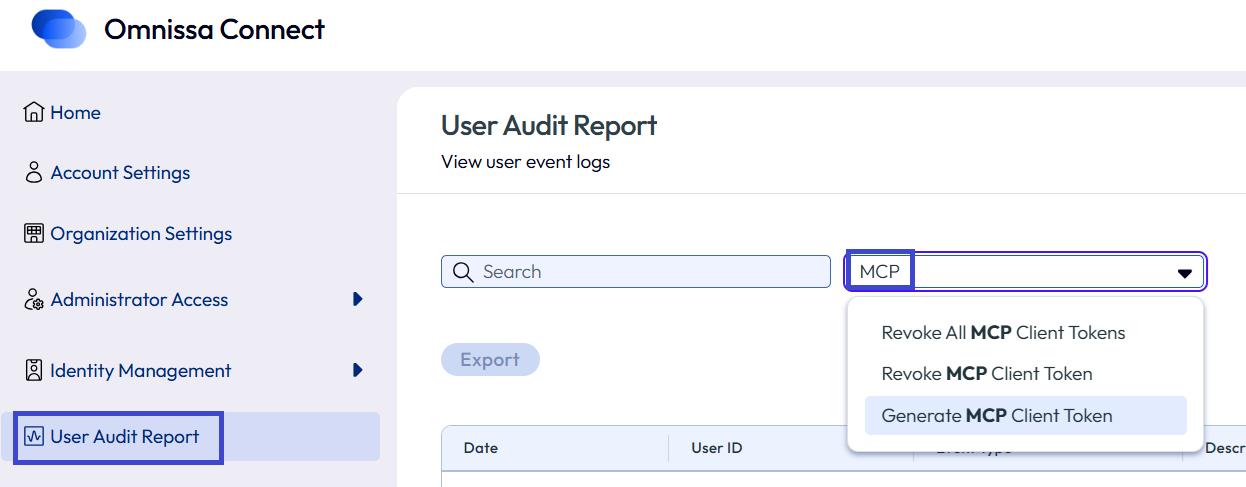
Was this page helpful?