The Windows OS Optimization Tool for Omnissa Horizon makes it easy to re-enable Windows Update functionality on an image that has previously been optimized and had this disabled.
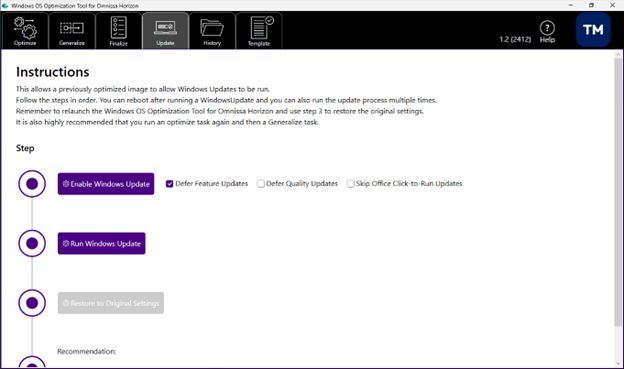
Follow the tool's on-screen guidance. The tool's Update tab guides you through the steps in sequence.
- Enable to change the required registry values and local group policies, and enable the required services.
- Windows Update to start the Windows update process and open the Windows UI settings page. You can run the Windows Update process as often as required and reboot, if necessary, before progressing to the next step.
- Restore to return the Windows Update-related settings to their optimized values. This also disables scheduled tasks that get regenerated when a Windows Update runs.
- Recommendations - After updating Windows, it is recommended that you rerun an Optimize using your original optimization settings and then run a Finalize task.
Note: Restore reverts only the settings modified by the Enable step. It does not remove all optimization or lockdown settings applied to the image. See Disable Lockdown Optimizations below for a complete approach.
Disable Lockdown Optimizations
In some scenarios, such as troubleshooting an image, you might need to fully remove previously applied optimization and lockdown settings.
There is no single setting that disables all optimizations. Settings must be reverted using one of the following approaches.
Revert Using Optimization History (Recommended)
Use the History tab and perform a Rollback to return the image to its pre-optimized state. This is the most complete method to undo optimization changes.
Note: Rollback reverts changes tracked by the tool. It might not undo all changes if additional modifications were made outside of the optimization process.
Use Update Restore
The Restore option in the Update workflow reverts only the settings modified during the Enable step. This action is intended to return Windows Update–related settings to their prior state and does not remove all optimization or lockdown settings applied to the image.
Manual Reconfiguration
Some optimizations must be manually reversed, depending on what was applied in the template. Common areas include:
- Services: Re-enable services that were disabled during optimization
- Windows Update: Ensure update-related services and policies are enabled
- Security Features: Re-enable Microsoft Defender, Firewall, and related components if previously disabled
- Group Policy Settings: Review and reset Local Group Policy settings applied during optimization
- User Experience Features: Restore features such as notifications, search, and UI components, if required
Note: For the most reliable restoration, revert to a VM snapshot taken before optimization.
What to do next
After updating the image, run the optimize task to ensure that the image is fully optimized. You must also run the finalize task to ensure that the image is clean, especially if you have updated components such as .NET Framework.

Was this page helpful?