You can prepare the Azure environment before deployment.
Procedure
- Add a group named Azure Resource Group in to which Unified Access Gateway appliances are deployed. You can add using the Azure Portal web interface, or by running the PowerShell command as in this example:
2. Add a storage account, and a blob container calledVersion Command PowerShell 5 $resourceGroup="uagrg"$location="uk south" New-AzureRmResourceGroup -Name $resourceGroup -Location $locationPowerShell 7 $resourceGroup="uagrg" $location="uk south" New-AzResourceGroup -Name $resourceGroup -Location $locationvhdswithin that storage account. It is to store the Unified Access Gateway images. You can add using the Azure Portal web interface, or by running the PowerShell commands as in this example:
3. Create a Virtual Network with a default subnet.Version Command PowerShell 5 New-AzureRmStorageAccount -ResourceGroupName $resourceGroup -AccountName uagstore-Location $location -SkuName Standard_LRS New-AzureRmStorageContainer -Name vhds -ResourceGroupName $resourceGroup-StorageAccountName uagstorePowerShell 7 New-AzStorageAccount -ResourceGroupName $resourceGroup -AccountName uagstore-Location $location -SkuName Standard_LRS New-AzRmStorageContainer -Name vhds -ResourceGroupName $resourceGroup-StorageAccountName uagstore
4. Alternatively, the virtual network can have specified subnets so they can be specified as follows.Version Command PowerShell 5 New-AzureRmVirtualNetwork -Name VirtualNetwork -ResourceGroupName $resourceGroup ` -Location $location -AddressPrefix "10.0.0.0/16"PowerShell 7 New-AzVirtualNetwork -Name VirtualNetwork -ResourceGroupName $resourceGroup ` -Location $location -AddressPrefix "10.0.0.0/16"
5. If the Unified Access Gateway appliance is to be directly accessed from the Internet, add a security group called UAGInternetSG to control the inbound port access from the Internet to each Unified Access Gateway. You can add a security group using the portal or with PowerShell. This security group can be shared by several Unified Access Gateway appliances. For example with the Horizon access, allow the following ports: - HTTPS - TCP 443 - HTTP - TCP 80 - Blast -TCP 8443 - Blast/BEAT UDP 8443 - UDP Tunnel - UDP 443 - PCoIP - TCP and UDP 4172Version Command PowerShell 5 $frontendSubnet = New-AzureRmVirtualNetworkSubnetConfig -Name frontendSubnet ` -AddressPrefix "10.0.1.0/24" $backendSubnet = New-AzureRmVirtualNetworkSubnetConfig -Name backendSubnet `-AddressPrefix "10.0.2.0/24" New-AzureRmVirtualNetwork -Name VirtualNetwork -ResourceGroupName $resourceGroup `-Location $location -AddressPrefix "10.0.0.0/16" -Subnet $frontendSubnet,$backendSubnetPowerShell 7 $frontendSubnet = New-AzVirtualNetworkSubnetConfig -Name frontendSubnet ` -AddressPrefix "10.0.1.0/24" $backendSubnet = New-AzVirtualNetworkSubnetConfig -Name backendSubnet ` -AddressPrefix "10.0.2.0/24" New-AzVirtualNetwork -Name VirtualNetwork -ResourceGroupName $resourceGroup ` -Location $location -AddressPrefix "10.0.0.0/16" -Subnet $frontendSubnet,$backendSubnet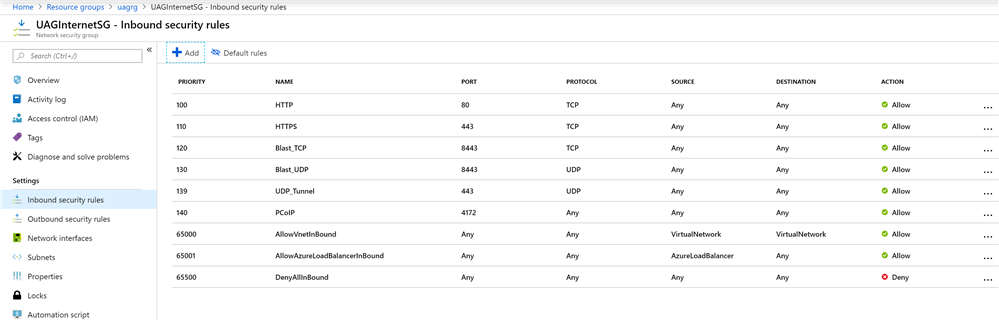 .
6. Optionally add a public IP address object.
.
6. Optionally add a public IP address object.
For more information about the PowerShell commands, see [Microsoft Azure PowerShell Documentation](https://docs.microsoft.com/en-us/powershell/azure/?view=azps-8.2.0).Version Command PowerShell 5 New-AzureRmPublicIpAddress -Name UAG1PublicIP -ResourceGroupName $resourceGroup `-AllocationMethod Static -Location $locationPowerShell 7 New-AzRmPublicIpAddress -Name UAG1PublicIP -ResourceGroupName $resourceGroup ` -AllocationMethod Static -Location $locationResults
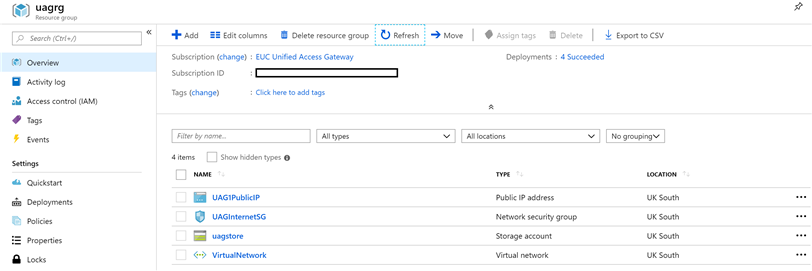
The objects are displayed in the Azure portal.
Was this page helpful?