You can secure your devices with Workspace ONE UEM applications, in addition to Workspace ONE UEM MDM features, and configure them with added functionality. Catalog and manage your applications with Workspace ONE Intelligent Hub for Windows, and facilitate communication between your devices and the Workspace ONE UEM console.
Workspace ONE Productivity Apps
Secure your corporate content on mobile devices with Workspace ONE Content. Deploy the Workspace ONE Web to enable secure Web browsing for your end users. Download the Workspace ONE Intelligent Hub for Windows to monitor your devices on a more granular level.
Workspace ONE Intelligent Hub needs to be downloaded on your Windows Desktop to deploy Win32 applications.
Important: Public applications deployed to Windows Desktop devices are unmanaged applications, which cannot be pushed to devices (end users must download the applications themselves) or removed from devices through Enterprise Wipe.
Workspace ONE App for Windows Desktop
When the Workspace ONE application is installed, users can sign in to it to access a catalog of applications that your organization enabled for them. If single sign-on is configured, users don't need to enter their credentials everytime they log in.
The Workspace ONE user interface works in a similar manner on phones, tablets, and desktops. Workspace ONE opens to a launcher page that displays resources that users can tap or click to search, add, and update apps; right-click on an app to remove it from the page, and go to the Catalog page to add entitled resources. If an app requires device enrollment, Workspace ONE uses adaptive management to start the enrollment process for the end user.
Configure the Workspace ONE Intelligent Hub for Windows Desktop
You can update the Workspace ONE Intelligent Hub settings to meet your business needs.
- Navigate to Groups & Settings > All Settings > Devices & Users > Windows > Windows Desktop > Intelligent Hub Settings.
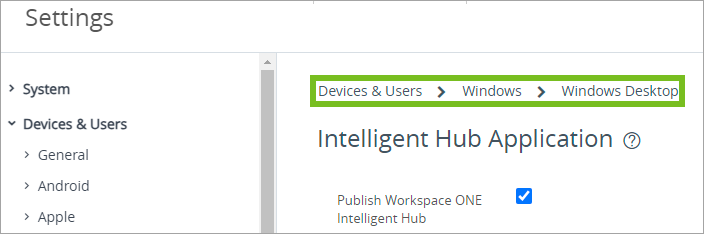
- Configure the Data Sample Interval (min) menu item to define the intervals at which the Workspace ONE Intelligent Hub takes samples of data.
- Configure the MDM Channel Security menu item to set the app-layer security between the device and the Workspace ONE UEM console.
- Configure the Privacy settings if you use analytics tools for data collection.
- Show Privacy Screen - Display a screen to tell your users that you collect data.
- Collect Analytics - Collect various data points, like app crashes and endpoint numbers and send that data to your app analytics vendor.
What to do next
You can prevent end users from disabling the Workspace ONE UEM Service on their device using a Custom Settings profile.
Adding Win32 Applications and Management
When installing any new Win32 application, you will start in the Workspace ONE UEM console, under Resources > Apps > Native > Add > Application File. You can choose the file from either a Local File or Link and then click Save. Once the app is chosen, you will see an Add Application window open that will allow you to set and customize the settings.
For more information on Deploying Traditional Win32 Applications to Windows Devices see this Tech Zone article.
Defer the Application Installation in the UEM
As an administrator, you can enable the option to allow users to manage and defer the app installs. In the Application Assignment menu, under Distribution, toggle on the Allow User Install Deferral option. Then, under Use UEM or Custom Notifications choose UEM. Now you can define how long the end user can defer the app installs.
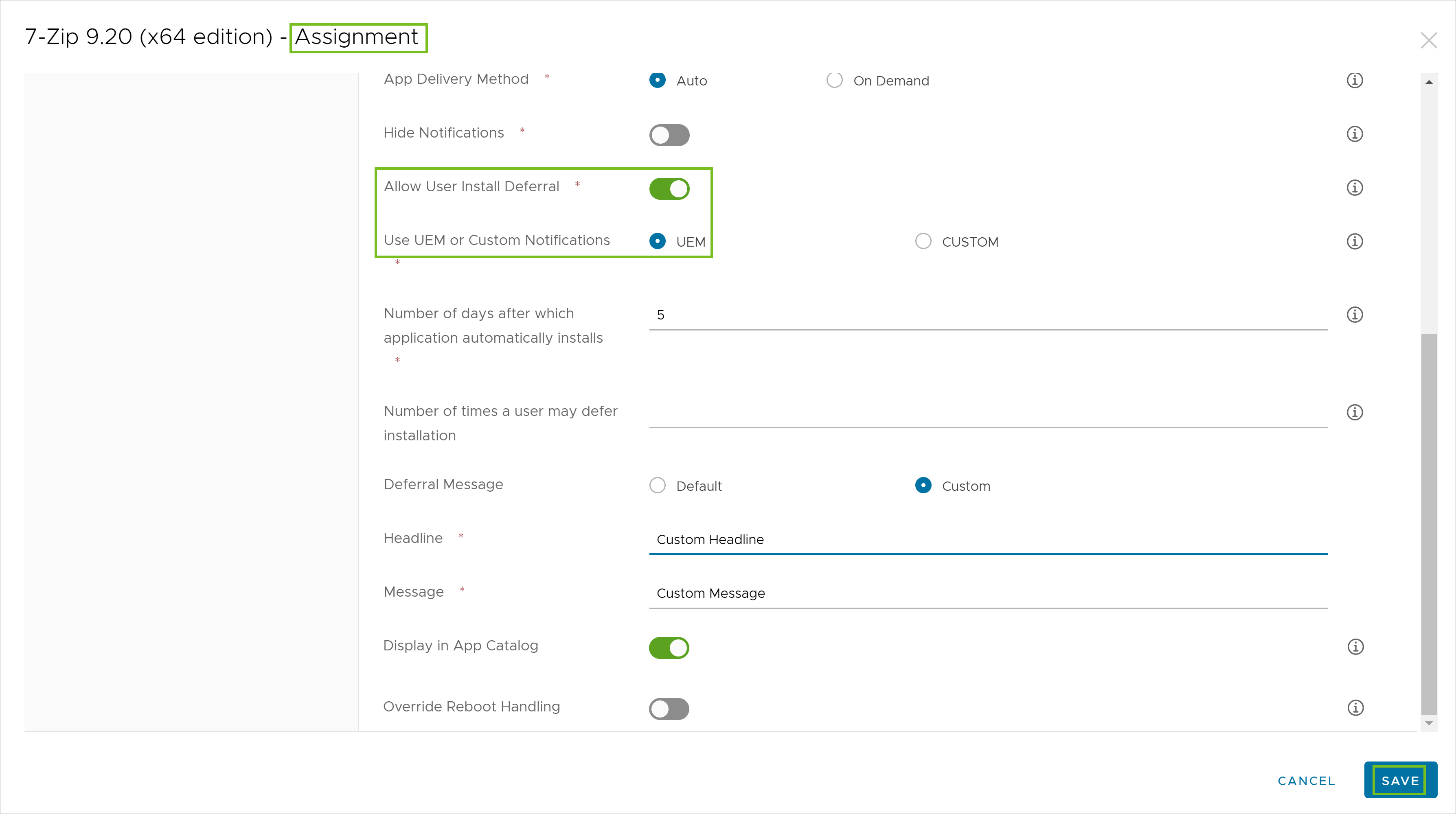
You can choose to set:
- The Deferral Deadline- The number of days after which the application automatically installs.
- The Deferral Count- The number of times a user may defer installation.
- Both the Deferral Deadline and the Deferral Count.
If you choose to set both options, the first deferral option timeline that is reached will be when this would take effect. At that point, the user will be given the ability to defer one last time, but only for 30 minutes. After that the app will start the install process. Example: The admin sets both the Deferral Deadline to 10 Days and sets the Deferral Count to 3. The event that happens first will be the one that applies. So if the user reaches that 3rd deferral count option in 4 days, that is when the user will see the option to defer for only 30 minutes and then the app will start the installation.
The UEM does offer a default deferral toast notification message. However, if you would like to create your own, under Deferral Message choose Custom and provide your own deferral Headline and Message.
Was this page helpful?