Network traffic rules allow you to set granular control over how the Omnissa Workspace ONE Tunnel directs traffic from devices. Create device traffic rules to control how devices handle traffic from specified applications and server traffic rules to manage network traffic when you have third-party proxies configured.
Device traffic rules force Workspace ONE Tunnel to send traffic through the tunnel, block all traffic to specified domains, bypass the internal network straight to the Internet, or send traffic to an HTTPS proxy site. The device traffic rules are created and ranked to give an order for running the rules. Every time a specified application is opened, Tunnel checks the list of rules to determine which rule applies to the situation. If no set rules match the situation, Tunnel applies the default action. The default action, set for all applications except for safari, applies to domains not mentioned in a rule. The device traffic rules created apply to all VPN Workspace ONE Tunnel profiles in the organization group the rules are created in.
Server traffic rules enable you to manage the network traffic when you have third-party proxies configured in your network. These rules apply to traffic originating from the Workspace ONE Tunnel. The rules force Tunnel to send traffic for specified destinations to either use the proxy or bypass it.
Supported Platforms
Workspace ONE Tunnel supports Network Traffic rules for the following platforms:
-
iOS devices with Workspace ONE Workspace ONE Tunnel for iOS.
-
macOS devices with Workspace ONE Workspace ONE Tunnel for macOS.
-
Android devices with Workspace ONE Workspace ONE Tunnel for Android.
-
Windows desktop devices with Workspace ONE Workspace ONE Tunnel desktop application.
Create Device Traffic Rules
The Device Traffic Rules (DTR) define how traffic from specified applications is routed by the Workspace ONE Tunnel application. The device traffic rules serve as a locally enforced Access Control List, defining which apps and destinations should be blocked, tunneled, proxied, or bypass the tunnel completely.
Administrators can create multiple Device Traffic Rules sets through Manage Traffic Assignments to segment traffic to internal resources, such as rules for employee's devices that restrict them access to contractor devices.
Complete the following steps to create device traffic rules:
-
Go to Security > Tunnel > Device Traffic Rules.
-
Device Traffic Rules (DTR) in a Child OG are set to Inherit by default. There are two options:
- Override — Edit the DTR settings specifically for the current OG.
- Clear Override — Revert the current OG back to inheriting DTR settings from its parent OG.
-
Click Add to create a new DTR set, or you can edit the default DTR set.
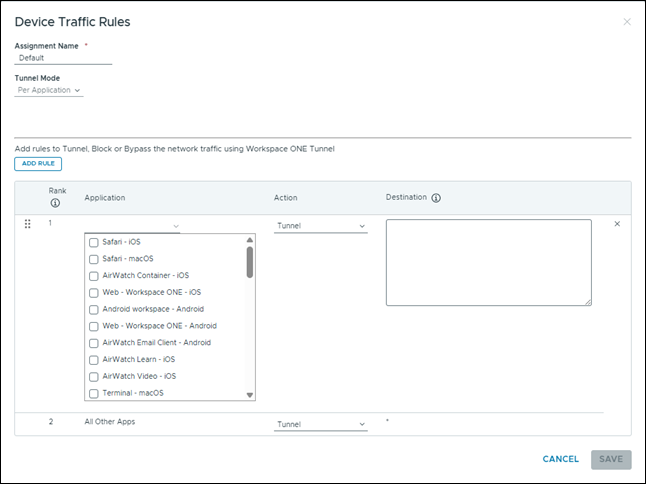
| Settings | Description |
|---|---|
| Assignment Name | The first assignment created is named as Default. For subsequent assignments, enter a name.
|
| Tunnel Mode |
|
| Add Rule |
Click Add Rule to create a rule.
Note:
|
| Manage Applications |
|
-
Enter the Device Traffic Rule SET Name.
-
Configure the Device Traffic Rules.
-
Click Save or Save and Publish.
-
When the administrator changes the Device Traffic Rules and click Save, the Device Traffic Rules gets mapped to the profile, but the updated Device Traffic Rules is not replaced for the devices where the VPN profile is already installed. Device Traffic Rules is only updated for the newly enrolled devices or for the devices that have the VPN profile reinstalled.
-
To send the updated Device Traffic Rules to the devices post modifying the Device Traffic Rules, administrators must click Save and Publish. Save and Publish adds a version to the VPN profile and republishes Device Traffic Rules to all the devices.
- You cannot delete the Default Traffic Rule set.
- Save and Publish option is available only for the Default Traffic Rule set.
- If an administrator changes the Android application in the Device Traffic Rules and clicks Save and Publish, the VPN profiles for both iOS, Android profiles gets a version update and the VPN profile installs are queued for all the assigned devices.
- Reinstalling the profile reissues the client certificate to the device with a new thumbprint.
- Each assignment of Device Traffic Rules can be selected within your Tunnel profile. This allows you to create different policies for different types of personas based on user, device, or use-case.
IP and Port Ranges Format Support for DTR and STR on Tunnel client and Server
| Feature | Windows (MDM/Standalone) | Android (MDM) | Android (Standalone) | Mac (MDM) | Mac (Standalone) | iOS (MDM) | iOS (Standalone) | Linux (Standalone) | Example(s) |
|---|---|---|---|---|---|---|---|---|---|
| Single ip (IPv4) | ✓ | ✓ | ✓ | ✓ | ✓ | ✓ | ✓ | ✓ | 10.10.10.5 |
| Single ip (IPv6) | ✓ | ✓ | ✓ | ✓ | ✓ | ✓ | ✓ | 2401:4900:1cbc:46f6:5454:a479:10fa:963 | |
| IP range or subnet for IPv4 addr | ✓ | ✓ | ✓ | ✓ | ✓ | ✓ | ✓ | ✓ | 10.10.10.0/24, 192.168.1.1/16 |
| IP range or subnet for IPv6 addr | ✓ | ✓ | ✓ | ✓ | ✓ | ✓ | ✓ | x | 2001:db8:3c4d:15::/64 |
| Hostname (with wildcard) | ✓ | ✓ | ✓ | ✓ | ✓ | ✓ | ✓ | ✓ | *.example.com, *example.com |
| Single Port | ✓ | x | x | x | x | x | x | x | IPV4 10.10.10.5:80, *.example.com:443, *.example.com:[443], [2401:4900:1cbc:46f6::/64]:[443] IPV6 *.example.com:80, [2401:4900:1cbc:46f6:5454:a479:10fa:963/128]:[80], [2401:4900:1cbc:46f6::/64]:[80] |
| Port Range | ✓ | x | x | x | x | x | x | x | IPV4 *.example.com:[80-443], [2001:db8:3c4d:15::/64]:[80-443] IPV6 *.example.com:[80-443], [2401:4900:1cbc:46f6:5454:a479:10fa:963]:[80-443],[2401:4900:1cbc:46f6:5454:a479:10fa:963/128]:[80-443] |
| List of Ports | ✓ | x | x | x | x | x | x | x | 10.10.10.5:[80,443] |
| List of Ports and Ranges | ✓ | x | x | x | x | x | x | x | IPV4 *.example.com:[80,443, 8080-8085], 10.10.10.1:[80,443,8080-8085],10.10.11.1/32:[80,443,8080-8085] IPV6 *.example.com:[80,443, 8080-8085], [2401:4900:1cbc:46f6:5454:a479:10fa:963]:[80,443,8080-8085],[2401:4900:1cbc:46f6:5454:a479:10fa:963/128]:[80,443,8080-8085] [2001:db8:3c4d:15::/64]:[80,443,8080-8085] [::/64]:[80,443,22],[aaaa:bbbb:cccc::]:[1-1000,33] |
| TCP: or UDP: Prefix | X (UDP:* only, no IP) | X (UDP:* only, no IP) | X (UDP:* only, no IP) | X (UDP:* only, no IP) |
Wildcard Guidelines and Use of Asterisk
When defining the Device Traffic Rules destination, the administrator can enter a list of domains to allow, block, or bypass traffic. The wildcard is supported for the hostnames and multiple entries must be separated by comma (,).
You can use wildcard characters for your hostnames. Wildcards must follow the format:
| Format | Description |
|---|---|
| *.domain.* | app.domain.com, api.domain.net |
| *domain.* | mydomain.net, mydomain.org |
| www.example.com, example.com, store.example.com | Includes primary domain and subdomains |
| *.* | This wildcard is not applicable for Safari domain rules (iOS and macOS specific) |
| * | This wildcard is not applicable for Safari domain rules (iOS and macOS specific) |
Configure Server Traffic Rules using Outbound Proxy
You can configure server traffic rules for the Workspace ONE Tunnel to manage how traffic is directed through a third-party proxy. These rules allow you to bypass the proxy or send traffic through it. You can either add rules manually in the UEM console or via PAC files by using the Tunnel PAC Reader.
Many organizations use outbound proxies to control the flow of traffic to and from their networks. Outbound proxies can also be used for performing traffic filtering, inspection, and analysis.
It is not mandatory to use outbound proxies with Workspace ONE Tunnel, but your organization may choose to deploy them behind one or more Tunnel servers based on recommendations from your security and network teams.
The following table lists outbound proxy support for the Per-App Tunnel on Linux:
| Proxy Configuration | Supported |
|---|---|
| Outbound Proxy with no auth | ✓ |
| Outbound Proxy with basic auth | ✓ |
| Outbound Proxy with NTLM auth | ✓ |
| Multiple Outbound Proxies | ✓ |
| PAC Support | ✓ |
Configure the rules for sending traffic to your outbound proxies using the server traffic rules.
To route API/AWCM (AirWatch Cloud Messaging) requests through your outbound proxy:
- Go to Security > Tunnel > Gateways and open the configured Tunnel.
- Expand the Networking section and turn on the Default AWCM + API traffic via Server Traffic Rules toggle.
- On the Server Traffic Rules page, add the web proxies for your API/AWCM hostnames.
Configure Server Traffic Rules from the Workspace ONE UEM Console
Add rules for the Workspace ONE Tunnel to manage how traffic is directed through a third-party proxy. These rules allow you to bypass the proxy or send traffic through it.
The server traffic rules only apply to Workspace ONE Tunnel servers using the Per-App Tunnel component.
-
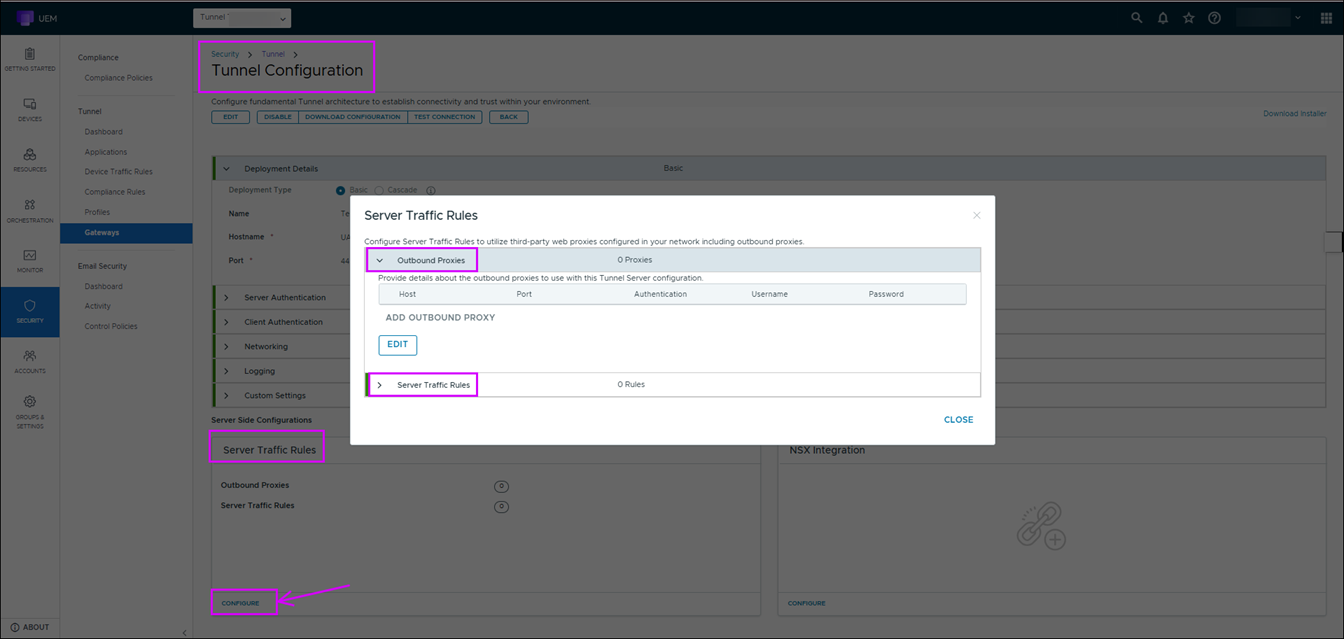
Go to Security > Tunnel > Gateways .
-
In the Server Traffic Rules section, click Configure.
-
Expand the Outbound Proxies section and click Edit > Add Outbound Proxy to add a third-party outbound proxy. Click Add Outbound Proxy again if you want to add additional outbound proxies.
Settings Description Host Enter the proxy hostname. Port Enter the port the third-party proxy uses to listen to the Workspace ONE Tunnel. Authentication Select the proxy authentication method used. Select Basic or NTLM. User Name Enter the User name for proxy authentication. Password Enter the Password for proxy authentication. -
Click Save to save your changes.
-
Expand the Server Traffic Rules section to configure the server traffic rule settings.
-
Click Edit > Add Server Traffic Rule to add a new server traffic rule.
Settings Description Destination Enter the destination hostname that triggers the traffic rule. Rules for applications on Windows 10 and macOS (except Safari) devices must use IP address as the hostname. You cannot use regular expressions except for specific wildcard characters. Windows 10 and macOS devices support using the following wildcards: - 10.10.*
- 10.10.0.0/16
Action Select the action that the Workspace ONE Tunnel applies to server traffic for the destination hostname. - Bypass – Bypass the proxy and send all traffic directly to the destination hostname.
- Proxy – Send server traffic through the outbound proxy. Selecting Proxy displays the Outbound Proxy menu.
Proxy Select the Outbound proxy to handle server traffic for the destination hostname. If you select multiple outbound proxies, the proxies are used in a round-robin format. The proxies that populate this menu are those proxies added in the Outbound Proxies section. -
(Optional) Click Add Server Traffic Rule if you want to add any additional server traffic rules.
-
Click Apply to save your changes.
-
Click Close.
Configure Server Traffic Rules using Workspace ONE Tunnel PAC Reader
The PAC Reader allows you to use PAC files to configure outbound proxies for the Per-App Tunnel component. For more information on configuring Outbound Proxy using the PAC Reader, see Omnissa dux Installation Guide and Editing the manifest for PAC Reader.
PAC Reader limitations
Currently the PAC Reader has the following limitations:
-
Currently, the PAC Reader only supports Linux servers.
-
The PAC Reader currently does not support the following rules:
- Nested
ifstatements. Try to put the inner logic above the outer logic. This change makes the outer logic lower ranked than the inner logic. Else-ifstatements. Try to convert these rules toifstatements.- Regex.
myapaddress().- Generic use of the AND operator.
- Nested
-
The PAC Reader only supports limited use of the variable declaration and use.
Was this page helpful?