이 항목에서는 관리 콘솔 로그인 페이지의 요소를 수정하는 방법을 설명합니다.
로그인 페이지 로고
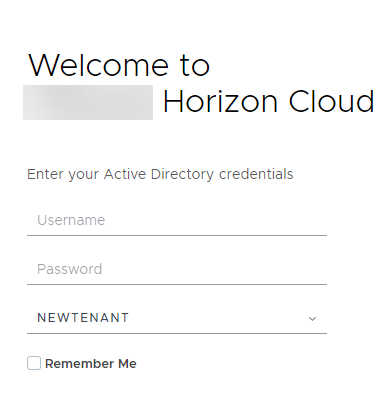
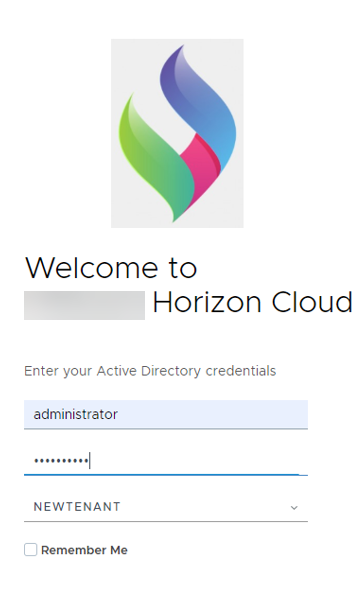
로고를 수정하려면 조직의 두 테넌트 장치에서 stylesForCustomBranding.css 파일을 편집합니다.
$> /usr/local/desktone/release/dt-platform-20_2_0/deploy/dt-tenant-node-20.2.0-bin/horizonadmin/static/css/production/ stylesForCustomBranding.css
다음 예와 유사하도록 코드의 적절한 섹션을 편집합니다.
- 주석
/*! Remove this when the logo is required. */를 삭제합니다. - 주석 처리된 다른 줄의 주석 처리를 제거합니다.
- 이미지 파일의 URL을 변경합니다.
/*! App Logo with text */
.login-wrapper .login .brand-logo {
      display: none;
      /*! Remove this when the logo is required. */
      background: url('../../static/images//EUC_HorizonLogin_bg.png') no-repeat;
      width: 100px;
      height: 100px;
      margin: 0 auto 1rem auto;  }
다음 이미지는 위에 표시된 것처럼 코드가 편집되었을 때의 페이지 모양 예를 보여 줍니다.
| 이전 | 이후 |
|---|---|
 |  |
로그인 페이지 배경
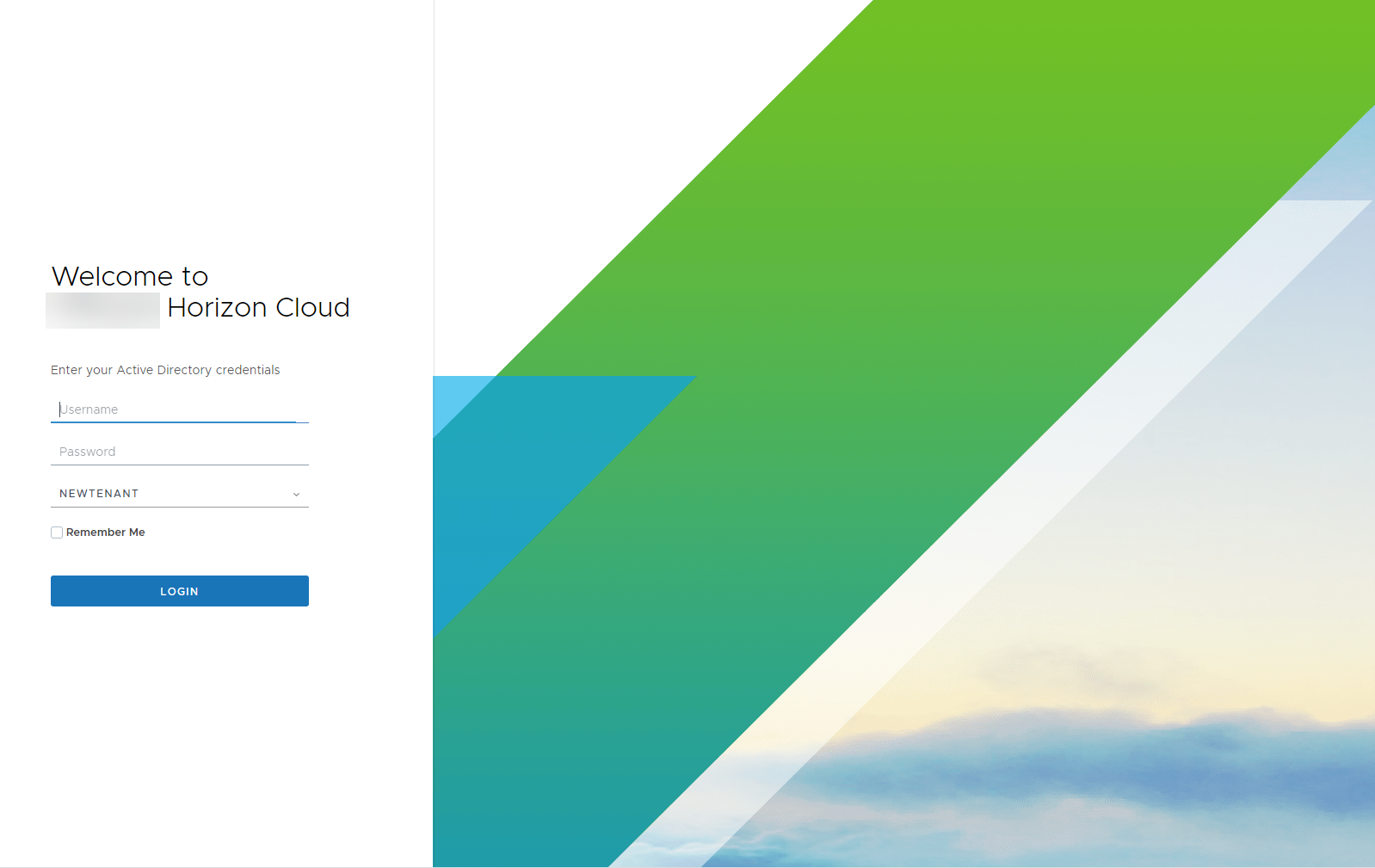
배경을 수정하려면 조직의 두 테넌트 장치에서 stylesForCustomBranding.css 파일을 편집합니다.
$> /usr/local/desktone/release/dt-platform-20_2_0/deploy/dt-tenant-node-20.2.0-bin/horizonadmin/static/css/production/ stylesForCustomBranding.css
다음 예와 유사하게 코드의 적절한 섹션을 입력하고 주석 처리된 텍스트의 주석 처리를 제거한 후 이미지 파일의 URL을 변경합니다.
/*! Login Page Background changes */
.login-wrapper {
   background: url('../../images/FBG.jpg') no-repeat; };
}
다음 이미지는 위에 표시된 것처럼 코드가 편집되었을 때의 페이지 모양 예를 보여 줍니다.
| 이전 | 이후 |
|---|---|
 |  |
로그인 버튼
버튼을 수정하려면 조직의 두 테넌트 장치에서 stylesForCustomBranding.css 파일을 편집합니다.
$> /usr/local/desktone/release/dt-platform-20_2_0/deploy/dt-tenant-node-20.2.0-bin/horizonadmin/static/css/production/ stylesForCustomBranding.css
다음 예와 유사하게 코드의 적절한 섹션을 편집하여 주석 처리된 2개의 코드 줄을 해제하고 border-color 및 background-color의 색을 변경합니다.
/*! login button */
.login-wrapper .login .login-group .btn {
       border-color: #00b315;
       background-color: #ff5733;
다음 이미지는 위에 표시된 것처럼 코드가 편집되었을 때의 페이지 모양 예를 보여 줍니다.
| 이전 | 이후 |
|---|---|
 |  |
이 페이지가 도움이 되었나요?