This topic describes how to modify elements on the Administration Console login page.
Login Page Logo
To modify the logo, edit the stylesForCustomBranding.css file in both tenant appliances in the organization:
$> /usr/local/desktone/release/dt-platform-20_2_0/deploy/dt-tenant-node-20.2.0-bin/horizonadmin/static/css/production/ stylesForCustomBranding.css
Edit the appropriate section of code so that it is similar to the following example.
- Delete the comment
/*! Remove this when the logo is required. */. - Uncomment the other commented lines.
- Change the URL for the image file.
/*! App Logo with text */
.login-wrapper .login .brand-logo {
      display: none;
      /*! Remove this when the logo is required. */
      background: url('../../static/images//EUC_HorizonLogin_bg.png') no-repeat;
      width: 100px;
      height: 100px;
      margin: 0 auto 1rem auto;  }
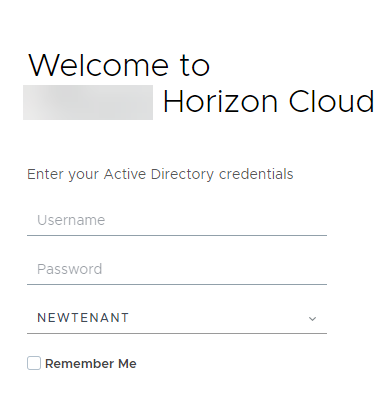
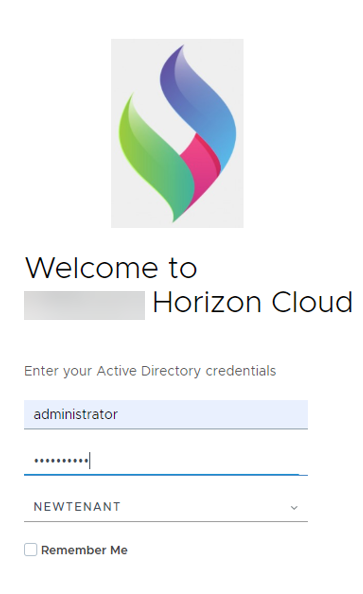
The following images show an example of the appearance of the page when the code has been edited as shown above.
| BEFORE | AFTER |
|---|---|
 |  |
Login Page Background
To modify the background, edit the stylesForCustomBranding.css file in both tenant appliances in the organization:
$> /usr/local/desktone/release/dt-platform-20_2_0/deploy/dt-tenant-node-20.2.0-bin/horizonadmin/static/css/production/ stylesForCustomBranding.css
Edit the appropriate section of code so that it is similar to the following example, uncommenting the commented text and changing the URL for the image file.
/*! Login Page Background changes */
.login-wrapper {
   background: url('../../images/FBG.jpg') no-repeat; };
}
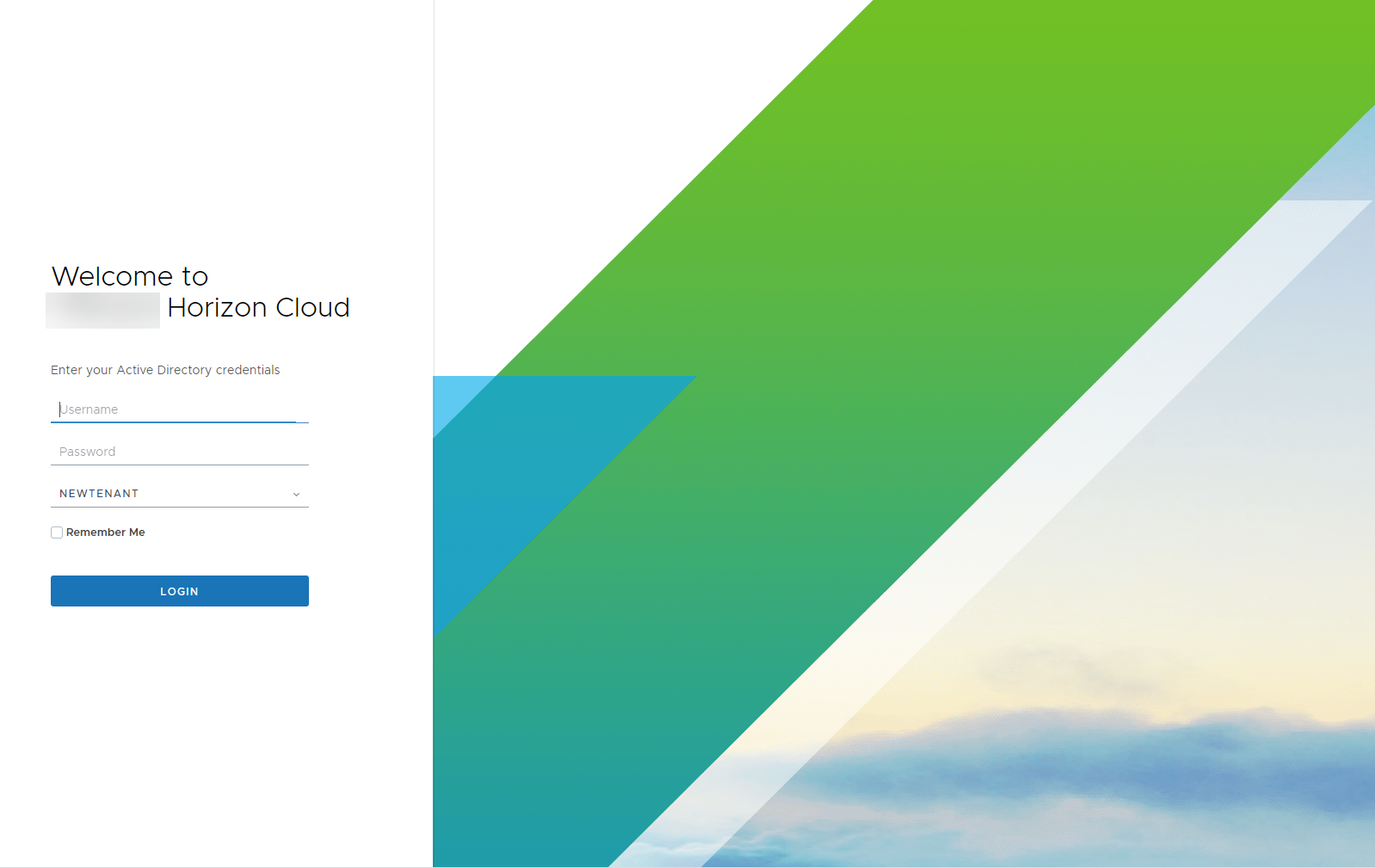
The following images show an example of the appearance of the page when the code has been edited as shown above.
| BEFORE | AFTER |
|---|---|
 |  |
Login Button
To modify the button, edit the stylesForCustomBranding.css file in both tenant appliances in the organization:
$> /usr/local/desktone/release/dt-platform-20_2_0/deploy/dt-tenant-node-20.2.0-bin/horizonadmin/static/css/production/ stylesForCustomBranding.css
Edit the appropriate section of code so that it is similar to the following example, uncommenting the two lines of commented code and changing the colors for border-color and background-color.
/*! login button */
.login-wrapper .login .login-group .btn {
       border-color: #00b315;
       background-color: #ff5733;
The following images show an example of the appearance of the page when the code has been edited as shown above.
| BEFORE | AFTER |
|---|---|
 |  |
Was this page helpful?