當您在 Workspace ONE UEM Console 中變更與 Omnissa Access 服務整合的設定時,必須同時在 Omnissa Access Console 的 [整合] > [UEM 整合] 頁面中更新設定。否則,Omnissa Access 和 Hub Services 將無法與 Workspace ONE UEM 通訊。
在 Workspace ONE UEM 重新產生 REST API 憑證後更新 Omnissa Access 服務
當您在 Workspace ONE UEM Console 中重新產生 REST API 憑證時,必須手動將該 REST API 憑證上傳並儲存在 Omnissa Access Console 中。
-
在 Workspace ONE UEM Console 的設定 > 企業整合 > Omnissa Access > 組態頁面中,匯出憑證並儲存該檔案。
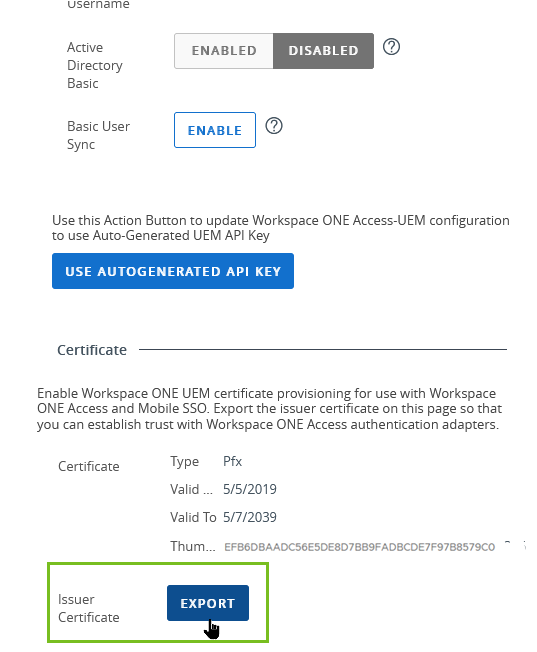
-
在 Omnissa Access Console 的整合 > UEM 整合頁面的 REST API 憑證設定列中,按一下上傳憑證。導覽至已儲存的憑證,然後選取要上傳的檔案。
-
向下捲動至 Workspace ONE 目錄區段,然後按一下儲存。
![Omnissa Access Console 的 [UEM 整合] 頁面中的憑證上傳視圖](images/GUID-2D6ECB1D-E33E-4589-81BC-FE425B94EB57-low.png "Omnissa Access Console 的 [UEM 整合] 頁面中的憑證上傳視圖")
-
確認在 Omnissa Access、Hub Services 和 Workspace ONE UEM 中的憑證指紋識別碼相同。
- 在 Workspace ONE UEM Console 中,移至設定 > 企業整合 > Omnissa Access > 組態頁面,然後捲動至 [憑證] 區段以檢視指紋識別碼。
- 在 Omnissa Access Console 中,移至整合 > UEM 整合頁面,然後在 Workspace ONE UEM [組態] 區段中按一下顯示憑證詳細資料。確認該憑證指紋識別碼與 Workspace ONE UEM Console 中的識別碼相同。
- 在 Hub Services Console 中,移至系統設定 > API 憑證,然後按一下顯示詳細資料。確認該憑證指紋識別碼與 Workspace ONE UEM Console 中的識別碼相同。
在 Workspace ONE UEM 中升級 AirWatch Cloud Connector 後更新連線
升級 AirWatch Cloud Connector 軟體後,請務必在 Omnissa Access Console 中更新 Workspace ONE UEM 整合組態,以同步更新「密碼 (搭配 Workspace ONE UEM)」驗證方法的組態設定。
-
在 Omnissa Access 的設定 > 企業整合 > Omnissa Access > 組態頁面中,選取透過 Workspace ONE UEM 驗證使用者密碼
-
停用設定,然後重新啟用。
-
按一下儲存。
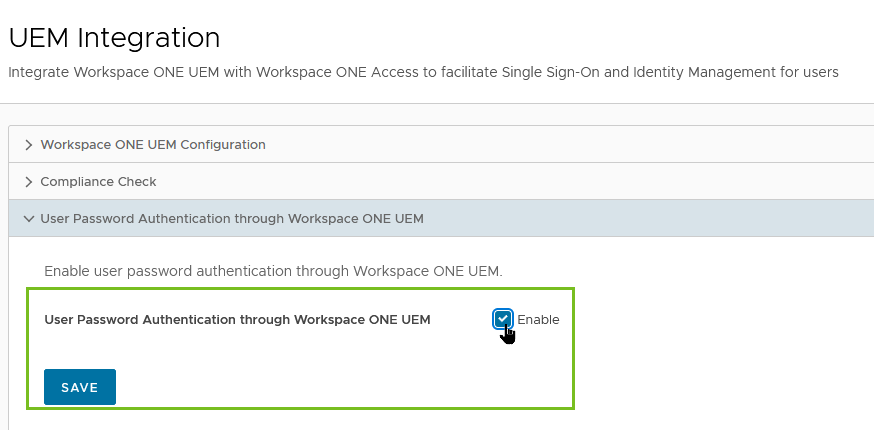
-
移至整合 > 驗證方法頁面,然後選取密碼 (搭配 Workspace ONE UEM),以確認頁面上的設定已更新。
此頁面對您有幫助嗎?