Upgrade the AirWatch Cloud Connector from the Workspace ONE UEM console to take advantage of the latest bug fixes and enhancements. This process can be automated using the AirWatch Cloud Connector auto-update option, or performed manually for situations where administrative control is a priority.
AirWatch Cloud Connector Auto-Update
The AirWatch Cloud Connector auto-updates by default. This toggle is available in the Workspace ONE UEM console. Auto-update allows AirWatch Cloud Connector to upgrade automatically to the latest version without any user intervention by querying Workspace ONE UEM for newer versions of AirWatch Cloud Connector. Enabling auto-update is optional for those environments and situations in which manual upgrades are preferred.
Important:
- Workspace ONE UEM ACC major version updates are fully automated and require no manual action. After the update completes, services restart automatically to apply the new version.
- For patch-based auto-updates, the new version is applied at the next service restart. To apply the patch immediately, administrators can manually restart the services.
- Post auto-upgrade, the AirWatch Cloud Connector installer needs to run in the AirWatch Cloud Connector box to get the new PowerShell module.
- If the auto-update fails, restart the ACC service to resolve the issue.
Benefits
- No need to determine manually if you need to upgrade and then have to search for the latest AirWatch Cloud Connector version – the software does it for you.
- Since it assures you stay updated, you always have the latest features, enhancements and fixes.
- Most importantly, it ensures you have the most up-to-date security.
Update Process
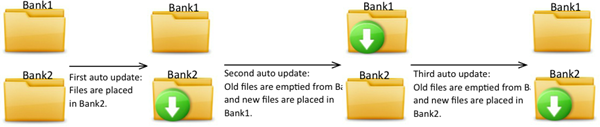
AirWatch Cloud Connector auto-update is performed using the Bank1 and Bank2 folders inside the CloudConnector folder. Workspace ONE UEM detects which of these folders is empty and streams the appropriate AirWatch Cloud Connector files into it, in addition to emptying the contents of the other folder. For the subsequent update, Workspace ONE UEM repeats the process except for the alternate folder. This process repeats each time a new version is auto-updated. This process is illustrated below.
Important:
Do not delete the Bank1 or Bank2 folders. The Bank1 and Bank2 folders are integral to the AirWatch Cloud Connector auto-update process.
Auto-Update Security
AirWatch Cloud Connector auto-updates are performed with security in mind. Every update is signed by the Workspace ONE UEM console and verified by AirWatch Cloud Connector, so it will only update itself with a trusted upgrade. The upgrade process is also transparent to the Workspace ONE UEM Admin. When a newer version is available, AirWatch Cloud Connector knows from querying the Workspace ONE UEMconsole on port 443, and then an upgrade occurs.
While AirWatch Cloud Connector is upgrading to the latest version, it will not be available, so there will be a short loss of service (i.e., approx. 1 minute). For those who have multiple AirWatch Cloud Connector servers, to ensure all AirWatch Cloud Connector services are not down at the same time, AirWatch incorporates a random timer to the upgrade process so AirWatch Cloud Connector outages will occur at different times for very short periods of time.
If the AirWatch Cloud Connector auto-updates, the version under Add or Remove Programs does not change – the original version will still be listed. The version under Add or Remove Programs only changes when you run the full AirWatch Cloud Connector installer. The best way to verify if the auto-update succeeded is to look in the AirWatch Cloud Connector logs for what version is running.
Effects of Deactivating Auto-Update
If you choose to deactivating this feature, then there are some drawbacks by having to do all AirWatch Cloud Connector upgrades manually. When not upgraded, the AirWatch Cloud Connector remains operational until one of the following occurs:
- Powering the AirWatch Cloud Connector off and on (purposely or power outage).
- Reinstalling the AirWatch Cloud Connector.
- Upgrading the Workspace ONE UEM console to a later version.
- Regenerating Workspace ONE UEM, AWCM, or AirWatch Cloud Connector certificates, which requires the latest version of Workspace ONE UEM being installed and a reboot to recognize the new certificate(s).
Was this page helpful?