With Integrated Printing, you can add a watermark to jobs printed from a remote Linux session. You can customize the text content and format of the watermark using advanced print options.
Prerequisites
To enable the Integrated Printing watermark feature, you must perform the following prerequisite tasks.
- In the Horizon-related
configfile, set the printSvc.watermarkEnabled configuration option totrue. See Edit Configuration Files on a Linux Desktop. - Install the QPDF package on the agent machine, as described in the following procedures.
Install QPDF on a RHEL 9.x or Rocky Linux 9.x Machine
-
Enable the Extra Packages for Enterprise Linux (EPEL).
yum -y install https://dl.fedoraproject.org/pub/epel/epelrelease-latest-9.noarch.rpm -
Enable the CodeReady Linux Builder (CRB) repository.
/usr/bin/crb enable -
Install the QPDF package.
dnf install qpdf
Install QPDF on a RHEL 8.x Machine
-
Install and enable gcc-toolset.
yum install -y gcc-toolset-12 scl enable gcc-toolset-12 bash -
Install the zlib-devel and libjpeg-turbo-devel packages.
yum install -y zlib-devel libjpeg-turbo-devel -
Download and build the QPDF package.
wget https://github.com/qpdf/qpdf/releases/download/release-qpdf-10.3.1/qpdf-10.3.1.tar.gz
tar -zxvf qpdf-10.3.1.tar.gz
cd qpdf-10.3.1
./configure
make
make install
Install QPDF on a CentOS 7.9 Machine
-
Enable the Red Hat Software Collections (RHSCL).
yum-config-manager --enable rhel-workstation-rhscl-7-rpms -
Install and enable the Red Hat Developer Toolset.
yum install devtoolset-7 scl enable devtoolset-7 bash -
Install the zlib-devel and libjpeg-turbo-devel packages.
yum install -y zlib-devel libjpeg-turbo-devel -
Download and build the QPDF package.
wget https://github.com/qpdf/qpdf/releases/download/release-qpdf-10.3.1/qpdf-10.3.1.tar.gz
tar -zxvf qpdf-10.3.1.tar.gz
cd qpdf-10.3.1
./configure
make
make install
Install QPDF on an Ubuntu/Debian Machine
-
Run the command to install the QPDF package.
apt install qpdf
Configure the Printed Watermark Settings
You can use print options to specify the content and format of the watermark.
Note: The watermark is always printed in a repeating pattern on lines parallel to the diagonal of the page.
-
Open the print dialog box for the job you want to print.
-
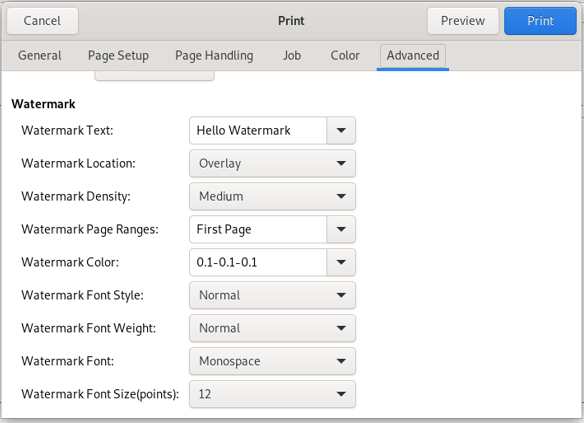
Select the Advanced tab.
-
Configure the watermark options as described in the following table.
Option Allowed Values Description Watermark Text Unicode text characters Text content of the printed watermark. Watermark Location Overlay, Underlay Placement of the watermark in relation to the page content. - Overlay places the watermark in front of the printed page content.
- Underlay places the watermark behind the printed page content.
Watermark Density Low, Medium, High The density level, or number of rows used to print the watermark. - Low repeats the watermark in a single row along the diagonal of the page.
- Medium repeats the watermark in several rows parallel to the diagonal of the page.
- High repeats the watermark in many rows parallel to the diagonal of the page.
Watermark Page Ranges All Pages, First Page, or a custom page range The pages on which to include the watermark. To specify a custom page range, use commas to separate non-consecutive pages and hyphens to indicate a consecutive range. For example: "1,3,4-5,99-200" Watermark Color Blue, Gray, Red, or a custom color specified as arithmetic RGB values The color of the watermark. To specify a custom color, use the format <R value>-<G value>-<B value>, where the values represent the intensities of the red, green, and blue components of the color. Each value can range from 0.0 (lowest intensity) to 1.0 (highest intensity). For example: "0.31-0.42-0.55" Watermark Font Style Normal, Italic, Oblique The typeface style, or slope, of the watermark. Watermark Font Weight Thin,Ultralight, Light, Semilight, Book, Medium, Semibold, Bold, Ultrabold, Heavy, Ultraheavy The stroke weight, or thickness, of the watermark font. The effect of each weight value depends on the font selected. Watermark Font Any system-supported font The typeface used to print the watermark. Watermark Font Size An integer from 6 through 96 The size, in points, of the watermark font. If the specified size exceeds the printed page dimensions, Integrated Printing automatically adjusts to the nearest point value that can fit the watermark on the page.
Was this page helpful?