Teradici agent and Horizon agent must be installed on the same host VM. For detailed setup and architecture information, see Configuring Horizon Connection Server for use with HP Anyware PCoIP Ultra.
Note: This feature requires Horizon 8 version 2406 or later.
PCoIP Ultra protocol is not supported for:
- Unmanaged desktop pools
- RDSH based desktop pools
Creating desktop pools with PCoIP Ultra protocol
- Open a web browser and navigate to your Horizon Connection Server administration console (e.g. https://horizoncs.domain.com/admin).
- Enter your administrative credentials to log in.
- From the main menu, navigate to Inventory > Desktops.
- Click the Add button to create a new desktop pool.
- In the Remote Desktop Settings section of Desktop Pool Creation wizard, select the checkbox next to the PCoIP Ultra setting to enable it for the desktop pool.
- Continue throught the wizard, configuring the other required settings for the desktop pool.
- Click Submit to create the desktop pool with PCoIP Ultra enabled.
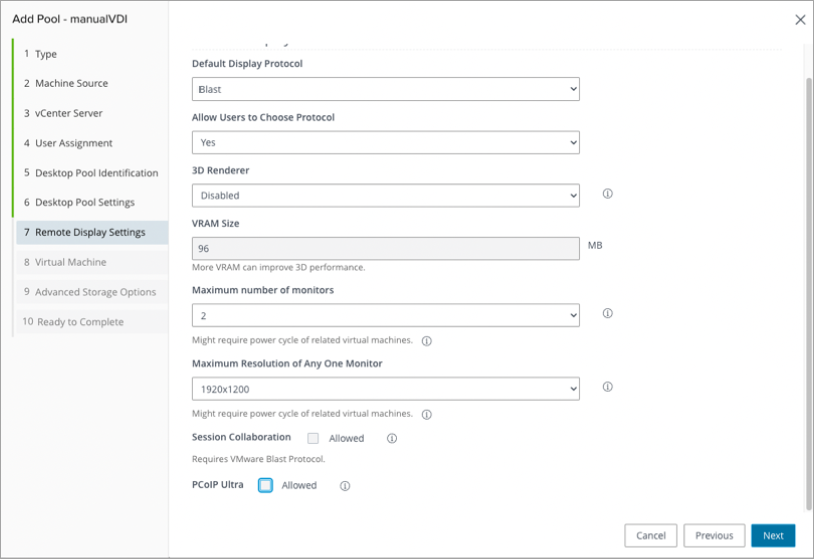
Editing an existing desktop pool with PCoIP Ultra protocol
- Open a web browser and navigate to your Horizon Connection Server administration console (e.g. https://horizoncs.domain.com/admin).
- Enter your administrative credentials to log in.
- From the main menu, navigate to Inventory > Desktops.
- Click the Edit button to edit an existing desktop pool.
- In the Remote Desktop Settings section of Desktop Pool Creation wizard, check the checkbox next to the PCoIP Ultra setting to enable it for the desktop pool.
- Continue throught the wizard, configuring the other required settings for the desktop pool.
- Click Submit to enable PCoIP Ultra in the desktop pool.
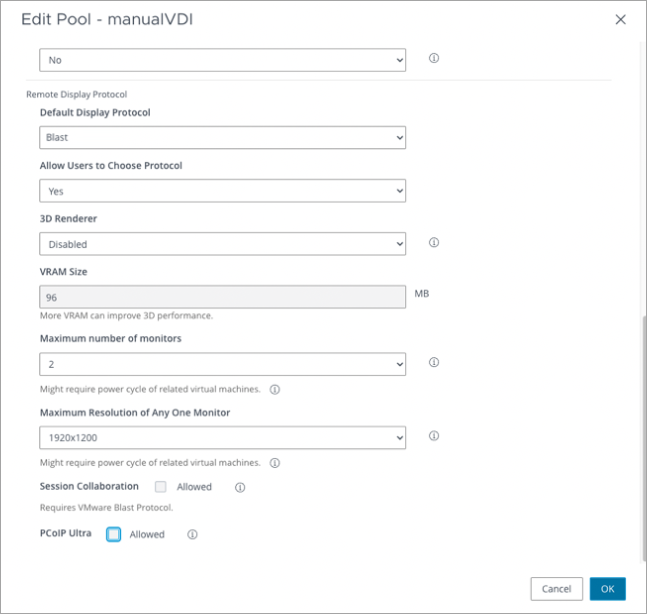
Duplicating a desktop pool with PCoIP Ultra protocol
- Open a web browser and navigate to your Horizon Connection Server administration console (e.g. https://horizoncs.domain.com/admin).
- Enter your administrative credentials to log in.
- From the main menu, navigate to Inventory > Desktops > Select Existing Desktop Pool.
- Click the Duplicate button to create a duplicate desktop pool.
- In the Remote Desktop Settings section of Desktop Pool Creation wizard, check the checkbox next to the PCoIP Ultra setting to enable it for the desktop pool.
- Continue throught the wizard, configuring the other required settings for the desktop pool.
- Click Submit to create the desktop pool with PCoIP Ultra enabled.
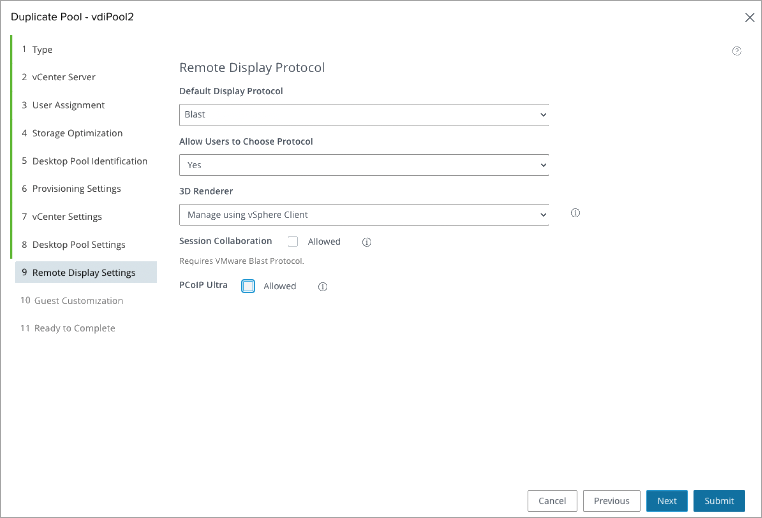
Adding Global Entitlement with PCoIP Ultra protocol
- Open a web browser and navigate to your Horizon Connection Server administration console (e.g. https://horizoncs.domain.com/admin).
- Enter your administrative credentials to log in.
- From the main menu, navigate to Inventory > Global Entitlement.
- Click the Add button to create a global entitlement.
- In the Name and Policies section of Add Global Entitlement wizard, select PCoIP Ultra in the Default Display Protocol dropdown.
- Check the checkbox next to the PCoIP Ultra setting.
- Continue throught the wizard, configuring the other required settings for the global entitlement.
- Click Submit to add global entitlement with PCoIP Ultra enabled.
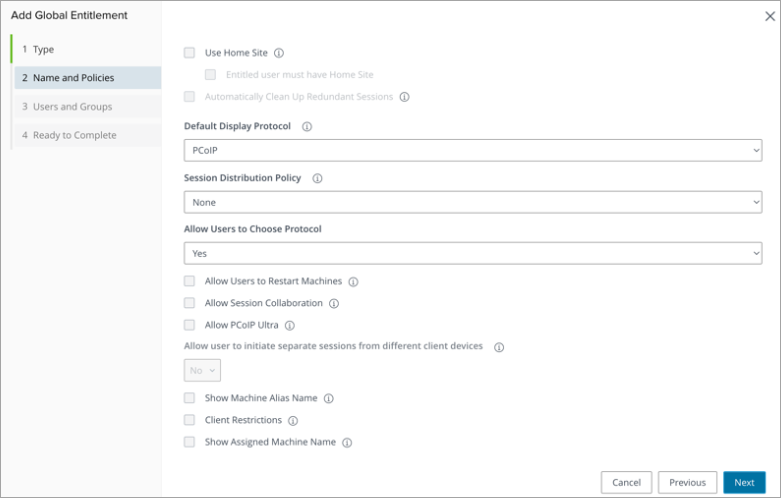
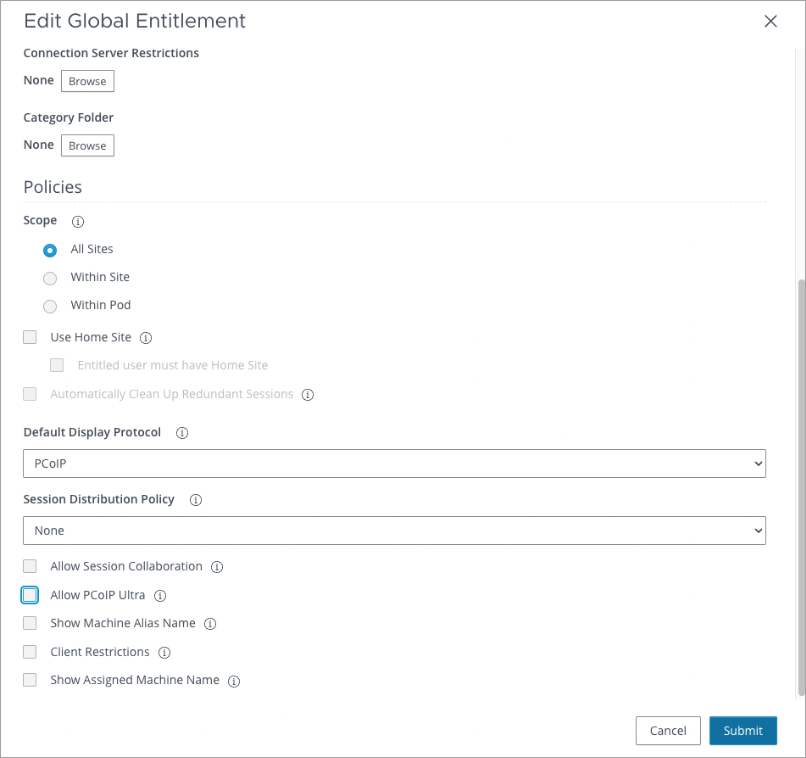
Editing Global Entitlement and enabling PCoIP Ultra protocol
- Open a web browser and navigate to your Horizon Connection Server administration console (e.g. https://horizoncs.domain.com/admin).
- Enter your administrative credentials to log in.
- From the main menu, navigate to Inventory > Global Entitlement.
- Select the desired global entitlement.
- In the Edit Global Entitlement window, select PCoIP Ultra in the Default Display Protocol dropdown.
- Check the checkbox next to the PCoIP Ultra setting.
- Click Submit to update the PCoIP Ultra setting.
Was this page helpful?