If a client computer has more than one webcam and microphone, you can configure a preferred webcam and microphone that Real-Time Audio-Video redirects to the remote desktop or published application. These devices can be built in or connected to the client computer.
Multiple Device Support and Redirected Device Names in Remote Sessions
For each compatible device built in or connected to the client system, the Real-Time Audio-Video feature creates a corresponding virtual device in the remote session.
The following table lists the device names for virtual redirected devices as they appear in remote sessions, depending on the agent software running on the remote desktop and the client software running on the local system. The table also specifies whether the agent and client combination supports the redirection of multiple webcams and microphones or only a single webcam and microphone.
| Horizon Agent | Omnissa Horizon Client | Redirected Device Name in Single-session Desktop | Redirected Device Name in Multi-session Desktop or Published Application |
|---|---|---|---|
| Horizon Agent for Windows |
| Same as local device name (Multiple device redirection is supported) | Same as local device name (Multiple device redirection is supported) |
| Horizon Agent for Windows | Horizon Client for Linux 2203 through 2209 | First enumerated local device name appended with "(VDI)" (Single device redirection is supported) |
(Single device redirection is supported) |
| Horizon Agent for Windows |
|
(Single device redirection is supported) |
(Single device redirection is supported) |
| Horizon Agent for Linux | All versions of all clients |
(Single device redirection is supported) |
(Single device redirection is supported) |
How single device redirection works
If your agent and client combination supports single device redirection, Real-Time Audio-Video redirects only one webcam and one microphone to the remote session, no matter how many devices are connected to the client system. You can specify which device to redirect.
How multiple device redirection works
If your agent and client combination supports multiple device redirection, Real-Time Audio-Video can redirect all compatible webcam and microphone devices on the client system to the remote session. If you configure Real-Time Audio-Video to redirect all devices, the device list on the remote desktop matches the device list on the client system.
If you specify a preferred device, Real-Time Audio-Video redirects that device only. If the preferred device is unavailable, Real-Time Audio-Video redirects the first device designated by system enumeration.
Configure which devices to redirect
If your agent and client combination supports multiple device redirection, you can configure Real-Time Audio-Video settings to redirect all devices or a preferred device.
If your agent and client combination supports single device redirection, you can specify which device to redirect. Selecting the All option has no effect; in this case, Real-Time Audio-Video falls back to redirect the first device designated by system enumeration.
See the following sections for a summary of the configuration options available for each client. For more detailed information, see the guide for your specific client.
Horizon Client for Windows
Select a preferred webcam or microphone by configuring Real-Time Audio-Video settings in the Horizon Client Settings window.
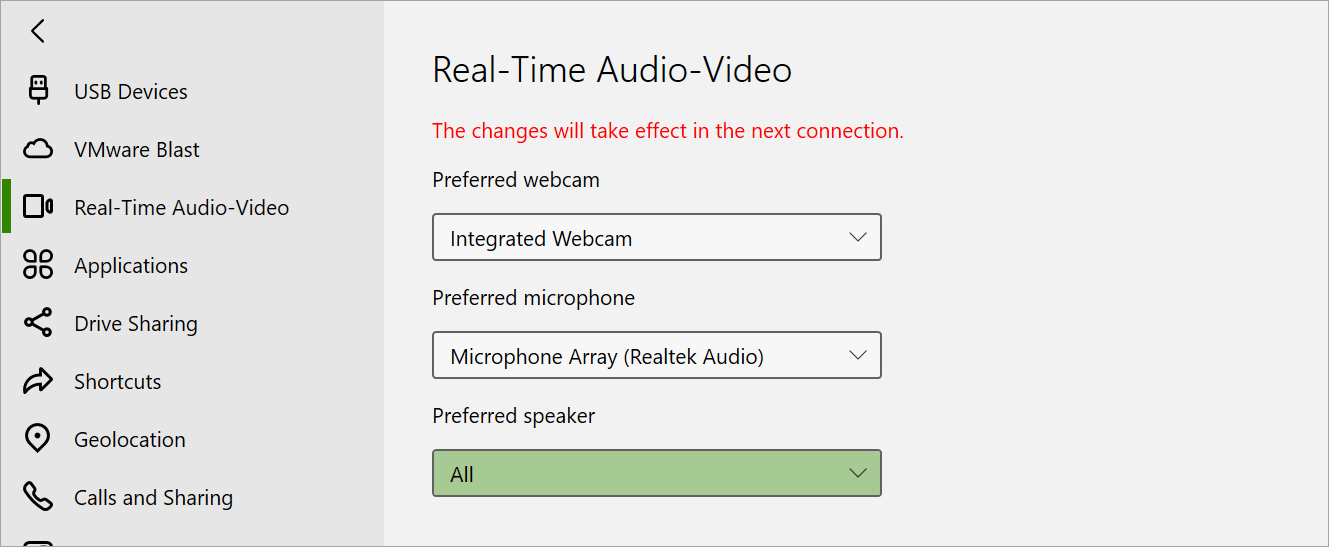
In Horizon Client for Windows 2212 and later, you can specify the Default option for the microphone.
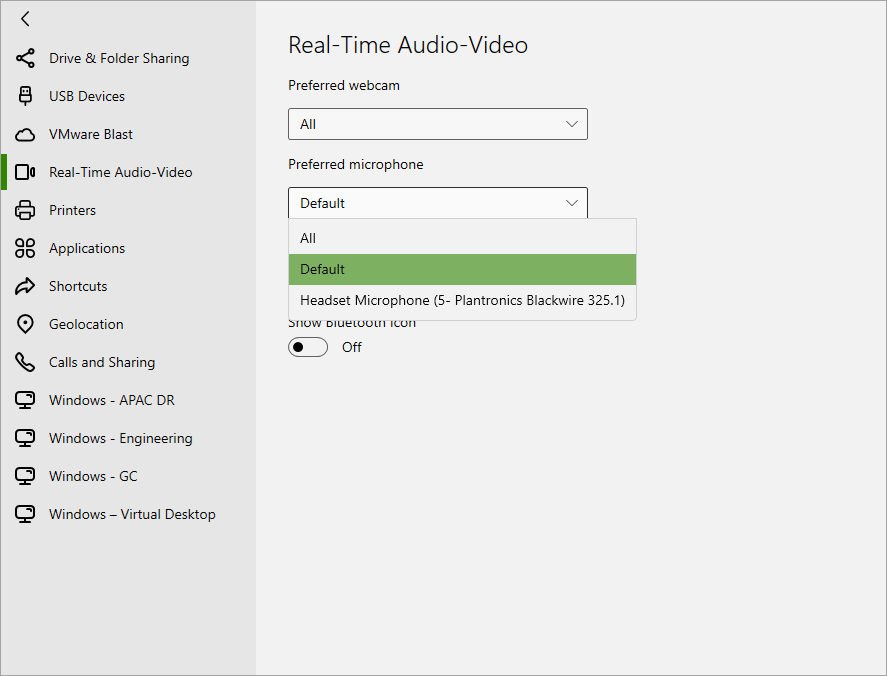
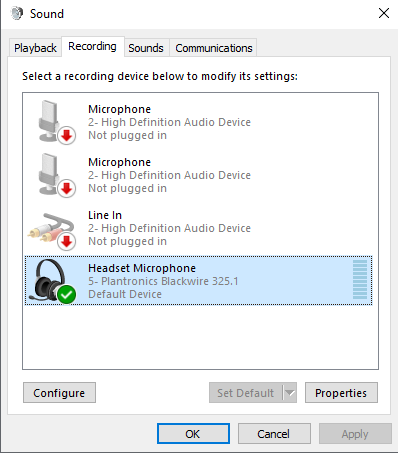
If you select this option, Real-Time Audio-Video only redirects the microphone configured as the default system device. To view and configure the default system device, refer to the following settings in the Sound > Recording Windows control panel:
- Set as Default Device - Sets the default microphone used for all applications, unless otherwise configured
- Set as Default Communication Device - Sets the default microphone used for all audio and video calls, unless otherwise configured
Horizon Client for Mac
In Horizon Client for Mac 2206 and later, you can use the Horizon Client Settings window to specify a preferred webcam or microphone.
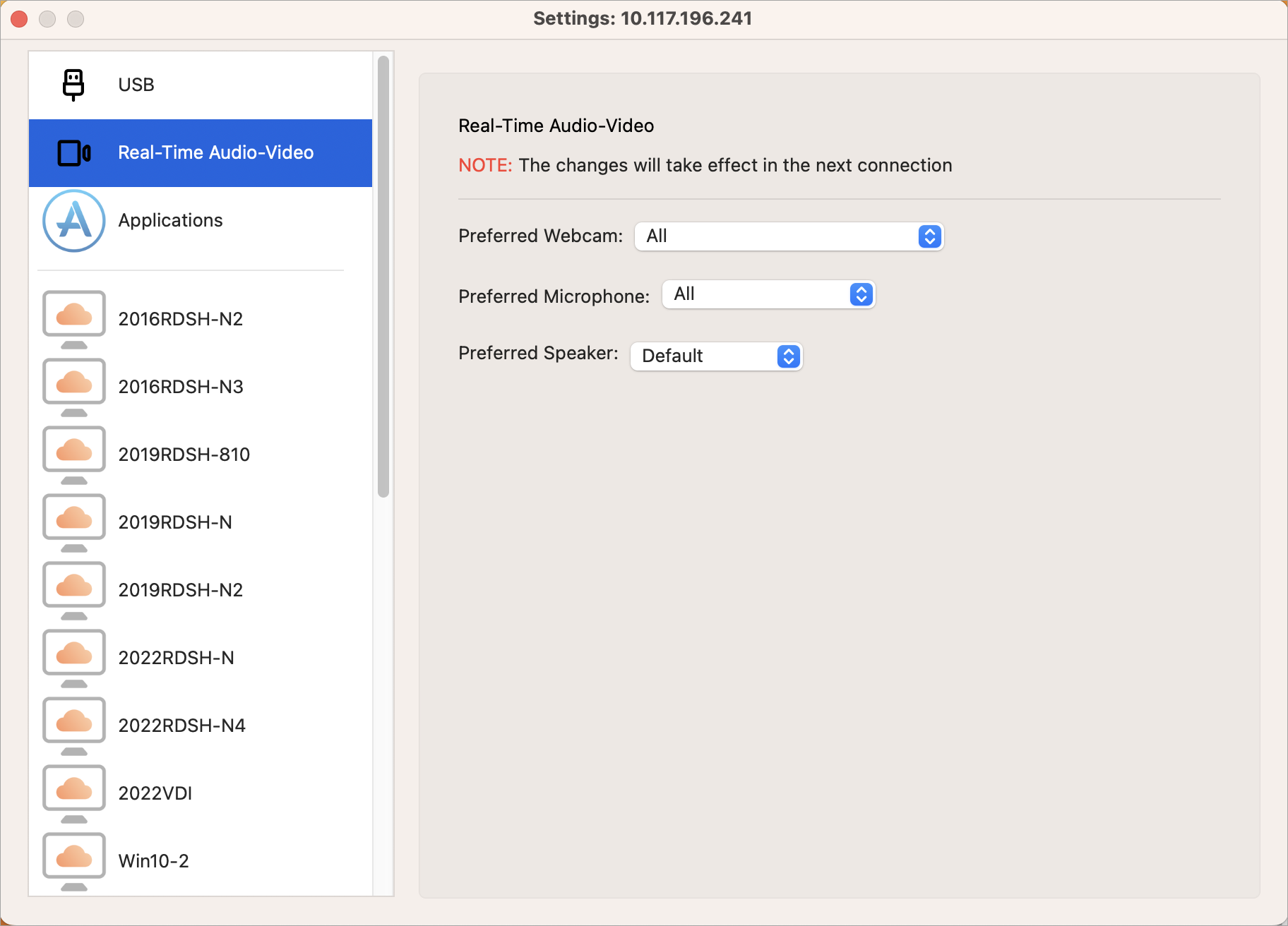
You can use the Default option to have Real-Time Audio-Video redirect only the microphone configured as the default system device.
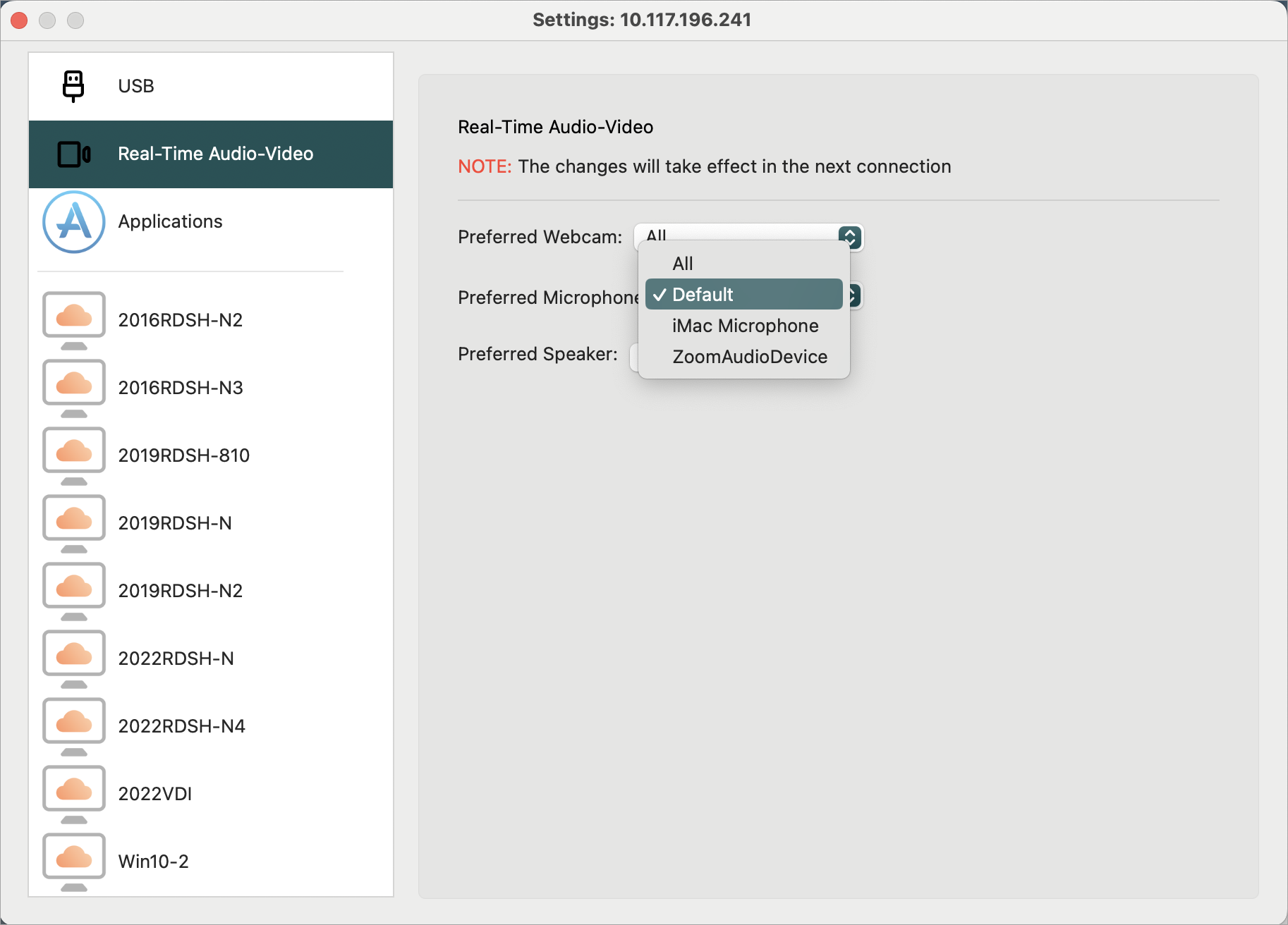
In Horizon Client for Mac 2203 and earlier, you must configure the Real-Time Audio-Video log file to specify a preferred webcam or microphone.
Horizon Client for Linux
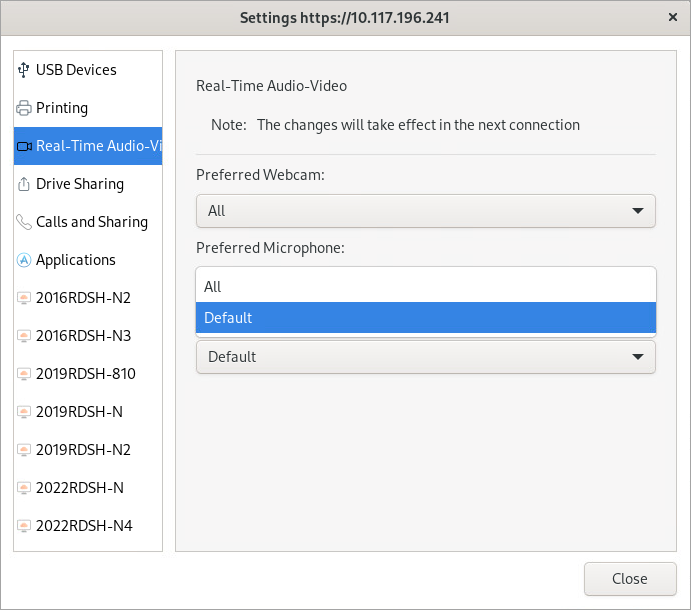
In Horizon Client for Linux 2206 and later, you can use the Horizon Client Settings window to specify a preferred webcam or microphone.
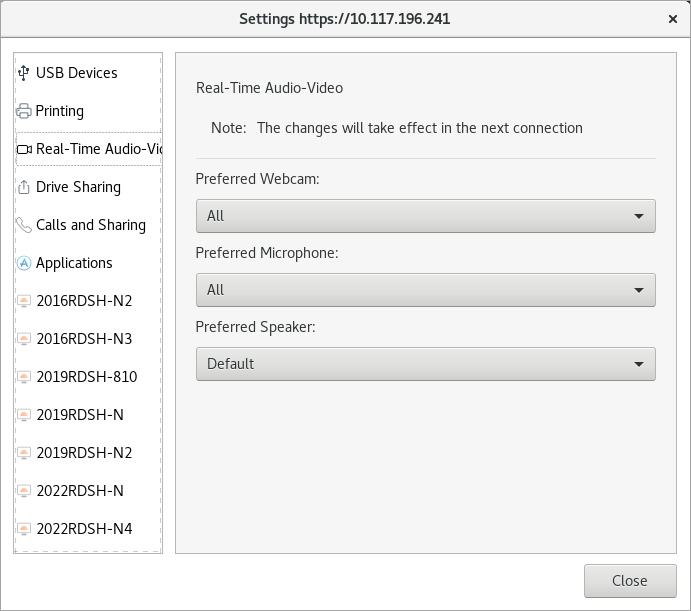
You can use the Default option to have Real-Time Audio-Video redirect only the microphone configured as the default device in the system Sound settings.
In Horizon Client for Linux 2203 and earlier, you must edit the /config file to specify a preferred webcam or microphone.
Horizon Client for Android
Horizon Client for Android does not support the capability to select a preferred microphone or webcam. Real-Time Audio-Video always redirects the system device to the remote session.
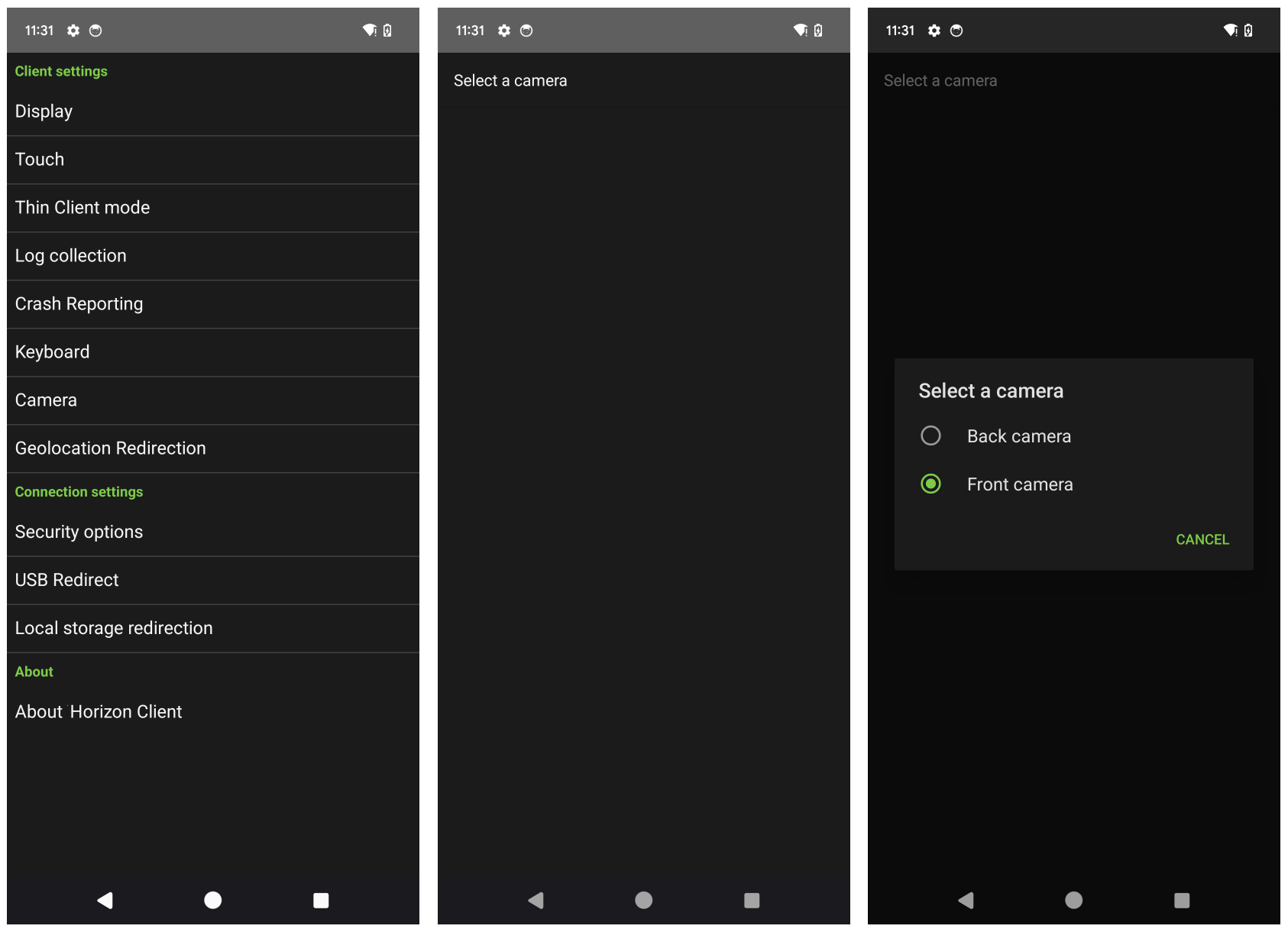
You can specify whether to redirect the back or front system camera.
To specify which system camera to redirect:
-
In the remote session, start an application that uses the redirected webcam. This step is required to make the webcam selection options available in Horizon Client.
-
In Horizon Client for Android, go to the Camera settings and select the camera that you want to redirect.
Horizon Client for iOS
Horizon Client for Chrome does not support the capability to select a preferred microphone or webcam. Real-Time Audio-Video always redirects the system device to the remote session.
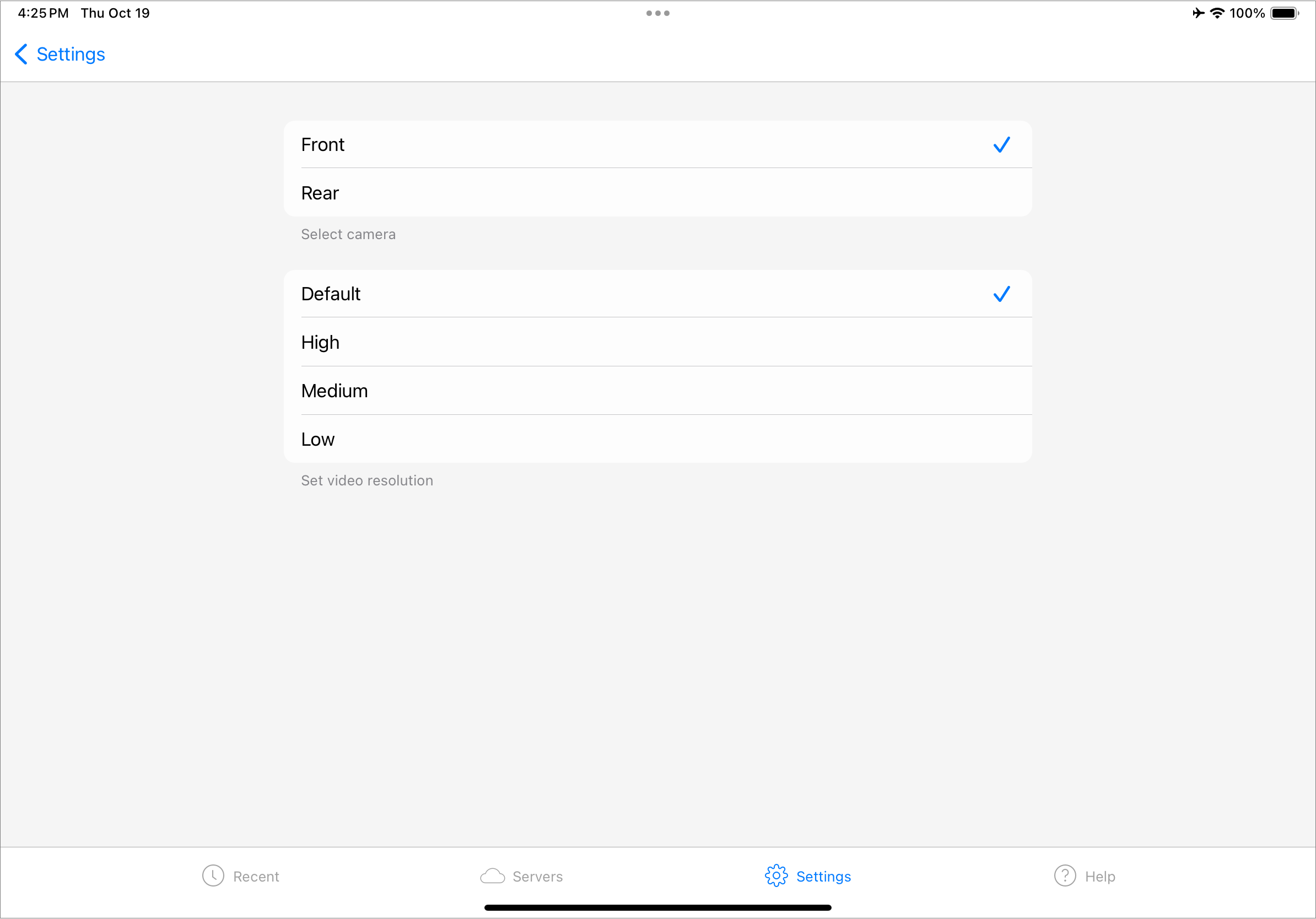
You can use the Horizon Client Settings window to specify whether to redirect the front or rear system camera.
Horizon HTML Access
HTML Access does not support the capability to select a preferred microphone or webcam. Real-Time Audio-Video always redirects the system device to the remote session.
Was this page helpful?