The Media Optimization for Microsoft Teams feature redirects audio calls, video calls, and viewing desktop shares for a seamless experience between the client system and the remote session without negatively affecting the virtual infrastructure and overloading the network. Microsoft Teams media processing takes place on the client machine instead of in the virtual desktop and does not rely on Real-Time Audio-Video (RTAV).
Media Optimization for Microsoft Teams Features
Important: For details on required Omnissa Horizon Client versions, Horizon Agent versions, and Teams client versions for each feature see Omnissa Knowledge Base article 86475.
Media Optimization for Microsoft Teams offers the following features:
- Accepting and making audio and video calls
- Multiparty audio and video conferencing
- Transfer, forward, mute, hold, and resume a call
- PSTN calls using a dial pad
- Desktop screen sharing
- Multi monitor screen sharing and screen picker for screen sharing
- Screen sharing in VDI and RDSH desktop sessions (Windows, Mac, Linux, Chrome, and Horizon Web Clients)
- Screen sharing in RDSH published application sessions (Windows, Mac, and Linux clients)
- Individual application sharing in VDI and RDSH desktop sessions for Omnissa Horizon Blast display protocol (Windows clients)
- Give and take control of individual application sharing in VDI and RDSH desktop sessions for Horizon Blast display protocol (Windows clients). Overlapping applications obscuring the content of the shared application appear greyed out over the shared application.
- Volume control from the remote desktop
- Secondary ringer
- Active speaker identification
- Live Captions for 1:1 and Team Meetings
- Custom Together Mode Scenes
- E911 and Location-Based Routing (Windows and Mac clients only)
- WebRTC 1.0
- Give control of screen sharing in VDI and RDSH desktop sessions (Windows, Mac, and Linux clients)
- Request/take control of screen sharing in VDI and RDSH desktop sessions (Windows, Mac, Linux, Chrome, and Horizon Web Clients)
- Request/take control of screen sharing in RDSH published application sessions (Windows, Mac, and Linux clients)
- Multi Window and Pop-out chat
- HID Headset controls for Windows and Linux clients*
- Background Blur and Effects (Windows, Mac, and Linux clients)*
- Custom background image for Windows, Mac, and Linux clients
- Simulcast support, which enables multiple video call streams at the same time in meetings, allowing better experience with low network quality (Windows, Mac, and Linux clients)*
In addition, Microsoft supports the following features. Contact Microsoft for any issues with these Microsoft Teams features:
- Gallery View (2x2)
- Large Gallery (7x7)
- Together Mode
- Call Queue
- Live Webinar (optimized)
- Call Quality Dashboard
- Transcription Support
- Spotlight
- Camera can be on while screensharing (Horizon 2106 or later)*
Attention: Features marked with an asterisk (*) will only become available as Microsoft Teams updates are released. Check the Microsoft 365 roadmap to see when each feature will be activated by Microsoft.
For other Microsoft Teams features supported with VDI, see the Microsoft documentation Meetings and live events.
Note: If Microsoft Teams is optimized on a virtual desktop and you encounter generic issues or certain features missing, check the Microsoft Teams web client for the same behavior. Media Optimization for Microsoft Teams on virtual desktops is based on Microsoft Teams web client that leverages WebRTC technology. If you see the same behavior on the web client, contact Microsoft for assistance.
Individual Application Sharing on Linux Endpoints
Starting with the Horizon 2412 release, end users in Horizon VDI/Session mode on Linux endpoints can share individual applications during Teams screen-sharing sessions. This functionality allows you to share specific applications or open windows, rather than your entire screen, during Microsoft Teams screen sharing sessions. This capability enhances security and flexibility and provides a more controlled sharing experience.
Requirements:
- Horizon VDI/Session mode running on a Linux endpoint
- Latest Teams client supporting application/window sharing
- Ensure that your Teams client and Horizon environment are updated to take advantage of this feature.
The Give/Take control is not supported with this feature on Linux endpoints.
Individual Application Sharing on Mac Endpoints
Starting with the Horizon 2506 release, end users in Horizon VDI/Session mode on Mac endpoints can share individual applications or open windows during Teams screen-sharing sessions. This functionality provides a more flexible and secure collaboration experience by allowing users to share only the specific content they intend to show, rather than their entire desktop.
Requirements:
- Horizon VDI or session-based desktop accessed from a Mac endpoint
- Latest Teams client supporting application/window sharing
- Make sure your Teams client and Horizon environment are up to date to use this feature.
The Give/Take control is not supported with this feature on Mac endpoints.
Media Optimization for Microsoft Teams System Requirements
The Media Optimization for Microsoft Teams supports these configurations.
| System | Requirements |
|---|---|
| Microsoft Server | Microsoft 365 |
| Microsoft Teams Client (Optimized) |
|
| Virtual desktop operating systems | Minimum requirement is 2 vCPU for operating systems supported for Horizon Agent. |
| Client machine operating systems | Minimum hardware requirement is 2.4 GHz dual core.
Windows: Media Optimization for Microsoft Teams with Windows client is supported with Horizon Client 2006 and later for VDI desktops, and Horizon Client 2012 and later for RDSH remote desktops and Microsoft Teams as a published application. Mac: Media Optimization for Microsoft Teams with Mac client is supported with Horizon Client 2103 and later. Starting from Horizon Client 2209, this feature is supported on M1-based Macs as well as 64-bit Intel-based Macs. Linux: Media Optimization for Microsoft Teams with Linux client is supported with Horizon Client 2106 and later. Chromebook: Media Optimization for Microsoft Teams with Chromebook client is supported with Horizon Client 2111 and later. To use Media Optimization for Microsoft Teams with Chromebook, Settings > Enable Media Optimization for Microsoft Teams must be enabled. This setting is enabled by default with Horizon Client 2203 and later. For more information see "Configure Media Optimization for Microsoft Teams in Horizon Client for Chrome" in the Horizon Client for Chrome Guide. Horizon Web Client: Media Optimization for Microsoft Teams supports the Horizon Web Client running in a Chrome or Microsoft Edge browser. Media Optimization for Microsoft Teams is supported with HTML Access Web client 2111 and later and Horizon Web Client. To use Media Optimization for Microsoft Teams with Chrome or Edge, Settings > Enable Media Optimization for Microsoft Teams needs to be enabled. This setting is enabled by default with HTML Access Web client 2203 and later and Horizon Web Client. For more information see "Configure Media Optimization for Microsoft Teams in Horizon Web Client" in the Horizon Web Client Guide . |
| Deployments |
On-premises and cloud:
|
| Display Protocols | Horizon Blast and PCoIP (no RDP) |
| TCP Port | 9427 |
| Network | IPv4 |
| Microphones and Webcams | Same devices that are qualified to work with Microsoft Teams |
| Audio codecs | For details, see https://developer.mozilla.org/en-US/docs/Web/Media/Formats/WebRTC_codecs.
|
| Video codecs | For details, see https://developer.mozilla.org/en-US/docs/Web/Media/Formats/WebRTC_codecs.
|
| Media Feature Pack | Must be installed on the remote desktop for Windows 10 N and KN versions. You can install Media Feature from the Microsoft download page: https://www.microsoft.com/en-us/download/details.aspx?id=48231. |
Installing and Configuring Media Optimization for Microsoft Teams
The Media Optimization for Microsoft Teams feature is installed by default with Horizon Client for Mac, Horizon Client for Linux, Horizon Client for Windows, and Horizon Client for Chrome. For Horizon Client for Windows, end users can deactivate Media Optimization using the client settings.
To use the Media Optimization for Microsoft Teams feature with Horizon Client for Chrome or the Horizon Web Client, the Enable WebRTC Redirection option must be activated in the client settings. To use screen-sharing capabilities with these clients, the Enable screen sharing for Microsoft Teams virtualization option must be activated in the client settings. Both the Enable WebRTC Redirection and Enable screensharing for Microsoft Teams virtualization options are activated by default.
To support screen-sharing capabilities from a Mac client, go to the Screen & System Audio Recording system setting and enable Horizon Client to record the content of your screen and audio.
Horizon Agent must be installed before you install Microsoft Teams. If you install Microsoft Teams before installing Horizon Agent, delete the %APPDATA%\Microsoft\Teams folder and relaunch Microsoft Teams.
To use this feature, the Media Optimization for Microsoft Teams group policy setting must be activated. See "WebRTC Redirection Features Settings" in Omnissa HTML5 Feature Policy Settings.
Note: Starting with the 2212 release, Media Optimization is enabled if the group policy is not configured. If upgrading from an older version of Horizon Agent to the 2212 version, the policy is overridden and enabled. For details on how to deactivate this policy, see "WebRTC Redirection Features Settings" in HTML5 Feature Policy Settings.
See the Microsoft documentation Teams for Virtualized Desktop Infrastructure for installation, setup, and deployment requirements, guidelines on persistent and non-persistent desktops, and limitations of using Microsoft Teams in a remote desktop.
Microsoft updates their Teams recommended version periodically. Check Microsoft for updates and install the latest recommended version to access new features without updating Horizon Client or Horizon Agent.
For more information about installing and configuring Media Optimization for Microsoft Teams, see the TechZone article Microsoft Teams Optimization with Horizon.
Pairing Modes for a Session
A user can check if Microsoft Teams is running in optimized mode, fallback mode, or natively in the virtual desktop (no optimization). On the top right corner of the Microsoft Teams interface, click the user icon and navigate to About->Version to see a banner under the user icon describing the Microsoft Teams version and pairing modes:
-
Optimized: If the banner shows Omnissa Media Optimized, then Microsoft Teams is running in the optimized mode. In this mode, the Enable Media Optimization for Microsoft Teams GPO is activated, Microsoft Teams is running in the virtual desktop, and audio and video is offloaded to the client machine.
-
Fallback: If the banner shows Omnissa Media Not Connected, then Microsoft Teams is running in fallback mode. In this mode, the Enable Media Optimization for Microsoft Teams GPO is activated and Microsoft Teams has tried to start in Optimized mode, but the Horizon Client being used does not support Microsoft Teams optimization. RTAV is used and audio and video from Microsoft Teams is not offloaded to the client machine. Fallback mode has the same limitations as Optimized mode. When you make a call in fallback mode, you see a warning sign on the call:
Your device does not support Omnissa optimization. Audio and video quality may be reduced. Talk to your IT admin.
-
No Optimization: If the banner does not show Omnissa text in the message, the Enable Media Optimization for Microsoft Teams GPO is not activated. RTAV is used and audio and video from Microsoft Teams is not offloaded to the client machine.
Configuring Custom Background Images on Teams
Background blur and effects allow users to blur their background or select an available background image before or during a video call or meeting. Custom background support for Teams provides users with the ability to apply backgrounds from a custom set of images uploaded by the administrator.
Note: Setting custom backgrounds is supported on the Horizon 2412 Client for Windows. Starting with the 2506 release, it's also supported on the Mac and Linux clients. This feature does not appear as an option in the Teams user interface (UI) as it does in a native Teams environment. Instead, enablement of this feature and image selection is configured through registry keys. To implement custom backgrounds, administrators upload image files (.png or .jpg) to a designated folder. Users can then apply a background from that folder by entering the exact filename, including the extension. Users must have permission to edit registry keys under the path:
HKCU\Software\Omnissa\Horizon\WebRTCRedir\
The Windows registry keys let the user choose a custom image and switch between using custom background images and Microsoft-provided images in the Teams UI. The custom background image is applied in the same manner as Microsoft stock images and persists so long as the registry values are unchanged.
There are two registry values in the user-level registry key, which should be set by the user from within the desktop session.
HKCU\Software\Omnissa\Horizon\WebRTCRedir\MSTeamsCustomImagesBackground
enable REG_DWORD 0|1: This setting enables or disables custom backgrounds for the current user. To apply custom backgrounds, set enable to1. Otherwise, to disable custom background and select from the Teams UI, set enable to0. The default value is0.imageName REG_SZ: This setting allows the user to specify which image to apply from the folder of images uploaded by the administrator. Enter the exact image filename, including the .png or .jpg extension. Other file formats are unsupported.
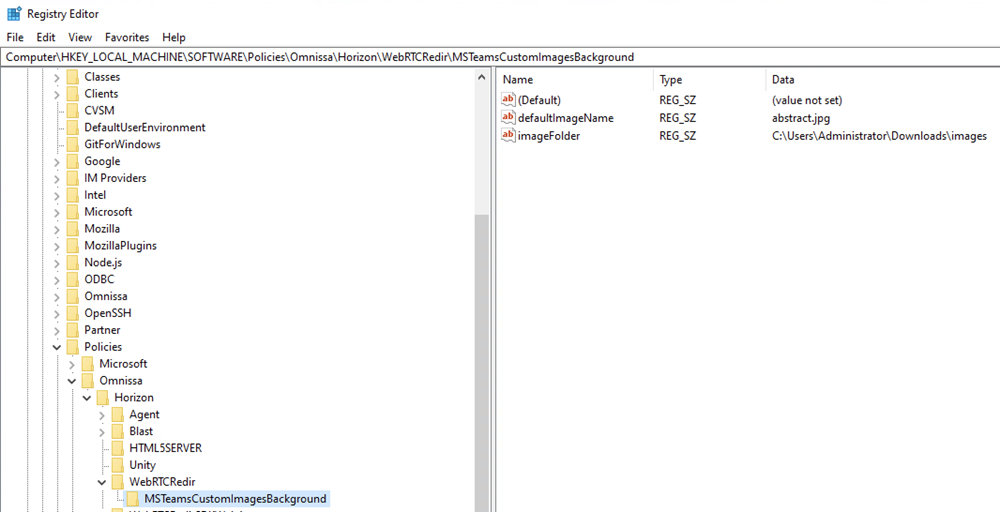
The following registry values can be modified by the administrator using Group Policy (GPO) on the agent under the path. HKLM\Software\Policies\Omnissa\Horizon\WebRTCRedir\MSTeamsCustomImagesBackground.
imageFolder REG_SZ: Administrators can specify the path to a folder from which custom images will be selected. If this registry value is not set, administrators should place their custom images in the default folder,C:\Program Files\Common Files\Omnissa\Remote Experience\x64\MSTeamsBackgroundImages, and the images will be taken from here.defaultImageName REG_SZ: Specifies a default custom image to be applied if the user does not select an image or selects an incorrect or unsupported one. Enter the image filename with the .png or .jpg extension.enable REG_DWORD 0|1: This setting overrides the user’sHKCU\Software\Omnissa\Horizon\WebRTCRedir\MSTeamsCustomImagesBackground\enableregistry key. When set to1, it forces users to use only custom background images. When set to0, custom backgrounds are disabled, and users can apply only Microsoft stock images from the Teams UI. If this enable value is not present underHKLM\Software\Policies\Omnissa\Horizon\WebRTCRedir\MSTeamsCustomImagesBackground\, then the user's personal enable setting is honored, allowing them to switch between custom and Microsoft-provided images at their discretion. If administrators do not want to override the user’s setting, they should omit this registry value or delete it if it already exists.
HID Headset Support
HID (Human Interface Device) usage is supported on Windows and Linux client endpoints.
We support:
- Volume up and down
- Mute/unmute button
- Call accept and reject
We do not support:
- Hold/Resume
E911 and Location-Based Routing
This feature is supported for Windows and Mac clients only.
To support Dynamic E911 for Horizon Client, you must activate OS location services for the client application. See Configuring E911 Services for Microsoft Teams in the Horizon Client for Windows Guide and Horizon Client for Mac Guide. Static E911 does not need location services to be activated.
The Enable E911 for Microsoft Teams group policy setting must be activated or not configured to use the feature. See WebRTC Redirection Features in HTML5 Feature Policy Settings.
Limitations of Media Optimization for Microsoft Teams With All Clients
Media Optimization for Microsoft Teams has the following limitations for all supported client platforms. Contact Microsoft for Microsoft limitations.
| Limitation | Comments |
|---|---|
| The camera light stays on if the user puts the video call on hold (but video is not sent). | Microsoft limitation |
| Microsoft Teams running in fallback mode on an RDSH machine cannot access the remote machine’s microphone and speaker. | See the KB article https://kb.omnissa.com/s/article/84205 for a workaround. |
| VDI participants cannot create breakout rooms but can join only. | Microsoft limitation |
| Live Events is not optimized, but supported as an attendee. Producer and presenter roles are not supported for a VDI user. | Microsoft limitation. As a workaround, use Live Events (Web) client with browser content redirection. See https://kb.omnissa.com/s/article/88274 for details. |
| Media bypass for direct routing is not supported. | Microsoft limitation |
| 1080p video is not supported. | Microsoft limitation |
| Zoom in and out function in Microsoft Teams is not supported. | Microsoft limitation |
| Microsoft starts meetings with a lower resolution and gradually increases the resolution based on network conditions, such as bandwidth of meeting participants and video window size. | Microsoft limitation |
| Quality of Service (QoS) in Microsoft Teams is not supported. | Microsoft and Omnissa limitation |
| Test Call button is not available. | Microsoft limitation |
| 3x3 video gallery is not supported. | Microsoft limitation |
| Give control while screen sharing is not supported if Teams is an RDSH Application. | Omnissa and Microsoft limitation |
| When screenshare is being controlled by a peer, the cursor sometimes moves to the last location of the controller. | VDI limitation |
| In the sharing toolbar, the Give Control toolbar only shows two participants at a time. To scroll to other participants, use the up/down arrow keys. | Microsoft Limitation. |
| When screen sharing, the sharing toolbar might be hidden under the Horizon Client toolbar when Horizon Client is in full screen. | To access the Microsoft Teams sharing toolbar, do one of the following:
|
| Shared system audio/computer sound is not supported while screensharing. | Microsoft Limitation |
| Noise suppression is not supported in Teams virtualization. | Omnissa and Microsoft Limitation |
For a list of other Microsoft Teams limitations on VDI, see the Microsoft documentation Meetings and live events.
Limitations of Media Optimization for Microsoft Teams With Specific Clients
Media Optimization for Microsoft Teams has the following limitations for certain client platforms.
| Limitation | Comments |
|---|---|
| Outgoing individual application window sharing is not supported for Mac and Linux clients. | Omnissa limitation |
| Outgoing individual application window sharing is not supported for PCoIP display protocol (Windows Client). | Omnissa limitation |
| Outgoing individual application window sharing is not supported for Microsoft Teams as a published application. | Omnissa limitation |
| Give control of shared individual application window is not supported (Windows Client). | Omnissa limitation |
| HID: For Windows and Linux client end points, hold and resume are not supported. | Microsoft limitation |
Background Blur and Effects:
| Microsoft limitation |
| Media Optimization on Linux and Mac clients does not support proxy configuration. | Omnissa limitation |
| To support screen-sharing capabilities from a Mac client, you must go to the Screen & System Audio Recording system setting and enable Horizon Client to record the content of your screen and audio. | Apple macOS requirement |
The following screen-sharing limitations apply to the Chrome client and Horizon Web Client:
| Omnissa limitations |
The following screen-sharing limitations apply to the Chrome client and Horizon Web Client:
| Google limitations |
| On the Horizon Web Client, Media Optimization becomes unavailable when the browser page is refreshed. To use Media Optimization after a page refresh, restart Microsoft Teams on the remote desktop. | Omnissa limitation |
| Media Optimization does not support multiple-monitor configurations with the Chrome client and Horizon Web Client. | Omnissa limitation |
| Media Optimization is not supported on the Chrome client and Horizon Web Client if Microsoft Teams is published as an application. | Omnissa limitation |
| If you activate or deactivate location sharing to support the E911 feature using the VDI client or agent GPO policy, the cached E911 location status continues to display on the VDI Teams call page until Teams is restarted on the VDI desktop. | Omnissa limitation |
| In both native and VDI Teams, locations shown by the E911 feature might not match those shown in Google Maps. | Microsoft limitation |
| Due to a Microsoft issue, if you log out and then back into either native or VDI Teams, there can be a delay of up to two minutes before the emergency location of the client device is displayed by the E911 feature. | Microsoft limitation |
Knowledge Base Articles Related to Media Optimization for Microsoft Teams
For Knowledge Base articles related to Media Optimization for Microsoft Teams, search “HorizonTeamsOptimization” in Omnissa Knowledge Base or go to https://kb.omnissa.com/s/global-search/%40uri#q=HorizonTeamsOptimization.
For details on required Horizon Client versions, Horizon Agent versions, and Teams client versions for each feature see Knowledge Base article 86475.
See the Microsoft documentation Teams for Virtualized Desktop Infrastructure for installation, setup, and deployment requirements, guidelines on persistent and non-persistent desktops, and limitations of using Microsoft Teams in a remote desktop.
Microsoft updates their Teams recommended version periodically. Check Microsoft for updates and install the latest recommended version Horizon Client or Horizon Agent.
For more information about installing and configuring Media Optimization for Microsoft Teams, see the TechZone article Microsoft Teams Optimization with Horizon.
Was this page helpful?