Keylogger blocking feature is designed to detect any keylogger present in the device. This feature prevents the activity of the keylogger and protects the user from the keystrokes being captured by the keylogger hence protecting the confidential and sensitive information of the user.
You can configure the keylogger blocking feature on your Windows Client device to secure and block any malware from capturing your keystrokes when you are using a remote desktop or application.
The following procedure describes the steps to configure the keylogger blocking feature on your Windows client device and the various states of the keylogger feature:
-
In the Windows client setting window, navigate to the Security tab and turn on the Keylogger Blocking feature. The following list describes the various states of the keylogger blocking feature:
-
When the Keylogger Blocking feature is turned on, the protection service is running and set to auto start, the client process is under full protection.
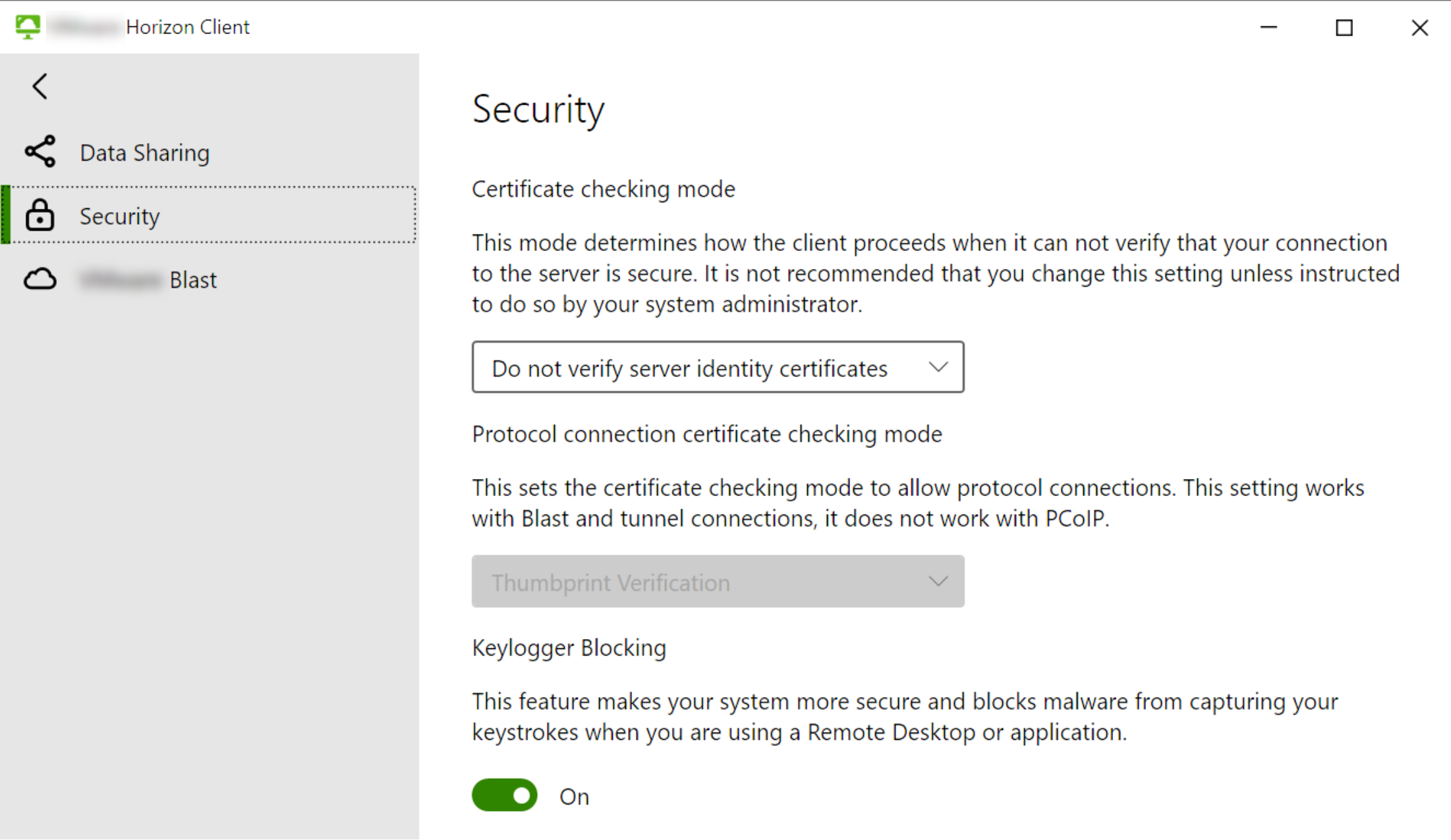
-
When the Keylogger Blocking feature is turned off, the protection service is stopped and set to manual start.
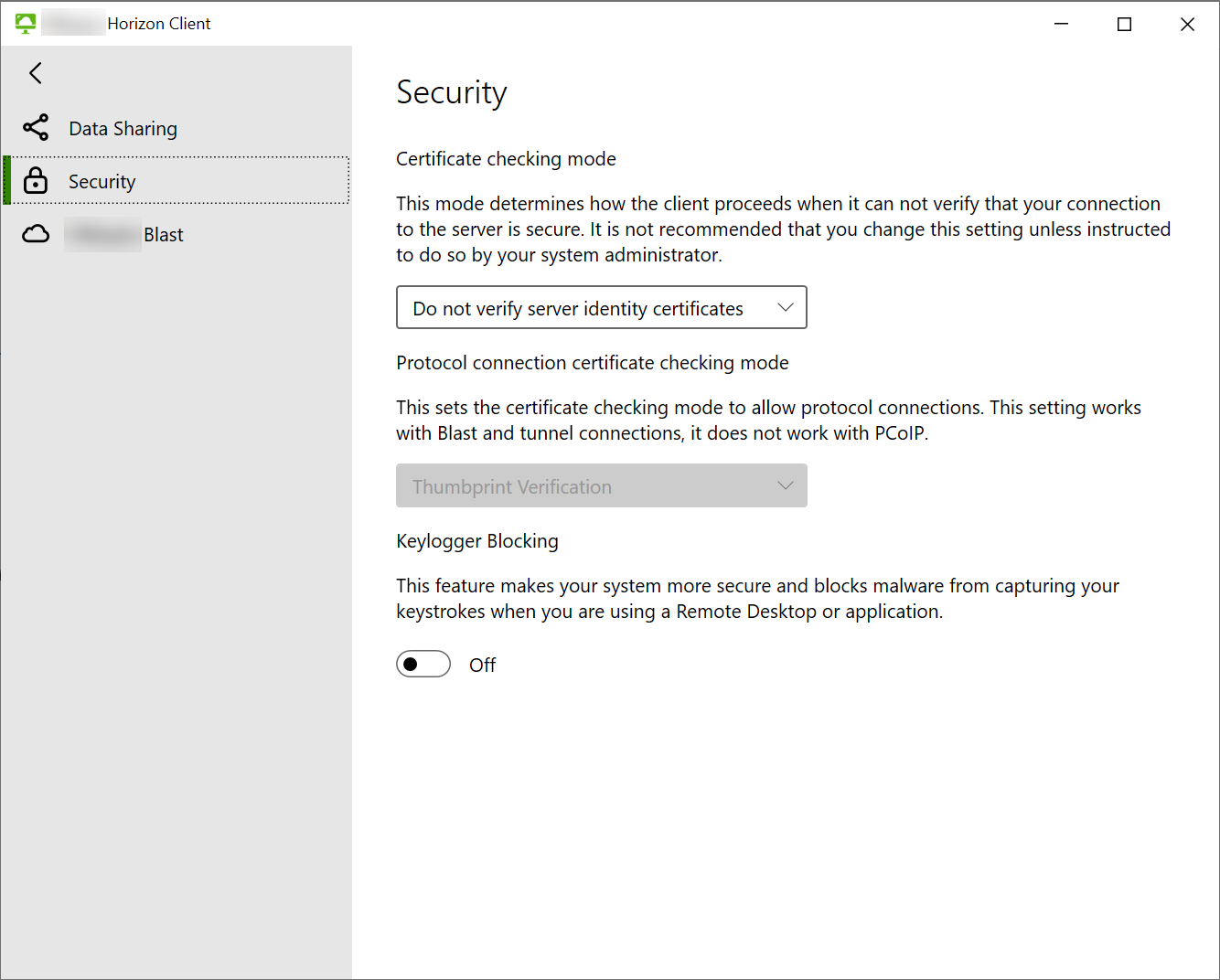
-
When the Keylogger Blocking feature toggle switch is disabled and progress bar is visible, the protection service is starting or stopping, the toggle switch is disabled, and a progress bar is visible.
Note: This state should only persist for several seconds.
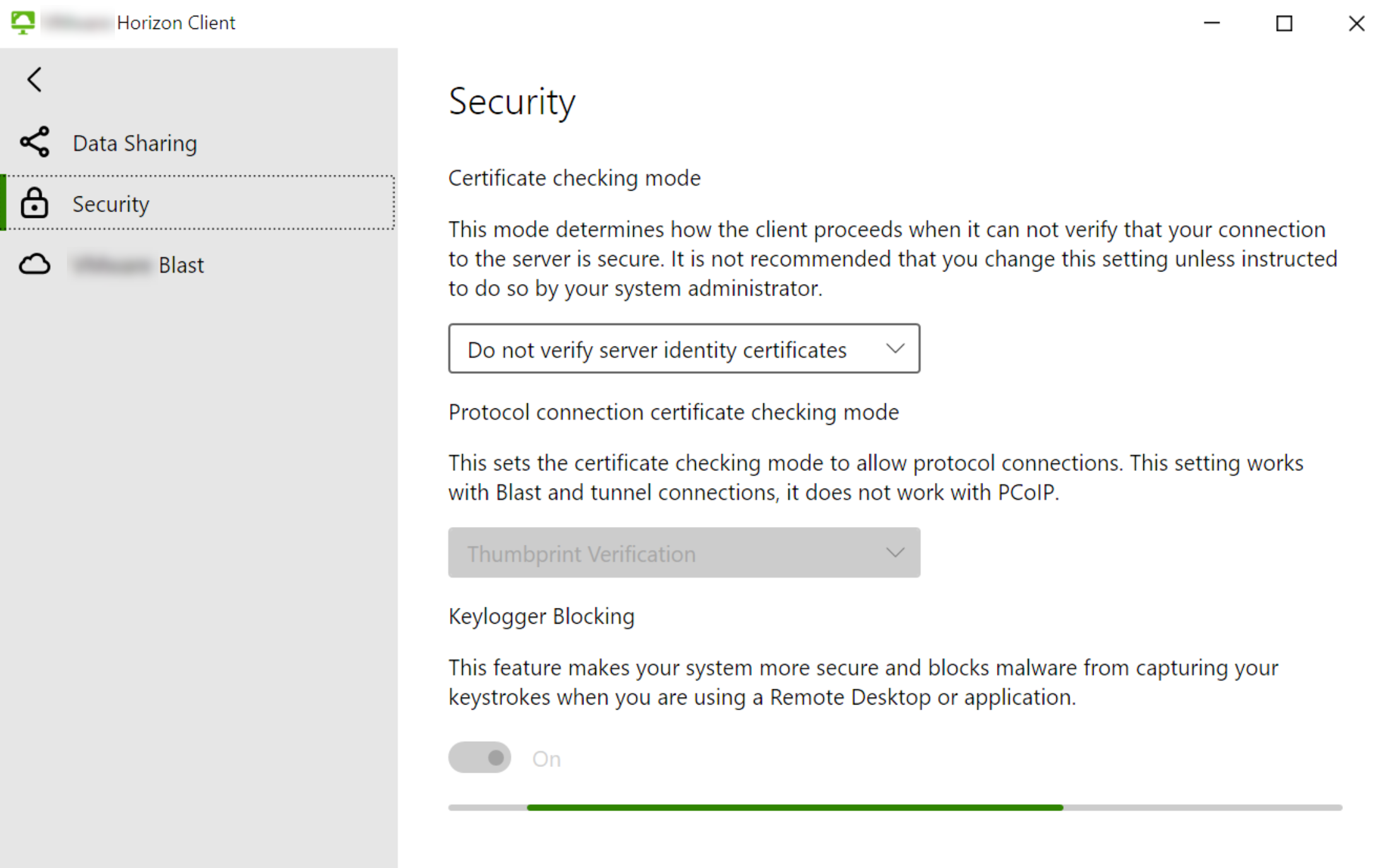
-
When the Keylogger Blocking feature toggle switch is disabled and the restart message appears, protection service is in the stopping state for some time and might not be able to stop on its own. Try to exit from all Horizon client programs and try stop the protection service. If the problem still persists, reboot your computer.
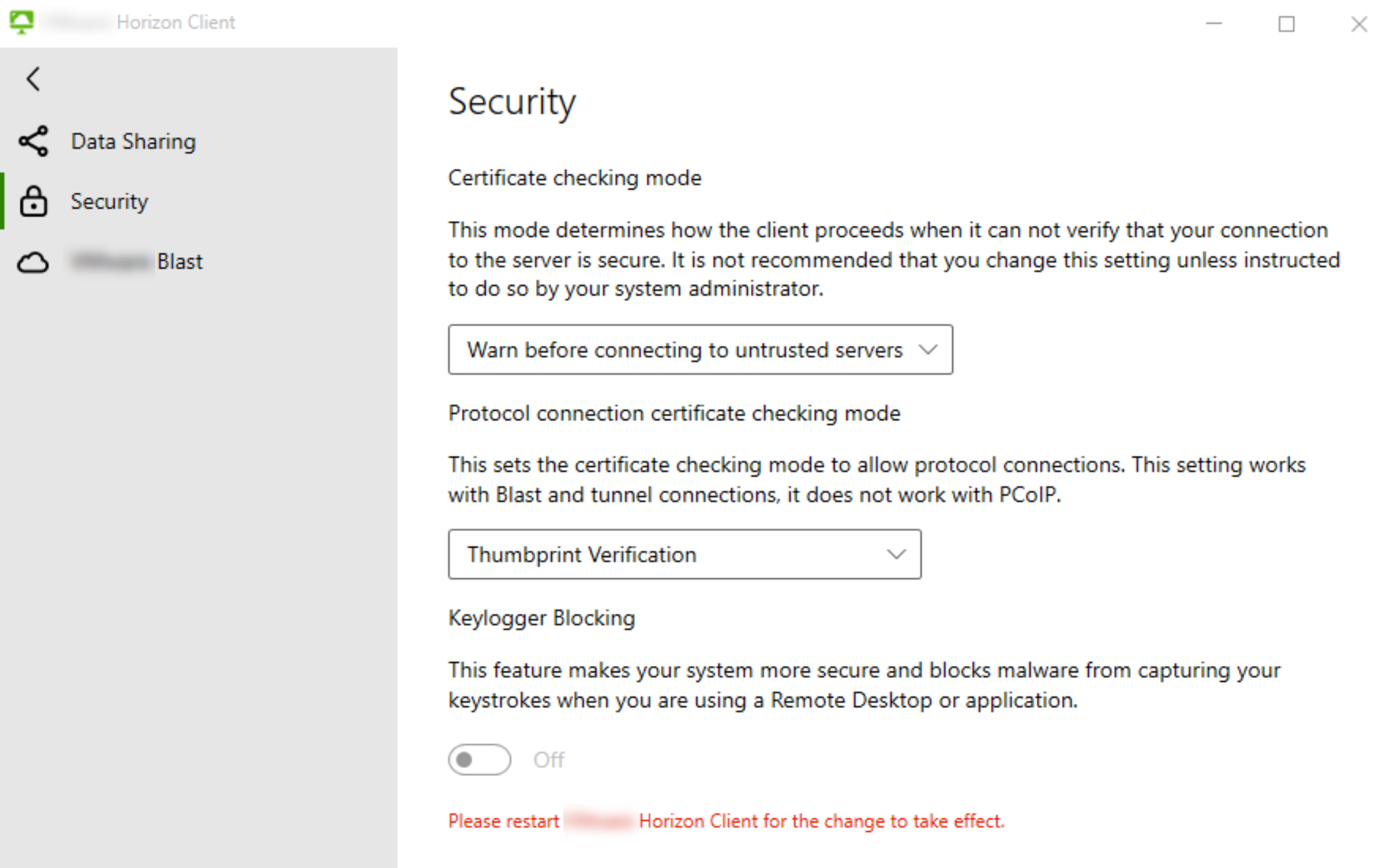
-
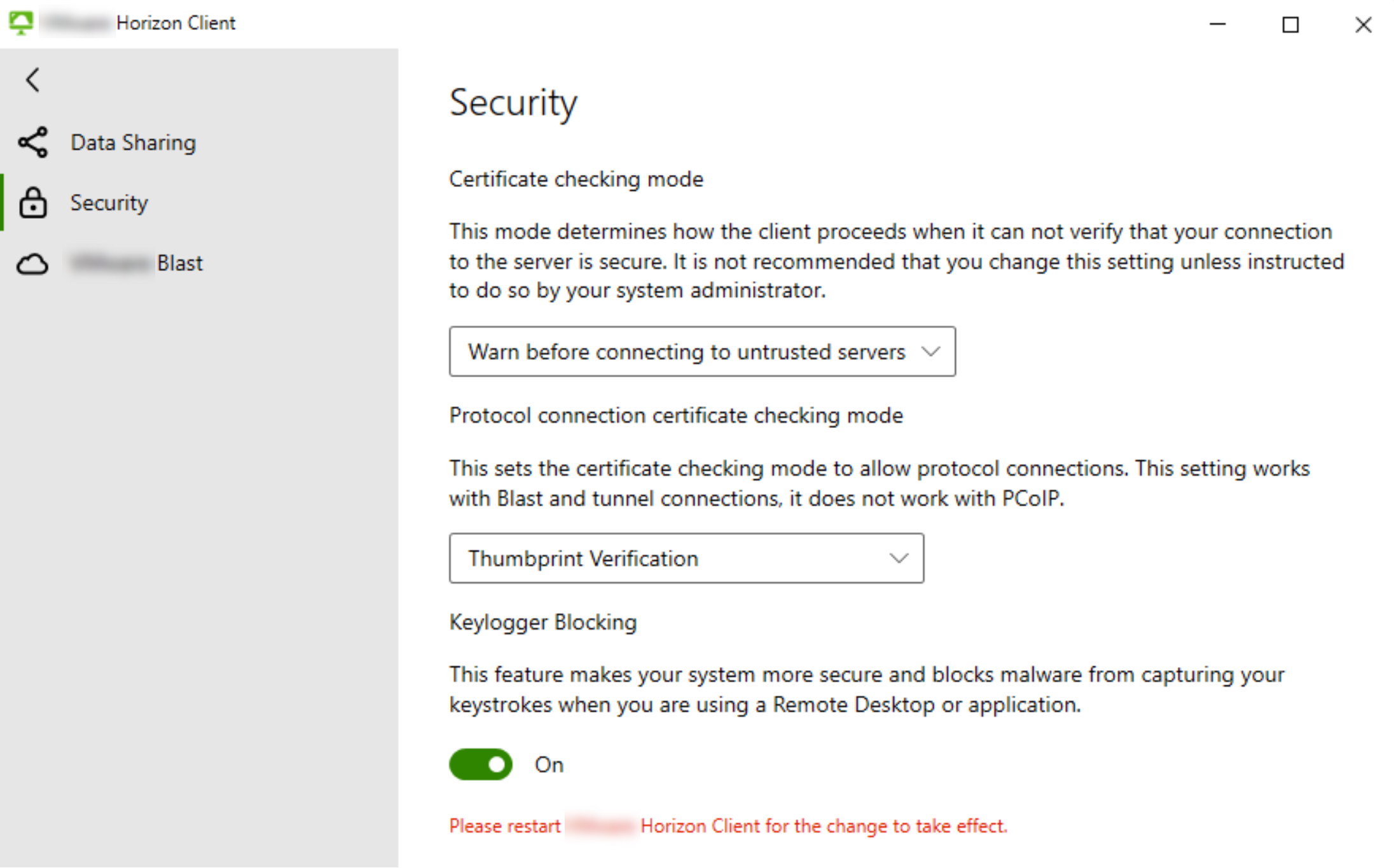
When the Keylogger Blocking feature toggle switch is enabled and restart message appears, the protection service is running but the client process is not protected. This state could occur when the feature is turned on and the client process has started before the driver and is not protected.
-
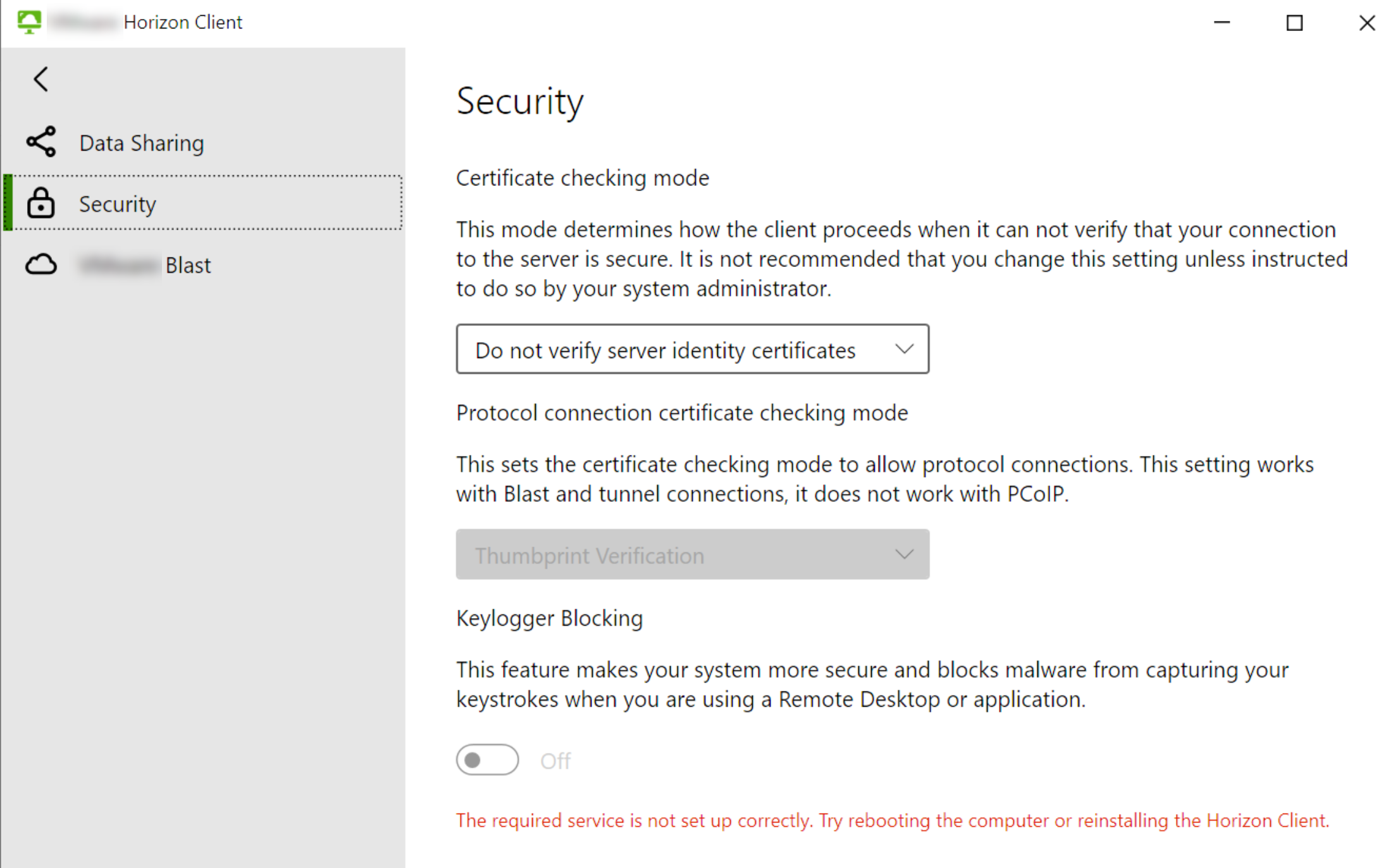
When the Keylogger Blocking feature toggle switch is disabled and restart message appears, then there could be some problem causing the driver to not function properly, or the user must have manually uninstalled the feature.
-
Was this page helpful?