You can view and collect Omnissa Horizon Client logs for troubleshooting.
View Client Logs
-
Horizon Client logs are available in the following directory:
%LOCALAPPDATA%\Omnissa\Horizon\logs\omnissa-horizon-client-YYYY-MM-DD-HHmmss-pid.txt -
Log lines that include specific error information about Omnissa Horizon Blast connection failures contain the
Blast_Connect_Failure_Alerttag in the following Horizon Windows Client log files%LOCALAPPDATA%\Omnissa\Horizon\logs\omnissa-horizon-client-YYYY-MM-DD-HHmmss-pid.txt%TEMP%\omnissa-username\horizon-protocol-pid.log
-
RTAV agent logs are saved in the following directory:
Path_to_program_data_folder
\Omnissa\Horizon\logs\rtav_agent_[blast|pcoip]_sessionsession_id.log -
RTAV client logs are saved in the following directory:
Path_to_program_data_folder
\Omnissa\Horizon\logs\rtav_YYYY-MM-DD_hhmmss-ms_pid_sid.log
Collect Client Logs
You can gather the various client logs into a single packaged file by running the log collection script from the About Horizon Client window.
-
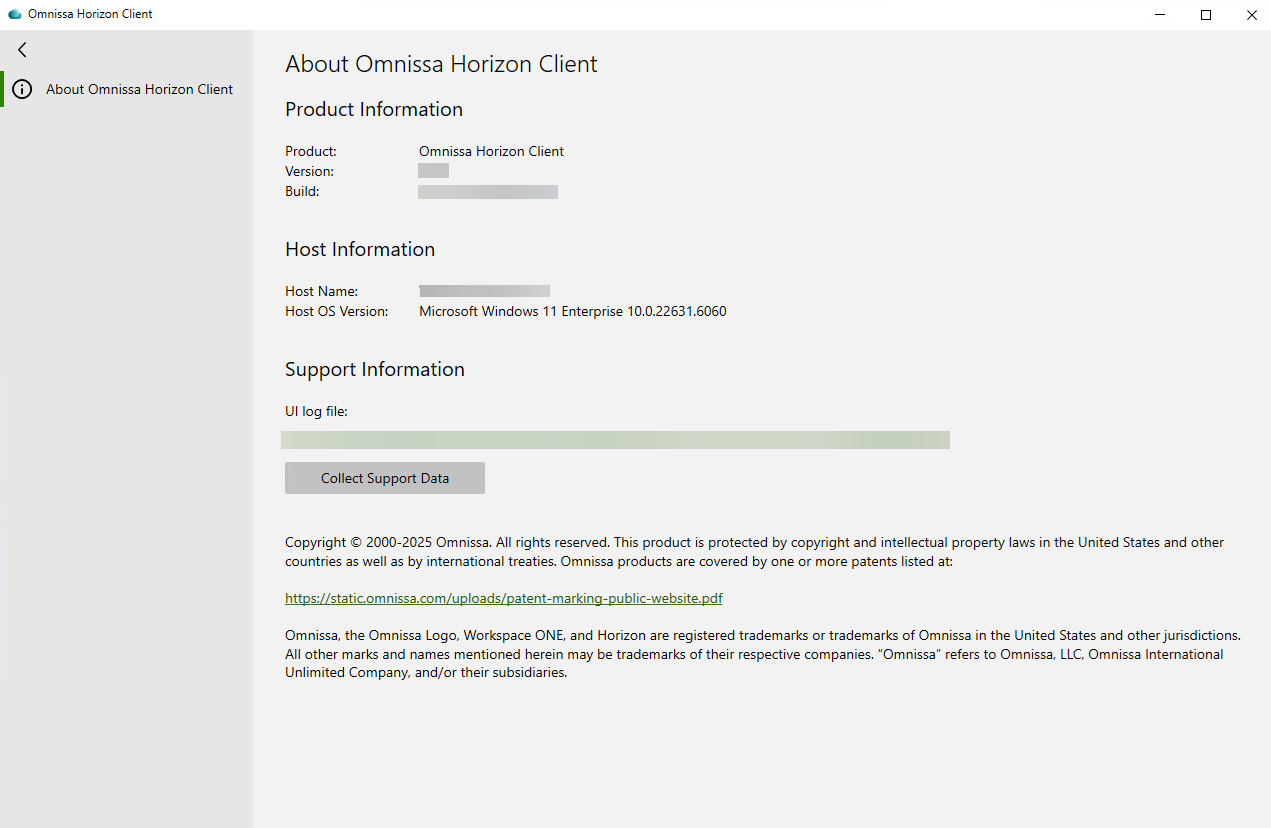
In Horizon Client, click the options menu (… icon) in the upper-right corner of the menu bar and select About Horizon Client.
-
In the About Horizon Client window, select Collect Support Data.
-
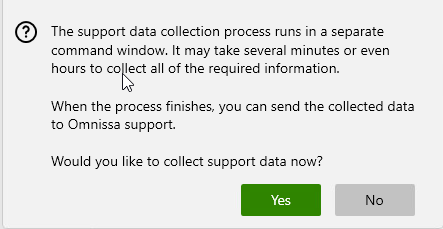
At the confirmation message, select Yes to start the log collection process.
-
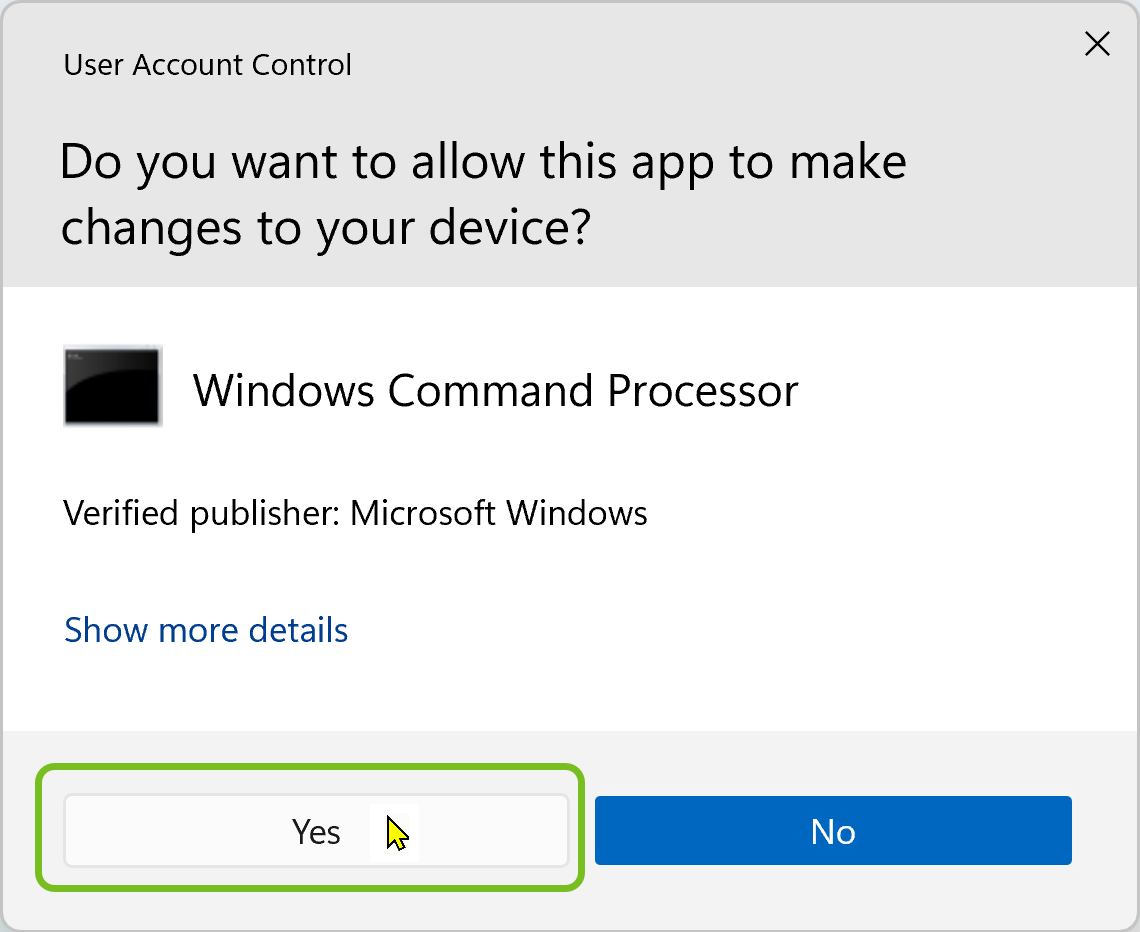
At the prompt asking you to give the Windows Command Processor change permissions, select Yes.
Allow the log collection to proceed in the separate terminal window.
-
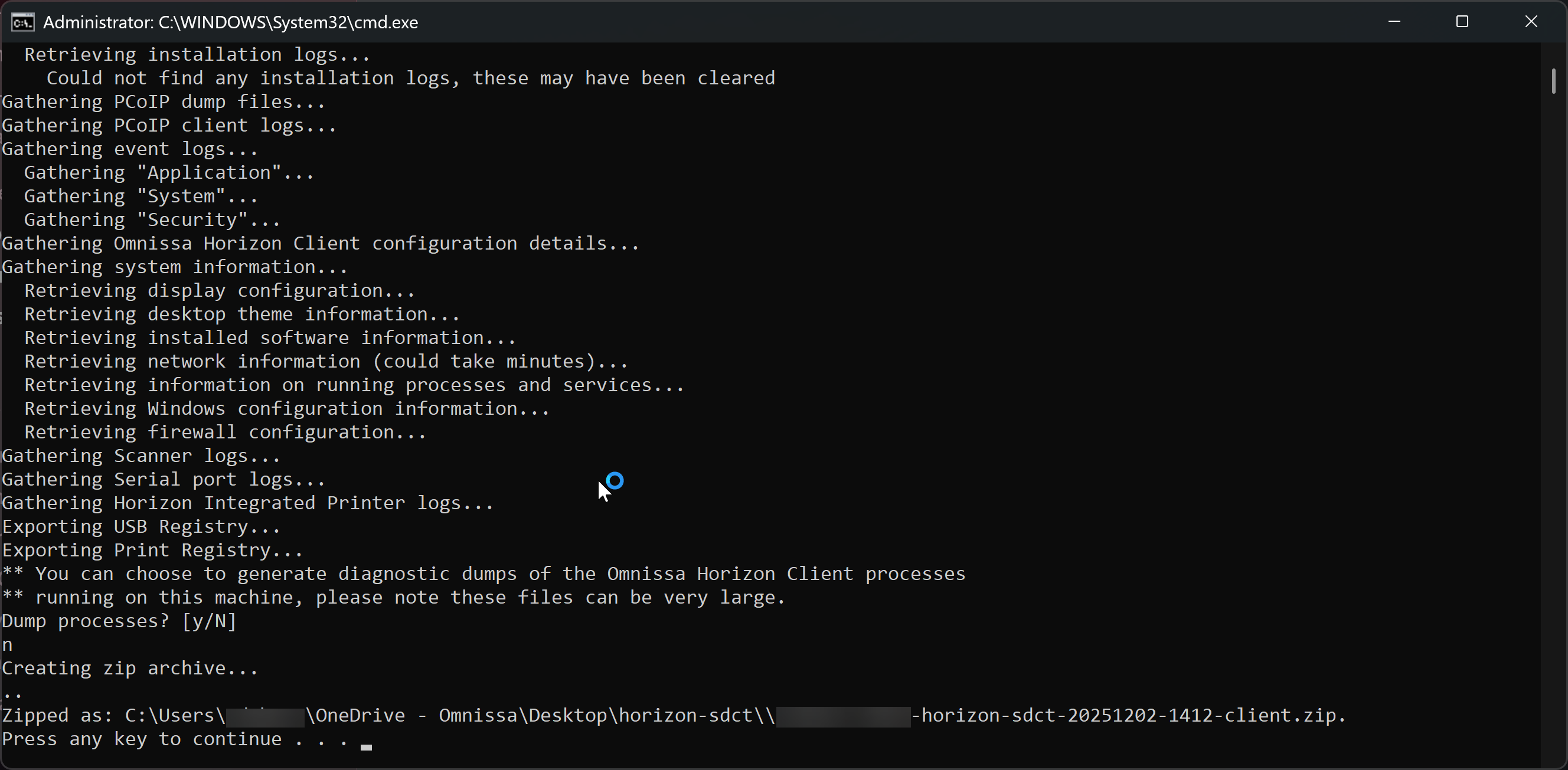
As needed, respond to the prompts displayed in the terminal during the log collection process.
-
When the process is complete, note the location of the packaged log file displayed in the terminal.
Was this page helpful?