If an administrator has enabled the feature, end users can create folders to help organize their entitlements in the desktop and application selection window. A set of desktops and applications can be grouped under a named folder, making it easier to find and manage an entitlement.
If needed, users can include the same entitlement under multiple folders.
Prerequisites
An administrator must enable the feature on the Omnissa Horizon Connection Server by selecting the Enable Folder Preferences global setting.
Create a folder
-
Start Omnissa Horizon Client and connect to a server.
-
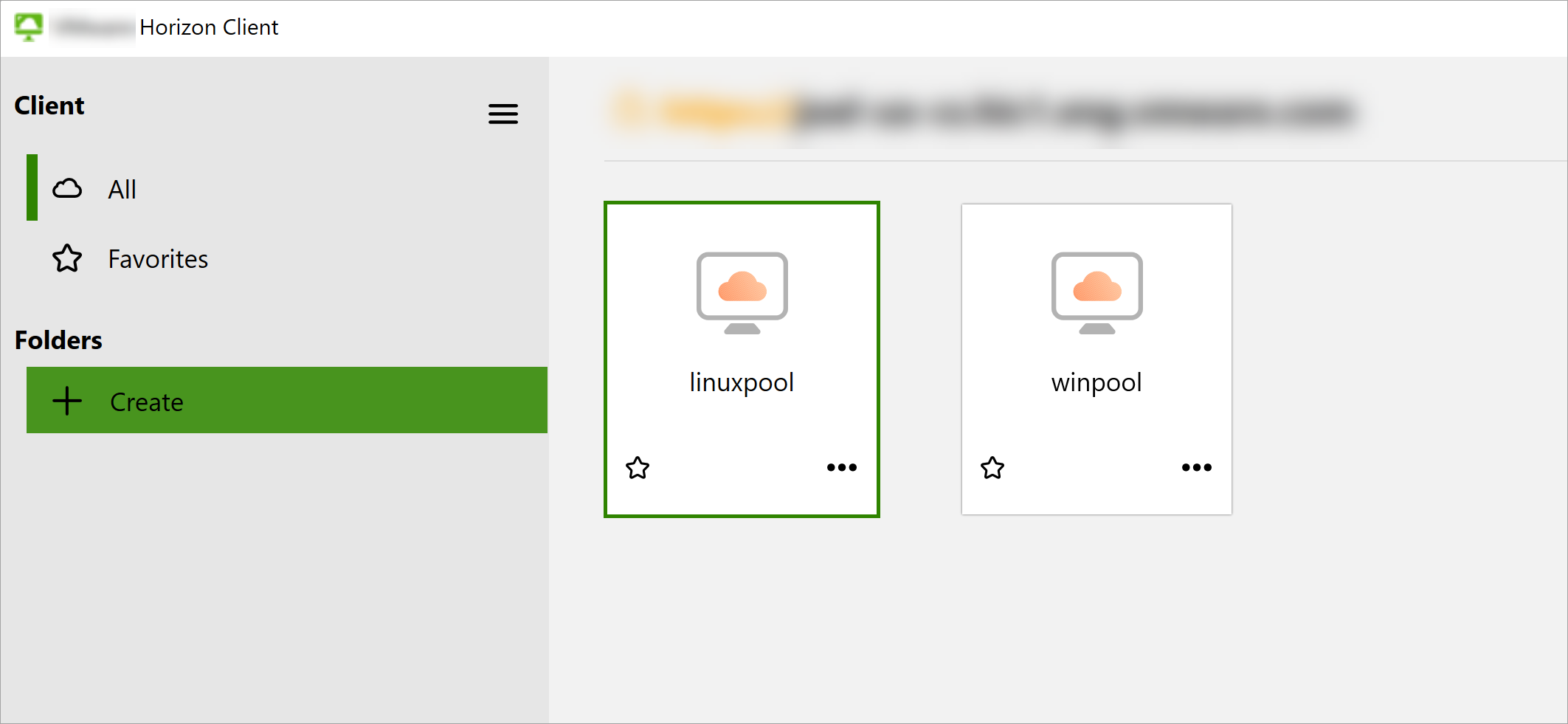
In the desktop and application selection window, under Folders, click Create.
-
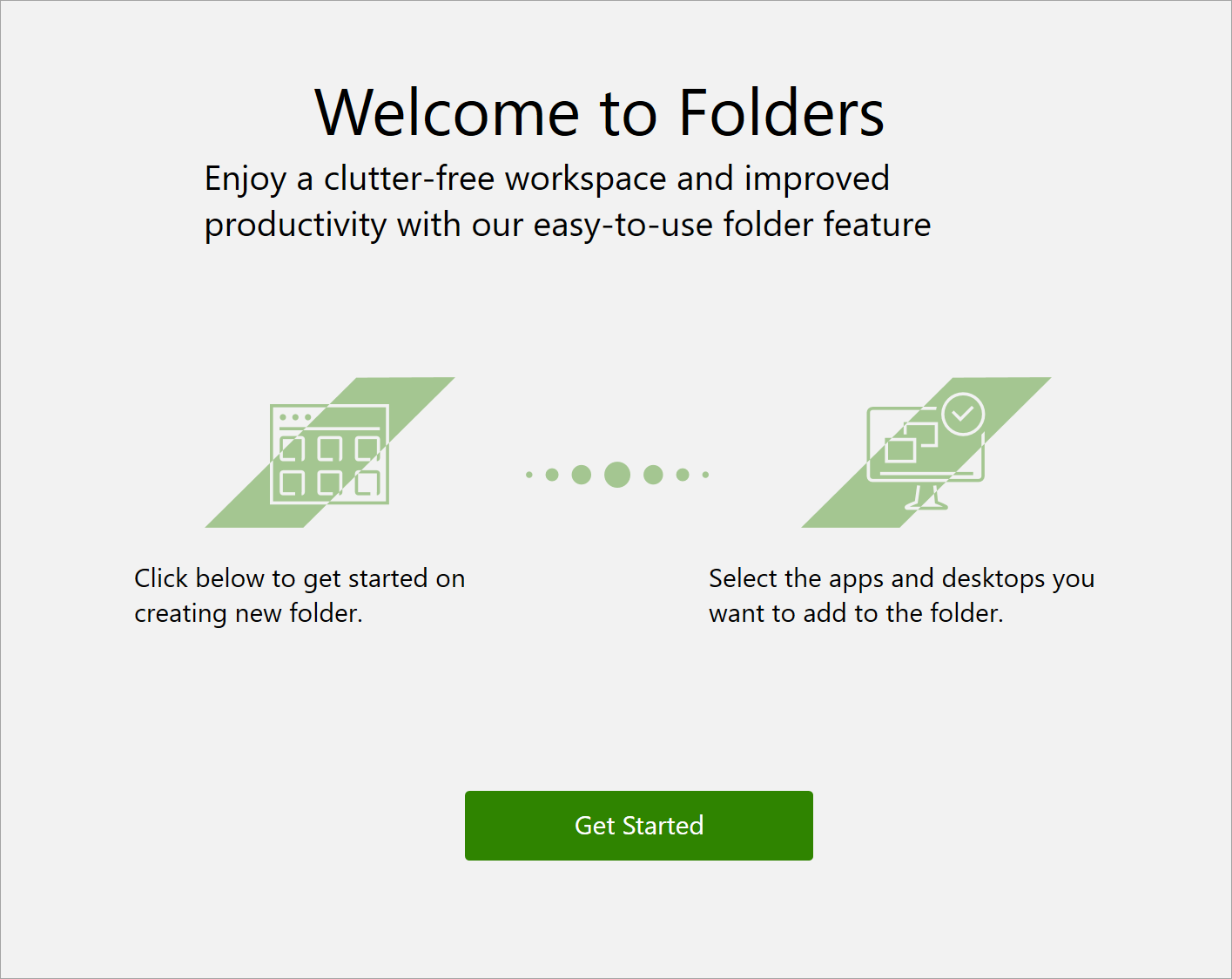
If you are using the folder feature for the first time, click Get Started at the welcome screen.
-
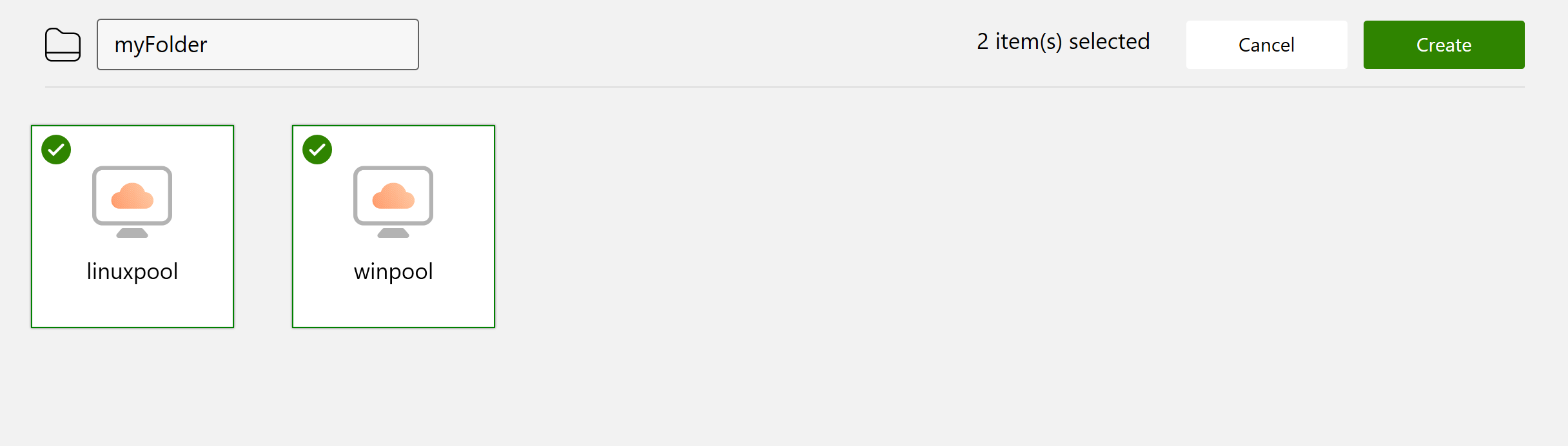
Enter a name for the folder, select the entitlements to include in the folder, and click Create.
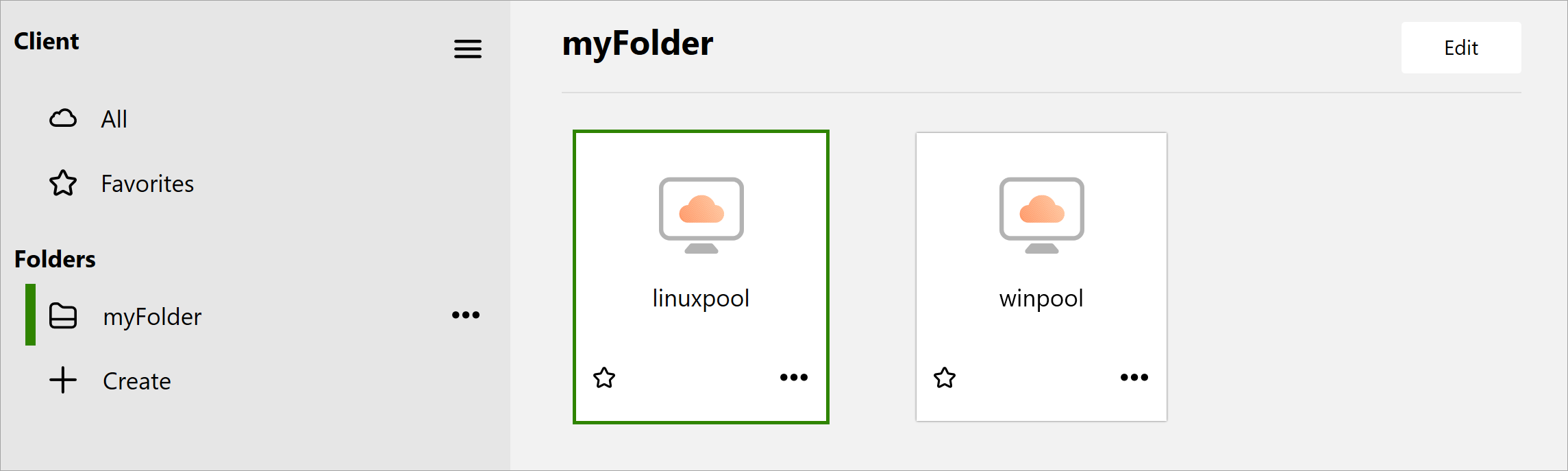
Your new folder appears under the Folders list. You can click the folder icon at any time to access its contents.
Add an entitlement to a folder
After you have created one or more folders, you can add an entitlement directly to any folder using the entitlement's submenu.
Open the ... submenu for the entitlement, select Add to folders, and select the target folder for the entitlement.
Edit a folder
-
Find the folder under the Folders list. Open the ... submenu for the folder and select Edit.
The folder settings screen appears.
-
Modify the folder by changing the folder name or selecting/deselecting entitlements to include in the folder.
-
Click Update to save your changes.
Delete a folder
-
Find the folder under the Folders list. Open the ... submenu for the folder and select Delete.
-
At the confirmation message, select Yes to delete the folder.
Note: Deleting a folder removes the folder from the Folders list, but does not affect the desktops or applications inside the folder. You can still access these entitlements from the desktop and application selection window by clicking All (cloud icon).
Was this page helpful?