Omnissa Horizon Client can monitor the network quality during remote sessions and display a notification message if it detects network instability due to high latency. The network latency is based on round-trip time (RTT) for TCP connections, and on RTT, packet loss, and RTT variance (RTTV) for BEAT and UDP connections.
You can use an agent GPO setting and the Horizon Client settings to control the display of these notification messages. You can also configure the threshold parameters used by Horizon Client to identify unstable networks.
Configure the Display of Network Notifications
Several settings control whether or not to display network notifications, depending on the version of Horizon Agent in use.
Horizon Agent 2406 and Later
For remote desktops running Horizon Agent for Windows 2406 or later, an administrator can use the Enable Displaying Network State agent GPO setting to configure the display of notifications. Whether or not this agent GPO setting takes effect depends on the state of the client network display setting.
-
If the client setting has never been modified, the agent GPO setting takes precedence over the client setting and the agent setting takes effect.
-
If the client setting has been modified at least once, the client setting takes precedence over the agent GPO setting and the client setting takes effect.
Horizon Agent 2312 and Earlier
Remote desktops running Horizon Agent for Windows 2312 or earlier do not have a GPO setting for network notifications. In this case, network notifications are controlled solely by the client network display setting.
Configure the Client Network Display Setting
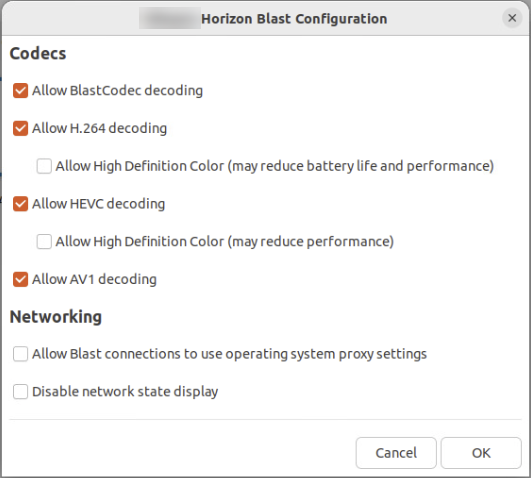
You can configure network notifications using the Configure Omnissa Horizon Blast menu item. For information on when the client setting takes effect, see the previous sections on this page.
-
Start Horizon Client.
-
Select File > Configure Horizon Blast from the menu bar.
-
Configure the display of notifications when the network is unstable.
- To turn on network notifications, deselect the Disable network state display option. By default, this option is deselected to allow the display of notifications.
- To turn off network notifications, select the Disable network state display option.
-
Click OK to save your changes.
How Horizon Client Determines the Network Quality
To determine the quality of a network connection, Horizon Client compares the network statistics during a specified time interval to a pair of low and high threshold values and calculates a quality score from 0 through 100 percent. If the score falls below a certain percentage, the network is deemed to be high-latency and unstable.
Horizon Client measures the following network statistics depending on the network protocol in use.
| Protocol | Measured Statistics |
|---|---|
| TCP |
|
| BEAT or UDP |
|
Horizon Client then uses the following rules to calculate the network quality score.
Rules for TCP Connections
Definitions:
rtt = detected RTT value
lowBound = RTT low threshold
highBound = RTT high threshold
score = overall network quality score

Rules:
If rtt >= highBound, then score = 0 (network is considered POOR)
If rtt <= lowBound, then score = 100 (network is considered GOOD)
If lowBound < rtt < highBound, then score = 100 * (rtt / (highBound - lowBound)) and network is considered OK
Rules for BEAT and UDP Connections
Definitions:
RTT = detected RTT value
RTT_extreme = RTT extreme threshold
RTT_lowBound = RTT low threshold
RTT_highBound = RTT high threshold
RTT_score = RTT quality score
RTT_weight_percentage = weight of RTT quality score

PkLoss = detected packet loss value
PkLoss_extreme = packet loss extreme threshold
PkLoss_lowBound = packet loss low threshold
PkLoss_highBound = packet loss high threshold
PkLoss_score = packet loss quality score
PkLoss_weight_percentage = weight of packet loss quality score


RTTV = detected RTT variance
RTTV_lowBound = low RTTV threshold
RTTV_highBound = high RTTV threshold
RTTV_score = RTTV quality score
RTTV_weight_percentage = weight of RTTV quality score

score = overall network quality score

Rules:
If RTT > RTT_extreme, then score = 0 (network is automatically considered POOR, all other weighted calculations are skipped)
If RTT >= RTT_highBound, then RTT_score = 0
If RTT <= RTT_lowBound, then RTT_score = 100
If RTT_lowBound < RTT < RTT_highBound, then RTT_score = 100 * (rtt / (RTT_highBound - RTT_lowBound))

If PkLoss > PkLoss_extreme, then score = 0 (network is automatically considered POOR, all other weighted calculations are skipped)
If PkLoss >= PkLoss_highBound, then PkLoss_score = 0
If PkLoss <= PkLoss_lowBound, then PkLoss_score = 100
If PkLoss_lowBound < PkLoss < PkLoss_highBound, then PkLoss_score = 100 * (PkLoss / (PkLoss_highBound - PkLoss_lowBound))

If RTTV >= RTTV_highBound, then RTTV_score = 0
If RTTV <= RTTV_lowBound, then RTTV_score = 100
If RTTV_lowBound < RTTV < RTTV_highBound, then RTTV_score = 100 * (RTTV / (RTTV_highBound - RTTV_lowBound))

To calculate the overall score, take the weighted average of the three quality scores:
score = RTT_score * RTT_weight_percentage / 100 +
        PkLoss_score * PkLoss_weight_percentage / 100 +
        RTTV_score * RTTV_weight_percentage / 100
Horizon Client then uses the following rules to determine the network stability:
Definitions:
score = overall network quality score
thresholdGood = minimum score indicating GOOD network stability
thresholdPoor = high limit of score range indicating POOR network stability

Rules:
If score >= thresholdGood, the network is considered GOOD and no notification is displayed.
If thresholdPoor < score < thresholdGood, the network is considered OK and no notification is displayed.
If score <= thresholdPoor, the network is considered POOR and a notification is displayed.
Configure Threshold Parameters for Network Quality
To customize the threshold parameters used by Horizon Client to calculate the network quality score and determine network stability, configure the keys in one of the following configuration files.
- Global settings:
/usr/lib/omnissa/settings - User preferences:
~/.omnissa/preferences - User defaults:
~/.omnissa/config - Host defaults:
/etc/omnissa/config - Site defaults:
/usr/lib/omnissa/config
Horizon Client searches through the configuration files in the listed order and stops as soon as it finds a key with a configured value.
Note: Use caution when changing the defaults for these configuration keys. The default threshold values were determined through extensive internal testing and are designed to produce reasonable results for typical network environments.
| Configuration Key | Allowed Values | Default Value | Description |
|---|---|---|---|
| vvc.NetworkStatsCheckEnabled | 0, 1 | 1 |
Specifies whether to enable the processing of network data to calculate the network quality score.
|
| vvc.NetworkStatsCheckPeriodSec | A positive integer greater than 2 | 15 | Specifies the time interval, in seconds, during which network statistics are monitored. |
| vvc.NetworkStatsQualityScoreTcpThresholdGood | A number from 0 through 100 | 85 |
Specifies the minimum score required to indicate GOOD quality for TCP networks.
The specified value must be greater than the vvc.NetworkStatsQualityScoreTcpThresholdPoor value. Scores falling in the range between vvc.NetworkStatsQualityScoreTcpThresholdPoor and vvc.NetworkStatsQualityScoreTcpThresholdGood indicate OK quality for TCP networks. |
| vvc.NetworkStatsQualityScoreTcpThresholdPoor | A number from 0 through 100 | 40 |
Specifies the high limit of the score range indicating POOR quality for TCP networks.
The specified value must be less than the vvc.NetworkStatsQualityScoreTcpThresholdGood value. Scores falling in the range between vvc.NetworkStatsQualityScoreTcpThresholdPoor and vvc.NetworkStatsQualityScoreTcpThresholdGood indicate OK quality for TCP networks. |
| vvc.NetworkStatsQualityScoreBeatThresholdGood | A number from 0 through 100 | 75 |
Specifies the minimum score required to indicate GOOD quality for BEAT and UDP networks.
The specified value must be greater than the vvc.NetworkStatsQualityScoreBeatThresholdPoor value. Scores falling in the range between vvc.NetworkStatsQualityScoreBeatThresholdPoor and vvc.NetworkStatsQualityScoreBeatThresholdGood indicate OK quality for BEAT and UDP networks. |
| vvc.NetworkStatsQualityScoreBeatThresholdPoor | A number from 0 through 100 | 45 |
Specifies the high limit of the score range indicating POOR quality for BEAT and UDP networks.
The specified value must be less than the vvc.NetworkStatsQualityScoreBeatThresholdGood value. Scores falling in the range between vvc.NetworkStatsQualityScoreBeatThresholdPoor and vvc.NetworkStatsQualityScoreBeatThresholdGood indicate OK quality for BEAT and UDP networks. |
| vvc.NetworkStatsTcpRttMSLow | A positive integer | 2 | Specifies the low RTT threshold value, in milliseconds, used to calculate the quality score for TCP networks. The specified value must be less than the vvc.NetworkStatsTcpRttMSHigh value. |
| vvc.NetworkStatsTcpRttMSHigh | A positive integer | 400 | Specifies the high RTT threshold value, in milliseconds, used to calculate the quality score for TCP networks. The specified value must be greater than the vvc.NetworkStatsTcpRttMSLow value. |
| vvc.NetworkStatsTcpRttMSWeightPercent | A percentage from 0 through 100 | 100 |
Specifies the statistical weight of the RTT value used to calculate the quality score for TCP networks. Note: Since RTT is the only network factor currently used to determine the quality of TCP networks, this key must be set to 100. |
| vvc.NetworkStatsBeatRttMSLow | A positive integer | 2 | Specifies the low RTT threshold value, in milliseconds, used to calculate the quality score for BEAT and UDP networks. The specified value must be less than the vvc.NetworkStatsBeatRttMSHigh value. |
| vvc.NetworkStatsBeatRttMSHigh | A positive integer | 400 | Specifies the high RTT threshold value, in milliseconds, used to calculate the quality score for BEAT and UDP networks. The specified value must be greater than the vvc.NetworkStatsBeatRttMSLow value. |
| vvc.NetworkStatsBeatRttMSExtreme | A positive integer | 250 |
Specifies the extreme RTT threshold value, in milliseconds, used to immediately identify POOR-quality BEAT and UDP networks. If the detected RTT is greater than the extreme threshold, the network is automatically considered POOR and no other weighted calculations are made. |
| vvc.NetworkStatsBeatRttMSWeightPercent | A percentage from 0 through 100 | 34 |
Specifies the statistical weight of the RTT value used to calculate the quality score for BEAT and UDP networks. Note: The combined value of vvc.NetworkStatsBeatRttMSWeightPercent, vvc.NetworkStatsBeatPkLossPercentWeightPercent, and vvc.NetworkStatsBeatRttvMSWeightPercent must equal 100. |
| vvc.NetworkStatsBeatPkLossPercentLow | A percentage from 0 through 100 | 0.1 | Specifies the low packet loss threshold used to calculate the quality score for BEAT and UDP networks. The specified value must be less than the vvc.NetworkStatsBeatPkLossPercentHigh value. |
| vvc.NetworkStatsBeatPkLossPercentHigh | A percentage from 0 through 100 | 15 | Specifies the high packet loss threshold used to calculate the quality score for BEAT and UDP networks. The specified value must be greater than the vvc.NetworkStatsBeatPkLossPercentLow value. |
| vvc.NetworkStatsBeatPkLossPercentExtreme | A percentage from 0 through 100 | 25 |
Specifies the extreme packet loss threshold used to immediately identify POOR-quality BEAT and UDP networks. If the detected packet loss is greater than the extreme threshold, the network is automatically considered POOR and no other weighted calculations are made. |
| vvc.NetworkStatsBeatPkLossPercentWeightPercent | A percentage from 0 through 100 | 33 |
Specifies the statistical weight of the package loss value used to calculate the quality score for BEAT and UDP networks. Note: The combined value of vvc.NetworkStatsBeatRttMSWeightPercent, vvc.NetworkStatsBeatPkLossPercentWeightPercent, and vvc.NetworkStatsBeatRttvMSWeightPercent must equal 100. |
| vvc.NetworkStatsBeatRttvMSLow | A positive integer | 1 | Specifies the low RTTV threshold, in milliseconds, used to calculate the quality score for BEAT and UDP networks. The specified value must be less than the vvc.NetworkStatsBeatRttvMSHigh value. |
| vvc.NetworkStatsBeatRttvMSHigh | A positive integer | 30 | Specifies the high RTTV threshold, in milliseconds, used to calculate the quality score for BEAT and UDP networks. The specified value must be greater than the vvc.NetworkStatsBeatRttvMSLow value. |
| vvc.NetworkStatsBeatRttvMSWeightPercent | A percentage from 0 through 100 | 33 |
Specifies the statistical weight of the RTTV value used to calculate the quality score for BEAT and UDP networks. Note: The combined value of vvc.NetworkStatsBeatRttMSWeightPercent, vvc.NetworkStatsBeatPkLossPercentWeightPercent, and vvc.NetworkStatsBeatRttvMSWeightPercent must equal 100. |
Was this page helpful?