To add, edit, or delete provisioned users, you make the changes in your identity provider, and the provisioning app automatically pushes the updates to Omnissa Identity Service. How long it takes for the updates to appear depends on the provisioning interval of the provisioning app.
Some identity providers have a provision on demand option that lets you push users immediately. For example, in Microsoft Entra ID you can use the Provision on demand option on the Provisioning page.
Add a New User
-
In your identity provider, create a new user.
-
In the user profile, add values for all the user attributes required by Omnissa Identity Service and Omnissa services.
See User Attribute Mapping for Omnissa Identity Service for the list of required attributes.
-
Add the user to the provisioning app that provisions users and groups to Omnissa Identity Service.
The provisioning app pushes the new user to Omnissa Identity Service after the provisioning interval. If you want to push the user immediately, use the provision on demand option in the identity provider.
Edit a User
To edit a user, update the user profile in your identity provider. The provisioning app pushes updates to Omnissa Identity Service after the provisioning interval.
Note:
- Omnissa Identity Service does not support updating a user's externalId value after the user is provisioned. To update a user's externalId value, you must delete and reprovision the user from the identity provider.
- In Microsoft Entra ID, when you delete a user or group attribute value that was already synced to Omnissa Identity Service, the value is not deleted in Omnissa Identity Service and Omnissa services. Microsoft Entra ID does not propagate null values. As a workaround, instead of clearing the value completely, enter a space character.
- If you update attribute mappings in the identity provider after users have been provisioned, restart provisioning. In Microsoft Entra ID, the Restart provisioning option appears on the Manage > Provisioning page.
Delete a User
To delete a user, delete the user in the identity provider. The provisioning app pushes updates to Omnissa Identity Service after the provisioning interval.
Based on how the identity provider handles deleted users, Omnissa Identity Service either deletes or deactivates the user.
-
If the identity provider deletes the user immediately, the user is deleted in Omnissa Identity Service and Omnissa services.
Note: Users that have any devices associated with them are deactivated in Workspace ONE UEM instead of being deleted. In Omnissa Identity Service, the Delete audit event for such a user will always have a status of Fail for the UEM service. View the audit event details to check whether the user was successfully deactivated in Workspace ONE UEM. See How Omnissa Identity Service Handles User Delete Failures for more information. For more information about how user deletion and deactivation are handled in Workspace ONE UEM, see Delete or Remove a User from SCIM Provisioning in Directory Services and Omnissa Workspace ONE UEM.
-
If the identity provider suspends the user account for a period of time before deleting the user, the user is deactivated in Omnissa Identity Service and Omnissa services. After that period of time, when the identity provider deletes the user, the user is deleted in Omnissa Identity Service and Omnissa services too.
Important: For Microsoft Entra ID, see How Microsoft Entra ID Users are Deleted.
After deleting or deactivating a user in the identity provider, if you need to delete or deactivate the user in Omnissa services immediately, you can do so from the Omnissa Identity Service directory page.
-
Navigate to Omnissa Identity Service.
- Cloud: Log in to the Omnissa Connect console, select Identity Management > End User Management from the left pane, then click Launch End User Management.
- On premises: Log in to the Omnissa Access console, select Integrations > Identity Service, then click Configure SCIM Provisioning.
Omnissa Identity Service opens in a new tab in the browser.
-
Click View on the provisioned directory card.
-
Select the Users tab.
-
Select the user to delete or deactivate and click Delete or Deactivate.
Important: Make sure that you also delete or deactivate the user in your identity provider, so that the user is not reprovisioned to Omnissa Identity Service.
How Omnissa Identity Service Handles User Delete Failures
In some cases, when users are deleted in the identity provider, they cannot be deleted in Omnissa services. For example, if users have any devices associated with them in Workspace ONE UEM, they cannot be deleted from Workspace ONE UEM.
When Omnissa Identity Service cannot delete a user, it tries to deactivate the user.
You can verify whether the user was deactivated successfully by checking the Omnissa Identity Service audit events.
-
Navigate to Omnissa Identity Service.
- Cloud: Log in to the Omnissa Connect console, select Identity Management > End User Management from the left pane, then click Launch End User Management.
- On premises: Log in to the Omnissa Access console, select Integrations > Identity Service, then click Configure SCIM Provisioning.
Omnissa Identity Service opens in a new tab in the browser.
-
Select the Events tab for the directory.
-
Use search and filters to find the
Deleteaudit event for the user for the service you want to check.Note: The audit event will have the status
Fail. -
Click View Details in the Message column.
-
Look for the
“values”: {“userMarkedAsInactive”}entry.A value of
“true”indicates that the user was successfully deactivated.A value of
“false”indicates that the user could not be deactivated. -
You can also check the
"failureMessage"entry for information about why the user could not be deleted.
How Microsoft Entra ID Users Are Deleted
After you delete a user in Microsoft Entra ID, the account remains in a suspended state for 30 days. During that 30-day window, the user account can be restored, along with all its properties. Suspended users are deactivated in Omnissa services, including Workspace ONE UEM and Omnissa Access.
In Microsoft Entra ID, the user names of the suspended users are modified, and those changes are reflected in Omnissa services too.
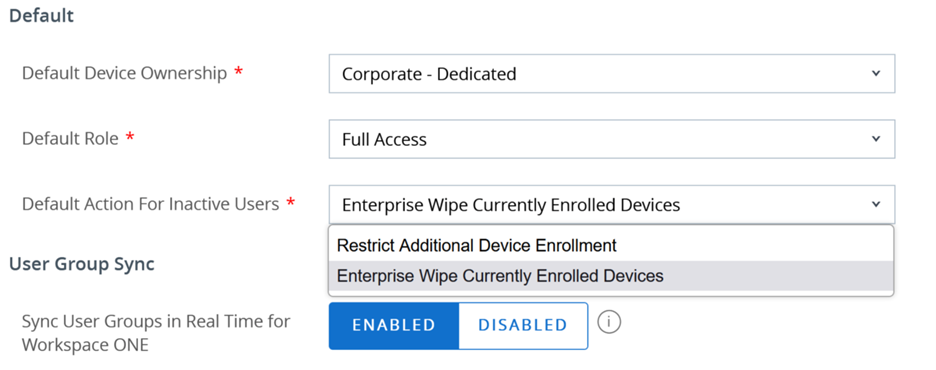
In Workspace ONE UEM, the Default Action for Inactive Users setting determines how inactive user accounts are handled. You can select one of the following options for inactive users:
- Restrict Additional Device Enrollment
- Enterprise Wipe Currently Enrolled Devices
When 30 days of the suspended state in Microsoft Entra ID are over, Omnissa Identity Service attempts to delete the user.
- If a device is still associated with the user, Workspace ONE UEM displays the following API error:
Device is associated with the user. - If the user's devices were enterprise wiped, the user is deleted.
Was this page helpful?