Workspace ONE UEM is compatible with all distributions of Linux running on x86_64, ARM5, ARM7, or ARM8 architectures, although not all features might be available on every distribution. Make sure that your system meets the Workspace ONE UEM version and network requirements before you deploy your Linux devices.
Linux Device Requirements
You can enroll devices running any distribution of Linux running on x86_64, ARM5, ARM7, or ARM8 architectures into Workspace ONE UEM.
- Installers are created for specific distributions and architectures. Ensure that you are using the correct installer for your use case.
- To run Workspace ONE Intelligent Hub as a system service, the device must be running System D or System V.
- Configurations using Workspace ONE profiles requires a Puppet agent (open source). When running a Debian-based (deb) or Red Hat-based (rpm) system, the puppet agent installs automatically with Hub. For other systems, or when using the Tarball method of installation, install the Puppet agent manually prior to Workspace ONE enrollment. For more information, see the Installation section.
Workspace ONE UEM Requirements
Workspace ONE UEM for Linux is generally available. However, it might not be available in your environment. Workspace ONE UEM for Linux is available in all shared SaaS environments and most SaaS environments. Workspace ONE UEM for Linux is not available for on-premises installations of Workspace ONE UEM.
- We encourage you to use the latest version of Workspace ONE Intelligent Hub for Linux. Previous versions of the Workspace ONE Intelligent Hub for Linux do not support the features described in this guide.
- To use Linux Management, Workspace ONE UEM 2206 or later with Control Plane implemented are both required. Some features require the latest version of Workspace ONE UEM.
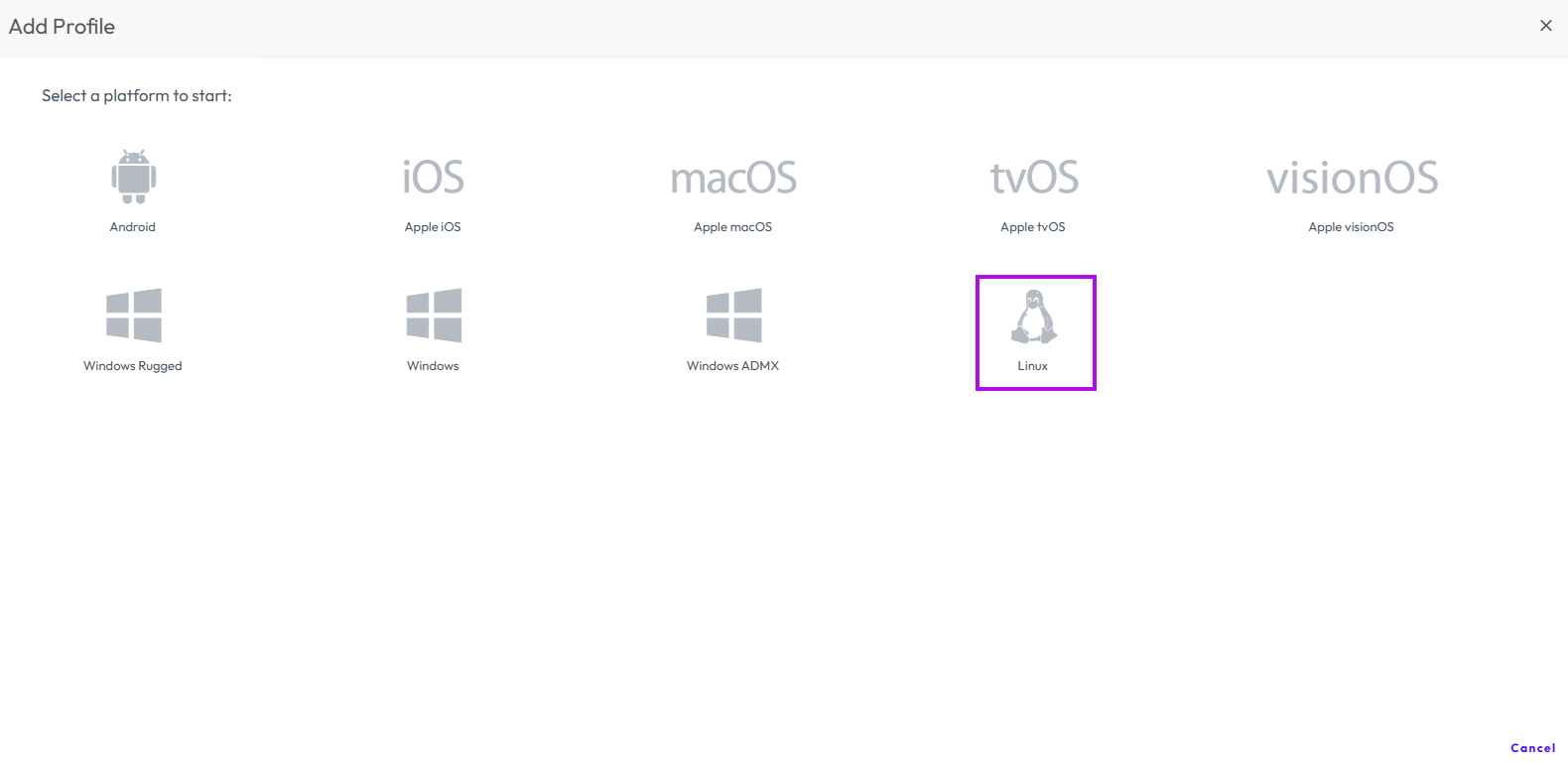
Before attempting to enroll a Linux device, determine if Linux management is enabled in your Workspace ONE UEM environment. The easiest way to validate this is to create a new profile. Navigate to Resources > Profiles & Baselines> Profiles> Add> Add Profile to see if Linux is an available option.
If the Linux icon shows on the Add Profile page, then Linux management is enabled. You can enroll a Linux device. If there is no Linux icon, then your environment does not allow Linux device enrollment. You need Workspace ONE UEM 2410 and later enabled with the new Modern Stack Architecture.
Manage Intelligent Hub Versions for Linux
Workspace ONE UEM allows administrators to control which version of the Workspace ONE Intelligent Hub for Linux is deployed to their devices. This enhancement aligns the Linux platform with the version-selection model already available for other platforms in Workspace ONE UEM.
You can choose between different options for version control.
- Navigate to Settings > Devices and Users > Linux > Intelligent Hub Settings.
- To automatically deploy the most recent generally available version of Workspace ONE Intelligent Hub, choose Always use the latest version of the Workspace ONE Intelligent Hub.
If this option is selected, the Hub Version drop-down will be disabled. - If you want to manually select the version, choose the Hub Versions drop-down. Only the last three supported versions (N, N-1, N-2) will be displayed. Selected version is deployed during web enrollment. The version of the Intelligent Hub specified here is also available to devices that have an older version of the Hub installed if Automatic Updates are enabled further down in Hub Settings, or if the user manually checks for updates through the Intelligent Hub.
- Attempting to install an older version of the Intelligent Hub on a device that already has a newer version installed is not supported, and may result in unexpected behavior unless the Intelligent Hub is fully uninstalled and then reinstalled.
- If an older version of the Intelligent Hub is specified to be deployed, any devices that already have a newer version of the Intelligent Hub installed will not attempt to auto-update to the older version, but newly enrolled devices will receive the specified older version.
- If you have previously selected a Hub version that is no longer supported, UEM displays the following message “Please select a supported Hub version and save this setting” and the admin should select a newer, supported version of the Hub.
Was this page helpful?