The modernized Omnissa Workspace ONE UEM provides a faster resource deployment mechanism and an efficient deployment tracking experience.
Note: This topic applies to organizations that are transitioning to the modernized Workspace ONE UEM. If you are on a traditional Workspace ONE UEM version, you may notice that the features and functionalities described in this topic differ from those available in your current product version. For information relevant to the traditional Workspace ONE UEM version, see Tracking and Monitoring Application Deployment.
Using the tracking features and in-depth statistics that the Workspace ONE UEM console offers, you can easily track and monitor the deployment progress of a public app, when you deploy and install it on your end users' devices and take the necessary actions for devices that require immediate attention.
Assignment Preview
When the assignments are saved for the public application, an assignment preview is presented before publishing the assignments. This preview acts as a snapshot, providing a quick overview of any changes made to the assignments. Its purpose is to help you identify any significant deviations in assignments that might have occurred accidentally before publishing.
The following assignment statuses help you quickly identify any substantial changes in assignments:
-
Assigned - This represents the total number of devices entitled to receive the application. It is calculated by subtracting the devices excluded from the assignments and those not eligible to receive the application due to applicability rules (For example, iOS devices assigned to receive an Android app) from the total number of devices assigned through smart groups.
-
Newly Added - These are the devices that are newly assigned to receive the application.
-
Newly Removed- This includes devices that have lost their assignment to the application due to updates in existing assignments or newly added exclusions.
-
Unchanged - These devices continue to retain their assignments even after any updates are made to the assignments.
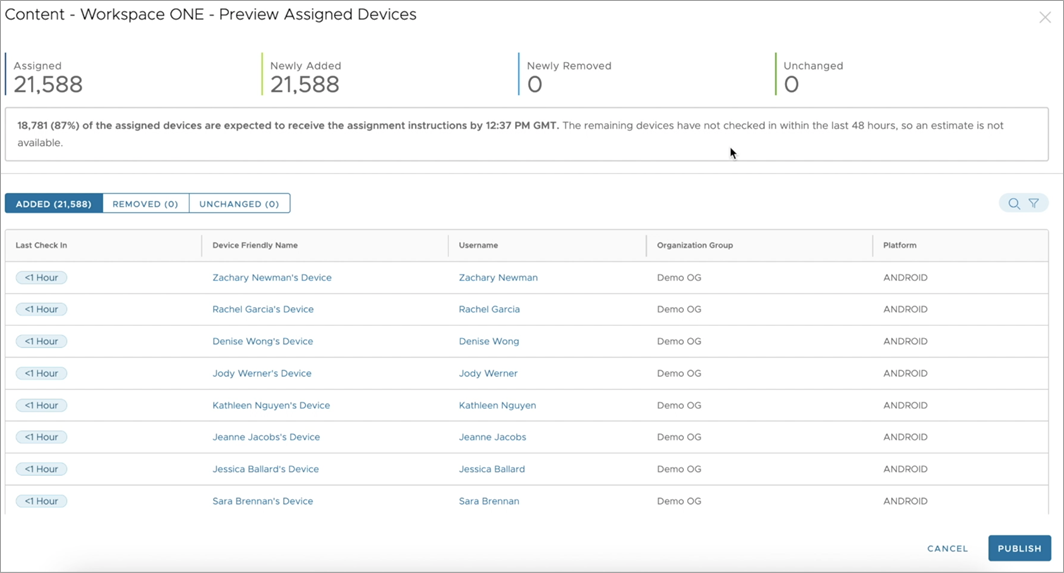
Additionally, the assignment preview includes an estimated time for devices to receive the install or uninstall instructions for the public apps. The estimated time provided for assigned devices to receive the install or uninstall instructions for the public app reflects the percentage of devices expected to receive these instructions within the next 4 hours. This estimate is based on the historical check-in frequency of the devices. Note that this estimate represents the best-case scenario, as devices may not receive install or uninstall instructions if they fail to check in after the application is published.
Also, the estimated time is only applicable when the deployment type is set to Auto. For On-demand deployments, devices receive instructions when a user chooses to install the public application or when an admin force pushes it from the console.
Deployment Tracking Dashboard
The deployment tracking dashboard provides in-depth insights into the deployment progress of a public application. You can monitor installation progress in real-time through intuitive and interactive charts, apply filters, view device-level installation statuses, and perform bulk operations on devices. This functionality empowers you to quickly identify and address any issue, resulting in successful deployments.
To access the tracking dashboard for your public application:
-
Navigate to Resources > Apps > Native Apps > Public.
-
Select the application from the displayed app list. You can also use the search functionality to easily find the app.
-
Click on the application's hyperlink.
The deployment tracking dashboard specific to that application, providing detailed insights and tracking capabilities is displayed.
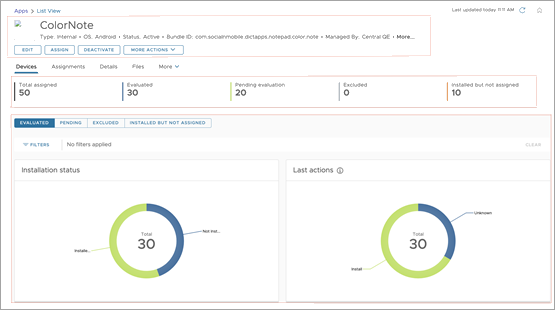
The deployment tracking dashboard has various elements that help you access app data and monitor the deployment progress effectively.
-
Header: This section offers metadata about the application and presents various operations that can be performed on the app such as editing or assigning the app.
-
Summary Stats: This section provides high-level summary stats for the deployment such as total assigned devices, the number of evaluated devices, devices pending evaluation, devices excluded from assignment, and devices having applications installed but not assigned.

-
Charts and Device Grids: This section contains intuitive and interactive charts that provide a visual representation of the public app deployment progress and filters to view the individual device installation statuses, along with the ability to perform bulk device actions.
This section is divided into four tabs corresponding to the summary stats; Evaluated, Pending, Excluded, and Installed but not assigned. Each tab offers comprehensive tracking information and lists devices based on their respective categories.
Total Assigned Devices
Total Assigned count represents the overall number of devices entitled to receive the application. It is calculated by subtracting the devices that are excluded from the assignments and those that are not eligible to receive the application due to applicability rules (for example, iOS devices are assigned to receive an Android app) from the total number of devices assigned through smart groups.
Total Assigned = Devices assigned through Smart Groups - Excluded devices - Inapplicable devices.
For example, let's say there are 500 devices assigned to receive the application through smart groups. However, 50 of these devices are excluded from receiving the application through exclusion, and an additional 20 devices cannot install this application (For example, iOS devices assigned to receive an Android app). In this case, the Total Assigned count is Total Assigned = 500 (Devices assigned through smart groups) - 50 (Excluded devices) - 20 (Inapplicable devices) = 430 devices.
Evaluated Devices
The Evaluated tab contains only those devices that have a confirmed assignment to the application.

- For devices that are online and communicating with the server to receive commands: They undergo evaluation on check-in, receive an assignment to the application, and then receive installation instructions either automatically in the case of auto-deployment or wait for admin initiation for on-demand deployments.
- For devices that are offline and not communicating with the server to receive commands: Periodic offline evaluations are performed, typically every six hours, comparing the device's last known state with its desired state. The device is then assigned to the application, but installation instructions cannot be provided until the device is online and communicating with the server.
Charts
The Evaluated tab provides self-explanatory charts to track the progress of deployment, a detailed devices grid showcasing installation-specific attributes, and options to filter the devices.
| Charts | Description |
|---|---|
| Installation Status | The Installation Status chart shows whether an application is installed or not on devices. It gives you a clear view of how many devices have the application installed and how many don't, helping you track deployment progress and adoption rates.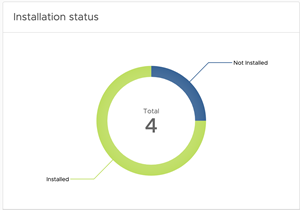 The different installation statuses are: Installed - Displays the counts of devices that have successfully installed the application. Not Installed - Displays the count of devices that are yet to install the application. You can select the 'Not Installed' filter option to view devices in this category and get a more detailed breakdown with installation status details(For example, 'Downloading', 'Prompting') and Last action status. Together they provide insights into whether an install instruction is issued to the device, why certain apps have not been installed and the underlying factors contributing to their non-installation. |
| Installation Status Details | The Installation Status Details chart provides detailed information about the installation state of the application. This information complements the corresponding installation status.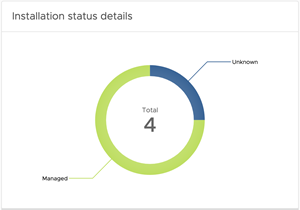 Here are some of the detailed statuses: Prompting: Indicates that a prompt is being displayed on the device, awaiting user action to either accept or cancel the application installation. You can determine the number of devices where the installation prompt is pending by selecting the 'Prompting' option from the chart. This allows you to precisely identify how many users have not yet accepted the prompt to install the application. Download in Progress: Indicates that the application is currently being downloaded onto the device. Installing: Indicates that the application has been downloaded and the installation process is in progress. Managed: Indicates that the application is installed and managed by the Workspace ONE UEM Console. This is the final state for Installation status detail. Unknown: Indicates that either the installation has not commenced on the application, or the device might not have yet sent management information to UEM. |
| Last Action | The 'Last Action' chart represents the various actions taken by the Workspace ONE UEM console on the device regarding the application.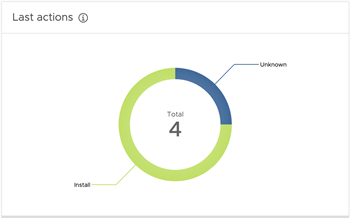 Here are some of the last actions: Install: Indicates that the device received the command to install the application. Remove: Indicates that the device received the command to uninstall the application. Unknown: Indicates that UEM didn't issue any command to the device regarding the application. |
Devices Grid
The devices grid provides detailed information about each evaluated device, providing insight into the deployment progress. Additionally, you can execute bulk device-level actions, such as forcing an installation or removing an application, by selecting multiple devices simultaneously.
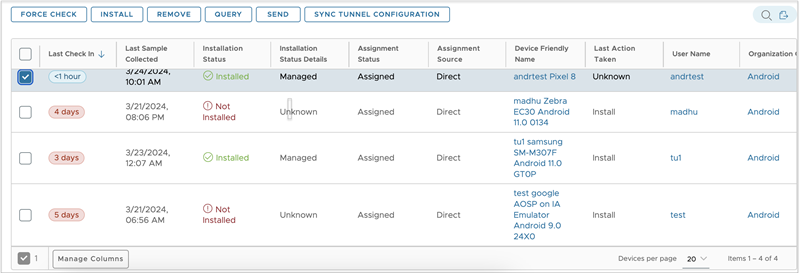
| Column | Description |
|---|---|
| Last Check-in | This indicates the timestamp when the device last checked in. |
| Last Sample Collected | This indicates the timestamp when the device last reported the sample. |
| Installation Status | This indicates whether the application is installed or not installed on the end-user device. Possible statuses include Installed and Not Installed. |
| Installation Status Details | This provides detailed information about the installation state of the application, which should be reviewed alongside the corresponding installation status. |
| Last Action Taken | This indicates the last action taken by the Workspace ONE UEM console on the device regarding the application. For scenarios where the actions are unsuccessful, it is important to know what actions were last taken by the Workspace ONE UEM console on the application to narrow down the failure on the devices. |
| Assignment Status | In the Evaluated tab, this is always ‘Assigned’. |
| Assignment Source | This indicates the source of assignment - either a direct deployment or through a Freestyle Workflow. |
| Device Friendly Name | This is the friendly name assigned to the device. |
| User Name | This is the username associated with the device. |
| Organization Group | This is the organization group into which the device is enrolled. |
Device Level Management Actions
You can perform management actions such as forcing application installation directly from the Devices grid. By filtering devices based on specific criteria, you can simultaneously apply actions to all the filtered devices.
| Action | Description |
|---|---|
| Install | Force installs the application on the selected device. A maximum of 100 devices can be selected at once for this action. |
| Remove | Removes the application if managed, from the selected device. A maximum of 100 devices can be selected at once for this action. |
| Query | Sends a request to the device to retrieve the latest samples regarding the application state. The maximum number of devices that can be selected at once for this action is determined by the bulk settings configured in the console for this specific action. |
| Send | Send a notification such as an email, push, or SMS to the selected devices. The maximum number of devices that can be selected at once for this action is determined by the bulk settings configured in the console for this specific action. |
| Force Check-in | Initiates a notification to prompt the device to check-in. Upon check-in, the device undergoes evaluation, receives an assignment to this application(only if applicable), and then receives installation instructions. A maximum of 100 devices can be selected at once for this action. |
| Sync Tunnel Configuration | Syncs Tunnel configurations to the selected device-application combination. |
You can use the device grid's search functionality to quickly locate a specific device by its friendly name or the associated username, and perform actions on it.
To initiate a search:
- Navigate to the devices grid and select the search icon on the device grid header.
- Enter the username or device-friendly name in the search bar and select Enter to execute the search.
Filters
You can refine deployment tracking data for evaluated devices using interactive charts or the filter panel. This allows you to focus on specific evaluated device subsets. Filters can be applied directly on the charts or through the filter panel. When filters are applied, both the charts and the device grid are updated accordingly. Multiple filters can be applied simultaneously as needed. To return to the full device listing and clear all selected filters, you can either click the 'Clear' button in the filter panel or selectively remove filters by clicking the 'X' next to each filter.
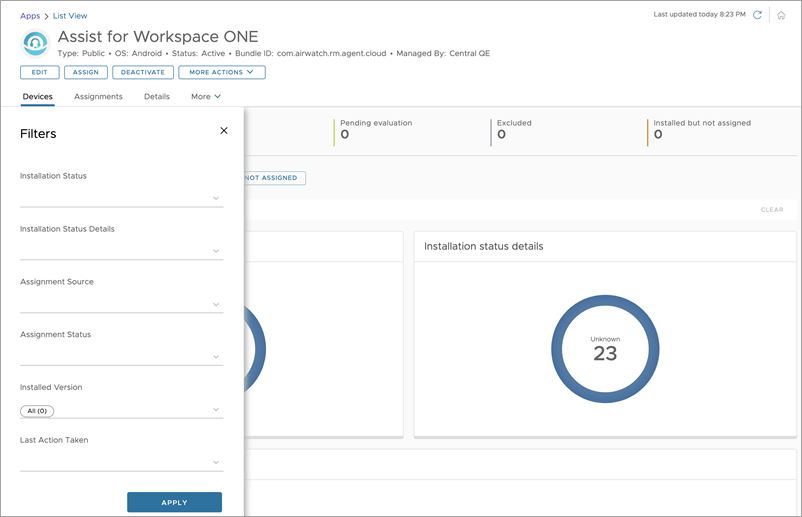
| Filter | Description |
|---|---|
| Installation Status | Filter for devices with installation status such as Installed and Not Installed. You can select one or more installation statuses simultaneously. |
| Installation Status Details | Filter for devices with installation status details such as Managed, Prompting, Download in progress, Installing, etc. You can filter one or more installation status details simultaneously. |
| Assignment Source | Filter for devices that are assigned directly or through a workflow. You can select only one of these options at a time for filtering. |
| Last Action Taken | Filter for devices with last action such as Install, Remove, and Unknown. You can select one or more last actions simultaneously. |
Pending Devices
The Pending tab contains devices that are yet to be evaluated after an application is published. It's critical to monitor these pending devices since a device can only be assigned to the application and receive installation instructions on evaluation.
The Pending tab provides a detailed devices grid with device-specific attributes and options to filter the devices.
Listed are the scenarios when a device is considered pending.
- When an application is newly published, and the devices are pending evaluation.
- When assignments are updated for the application, all devices assigned to that application are considered pending until they are re-evaluated, including devices that have already been evaluated.
Devices Grid
The devices grid provides detailed information about each device that is Pending, allowing you to perform bulk device-level actions.
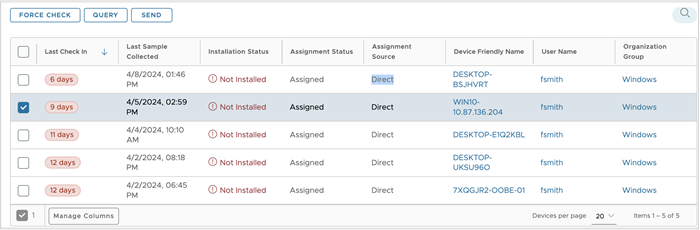
| Column | Description |
|---|---|
| Last Check In | This indicates the timestamp when the device last checked in. |
| Last Sample Collected | This indicates the timestamp when the device last reported the sample. |
| Installation Status | This indicates whether the application is installed or not installed on the end-users device. Possible statuses include Installed, Not Installed, and Installed but not assigned. In the Pending tab, the installation statuses 'Installed', and 'Installed but not assigned' are possible when assignments are updated(and re-published) after the application was initially installed on the device due to a previous assignment. However, it's important to note that this installation status is transitional and lasts only for a brief period until the device re-checks in. Upon re-check-in, the device's assignments are re-evaluated, and the application may continue to be installed or uninstalled based on the updated assignments. |
| Installation Status Details | This provides detailed information about the installation state of the application, which should be reviewed alongside the corresponding installation status. In the Pending tab, the 'Installation status details' can occur only if assignments are updated(and re-published) after the device has received installation instructions from the previous assignments. |
| Last Action Taken | This indicates the last action taken by the Workspace ONE UEM console on the device regarding the application. For scenarios where the actions are unsuccessful, you need to know what actions were last taken by the Workspace ONE UEM console on the application to narrow down the failure that occurred on the devices. In the Pending tab, the 'Last Action Taken' can occur only if assignments are updated(and re-published) after the device has received installation instructions from the previous assignments. |
| Assignment Status | This indicates whether a particular device has a valid assignment to the application. Possible statuses include 'Assigned' and 'Not assigned.' In the Pending tab, the 'Assigned' status for a device is only possible if the device was previously assigned(and re-published) and is awaiting re-evaluation. |
| Assignment Source | This indicates the source of assignment - either a direct deployment or through a Freestyle Workflow. In the Pending tab, 'Assignment Source' for a device is only possible if the device was previously assigned(and re-published) and is awaiting re-evaluation. |
| Device Friendly Name | This is the friendly name assigned to the device. |
| User Name | This is the name of the user associated with the device. |
| Organization Group | This is the name of the organization group into which the device is enrolled. |
Device Level Management Actions
You can perform management actions such as forcing the device to check in for evaluation directly from the Devices grid.
| Action | Description |
|---|---|
| Force Check-in | Initiates a notification to prompt the device to check-in. Upon check-in, the device undergoes evaluation, receives an assignment to this application (only if applicable), and then receives installation instructions. Maximum of 100 devices can be selected at once for this action. |
| Query | Sends a request to the device to retrieve the latest samples regarding the state of the application. The maximum number of devices that can be selected at once for this action is determined by the bulk settings configured in the console for this specific action. |
| Send | Send a notification such as an email, push, or SMS to the selected devices. The maximum number of devices that can be selected at once for this action is determined by the bulk settings configured in the console for this specific action. |
Filters
You can refine Pending device data using the filter panel.
| Filter | Description |
|---|---|
| Last Check In | Filter for devices that have last checked in during this time interval. You can select one or more last check-in times simultaneously. |
Excluded Devices
The Excluded tab contains devices that have been excluded from deployment through an exclusion smart group. This tab provides a devices grid with excluded devices (and their attributes), along with options to search.
Devices Grid
The devices grid provides detailed information about each device that is excluded, allowing you to search for specific excluded devices.
| Columns | Description |
|---|---|
| Last Check In | This indicates the timestamp when the device last checked in. |
| Last Sample Collected | This indicates the timestamp when the device last reported the sample. |
| Installation Status | This indicates whether the application is installed or not installed on the end-users device. Possible statuses include Installed, Not Installed, and Installed but not assigned. In the Excluded tab, the installation statuses 'Installed', and 'Installed but not assigned' are possible only when the device is added to an exclusion smart group after the application was initially installed on the device using a previous assignment. However, it's important to note that this installation status is transitional and lasts only for a brief period until the device re-checks in. Upon re-check-in, the device's assignments are re-evaluated, and instructions to uninstall the application will be provided. |
| Installation Status Details | This provides detailed information about the installation state of the application, which should be reviewed alongside the corresponding installation status. In the Excluded tab, the 'Installation status details' can occur only if the device is added to an exclusion smart group after the device has received installation instructions from the previous assignments. However, the status will be updated to 'Unknown' eventually when the device checks in next and receives instructions to uninstall the application. |
| Last Action Taken | This indicates the last action taken by the Workspace ONE UEM console on the device regarding the application. In the Excluded tab, the 'Last Action Taken' can occur only if the device is added to an exclusion smart group after it had received installation instruction from the previous assignment. However, the Last action will be updated to 'Unknown' eventually when the device checks in next and receives instructions to uninstall the application. |
| Assignment Status | This indicates whether a particular device has a valid assignment to the application. Possible statuses include 'Assigned' and 'Not assigned.' In the Excluded tab, the 'Assigned' status for a device is only possible if the device was previously assigned. However, the assignment status will be updated to 'Not Assigned' eventually when the device checks in next. |
| Assignment Source | This indicates the source of assignment which is a direct deployment or a Freestyle Workflow. In the Excluded tab, 'Assignment Source' for a device is only possible if the device was previously assigned. However, the assignment source will be updated to 'N.A' eventually when the device checks in next. |
| Device Friendly Name | This is the friendly name assigned to the device. |
| User Name | This is the name of the user associated with the device. |
| Organization Group | This is the name of the organization group into which the device is enrolled. |
Installed but not assigned Devices
The Installed but not assigned tab contains devices that have the app installed but do not have an assignment for the app.
A device belongs to this state when:
- An application is side-loaded to a device and is not assigned by an admin.
- An application is installed on a device through a previous assignment, but is no longer assigned.
- An application is seeded to the device by Workspace ONE UEM.
- An application is pushed by the device manufacturer (OEM app) and is pre-installed on the device.
- A system application, such as 'Camera' and 'Contacts', is pushed by the platform and is pre-installed on the device.
For more information about the Installed but not assigned status, see the knowledge base article at https://kb.omnissa.com/s/article/6000807.
Devices Grid
The devices grid provides detailed information about each device that has the app 'Installed but not assigned', allowing you to search for specific devices.
| Columns | Description |
|---|---|
| Last Check-in | This indicates the timestamp when the device last checked in. |
| Last Sample Collected | This indicates the timestamp when the device last reported the sample. |
| Installation Status | The installation status is always 'Installed but not assigned’. |
| Installation Status Details | This provides detailed information about the installation state of the application, which should be reviewed alongside the corresponding installation status. Possible statuses are ‘Unknown' and ‘Managed’. In the 'Installed but not assigned' tab, the ‘Unknown’ status is displayed for the devices that have side-loaded the app. ‘Managed’ status is displayed for the devices that have the app installed from a previous assignment. |
| Last Action Taken | This indicates the last action taken by the Workspace ONE UEM console on the device regarding the application. |
| Assignment Status | This is always 'Not Assigned'. |
| Assignment Source | This indicates the source of assignment which is a direct deployment or a Freestyle Workflow. In the Installed but not assigned tab, ‘Assignment Source’ for a device is only possible if the device was previously assigned. |
| Device Friendly Name | This is the friendly name assigned to the device. |
| User Name | This is the name of the user associated with the device. |
| Organization Group | This is the name of the organization group into which the device is enrolled. |
Installation Status in Applications List View
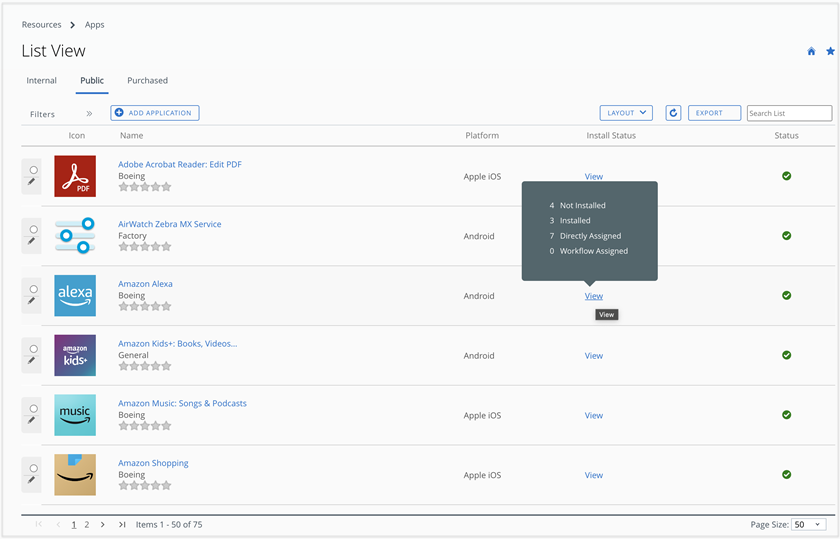
To align with the deployment tracking changes, we have updated the quick deployment summary view displayed for applications in the application list view page.
When you hover on 'view' in the 'Install Status' column of an application, it displays four key metrics.
| Metrics | Description |
|---|---|
| Not Installed | This refers to the total count of devices that are evaluated for assignments but have not yet installed the application. Clicking this count redirects you to the Deployment tracking page, with the view, defaulted to the 'Evaluated' tab and a filter applied on 'Installation status' as 'Not Installed'. |
| Installed | This refers to the total count of devices that are evaluated for assignments and have successfully installed the application. Clicking this count redirects you to the Deployment tracking page, with the view defaulted to the 'Evaluated' tab and a filter applied on 'Installation status' as 'Installed'. |
| Directly assigned | This refers to the total count of devices that are evaluated for assignments and also received the assignments through a 'direct' assignment, and not through a Freestyle Workflow. Clicking this count redirects you to the Deployment tracking page, where the view defaults to the 'Evaluated' tab and applies filters on 'Assignment type' as 'Assigned' and 'Assignment source' as 'Direct'. |
| Workflow assigned | This refers to the total count of devices that are evaluated for assignments and also received the assignments through a 'Freestyle Workflow'. Clicking this count redirects you to the Deployment tracking page, where the view defaults to the 'Evaluated' tab and applies filters on 'Assignment type' as 'Assigned' and 'Assignment source' as 'Workflow'. |
App Status in Device Details Apps List view
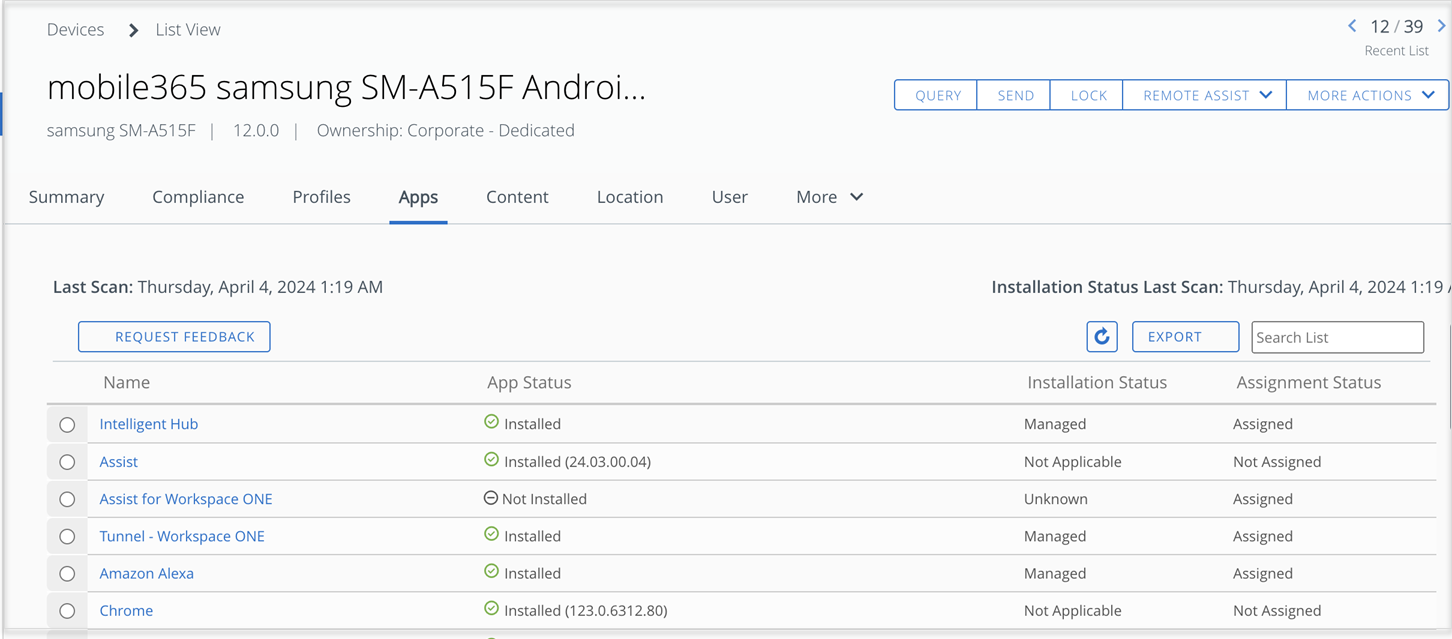
To align with the deployment tracking changes, we have updated the 'App Status' column in the Device details > Apps List View page.
In addition to the existing 'App Status' like 'Installed' and 'Not Installed,' a new status, 'Installed but not assigned', is available.
The 'Installed but not assigned' status applies to any application installed on the device that wasn't assigned through the Workspace ONE UEM console. This includes system apps, personally installed apps, or side-loaded apps. Some public apps may also fall under this status if they were previously installed but have lost assignments. These public apps will eventually be uninstalled from the device, but until then, they will be categorized as 'Installed but not assigned.'
Was this page helpful?