Starting with Unified Access Gateway version 2609, the new Admin UI replaces the previous Admin UI. Every setting that was available in the previous UI is available in the new UI. The REST API, INI, and PowerShell methods are unchanged.
To open the Admin UI, go to https://<UAG-FQDN-or-IP>:9443/admin.
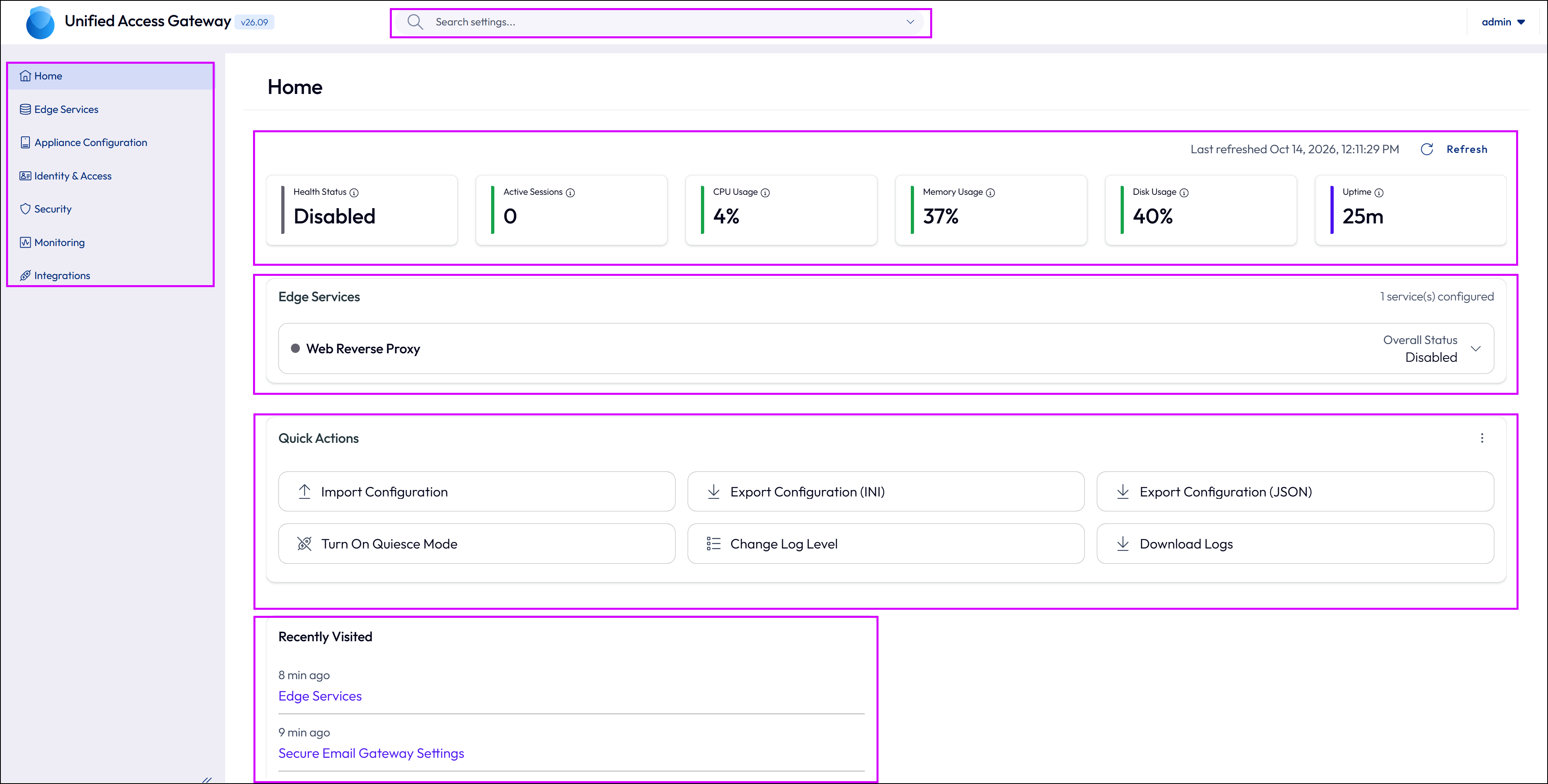
The Home page is the first page that appears when you log in to the Unified Access Gateway admin UI. It provides a real-time overview of the appliance health and system resource usage, a summary of configured edge services, and quick access to common administrative tasks.
Left Navigation Pane
The left navigation pane is available on all pages of the admin UI and provides access to all configuration and monitoring sections of the appliance. The following sections are available:
| Section | Description |
|---|---|
| Home | View appliance health statistics, edge service summary, and quick-action shortcuts. See System Health and Statistics. |
| Edge Services | Configure edge services including Horizon, Reverse Proxy, Tunnel, Secure Email Gateway, and Content Gateway settings. |
| Appliance Configuration | Configure system-level settings including network, high availability, account, and appliance update settings. |
| Identity & Access | Configure authentication methods and identity bridging settings including RADIUS, RSA SecurID, X.509 Certificate, SAML, JWT, and OpenID Connect. |
| Security | Manage TLS server certificates and appliance security settings and policies. |
| Monitoring | View session statistics, export appliance settings, manage log levels, and monitor appliance health. |
| Integrations | Configure integration settings for SNMP, endpoint compliance, outbound proxy, syslog, and Workspace ONE Intelligence. |
Search
Use the search bar in the header to find a settings card by name. Search is scoped to the page selected in the left navigation pane, so it returns only the cards on that page. For example, on Identity & Access, search for "SAML" to find SAML Settings.
System Health and Statistics
The Home page shows a snapshot of the appliance and does not refresh automatically. Click Refresh to update the data.
| Statistic | Description |
|---|---|
| Health Status | Overall health state of the appliance. For example, Disabled, Misconfigured, or Healthy. |
| Active Sessions | Total number of active sessions across all configured edge services. |
| CPU Usage | CPU utilization of the appliance, shown in percentage. |
| Memory Usage | Memory utilization of the appliance, shown in percentage. |
| Disk Usage | Disk utilization of the appliance, shown in percentage. |
| Uptime | Elapsed time since the appliance was last restarted. |
Edge Services
The Edge Services card shows the total number of configured edge services and the overall Status. If no edge services are configured, the card displays No edge services configured.
To configure edge services, click Edge Services in the left navigation pane.
Quick Actions
The Quick Actions card provides shortcuts to common administrative tasks. The following actions are available:
| Action | Description |
|---|---|
| Import Configuration | Import a UAG configuration from a JSON file to quickly configure the appliance setup. |
| Export Configuration (JSON) | Download the current UAG configuration as a JSON file. |
| Export Configuration (INI) | Download the current UAG configuration as an INI file. |
| Turn On/Off Quiesce Mode | Shows the action available for the current state of the appliance (put the appliance into Quiesce mode, or turn off Quiesce mode). |
| Change Log Level | Modify the log verbosity level for appliance services and components. |
| Download Logs | Download a log archive from the appliance for troubleshooting purposes. |
Recently Visited
The Recently Visited card displays links to the pages you have visited most recently in the admin UI, along with the time elapsed since each visit. Click any link to navigate directly to that page.
Was this page helpful?