Workspace ONE Content centralizes all your enterprise data in a single container and integrates existing content repositories on your mobile device. Toggle between the available screens to access and manage files.
The For You screen is the first screen you see after you open Workspace ONE Content. This screen provides an at-a-glance view of all the files that are available for your use.
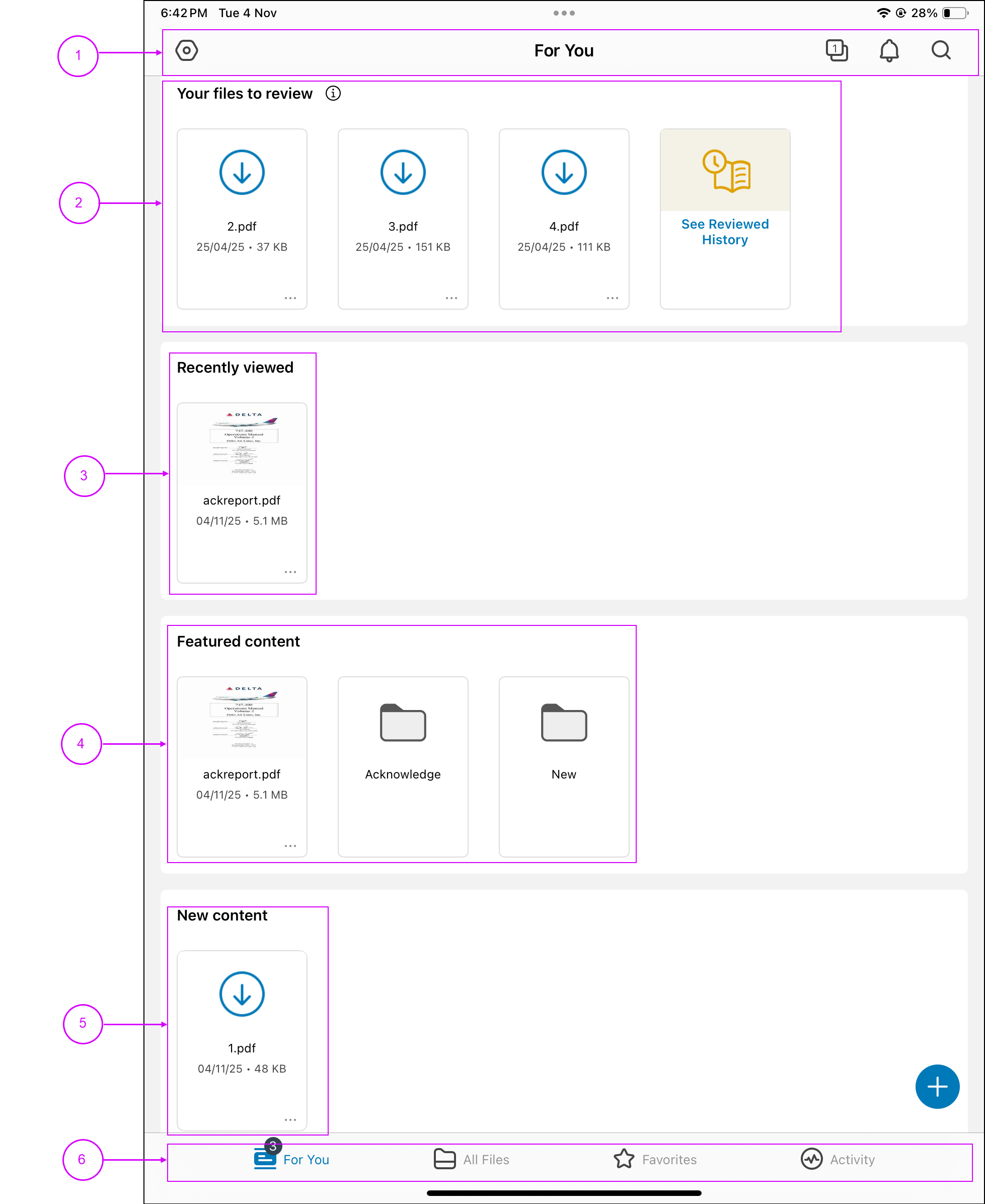
① Top Navigation
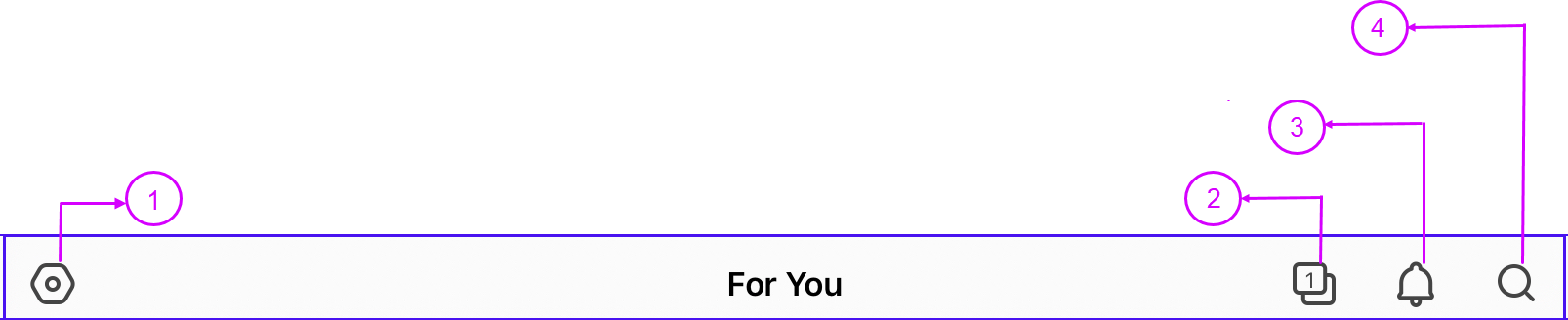
Understand the usage of the icons at the top of your screen.
| Icon | Definition |
|---|---|
| ① Settings | Access the Content app settings. |
| ② Opened Tabs | Access the tabs you opened previously. |
| ③ Notifications | View all the admin alerts and notifications. |
| ④ Search | Perform a global search of all content. The previous search history is autopopulated when text is entered in the search box. |
For You Sections
The files on the For You screen are categorized into the following sections:
② Your Files to Review - Files that your admin has marked as required and need your attention.
③ Recently Viewed - Quick access to the files that you have recently viewed.
④ Featured Content - Files that your admin flags as important.
⑤ New Content - Files that the admin has recently published.
⑥ Bottom Navigation
Apart from the For You screen, there are other screens on the Content app where you can view the content. You can navigate to these screens using the icons present at the bottom banner.
| Tab | Description |
|---|---|
| For You | View all the different categories of files available for your use. |
| All Files | View the corporate content stored in enterprise repositories that you have signed into and the files stored locally on your device. For repositories that you have not signed into, tap the SIGN IN option to authenticate and gain access. |
| Favorites | View the files/folders you marked as favorites for quick access. |
| Activity | Review the content, download and upload activity. You can view all the In Progress and Completed downloads and uploads of your files from the All tab, and the file updates sent by your administrator can be updated from the Updates tab. |
Was this page helpful?